
Browse docs
Manage seats and reconnect
See how many seats you have left, read each seat's status, reconnect a seat that dropped, disconnect one you no longer need, and ask for more.
Updated
On this page
A seat is one connected LinkedIn account or one connected email inbox. Your plan gives you a fixed number of seats, shared by both channels. This guide covers keeping those seats healthy: checking what's free, spotting a seat that stopped working, reconnecting it, and freeing a seat when you no longer need it.
How it works
- The Accounts page shows how many of your plan's seats are in use, and a card per channel.
- A card warns you when one of its seats needs reconnecting.
- View seats opens that channel's list, where each seat shows its status.
- From a seat's actions menu you can Reconnect it, or Disconnect account to free the seat.
Before you start
- To reconnect or disconnect a seat, your role needs permission to update accounts. Without it, those menu items are greyed out and say You don't have permission to update accounts.
- To reconnect, have the login of the same LinkedIn account or inbox ready.
See how many seats you have
- In the sidebar, under Workspace, click Accounts. Beside Channels you'll see Seats, for example 5 of 10 used, a bar, and how many are available.
- If you need more, click Contact us next to Need more seats?. Your mail app opens a message to
[email protected]with the subject Need more seats?. Seats aren't bought on this page: the team arranges them with you.
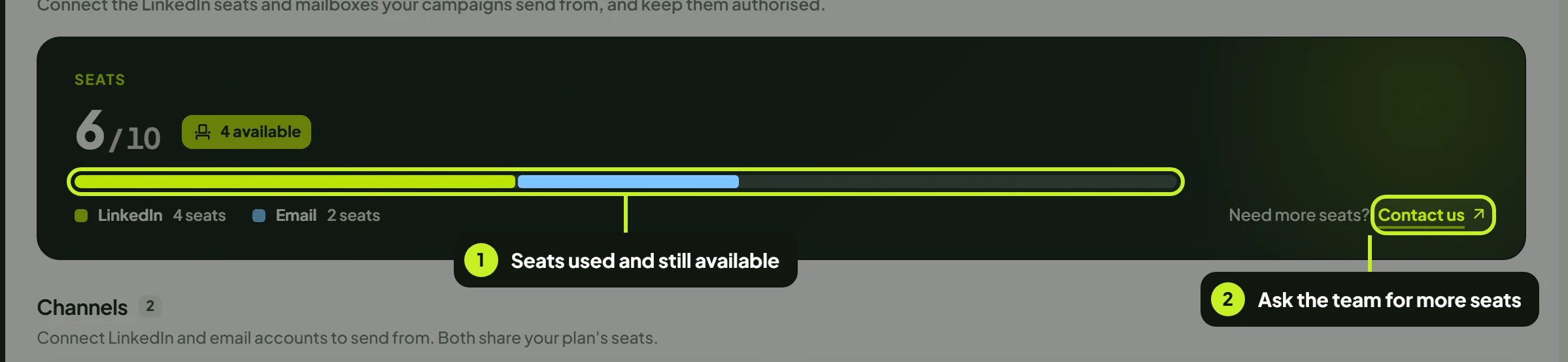
LinkedIn accounts and inboxes share the same seats. Connecting an inbox uses a seat you could have used for a LinkedIn account, and the other way round. Each channel card counts only its own seats, for example 2 seats on LinkedIn and 3 seats on Email.
Under Coming next, the page also shows the channels being built, such as WhatsApp, Telegram, Instagram and iMessage. They're marked In development and can't be connected yet.
Note: When the bar is full, the number of available seats turns amber, and Connect and Add seat are greyed out with the message Your plan allows … connected account(s). Disconnect one before connecting another.
Spot a seat that needs attention
- Check the channel cards on Accounts. A card with a seat that isn't working shows a warning such as 1 needs reconnecting.
- Click View seats on that card to see which seat it is.
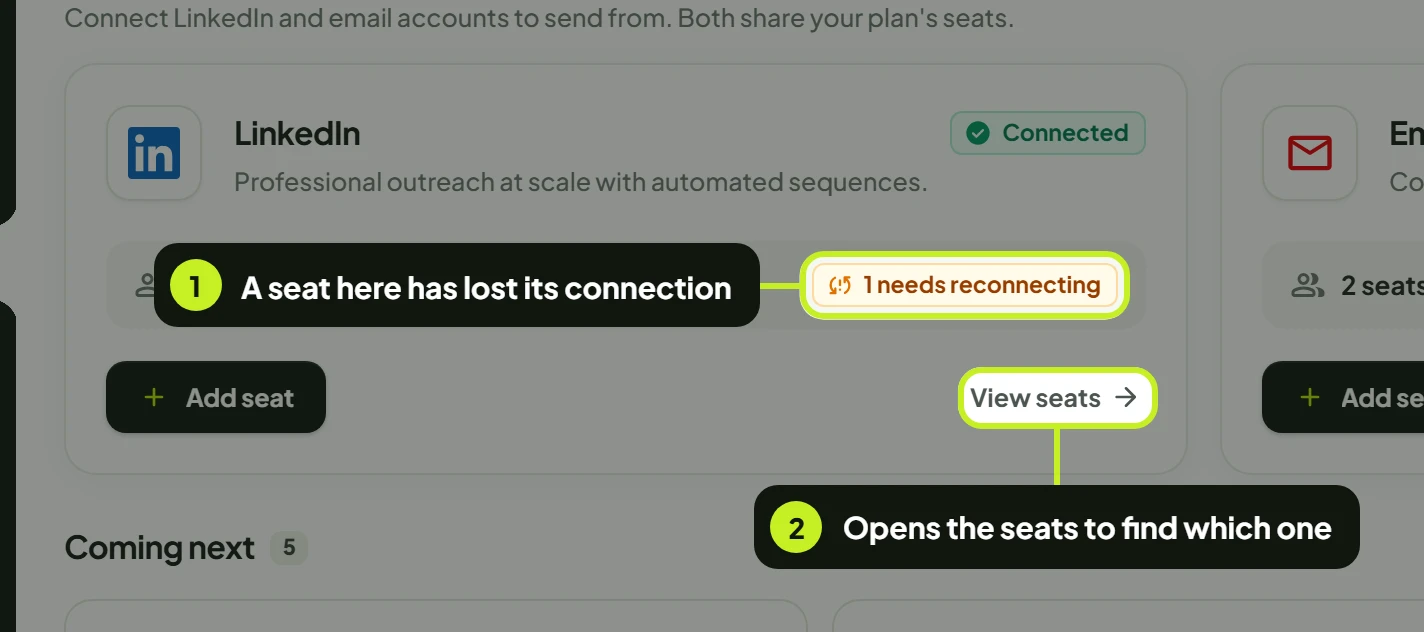
The card stays Connected as long as at least one of its seats is still working. It reads Not connected when none are.
Find a seat
LinkedIn seats and Email seats work the same way. Click View seats on a channel card to open one, and Accounts at the top left to go back.
- Use the tabs to show All seats, only Connected ones, or only Disconnected ones.
- Type in Search seats... (or Search mailboxes... for email) to find a seat by name or address. For LinkedIn, All account types filters by Standard, Premium or Sales Navigator.

The footer shows how many seats match, for example 1–2 of 2 seats, with Rows per page and page controls when you have many.
Seat statuses
| Status | What it means | What to do |
|---|---|---|
| Connected | The seat works. Campaigns can send from it and replies reach Conversations. | Nothing. |
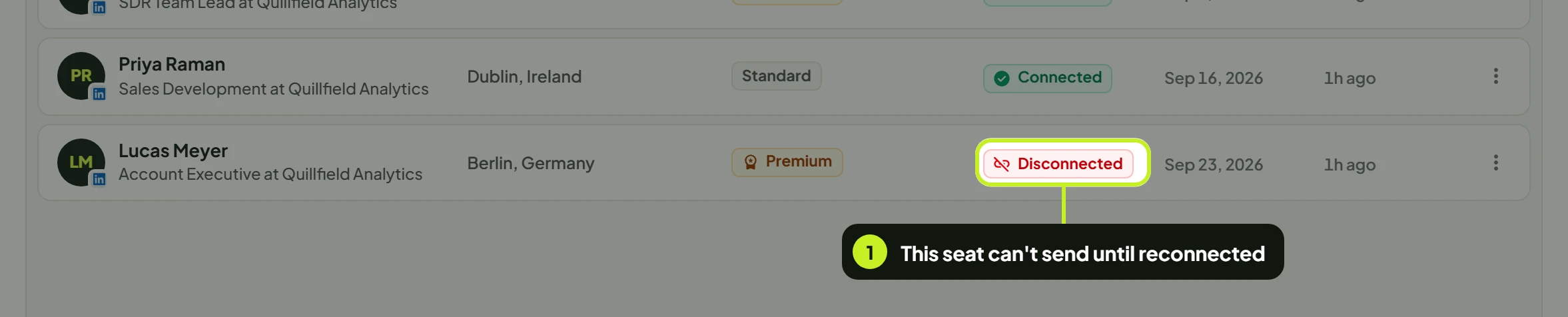
| Disconnected | The connection ended, usually because the password changed, LinkedIn or the mail provider asked for a new sign-in, or someone signed the session out. Campaigns can't send from it. | Reconnect it. |
| Pending | The connection hasn't finished yet. | Give it a few minutes and reload. If it stays Pending, Reconnect and finish every step on the connection page. |
| Failed | The connection attempt didn't succeed. | Reconnect and sign in again. |
| Paused | The seat isn't sending for now. | Check with whoever manages the seat. If it should be sending, Reconnect it. |
Every status other than Connected counts toward the needs reconnecting warning on the channel card. The status tabs only filter Connected and Disconnected; use All to see seats in the other states.
Reconnect a seat
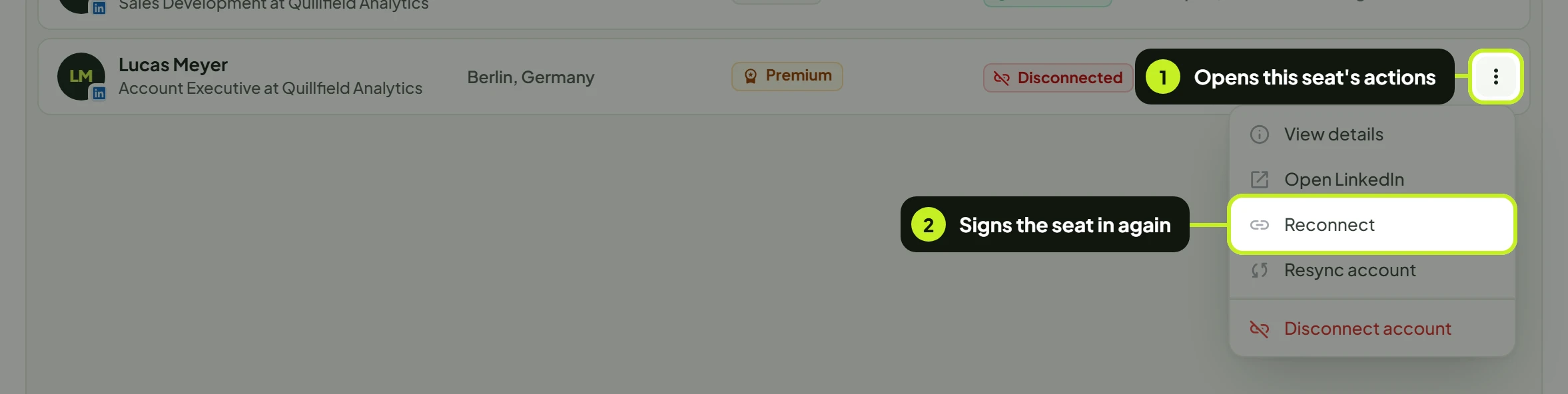
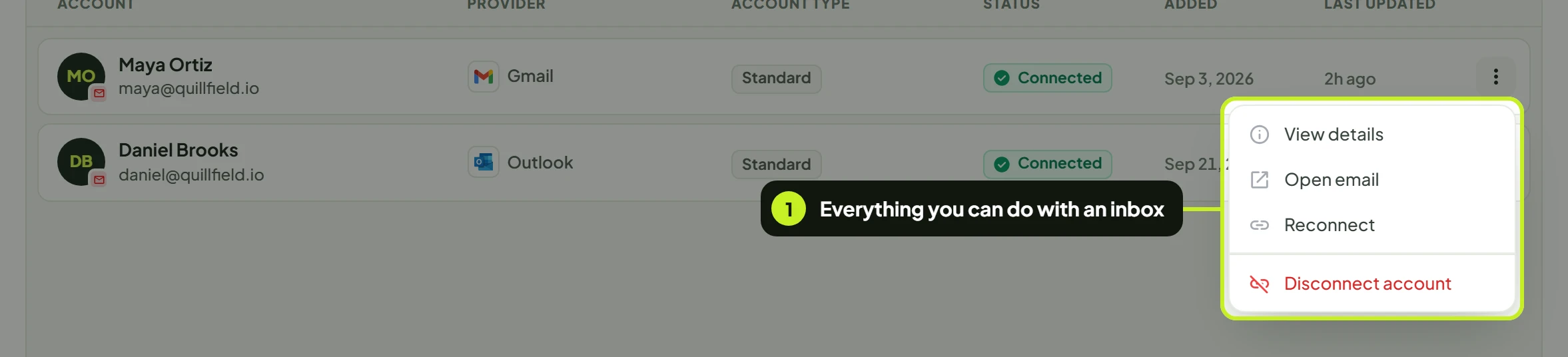
- On the seat's row, click the actions menu (⋮) at the far right. Or click the row to open its details, which have the same buttons.
- Click Reconnect. You'll see Redirecting to reconnect your account and your browser moves to the connection page.
- On the connection page, sign in again with the same account. This page isn't part of ReacherPro; follow its steps.
- Go back to the seats page. The seat shows Connected again.
Reconnecting keeps the seat. It doesn't use a new seat, and the seat stays the sender of its lead lists and campaigns.
Other seat actions
| Action | Where | What it does |
|---|---|---|
| View details | Both | Shows the seat's connection and its Account ID, with a copy button that ticks and reads Copied. |
| Open LinkedIn | LinkedIn seats | Opens the account's LinkedIn profile in a new tab. |
| Resync account | LinkedIn seats only | Refreshes the seat's details from LinkedIn. You'll see Account resynced successfully. |
| Open email | Email seats | Opens a new message to the inbox's address in your mail app. |
| Reconnect | Both | Signs the seat in again (above). |
| Disconnect account | Both | Removes the seat (below). |
Disconnect a seat
Disconnecting is how you remove a seat from ReacherPro. There's no separate delete.
- On the seat's row, open the actions menu (⋮) and click Disconnect account.
- A Disconnect account? dialog asks you to confirm, naming the seat (This will disconnect Daniel Brooks from your workspace.). Click Disconnect to remove it, or Cancel to keep it.
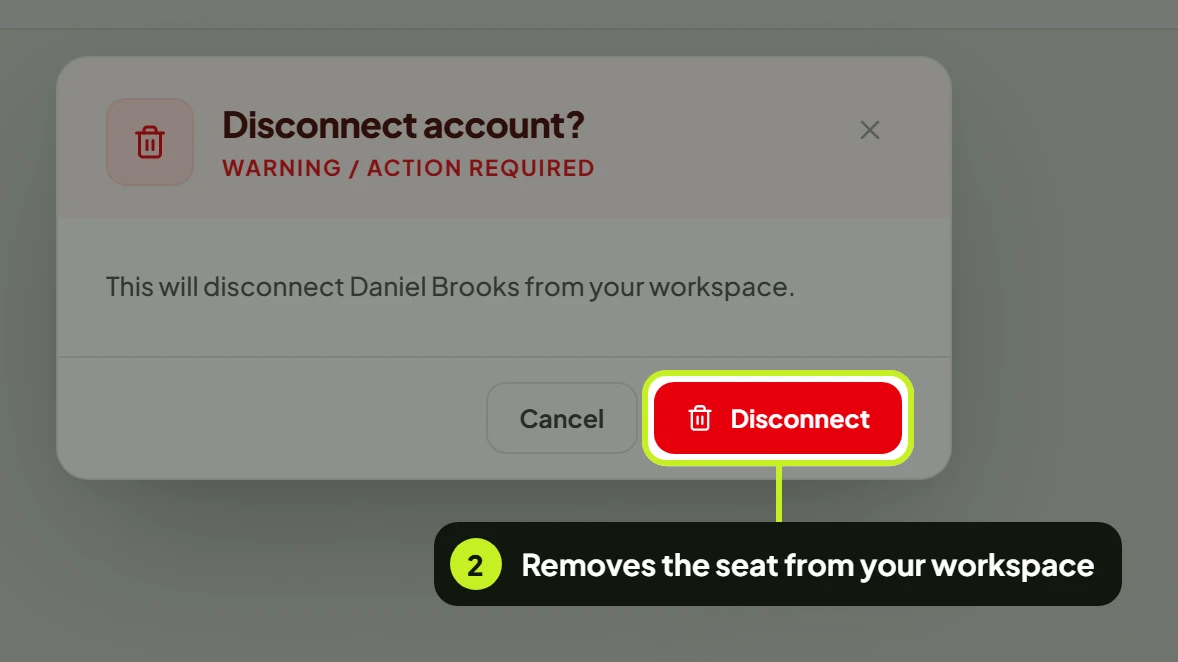
You'll see Account disconnected successfully.
Disconnecting stops the seat's outreach. Campaigns stop sending from it until it's connected again. Leads already in those campaigns stay where they are.
Disconnecting frees the seat. You can then connect a different LinkedIn account or inbox in its place.
Common problems
| What you see | What it means | What to do |
|---|---|---|
| 1 needs reconnecting on a channel card | One seat on that channel isn't Connected. | Click View seats, find the seat, and Reconnect it. |
| Your plan allows … connected account(s). Disconnect one before connecting another. | All your seats are in use. | Disconnect a seat you don't need, or click Contact us next to Need more seats?. |
| Reconnect or Disconnect account is greyed out | Your role can't update accounts. | Ask an admin on your team. |
| Unable to start account reconnection right now. Please try again. | ReacherPro couldn't open the connection page. | Wait a moment and try again. |
| Unable to disconnect this account right now. Please try again. | The disconnect didn't go through. The seat is still connected. | Try again in a moment. |
| Seats could not be loaded | The seats list didn't load. | Click Try again. |
| No seats connected yet | That channel has no seats. | Connect one: see Connect a LinkedIn account or Connect an email inbox. |
| No match in this channel | Your search or filter hides every seat. | Clear the search, or switch the tab back to All. |
| A seat keeps going Disconnected | The account's password or security settings keep ending the session. | Reconnect after any password change, and keep the account signed in on LinkedIn or with your mail provider. |
Next: Put your seats to work in Create a lead list.