
Browse docs
Connect an email inbox
Connect a Gmail, Outlook or IMAP/SMTP inbox as an email seat, check it's ready to send, and set the sender name your leads see.
Updated
On this page
Email steps, email campaigns and instant emails all send from a connected inbox. Each connected inbox is an email seat, and it shares your plan's seats with your LinkedIn accounts. This guide shows how to connect one, what to have ready for each kind of inbox, and how to check it worked.
How it works
- You start the connection from the Email card on the Accounts page.
- ReacherPro sends you to a secure connection page outside the app, where you connect the inbox.
- When you're done, the inbox appears on the Email seats page with the status Connected.
- You can then choose it as the Sending Email Account on an email step, or as the sender of an instant email.
Before you start
- A free seat on your plan. One inbox takes one seat. Check the Seats line on Accounts, or see Manage seats and reconnect.
- Permission to add accounts. Without it, Connect is greyed out and its tooltip says You don't have permission to create accounts.
- The sign-in details for the inbox, which depend on the kind of inbox (below).
What to have ready
| Inbox | How it connects | Have ready |
|---|---|---|
| Gmail (Google Workspace or personal) | You sign in with Google on Google's own page. ReacherPro never sees your password. | The Google account login, and access to its two-step verification if it's on. |
| Outlook (Microsoft 365 or Outlook.com) | You sign in with Microsoft on Microsoft's own page. | The Microsoft account login. Some company accounts need an IT admin to allow the connection first. |
| Any other inbox (IMAP/SMTP) | You enter the inbox's server details. | From your email provider's help pages or your IT team: the IMAP server and port (for reading replies), the SMTP server and port (for sending), the username (usually the full email address) and the password. Many providers ask for an app password here rather than your normal one. |
Note: The connection page is not part of ReacherPro, so the exact screens and field names you see there can differ from this table. Follow what that page asks.
Connect an inbox
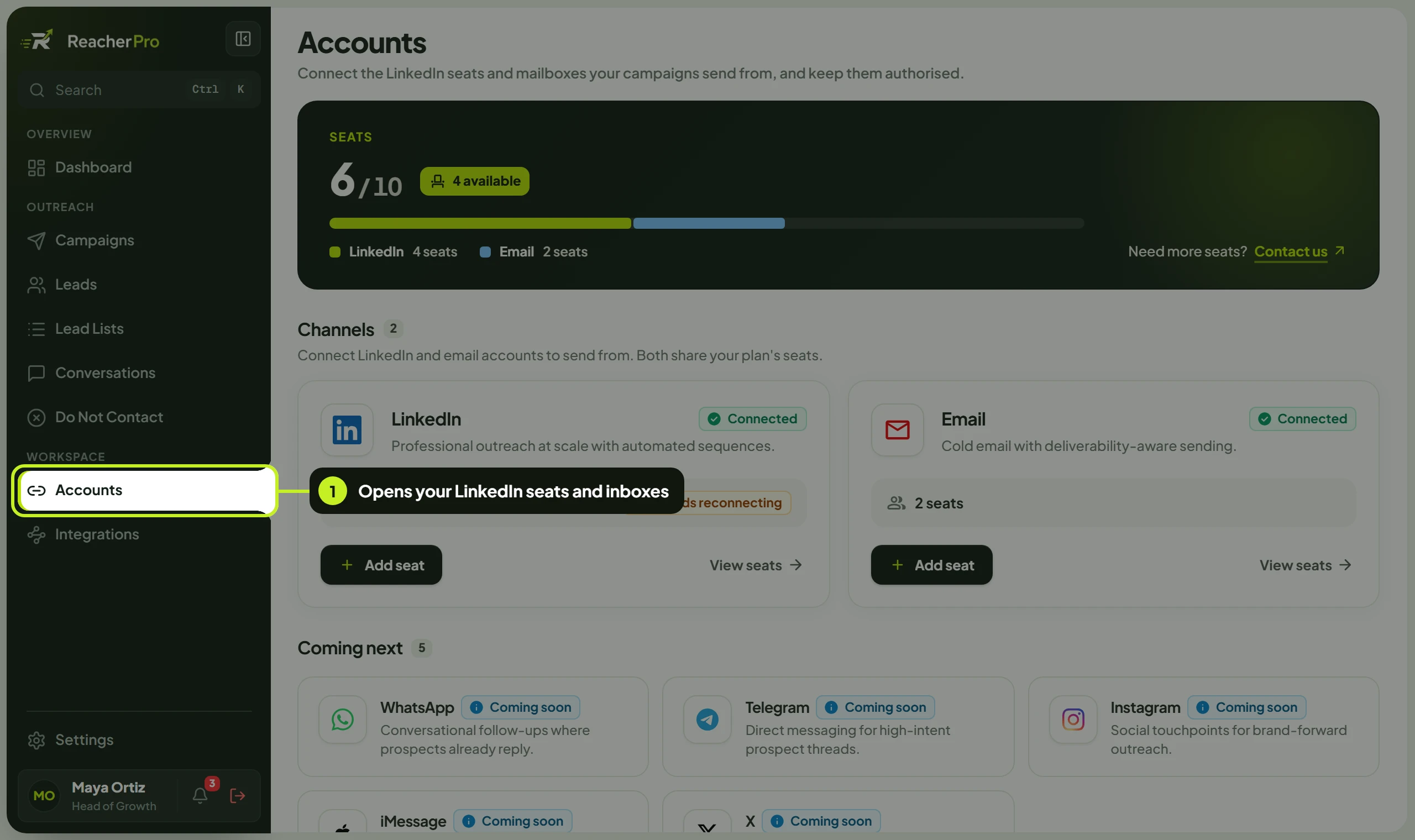
- In the sidebar, under Workspace, click Accounts.
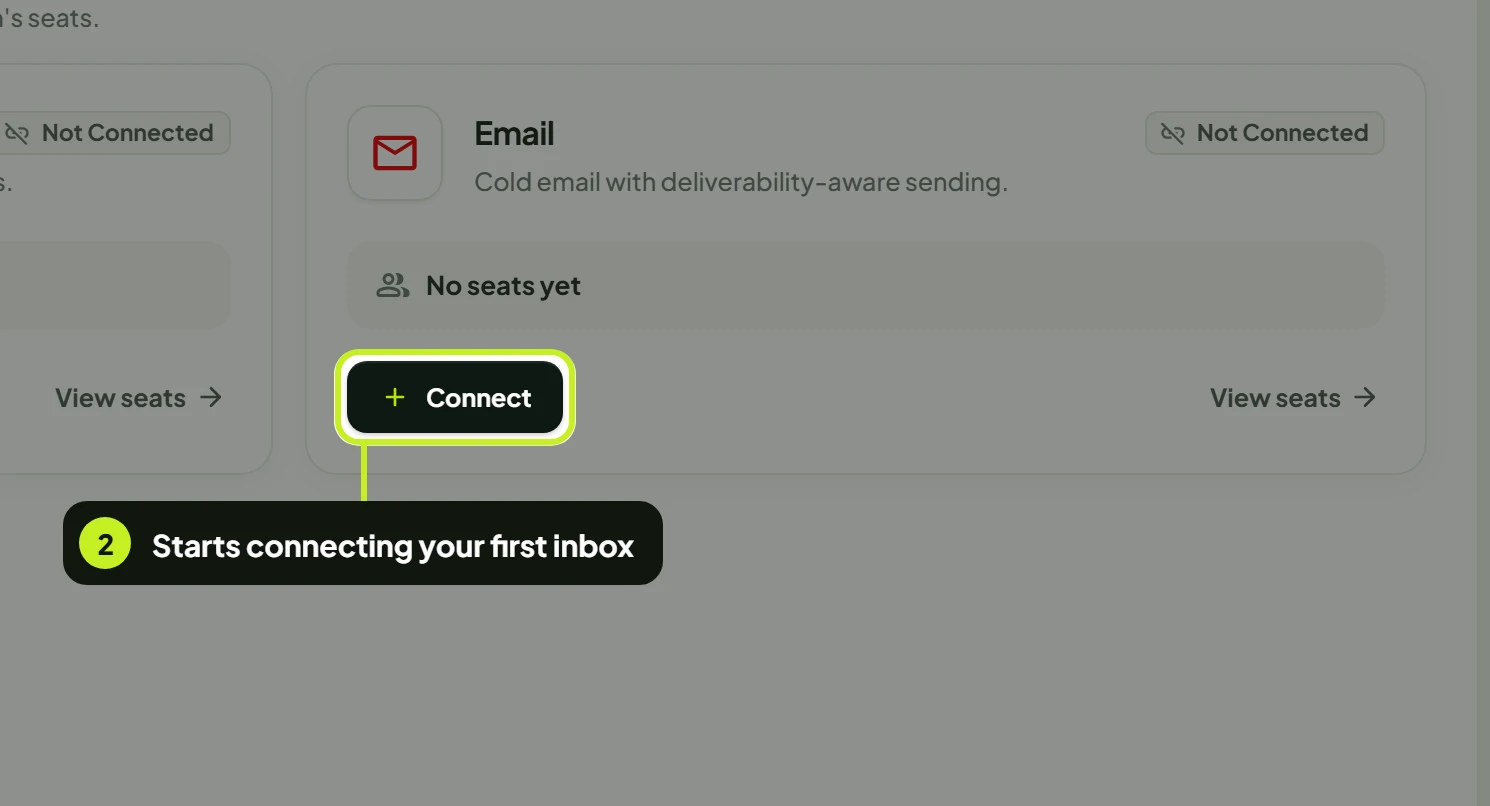
- On the Email card, click Connect. Before your first inbox, the card reads No seats yet. You'll see Redirecting to connect your account and your browser moves to the connection page.
- On the connection page, choose your kind of inbox and finish its steps: sign in with Google or Microsoft, or enter the IMAP/SMTP details you prepared.
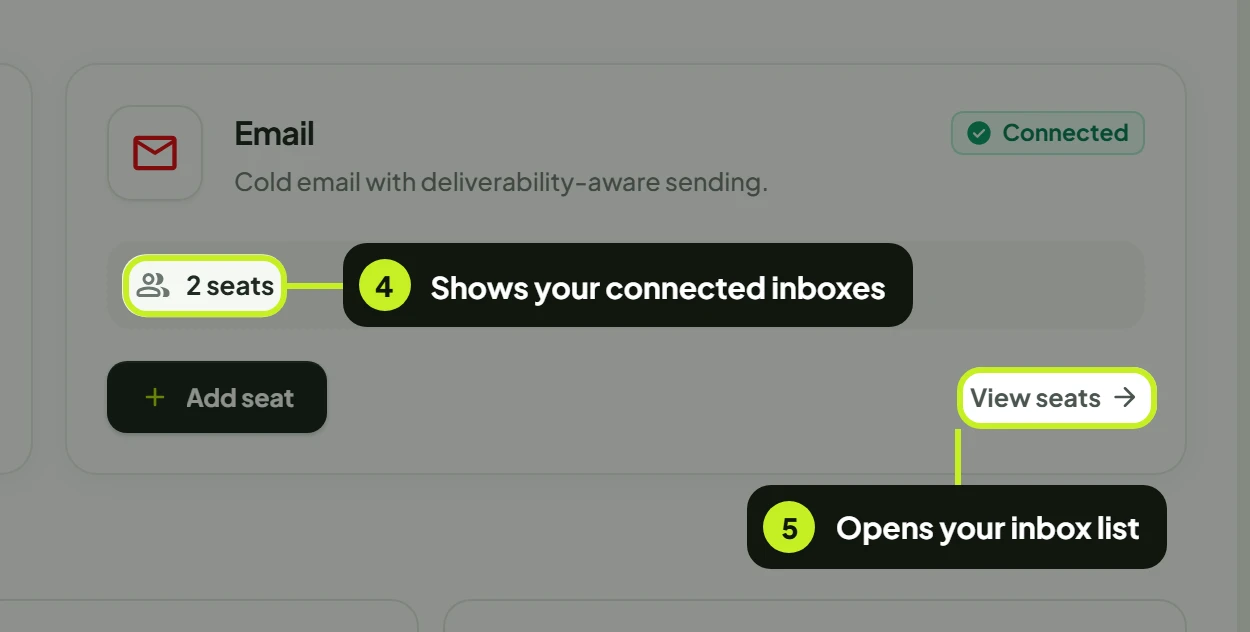
- Go back to Accounts. The Email card now counts your inboxes (for example 1 seat).
- Click View seats on the Email card. Email seats opens.
Check the inbox is ready
There's no separate test step: the list on Email seats is where you confirm the connection worked.
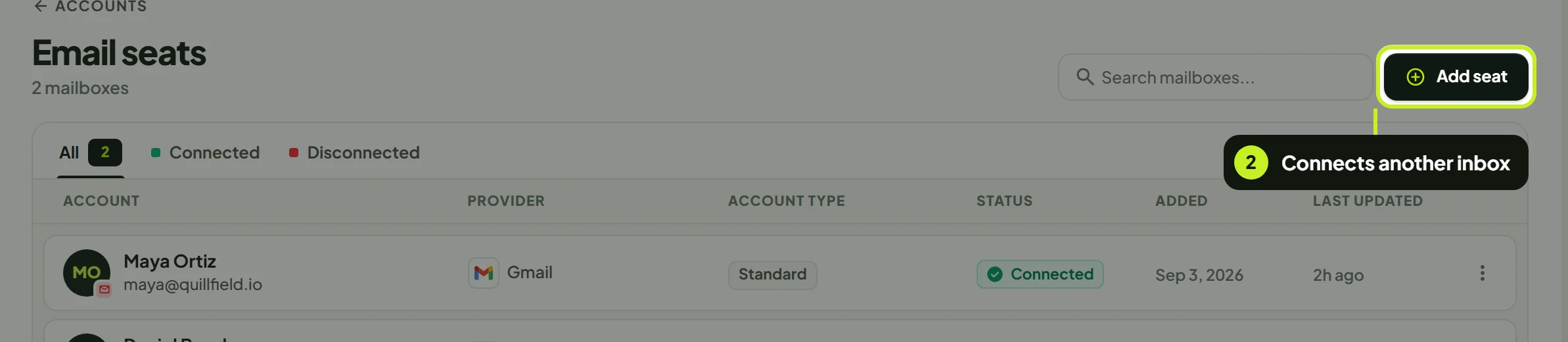
- Look at Provider. It shows how the inbox is connected: Gmail, Outlook, or SMTP / Mail for an IMAP/SMTP inbox.
- Look at Status. Connected means ReacherPro can send from it and pick up replies.
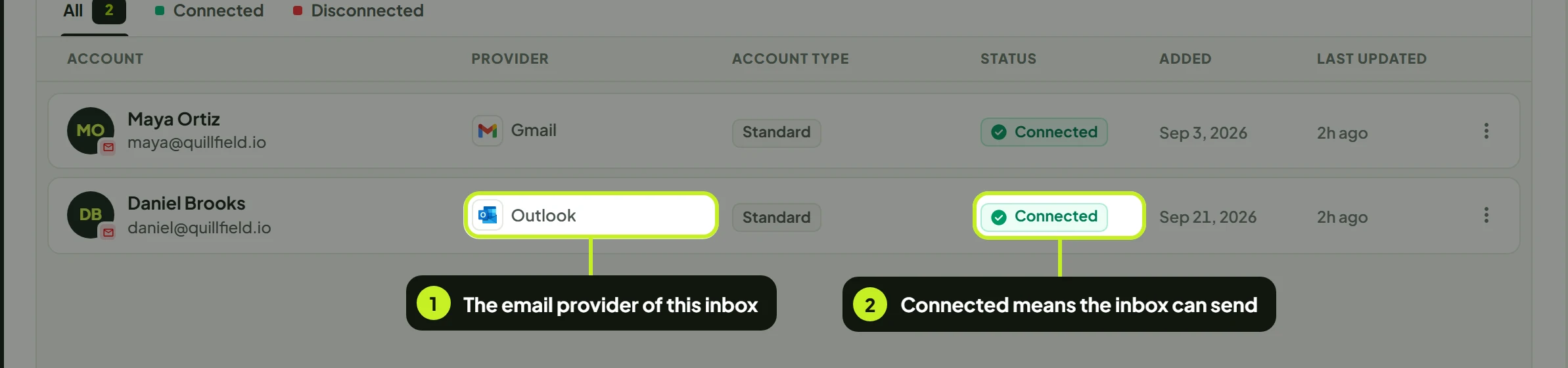
| Column | What it shows |
|---|---|
| Account | The email address of the inbox. |
| Email address | The same address, under the name. |
| Provider | Gmail, Outlook or SMTP / Mail. |
| Account type | Shows Standard for inboxes. It only matters for LinkedIn seats. |
| Status | Whether the inbox can send. See Manage seats and reconnect for every status. |
| Added | When the inbox was connected. |
| Last updated | When ReacherPro last refreshed the inbox. |
Tip: To make sure the address is right, open the row's actions menu (⋮) and click Open email. Your mail app opens a new message to that address.
Set the sender name
The name your leads see next to your address isn't set on the Accounts page. You set it each time you send:
| Where | Setting | What it does |
|---|---|---|
| An email step in a campaign's sequence | Sending Email Account | The inbox the step sends from. An inbox that has lost its connection is marked Disconnected. Add Email Account opens the email seats page in a new tab so you can connect another inbox without leaving the builder. |
| An email step in a campaign's sequence | Sender Display Name | The name shown as the sender, for example Marco Rossi. If the AI writes the email, it may use this name too. |
| An instant email | Sender name | The name shown as the sender of that one email. |
See Build and launch a campaign for the rest of the sequence builder.
Add another inbox
Each extra inbox takes one more seat.
- On Accounts, click Add seat on the Email card, or
- On Email seats, click Add seat in the top right.
Common problems
| What you see | What it means | What to do |
|---|---|---|
| Connect or Add seat is greyed out: Your plan allows … connected account(s). Disconnect one before connecting another. | Every seat on your plan is in use. LinkedIn accounts count too. | Disconnect a seat you don't need, or click Contact us next to Need more seats? on Accounts. |
| Unable to start account connection right now. Please try again. | ReacherPro couldn't open the connection page. | Wait a moment and try again. |
| Google or Microsoft says the app needs approval | Your company only allows apps an admin has approved. | Ask your IT admin to allow the connection, then try again. |
| The IMAP/SMTP connection is refused | The server, port, username or password is wrong, or your provider wants an app password. | Check the details with your provider and create an app password if it asks for one. |
| The inbox isn't listed after you connected it | The list hasn't refreshed, or the connection wasn't finished. | Reload Email seats. If it's still missing, connect again and finish every step. |
| The inbox shows Disconnected, or the email step's account picker marks it Disconnected | The provider ended the connection, often after a password change. | Reconnect it. See Manage seats and reconnect. |
Next: Keep your seats healthy in Manage seats and reconnect.