
Browse docs
Quick start
Connect a LinkedIn account, build your first lead list, launch a campaign and watch replies arrive in Conversations — in five short steps.
Updated
On this page
This guide takes you from an empty workspace to a running LinkedIn campaign. You'll connect a seat, import the people you want to reach, build a short sequence and launch it. Plan on about fifteen minutes.
Before you start: A seat is one LinkedIn account or one email inbox. Your plan sets how many seats you have, and the Accounts page shows how many are in use.
Step 1: Connect a LinkedIn account
Your campaigns send from a connected LinkedIn seat, so this comes first.
- In the sidebar, under Workspace, click Accounts. The Accounts page opens.
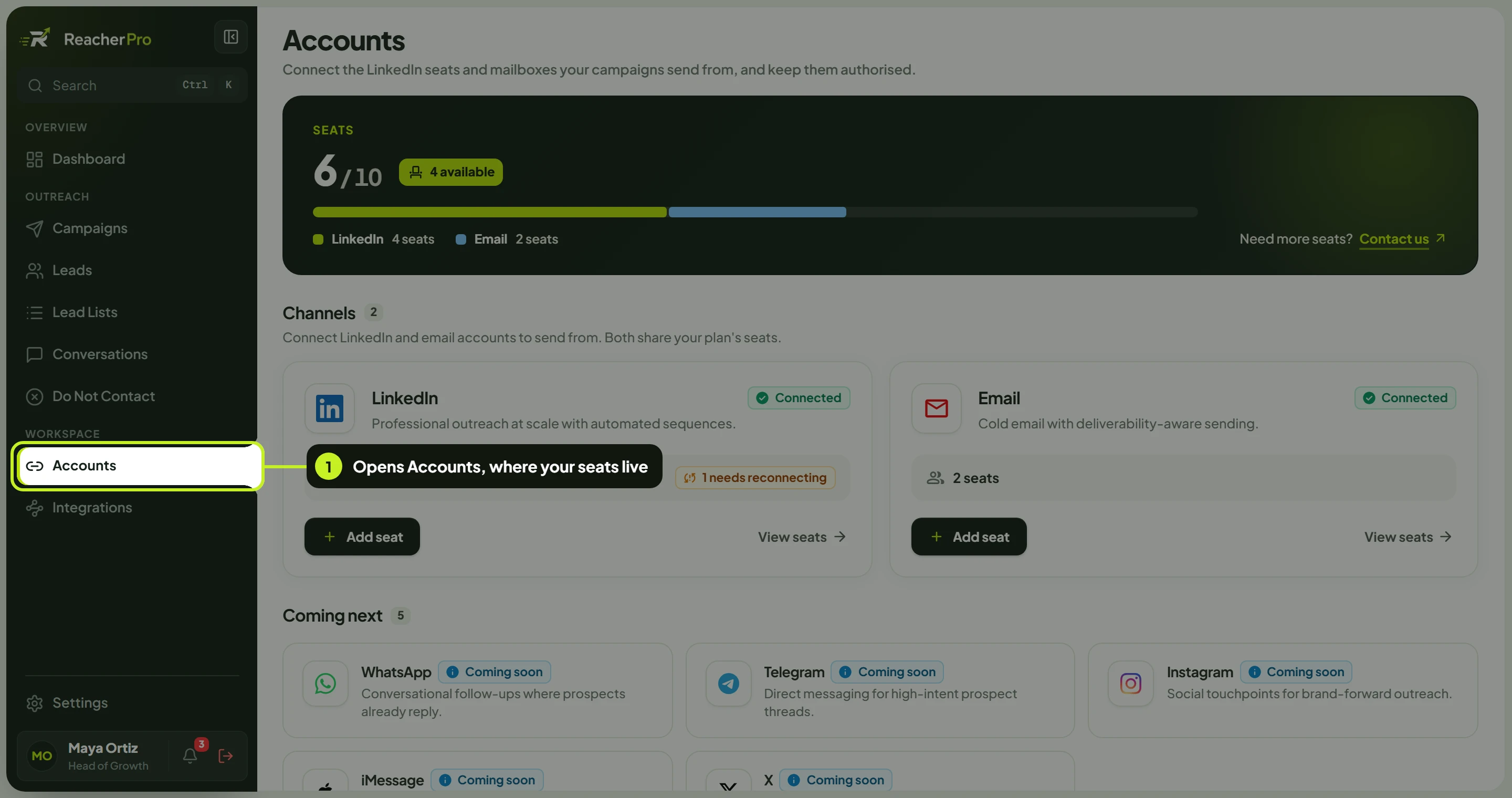
- On the LinkedIn card, click Add seat (it reads Connect until your first seat is connected). Follow the sign-in steps on the page that opens.
- When you're done, click View seats on the card. Your account is listed with the status Connected.
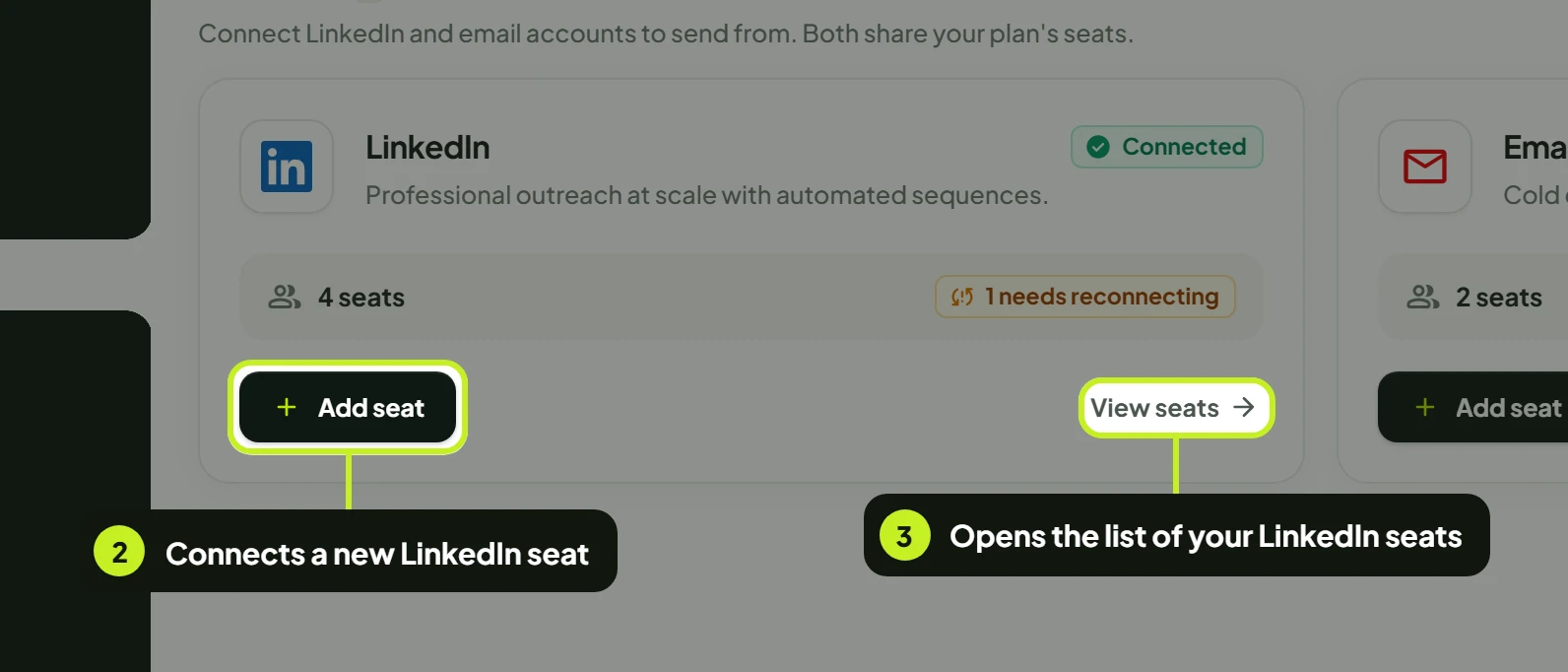
Tip: If a seat stops working, its card shows needs reconnecting and the seat's status changes to Disconnected. Open View seats, open that seat's actions menu and click Reconnect to sign in again.
Step 2: Create a lead list
A lead list is the group of people a campaign reaches.
- In the sidebar, under Outreach, click Lead Lists.
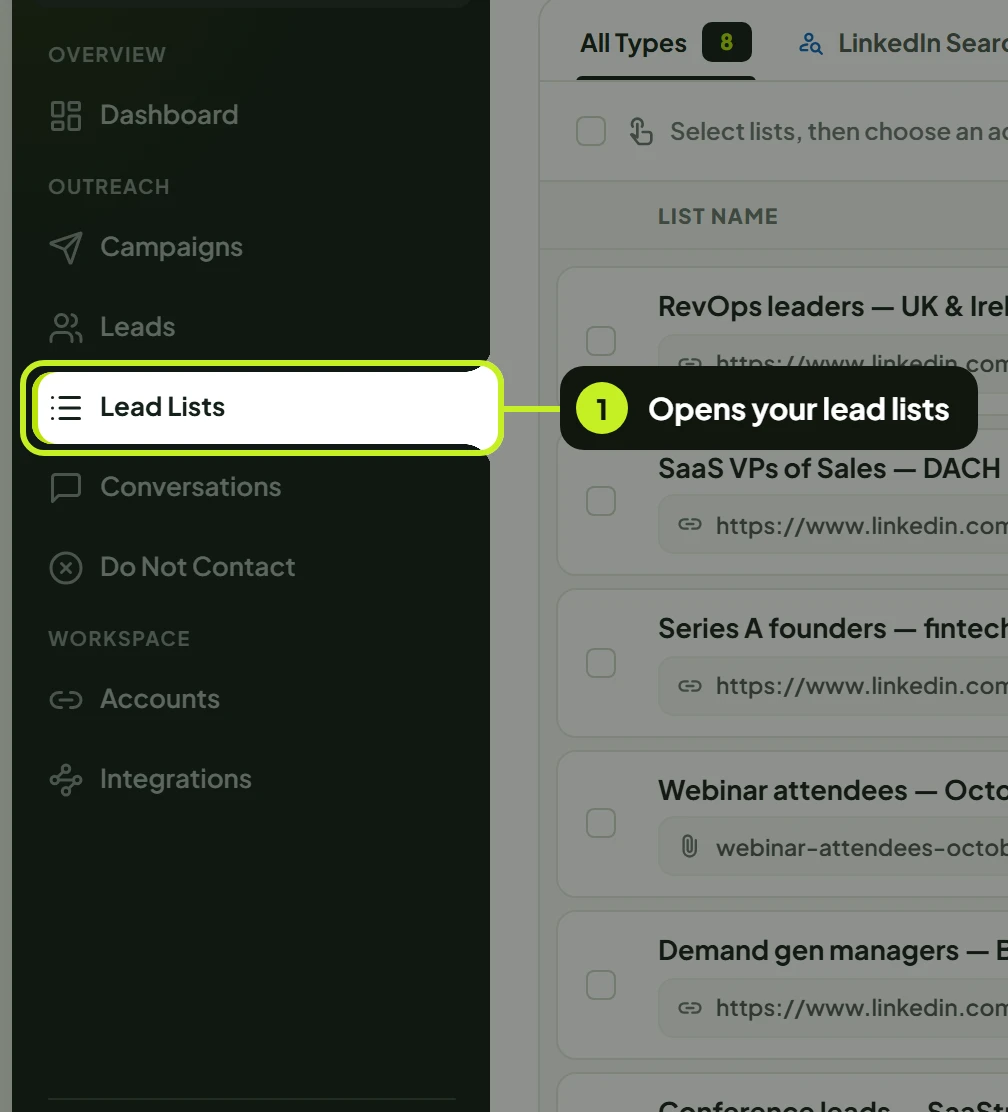
- Click Create Lead List and choose Sales Navigator URL (or LinkedIn Search).

- Enter a List Name, pick your LinkedIn Account, and paste the search URL from LinkedIn.
- Click Preview Leads, check the people look right, then click Publish.
Every import method, including CSV and email lists, is covered in Create a lead list.
Step 3: Create a campaign
- In the sidebar, click Campaigns, then click New campaign.
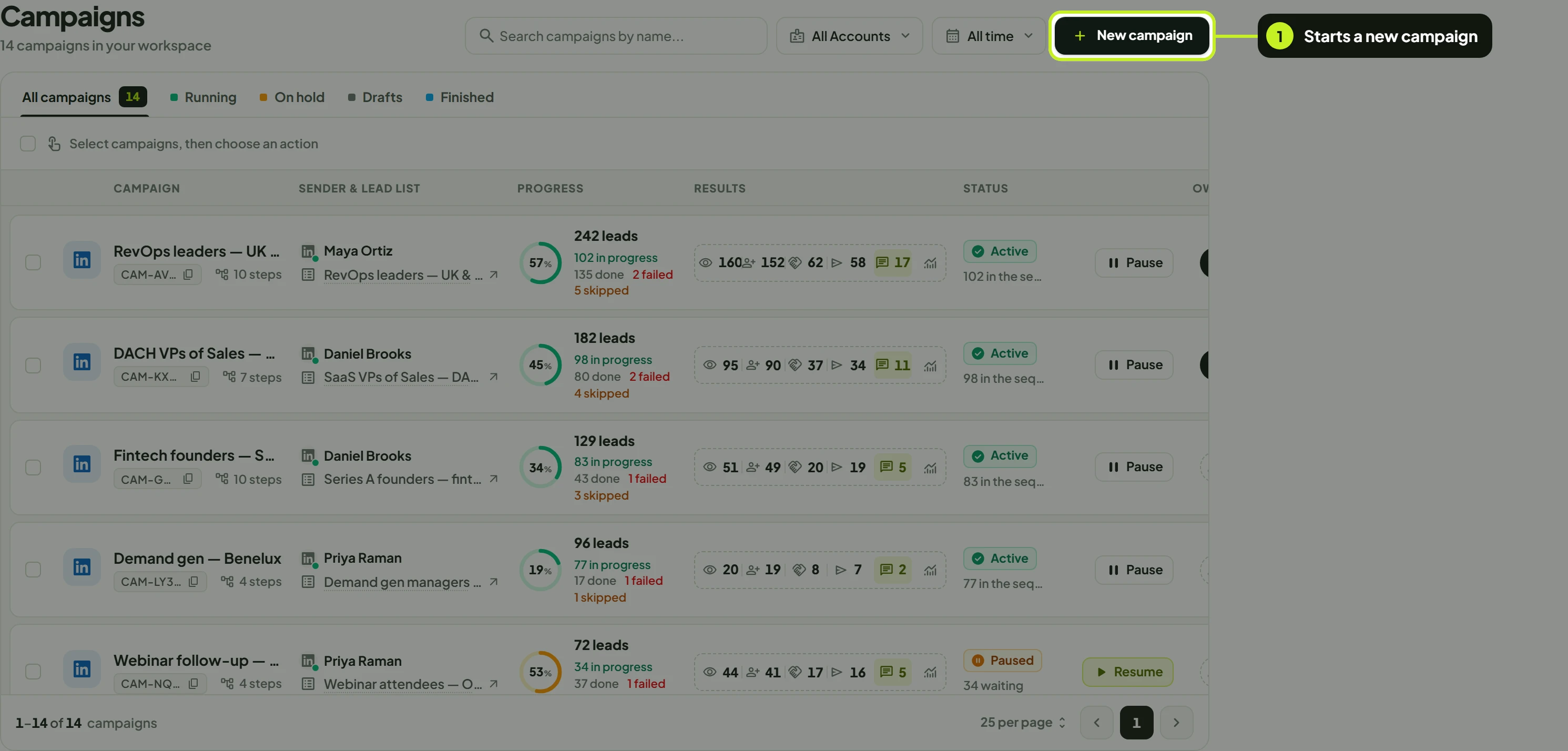
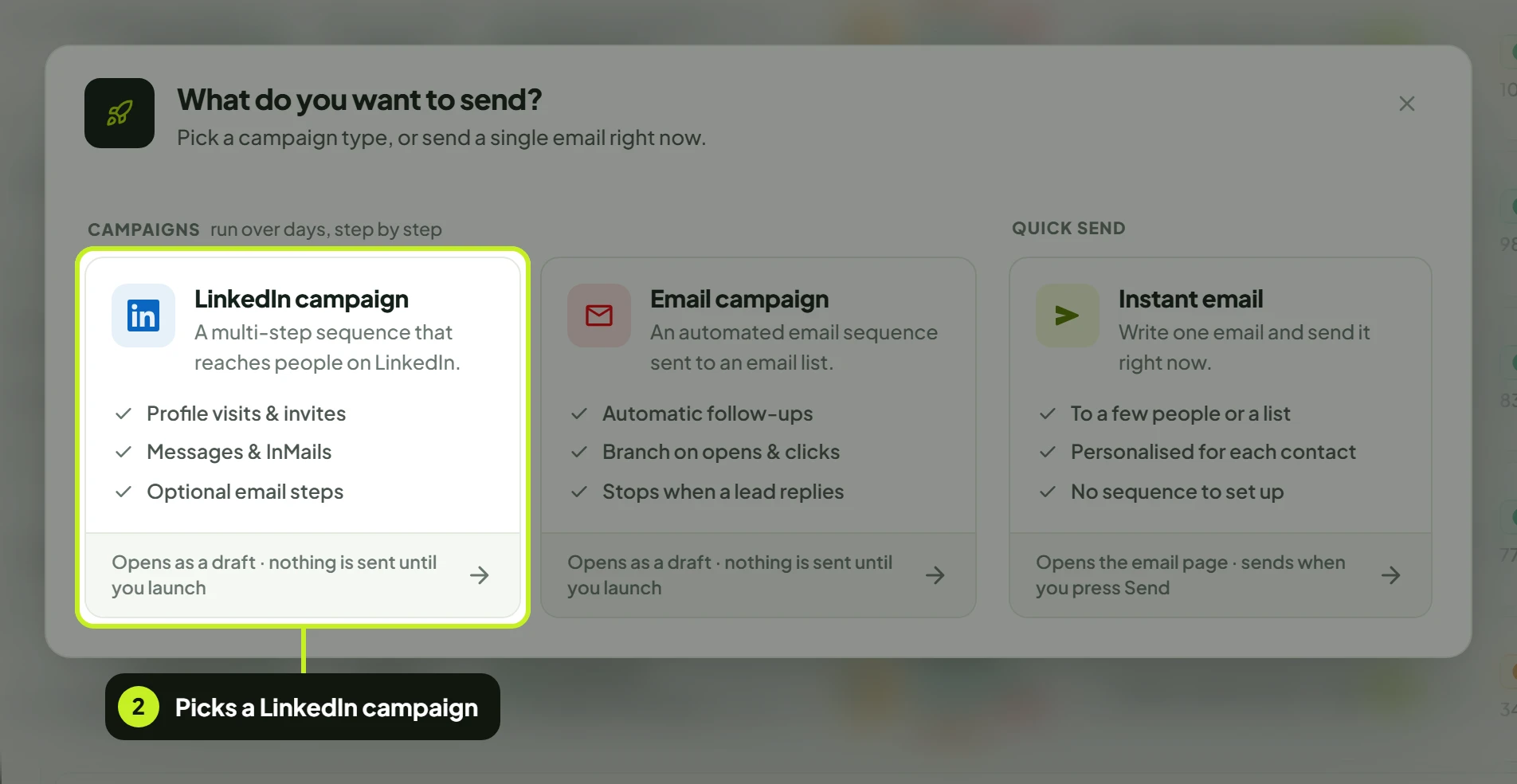
- In What do you want to send?, choose LinkedIn campaign.
- The campaign opens as a draft. Click Name this campaign at the top and give it a name.
- In the setup sentence, click pick a lead list, select the list you created in step 2 and click Use this list. Then click pick a sender and choose your seat.
- Below it, under Build your sequence, pick the template Connect and follow up, or click Add first step and build your own. A sequence needs at least two steps.
Step 4: Launch
- The tip next to the setup sentence now points at the schedule. Click it to check Sending Timezone, Active Sending Days and the window times, then click Done. The window defaults to 9:00 AM–5:00 PM, Monday to Friday, in your profile's time zone; make sure it's the one you want.
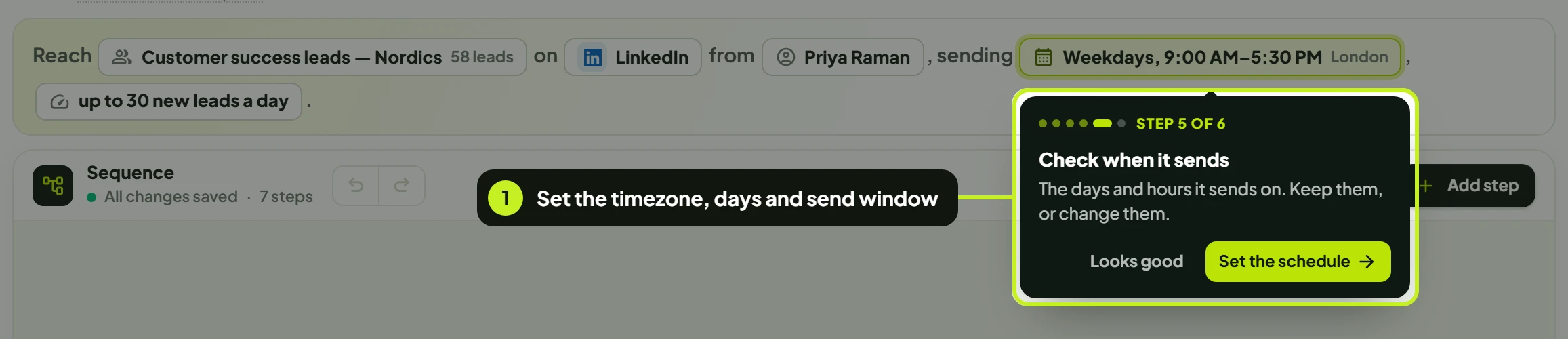
- Leave the pace at up to 24 new leads a day for a first campaign (click Looks good). You can raise it to 45 later.
- When the readiness ring at the top reads Ready to launch, click Launch Campaign.
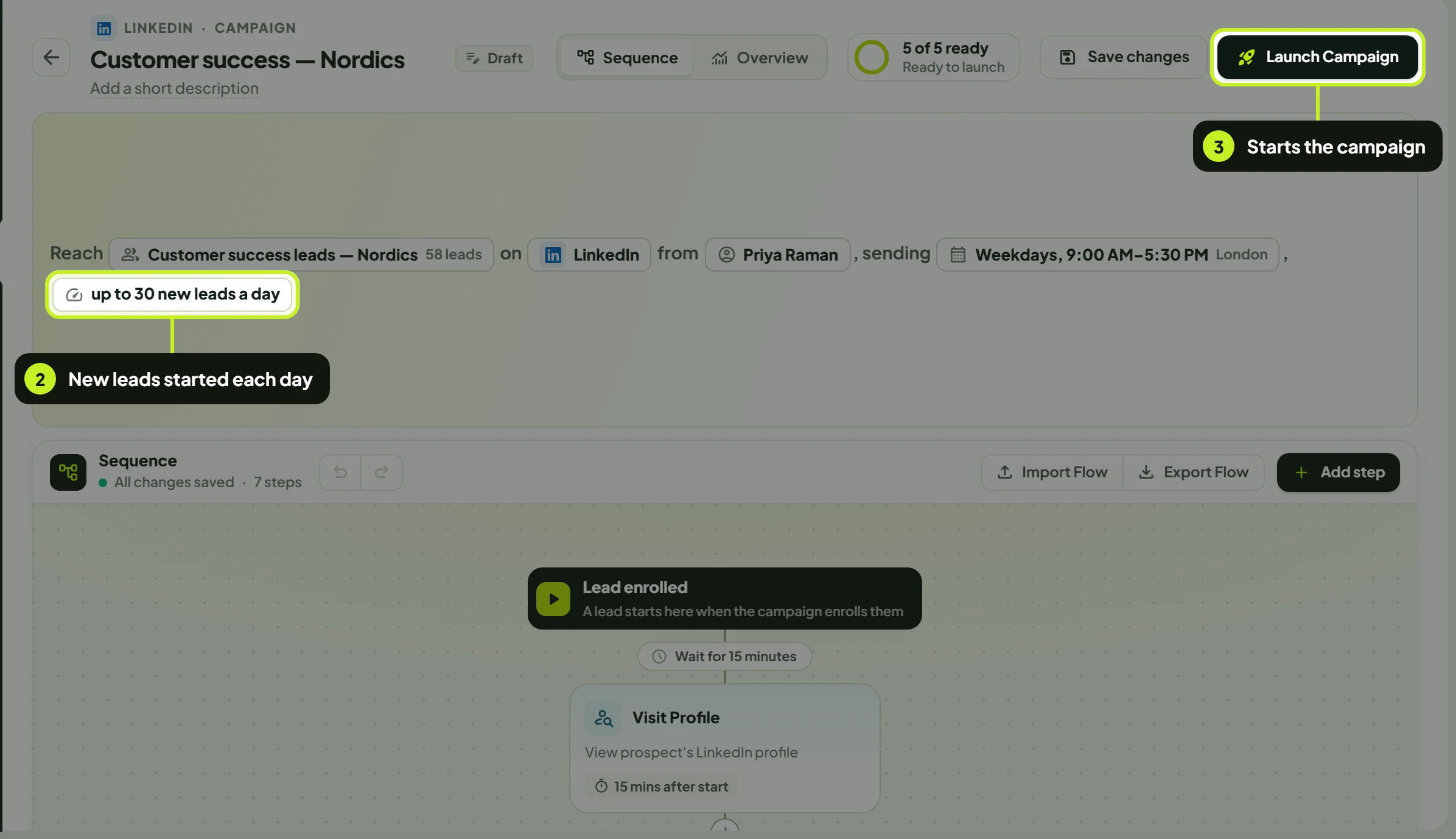
You'll see Campaign launched successfully! and the campaign appears on the Campaigns page as Active. Outreach starts on the schedule you set.
Step 5: Watch Conversations
When a lead replies, the conversation appears in Conversations (sidebar, under Outreach).
- Use the All, Unread and Replied tabs, and filter by LinkedIn or Email.
- Open a thread to reply in place. Click Show lead details to see the lead's company and campaign.
- Hover a conversation to Add tags or Mark as unread.
Common problems
| Problem | Fix |
|---|---|
| The sender picker reads No connected accounts yet. | Only connected seats are listed. Finish step 1, or click Connect another account. |
| Launch Campaign is greyed out | Click the readiness ring and fix the item that isn't ticked under Before launch, usually the name, a step or the lead list. |
| Nothing has been sent yet | Sending only happens on your Active Sending Days, inside the window, in the campaign's timezone. |
Next: Learn every way to import people in Create a lead list.