
Browse docs
Use the blocklist
Keep campaigns away from certain people, companies, emails or whole domains: every way to add someone, how matching works, and how to edit or remove them.
Updated
On this page
The blocklist is the list of people, companies and email addresses your campaigns will never contact. Anyone on it is skipped by every campaign in your workspace, on LinkedIn and email, before a single step runs.
Why it matters
- Respect opt-outs. When someone replies please don't contact me again, one click keeps every campaign away from them, now and in future campaigns.
- Protect your customers and partners. Block your clients, partners or investors by company or domain, so a prospecting campaign never pitches them by mistake.
- Keep competitors out. Block a competitor's company page or email domain, and no one who works there gets your sequences.
- No list-cleaning by hand. Imported lists are checked against the blocklist for you. Matching leads are marked Blacklisted and skipped, so you don't need to scrub every CSV first.
How it works
- You add an entry: a person, a company, an email address or a whole
@domain. - Before a campaign reaches a lead, it checks the lead against your blocklist.
- A lead that matches is skipped on every channel. They show as Blacklisted, with the reason On this organization's blacklist.
- You can edit or remove an entry at any time. Once removed, campaigns can contact that person again.
Who shares a blocklist
- One list per workspace. Every campaign and seat in the workspace uses the same blocklist.
- Your team shares it. Team members you invite use the workspace owner's blocklist. Anything one person blocks applies to everyone's campaigns.
- Agencies: each client account is its own workspace, so each client keeps its own blocklist. Blocking someone for one client doesn't affect another.
Before you start
- To add, edit or remove entries, your role needs permission to update the workspace. Without it, you can still see the list, but Add and the row actions are greyed out, and hovering them names the missing permission.
What you can block
| Type | What you enter | What it blocks |
|---|---|---|
| People | Pick someone from your leads, or paste their LinkedIn profile URL (linkedin.com/in/…) |
That one person |
| Company | Pick a company from your leads, or paste its LinkedIn company URL (linkedin.com/company/…). You can also type the company name. |
Everyone who works there |
One address ([email protected]), or a whole domain (@rivetlabs.com) |
That address, or every address at that domain |
Tip: For a company, picking it from your leads or pasting its LinkedIn URL is more reliable than typing. A typed company name is matched exactly as you wrote it.
Add someone from the Do Not Contact page
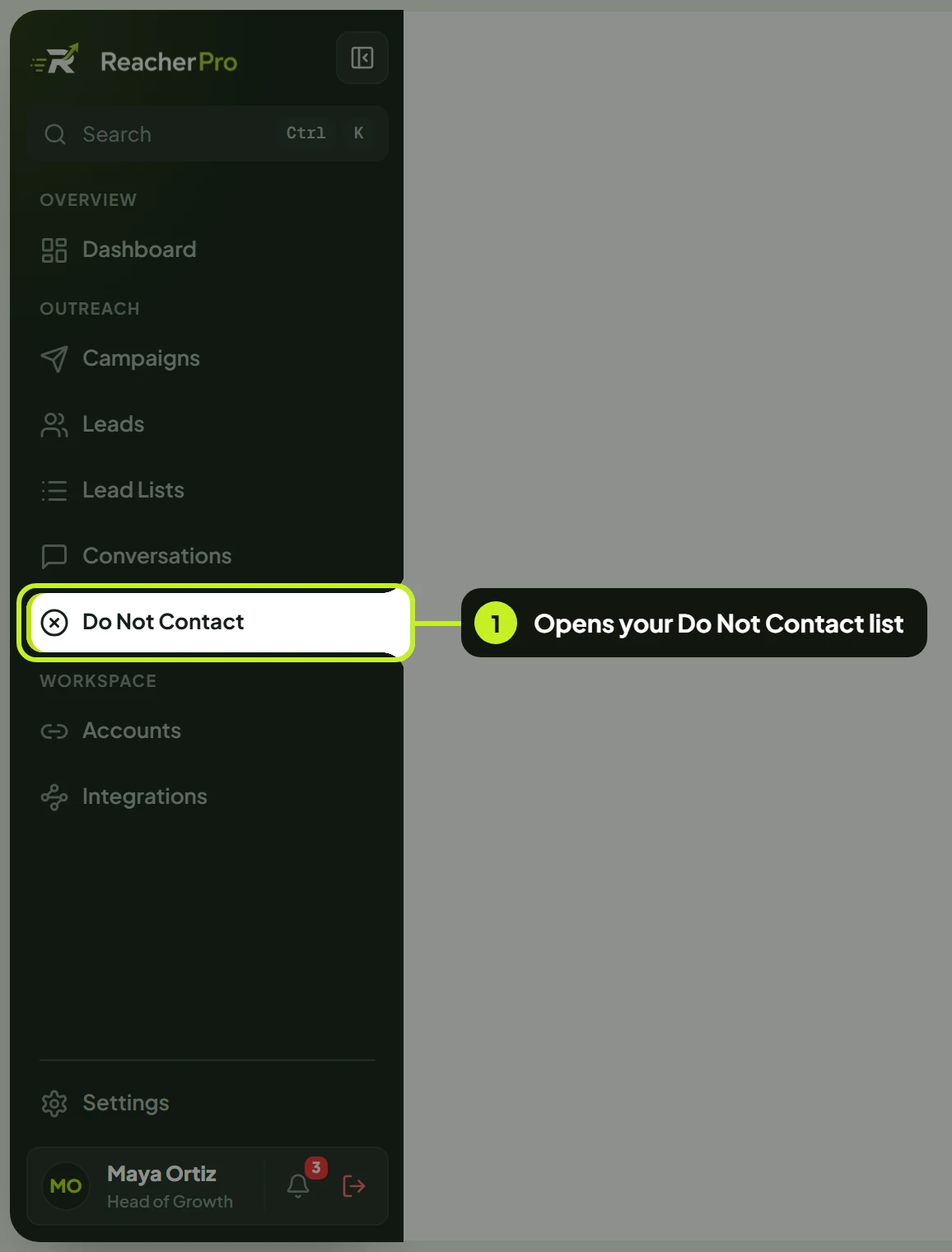
- In the sidebar, under Outreach, click Do Not Contact.
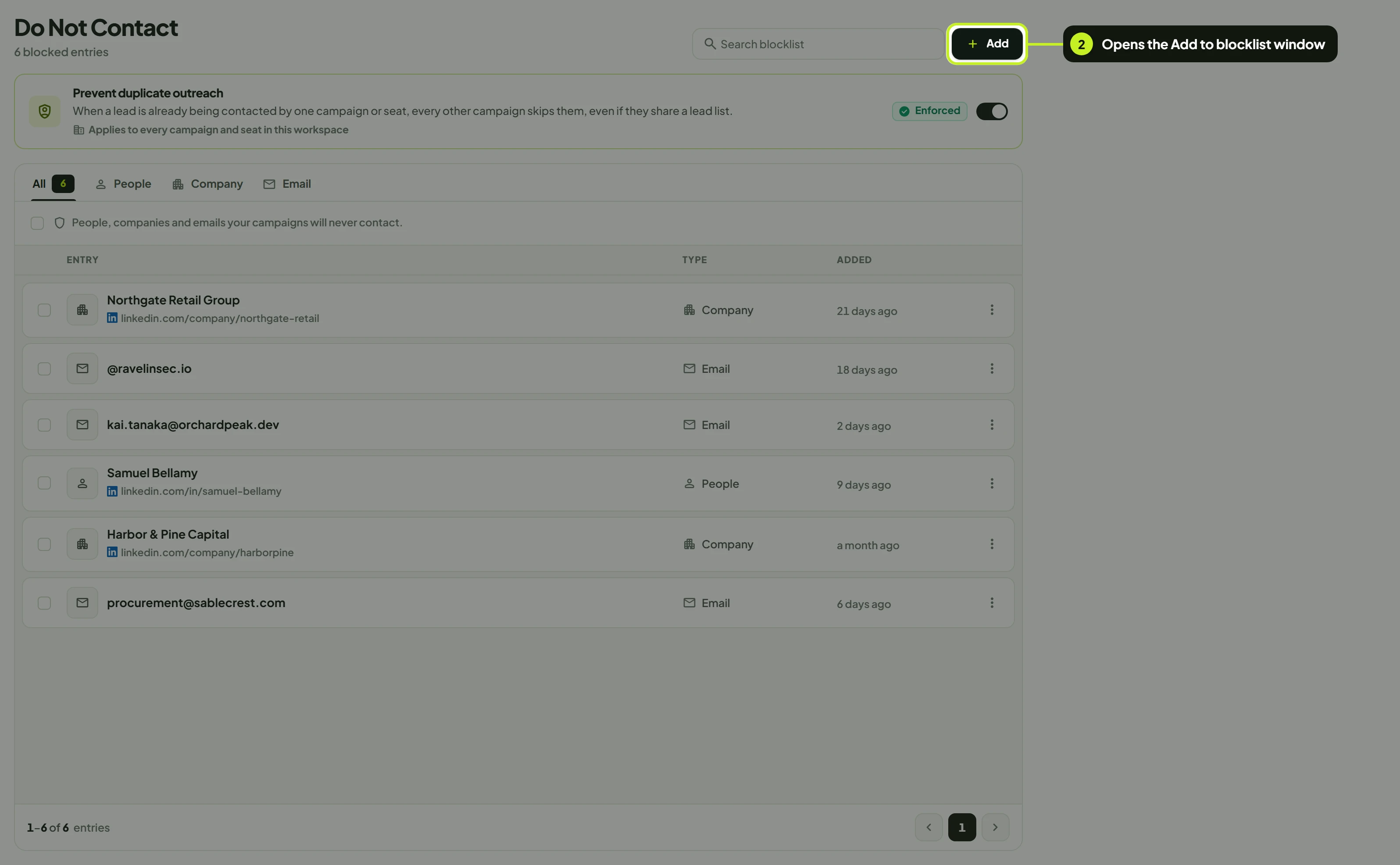
- On the Blocklist card, click Add.
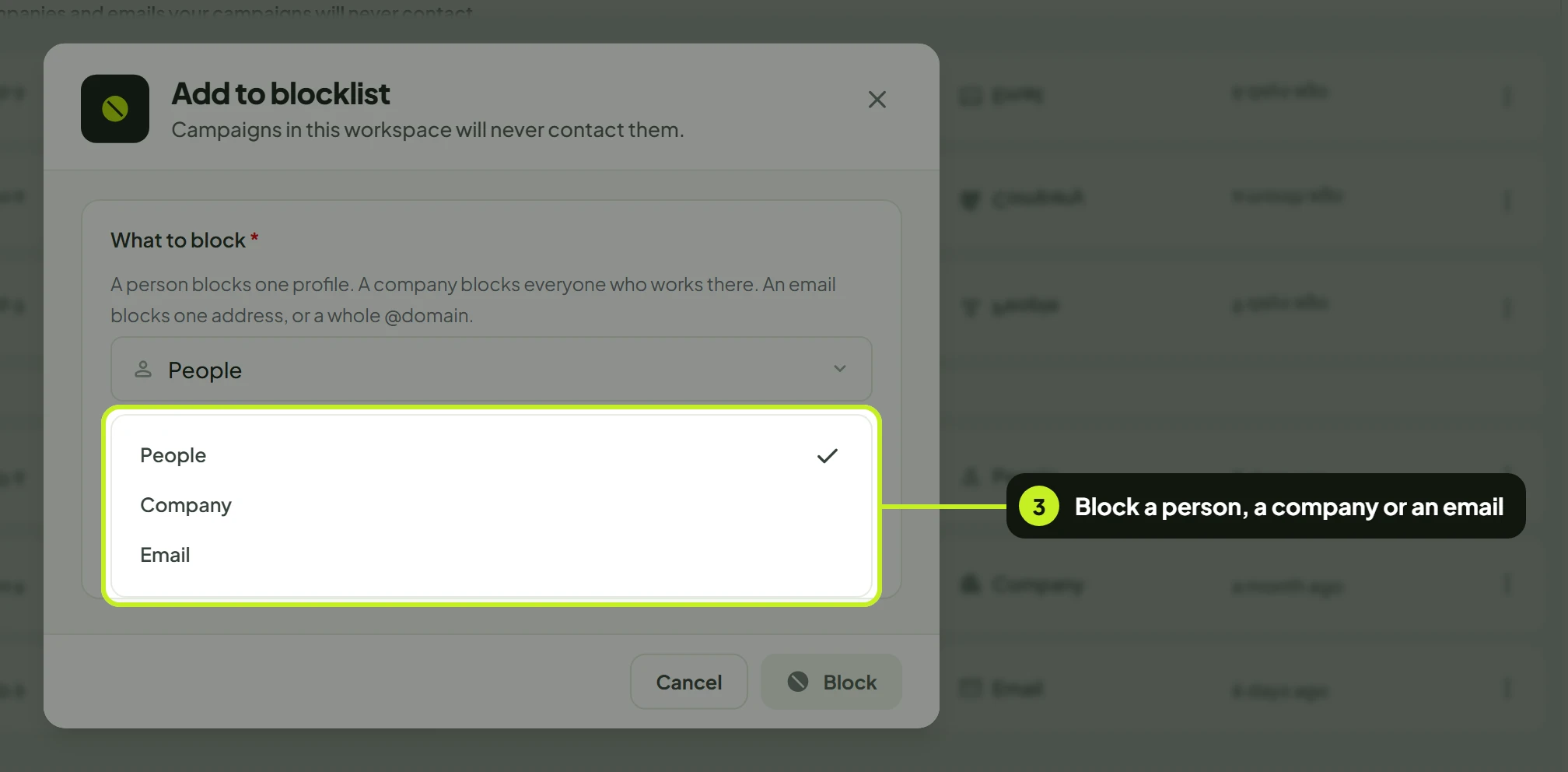
- In Add to blocklist, open What to block and choose People, Company or Email. People is selected to begin with.
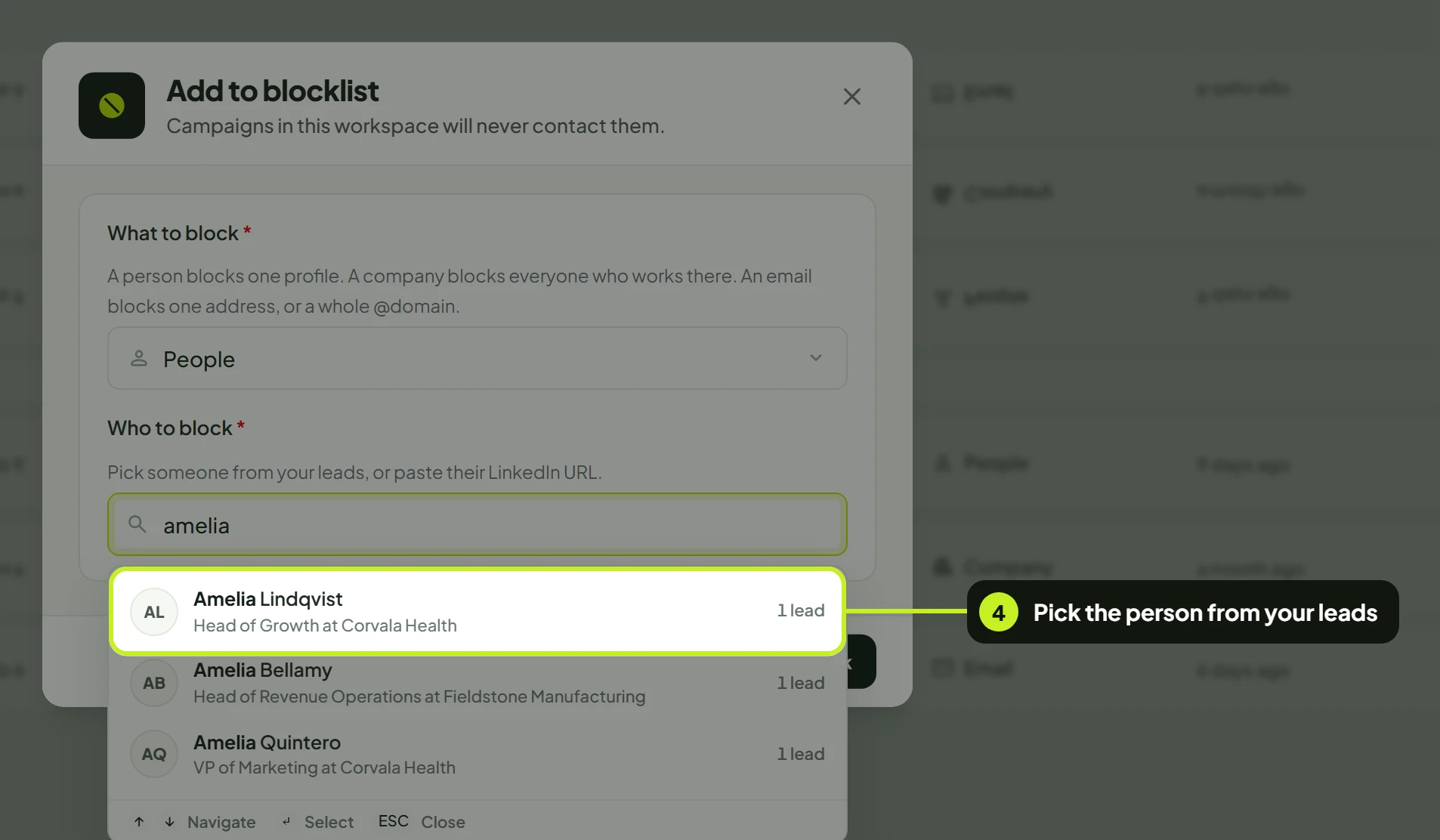
- In Who to block, start typing. After two characters, matches from your leads appear under From your leads. Click one, or use the arrow keys and Enter. You can also paste a LinkedIn URL instead.
- Click Block.
You'll see Blocked. Campaigns will skip them. and the entry appears in the list.
The matches in step 4 depend on what you're blocking.
Block a person
Type part of a name, company or headline. Each match shows the person's name, headline and location. Picking one saves their LinkedIn profile, so the block follows the profile, not just the name.
Block a company
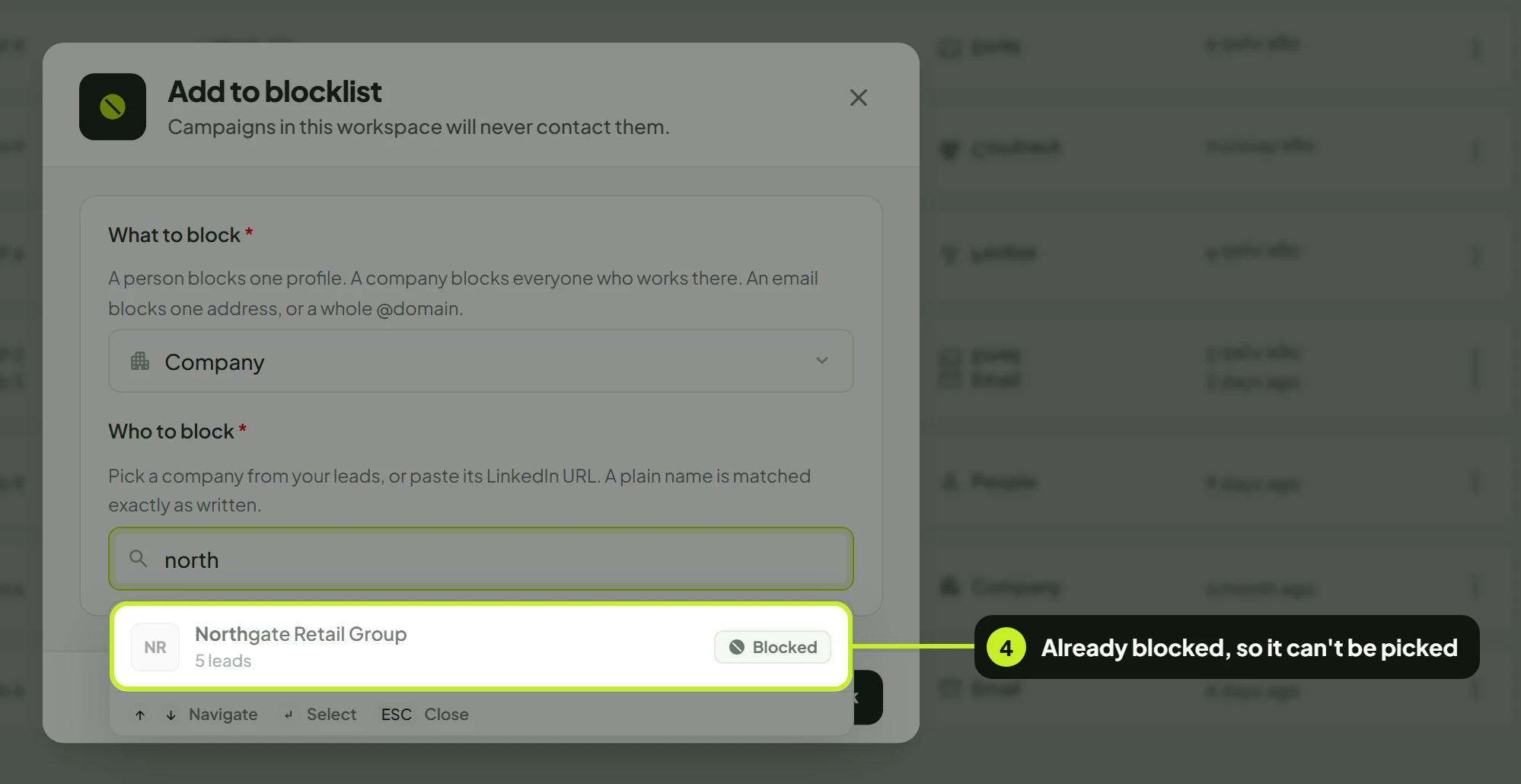
Type the company name. Each match shows the company's LinkedIn page and how many of your leads work there, for example 3 leads. Picking it blocks all of them, and anyone from that company you import later.
Block an email address or domain
Type an address, or @ and a domain. The first match is the whole domain, for example @rivetlabs.com · Everyone at rivetlabs.com, followed by matching addresses from your leads.
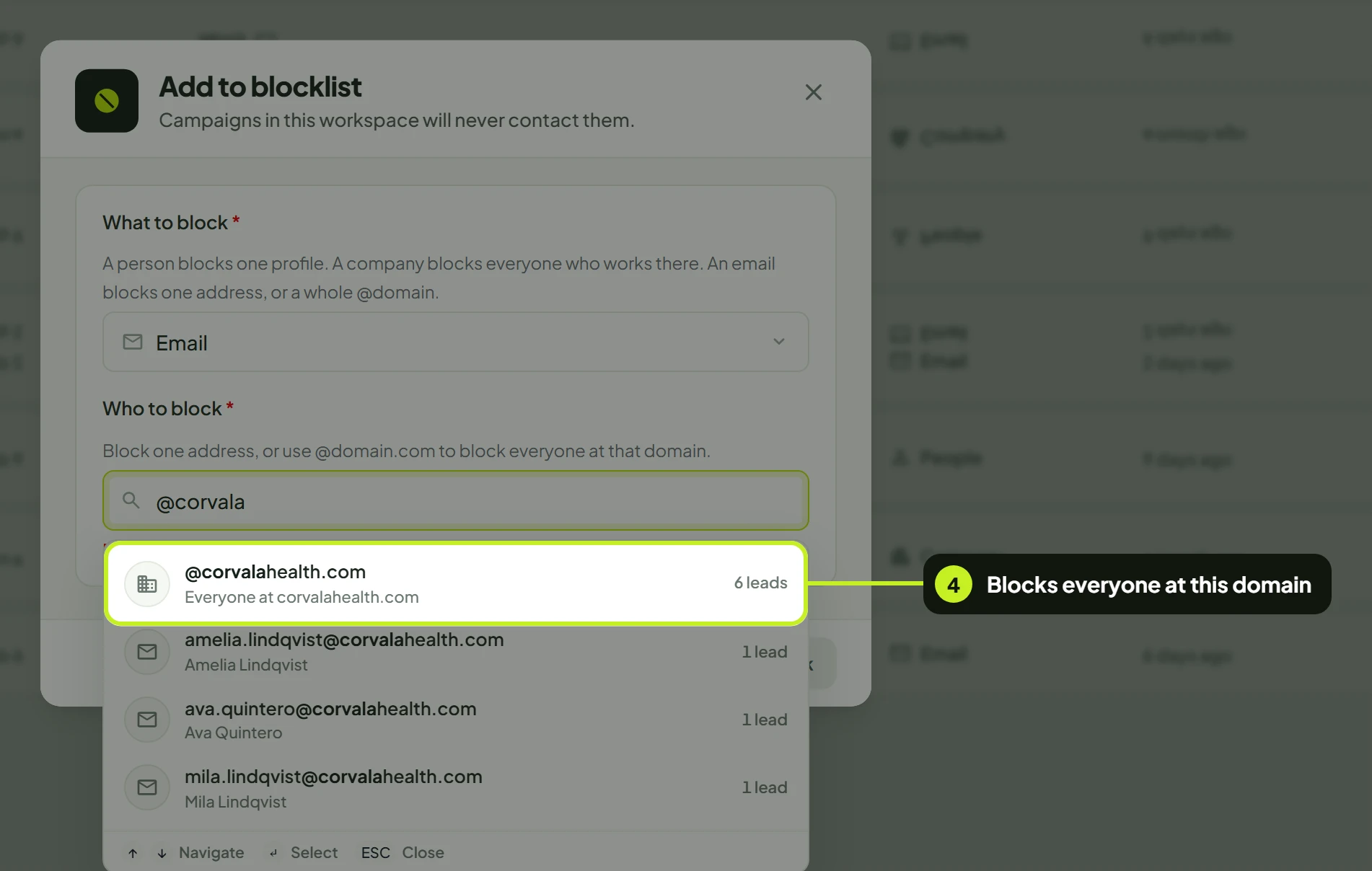
Matches marked Blocked are already on your list and can't be picked. If nothing matches, you'll see No leads match “…” and Press Enter to block it as typed. Pressing Enter adds exactly what you typed.
Add someone from the Leads page
This is the quickest way when a lead replies that they don't want to hear from you again.
- On Leads, click the lead to open their details.
- Click Do not contact at the bottom of the panel.
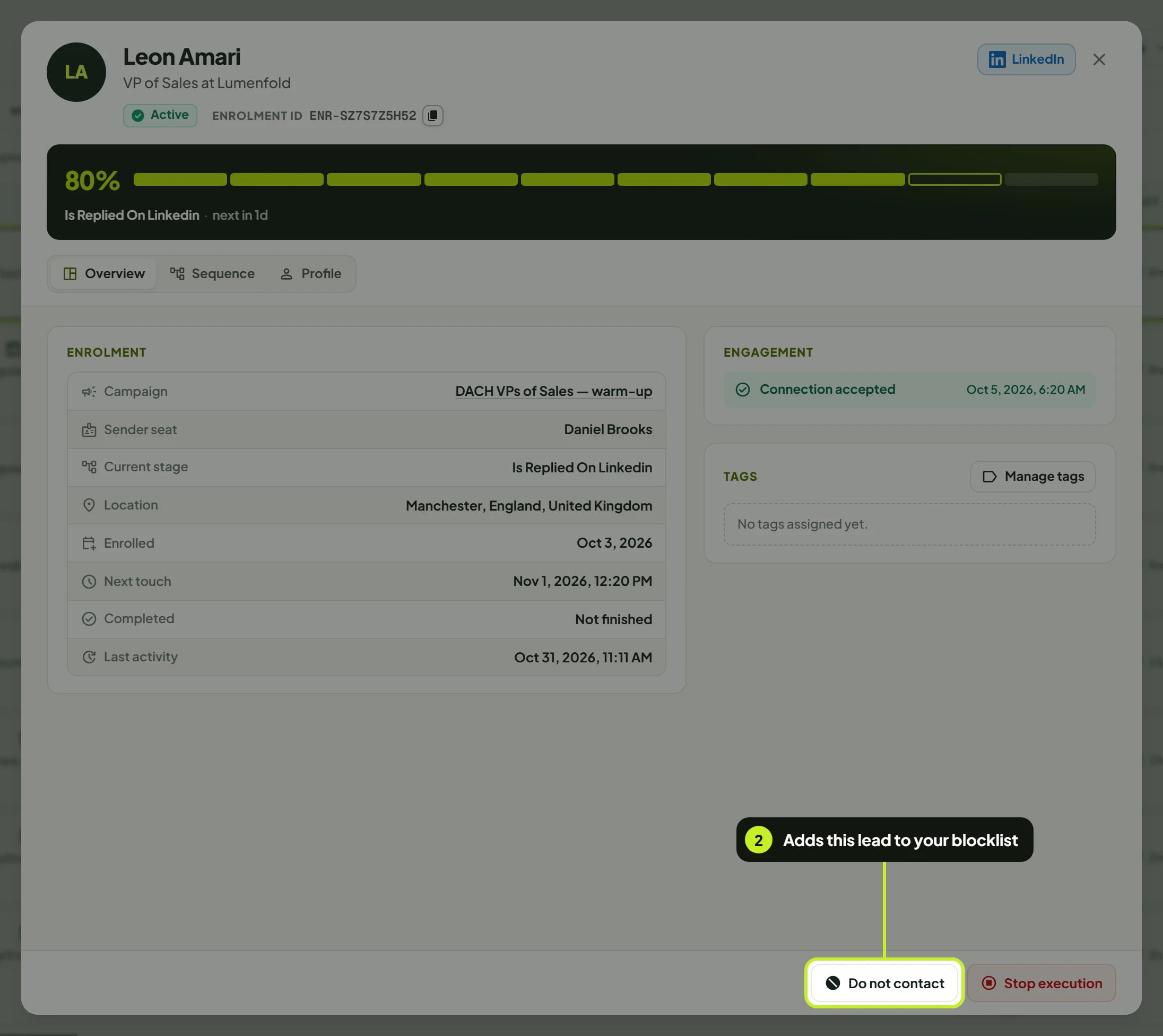
ReacherPro adds the lead's LinkedIn profile as a People entry and their email address (if they have one) as an Email entry. You'll see {name} is on your Do Not Contact list. Campaigns will skip them. and the button changes to Blocked.
This doesn't stop the campaign the lead is in right now. If you want that sequence to stop straight away too, also click Stop execution. See Work with leads.
Note: The do not contact tag in Conversations is only a label. It doesn't add anyone to the blocklist. To block someone, use one of the two ways above.
Find an entry
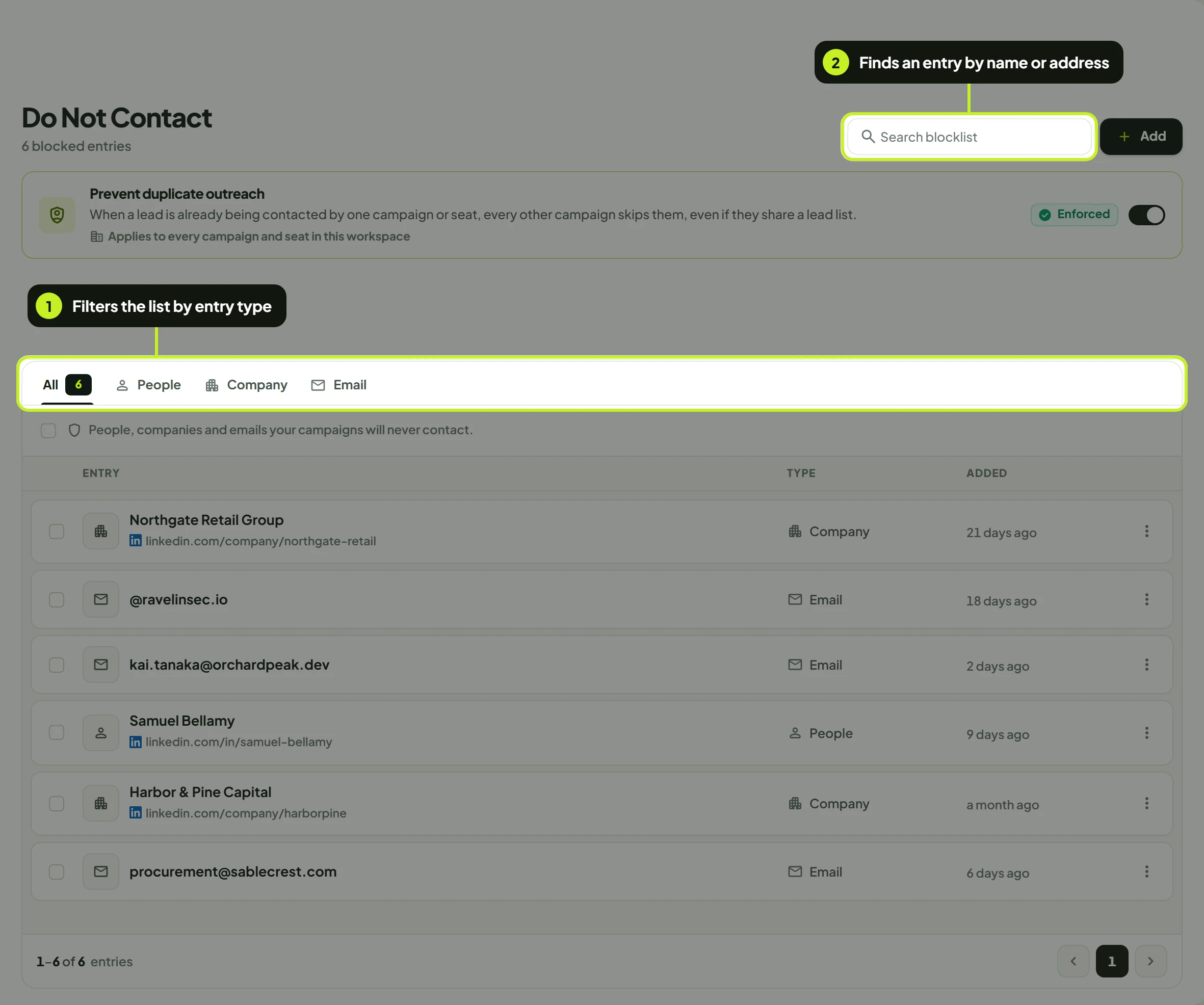
- Click All, People, Company or Email to filter the list by type. All shows how many entries there are.
- Type in Search blocklist to find an entry by name, address or URL.
| Column | What it shows |
|---|---|
| Entry | The name ReacherPro resolved, for example Northwind Pay. When the entry is a LinkedIn profile or company, its link is shown underneath. Click it to open the page. Entries you typed by hand show just the text. |
| Type | People, Company or Email |
| Added | When the entry was added, for example 2 days ago |
The list shows 25 entries per page, with 1–6 of 6 entries underneath.
Edit or remove an entry
- Click ⋮ at the end of the row, then Edit or Unblock.
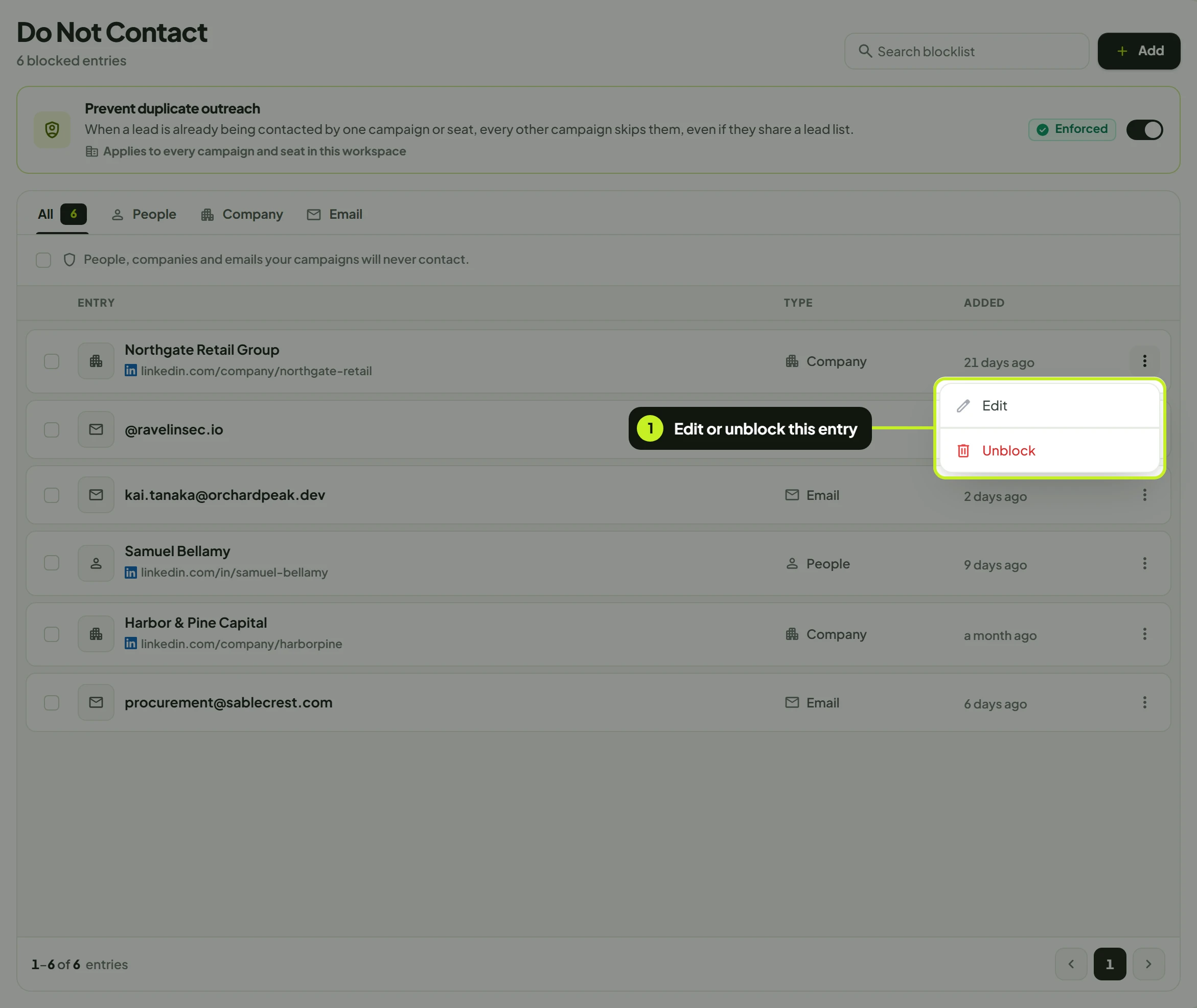
Edit opens Edit blocked entry. Change Who to block and click Save changes. You'll see Blocklist entry updated. The type itself can't be changed, as the dialog notes. To switch, for example, from Company to Email, unblock the entry and add a new one.
- Unblock asks you to confirm: Unblock this entry? · Campaigns will be able to contact {name} again. Click Unblock.
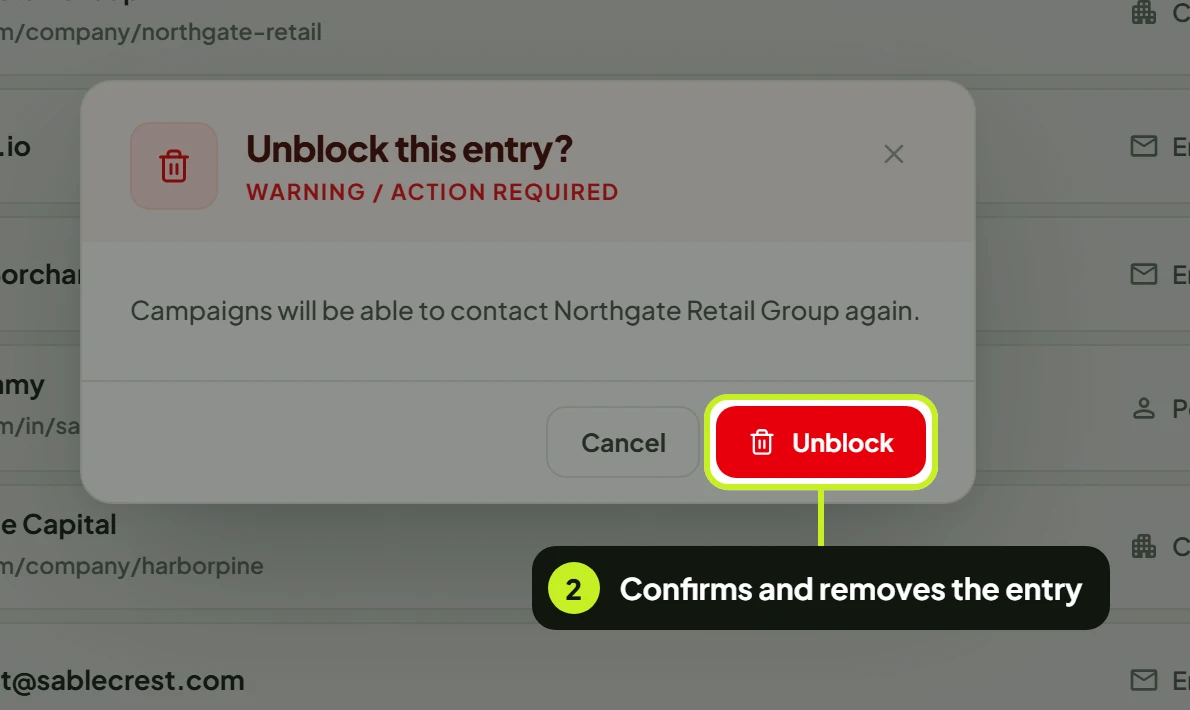
To unblock several entries at once, tick them (or Select this page) and click Unblock selected. Clear unticks them.
Unblocking doesn't restart anything. Leads that were skipped as Blacklisted stay skipped in the campaigns they were in. To reach them, add them to a new campaign.
What blocked leads look like
- Lead Lists: in a list's Leads by status, matching leads count as Blacklisted. Hover the info icon for the reason.
- Leads: skipped leads have the status Blacklisted, with the reason under Sequence progress. Use the Blacklisted tab to see them all.
- Campaigns: a campaign's Overview shows a Blacklisted count, and the row's stats card counts them as skipped. See Prevent duplicate outreach.
Common problems
| What you see | What it means | What to do |
|---|---|---|
| Enter who to block | Who to block is empty. | Type or pick a value. |
| Only LinkedIn profile or company URLs work here | You pasted a link that isn't LinkedIn, for example a company website. | Paste the LinkedIn profile or company page instead. To block a website's people, use Email with @domain.com. |
| Enter an email address, or @domain.com for a whole domain | The Email value isn't an address or a domain. | Use [email protected] or @company.com. |
| That value is too long | The value is over 500 characters. | Paste just the URL or address. |
| Couldn't block that entry | The entry wasn't saved, often because it's already on the list. | Search the blocklist for it. |
| A match shows Blocked and can't be picked | It's already on your blocklist. | Nothing to do. |
| Couldn't search your leads | The matches didn't load. | Click Try again, or paste a URL instead. |
| Your blocklist is empty | Nothing has been blocked in this workspace yet. | Click Add. |
| No matches | Your filter or search hides every entry. | Switch to All and clear the search. |
| A blocked company's employees still appear in a campaign | The entry is a typed name that doesn't match how the company is written on their profiles. | Edit the entry, or add the company again by picking it from your leads or pasting its LinkedIn URL. |
| Add is greyed out | Your role can't change workspace settings. | Ask a workspace admin. |
Next: Stop two campaigns reaching the same person with Prevent duplicate outreach.