
Browse docs
Launch settings and daily limits
Every launch setting: sender, lead list, timezone, sending days and window, the daily pace, the Before launch checklist and what each header button does.
Updated
On this page
A campaign's launch settings live in the setup sentence at the top of its workspace, in four parts: the lead list, the sender, the schedule and the pace. Click any part to change it. They decide who sends, to whom, on which days and hours, and how many new leads start each day. This page explains every setting and what it changes. For the quick version, see Build and launch a campaign.
How it works
- You pick the lead list and the sender in the setup sentence.
- You check the schedule: the timezone, the days and the hours the campaign may send in.
- You set the pace: how many new leads the campaign starts each day.
- The readiness ring in the header ticks off what's ready under Before launch.
- You click Launch Campaign. The campaign turns Active and outreach starts on the schedule you set.
Before you start
- Build the sequence first, with at least two linked steps. See Steps and conditions.
- Know which timezone your leads are in. The window you set is read in the Sending Timezone.
- To change these settings later, open the campaign from the Campaigns page, or choose Campaign settings from its ⋮ menu. See Pause, resume and edit.
Each picker saves when you choose. A new lead list, sender, schedule or pace is kept as soon as you pick it or click Save. The campaign name, description and sequence are kept when you click Save draft or Save changes.
Lead list and sender
- Click the lead list in the sentence (pick a lead list on a new campaign). In Choose the lead list, select a list and click Use this list. An email campaign only offers email lists.
- Click the sender (pick a sender). Choose a seat under Send from this LinkedIn account, or an inbox under Send from this inbox on an email campaign.
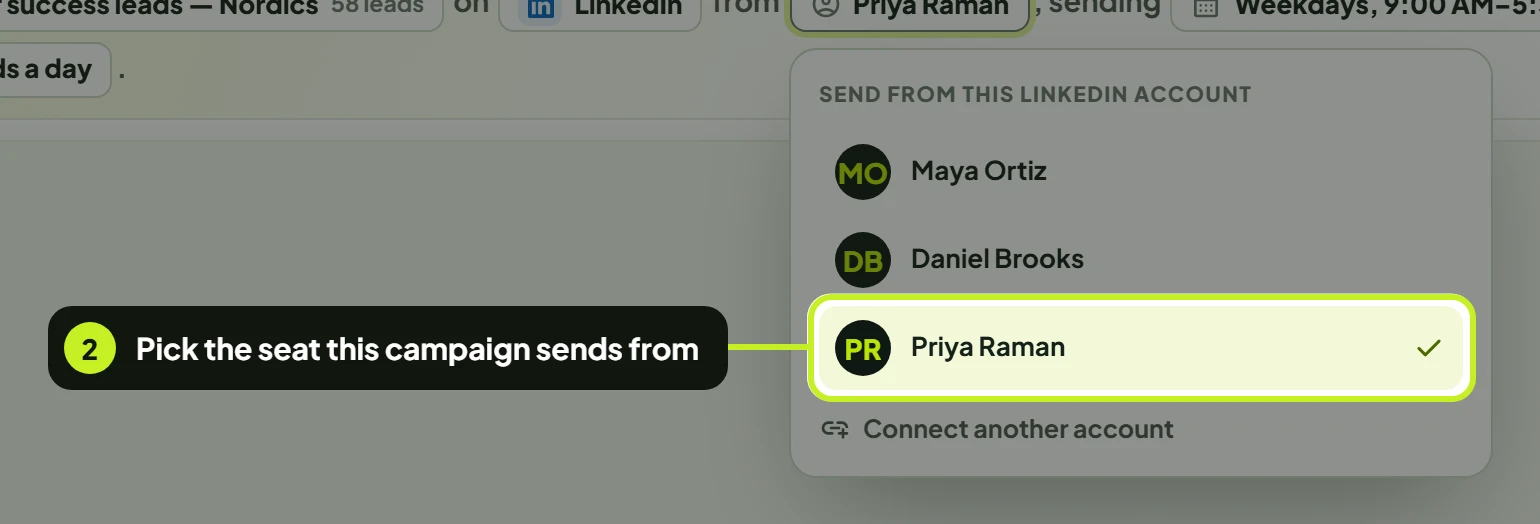
The lead list locks once the campaign exists. The picker then opens read-only with the chosen list marked; hovering another list reads The audience can't be changed once the campaign has been created.
The sender locks once the campaign runs. On an active or paused campaign, the sender picker reads A running campaign keeps its sender. To use another seat or list, start a new campaign; you can reuse the sequence with Export flow and Import JSON.
Sending schedule
Click the schedule in the sentence, for example Weekdays, 9:00 AM–5:00 PM.
- Choose the Sending Timezone. Click it and type in Search timezones... to find a city.
- Pick the days: click Weekdays (Monday to Friday) or Every day.
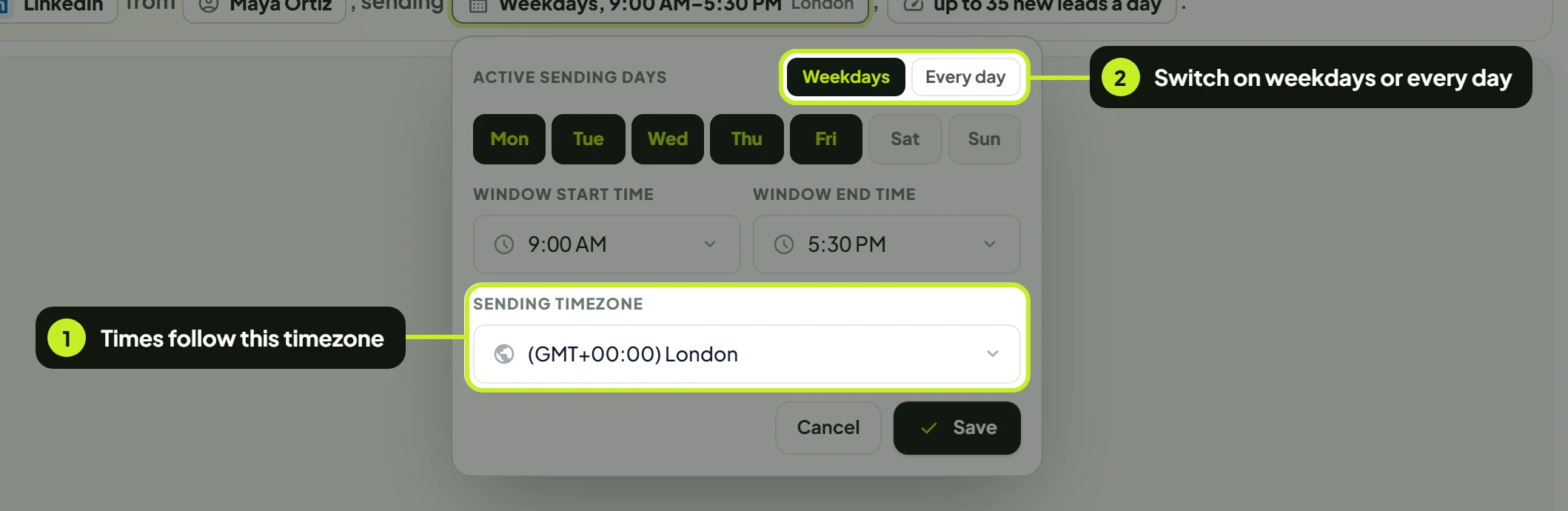
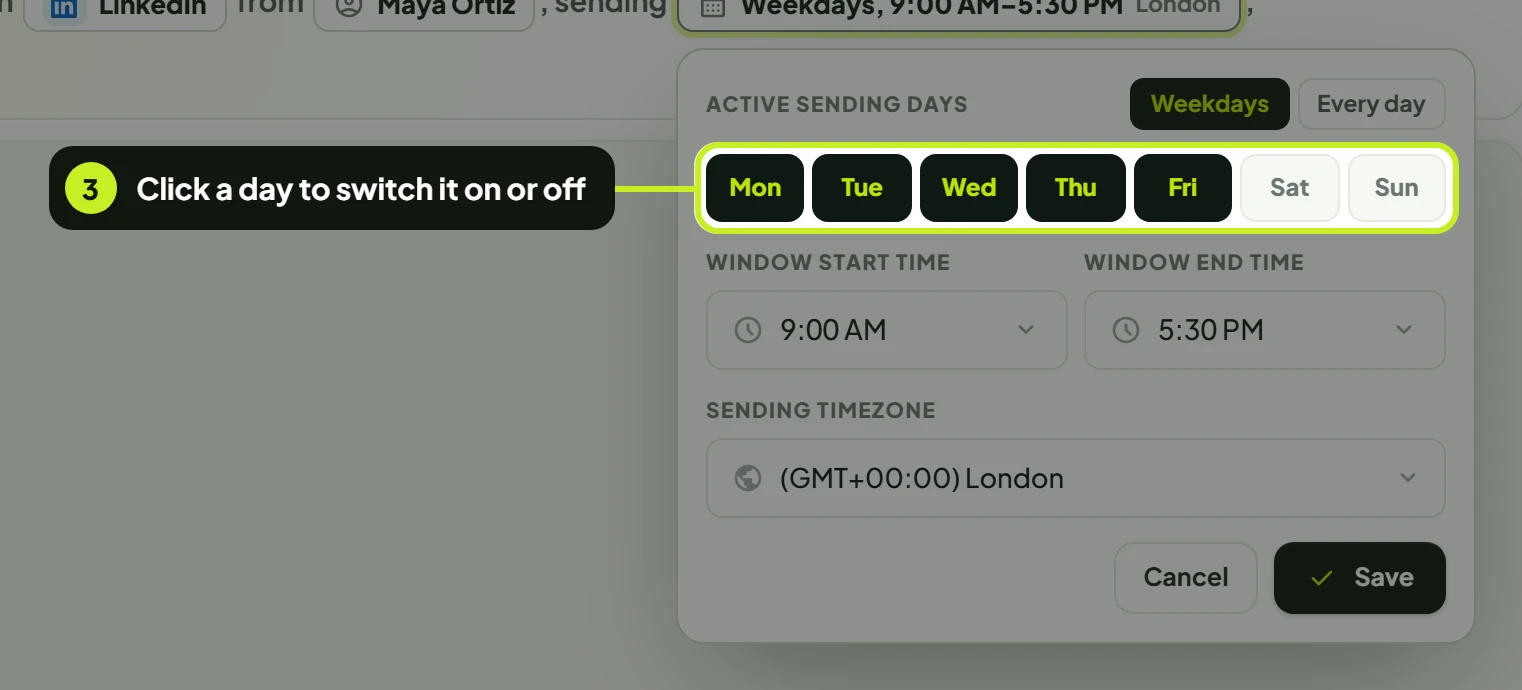
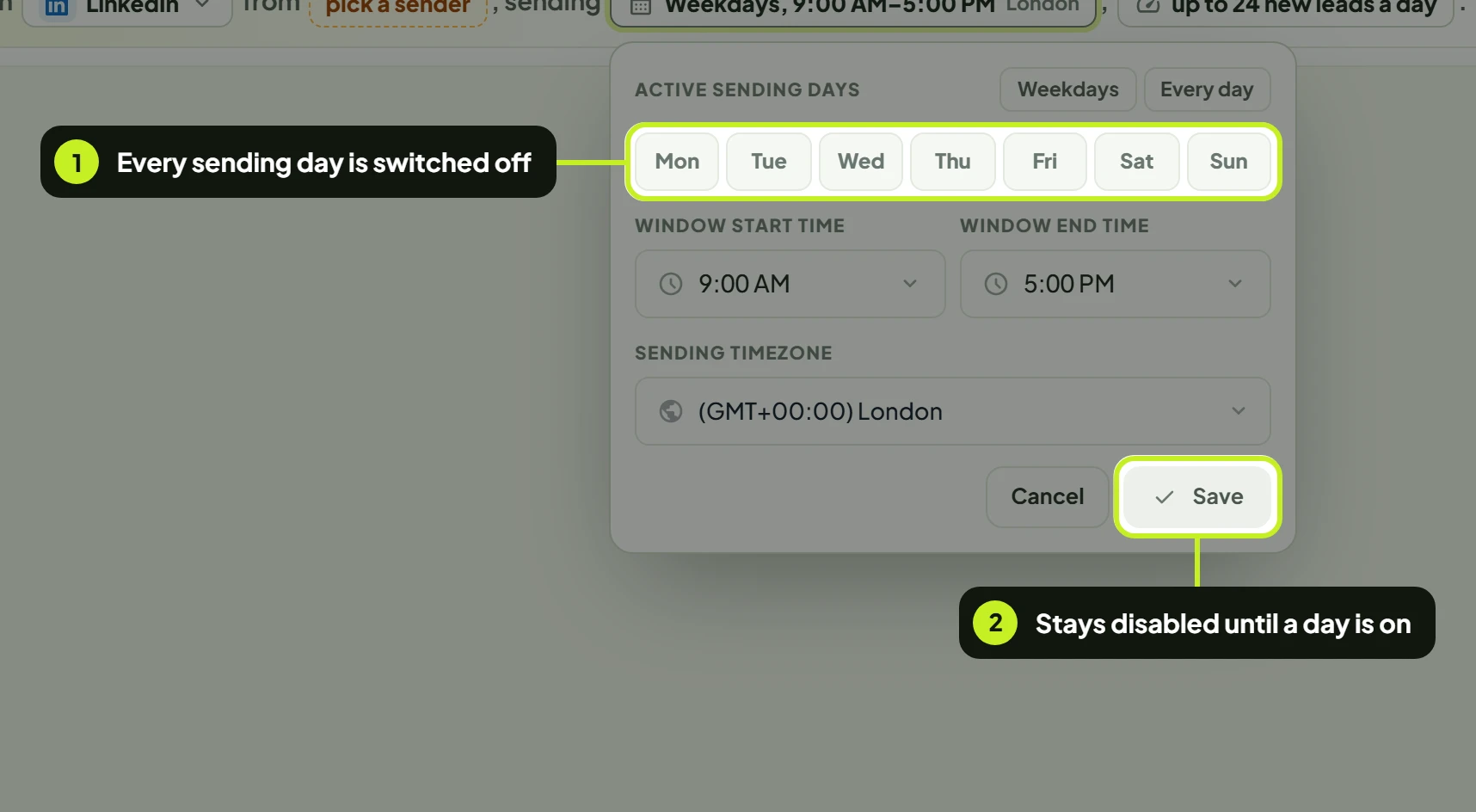
- Or click single days under Active Sending Days to turn them on or off. Highlighted days are on.
- Set Window Start Time and Window End Time. Click a time and pick the hour, minute and AM or PM.
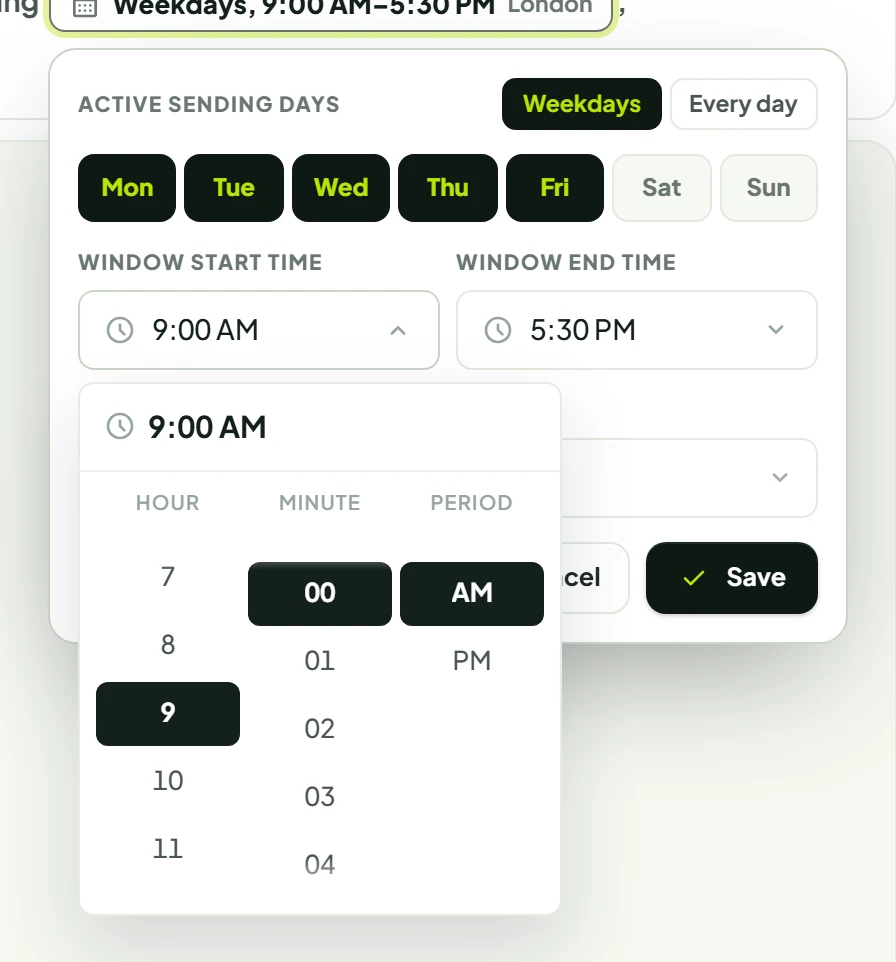
- Click Save. Cancel closes the picker without changing anything.
| Setting | What it does | Default | When to change |
|---|---|---|---|
| Sending Timezone | The timezone your days and window are read in | The time zone on your profile (or your browser's), so check it matches your leads | Set it to where most of your leads are |
| Active Sending Days | The days the campaign sends on | Monday to Friday (Weekdays) | Add Saturday for regions whose week runs differently, or drop a day you don't want to send on |
| Window Start Time / Window End Time | The hours of the day the campaign sends in | 9:00 AM to 5:00 PM | Narrow it to working hours in your leads' timezone |
Nothing goes out outside the schedule. Outreach runs only on the Active Sending Days, between Window Start Time and Window End Time, in the Sending Timezone.
Use the leads' working hours. If your leads are in Dubai and you're in London, set the timezone to Dubai and the window to their working day.
Daily pace
Click the pace in the sentence, for example up to 24 new leads a day. The Daily Prospect Limit is the most new leads the campaign starts each day; leads already in the sequence carry on with their steps.
- Drag the slider, from 1 to 45. The number above it updates as you drag.
- Or click a quick pick: 10, 20, 30 or 45. Then click Save.
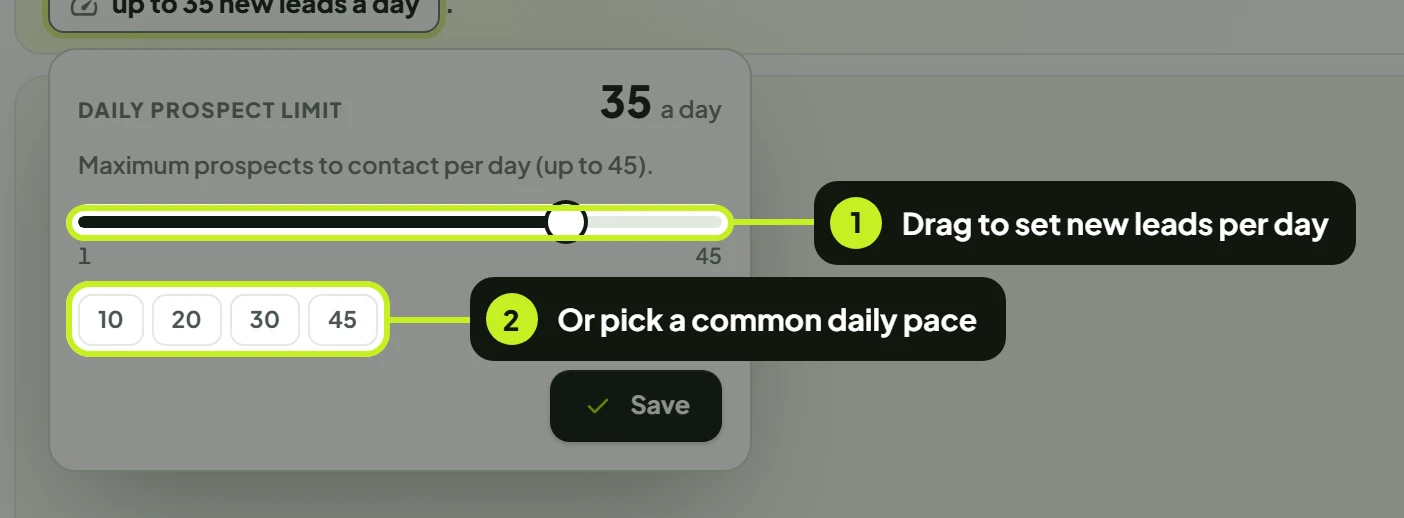
| Setting | What it does | Default | Range |
|---|---|---|---|
| Daily Prospect Limit | Maximum prospects to contact per day (up to 45). | 24 | 1 to 45 |
45 is the cap on every channel. LinkedIn and email campaigns both start at most 45 new leads a day. A campaign saved with a higher number reads, and saves, as 45.
How long will my list take? Divide the list by the pace and count sending days. A list of 386 leads at 24 a day takes about 17 sending days to enter the sequence, a little over three weeks on Weekdays. Follow-up steps run after that.
Start moderate on a new seat. The default of 24 is a sensible start. Raise it gradually once replies and acceptances look healthy.
Before launch
The header shows a readiness ring, for example 4 of 5 ready with See what is missing. Click it to open Before launch.
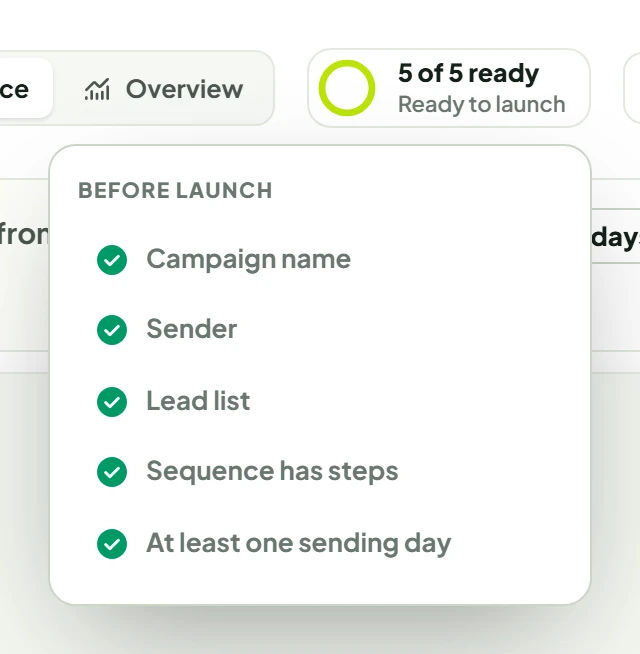
| Check | Ticked when |
|---|---|
| Campaign name | The campaign has a name |
| Sender | A seat (or inbox) is chosen |
| Lead list | A lead list is chosen |
| Sequence has steps | The sequence has at least two linked steps |
| At least one sending day | At least one day is on |
Every check must be ticked before Launch Campaign works. Until then, hovering it lists what's still needed, for example Still needed to launch: Sender and Lead list., and clicking it says the same and opens the first missing part. You can also click an unticked item to jump to the part that fixes it. A campaign always keeps at least one sending day: with every day switched off in the schedule picker, Save stays disabled until you turn one back on.
When everything is ticked, the ring reads Ready to launch.
Launch or save
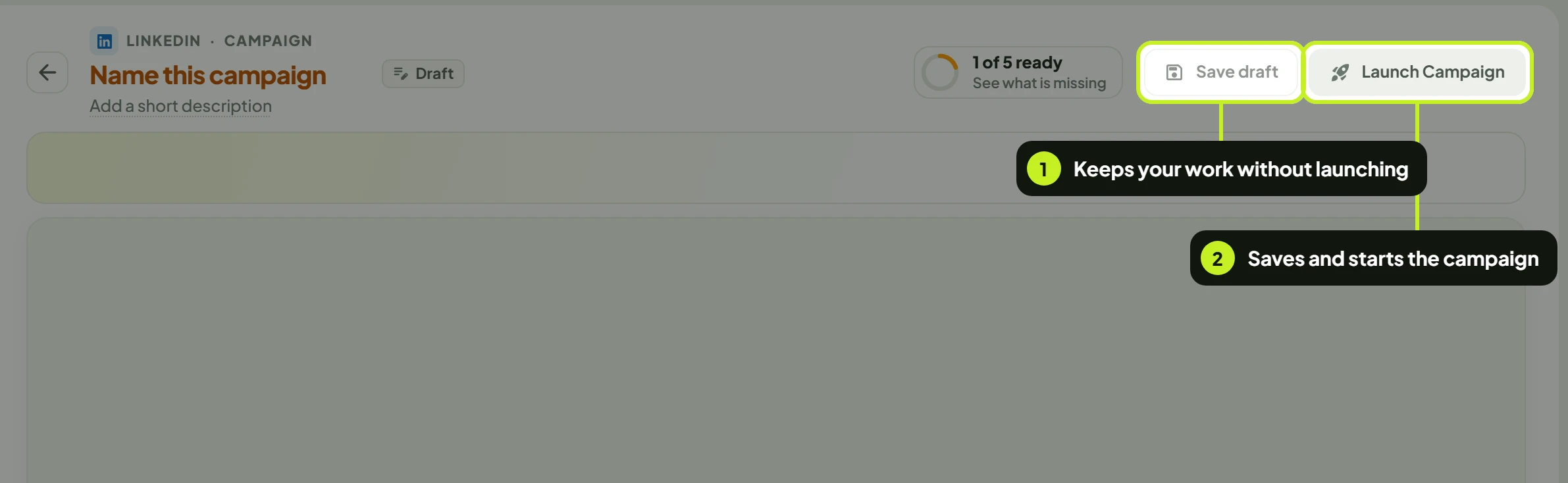
The buttons at the top right of the workspace change with the campaign's status.
- Save draft keeps everything without launching. You'll see Draft saved. A new campaign can be saved once it has a name, a sender, a lead list and at least two linked steps; until then, hovering or clicking Save draft lists what's still needed.
- Launch Campaign asks you to confirm (Start campaign?), then saves and starts the campaign. You'll see Campaign launched successfully!, and the campaign shows as Active on the Campaigns page.
| Status | Buttons |
|---|---|
| Draft | Save draft, Launch Campaign |
| Active | Pause campaign, Save changes |
| Paused | Save changes, Save & resume |
| Launch failed | Save changes, Relaunch campaign |
| Completed | No buttons: Completed campaigns can't be edited. |
Changes to a running campaign apply to upcoming outreach. You can change the schedule, pace and sequence of an active campaign; schedule and pace are kept when you click Save, and sequence changes when you click Save changes.
Common problems
| What you see | What it means | What to do |
|---|---|---|
| A greyed-out Launch Campaign that reads Still needed to launch: … | An item under Before launch isn't ticked | Click the button or the readiness ring to jump to the missing item |
| A greyed-out Save draft that reads Still needed to save the draft: … | A new campaign needs a name, a sender, a lead list and steps before it can be saved | Click the button to jump to the first missing item |
| Sequence has steps stays unticked | The sequence has fewer than two linked steps | Add a step on the canvas |
| This LinkedIn account already runs … campaigns, the most your plan allows per account. | That seat already runs as many campaigns as your plan allows | Pause one of its campaigns, or choose another seat |
| Nothing is sending after launch | It's outside your Active Sending Days or window in the Sending Timezone | Check the schedule and the days |
| The window looks hours off | The Sending Timezone isn't the one you meant | Change it in the schedule picker and click Save |
| The lead list or sender can't be changed | They lock once the campaign exists or runs | Start a new campaign and import the flow |
| Completed campaigns can't be edited. | Completed campaigns are read-only | Create a new campaign |
Next: Watch results come in with Track a campaign.