
Browse docs
Run an email campaign
Send an automated email sequence to an email list from a connected inbox, with follow-ups that branch on replies, opens and clicks.
Updated
On this page
An email campaign sends a sequence of emails to everyone on an email list, from one connected inbox. Follow-ups can wait for a reply, an open or a click, and branch on what happened. It's set up in the same campaign workspace as a LinkedIn campaign, with an inbox in place of a LinkedIn seat.
How it works
- You choose Email campaign, pick the email list it reaches and the inbox that sends every email.
- You build the sequence from Send Email steps and email conditions, or start from a template.
- You check the sending schedule and daily pace, and launch. Leads start at your daily pace, inside your sending window.
- Replies land in Conversations, and you follow results in Track a campaign.
Before you start
- A connected inbox. See Connect an email inbox.
- A published email list. Upload one with Email list (CSV); see Upload an email list. You can also upload one while picking the campaign's list.
- No LinkedIn seat is needed.
Want to send one email right now instead? Use an instant email. It needs no sequence or schedule.
Start the campaign
- In the sidebar, under Outreach, click Campaigns, then click New campaign.
- In What do you want to send?, click Email campaign. A draft opens in the campaign workspace with Email already chosen as the channel.
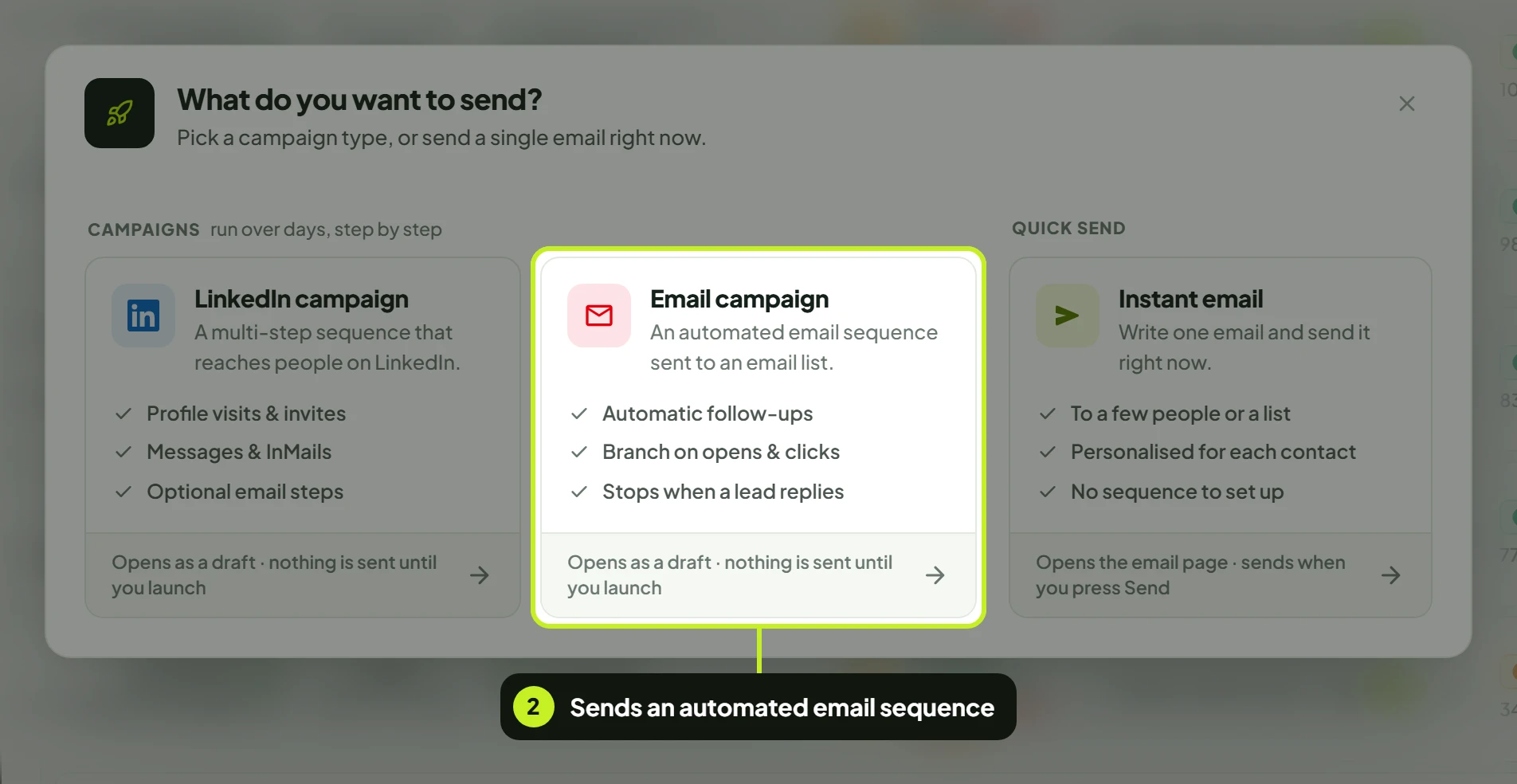
Tip: On the Lead Lists page, an email list's row menu has Start email campaign, which starts one already pointed at that list.
Set up the campaign
At the top, click Name this campaign to name it. The setup sentence below reads Reach pick a lead list on Email from pick a sender, and a tip walks you through each part.
- Channel. Check that it reads Email. While the campaign is a draft you can click it to switch; Switching clears the sender, lead list and steps.
- Sender. Click pick a sender and choose the inbox under Send from this inbox. Every email in this campaign is sent from it. Connect another account opens Accounts if you need another one.
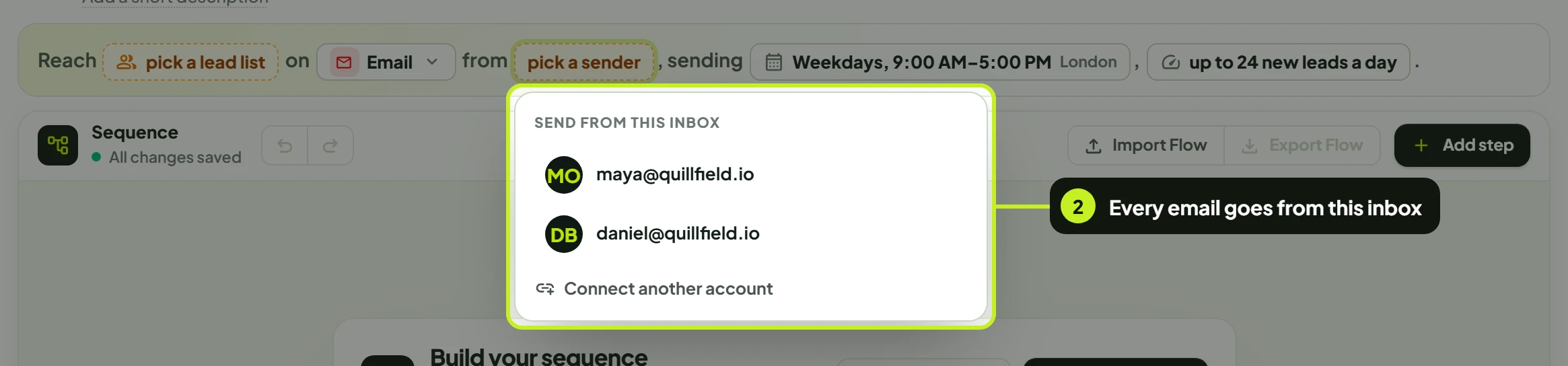
The inbox is set once. Every Send Email step uses the campaign's inbox. If you change the inbox while the campaign is still a draft, the steps follow it, except a step you deliberately pointed at a different inbox.
- Lead list. Click pick a lead list. Choose the lead list opens, showing Email lists only. Select a list and click Use this list.
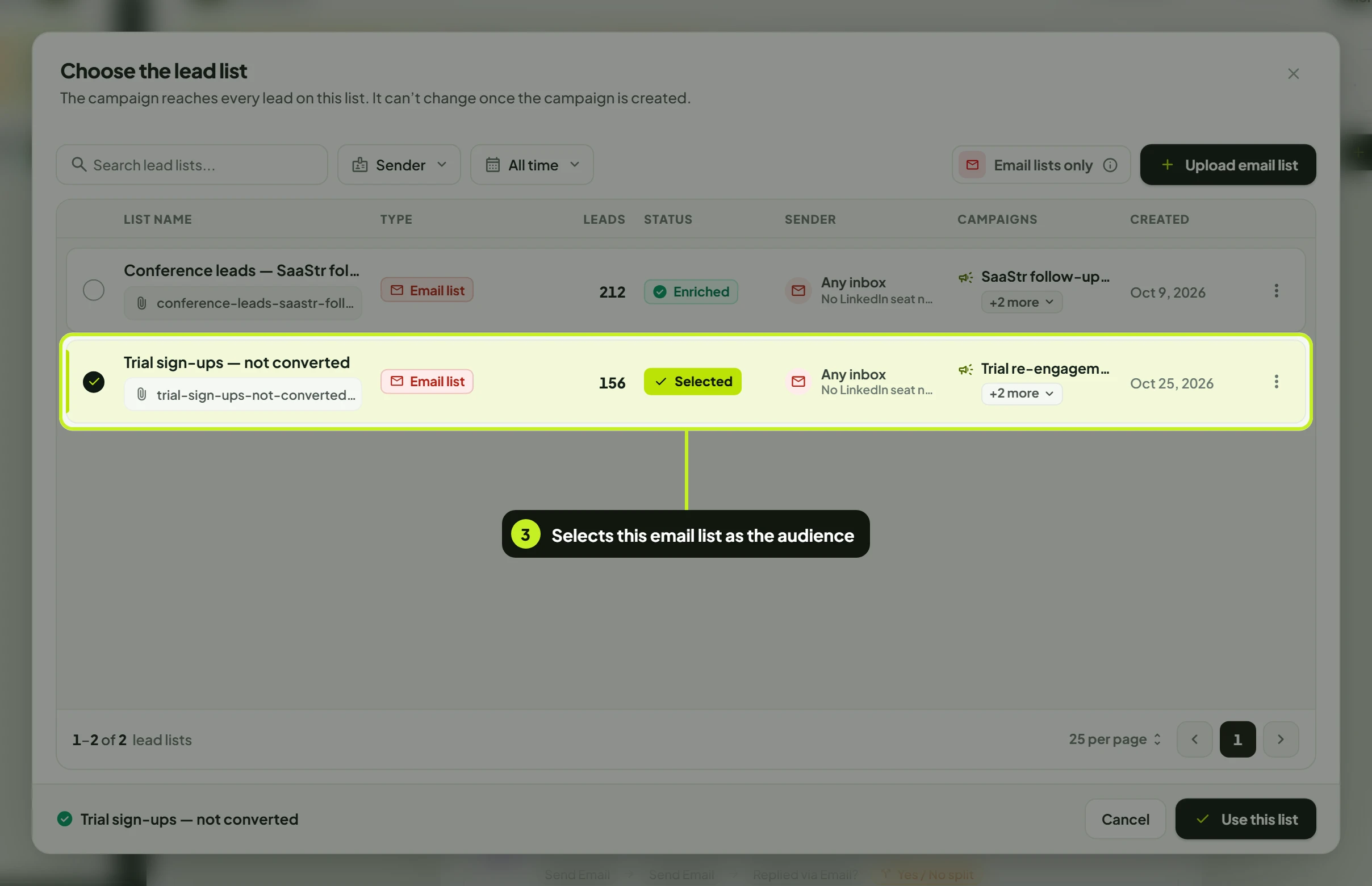
No list yet? Click Upload email list to create one without leaving the campaign. Once the campaign has been created, the list is fixed: The audience can't be changed once the campaign has been created.
- Schedule and pace. Check the sending days, window and timezone, and the daily pace (default 24, at most 45 new leads a day). See Launch settings and daily limits.
Build the sequence
Start from a template, or from scratch
- Under Start from a template, click a template to load it. Every step can be changed afterwards.
- Or click Add first step to build your own. Import JSON loads a sequence you exported earlier.
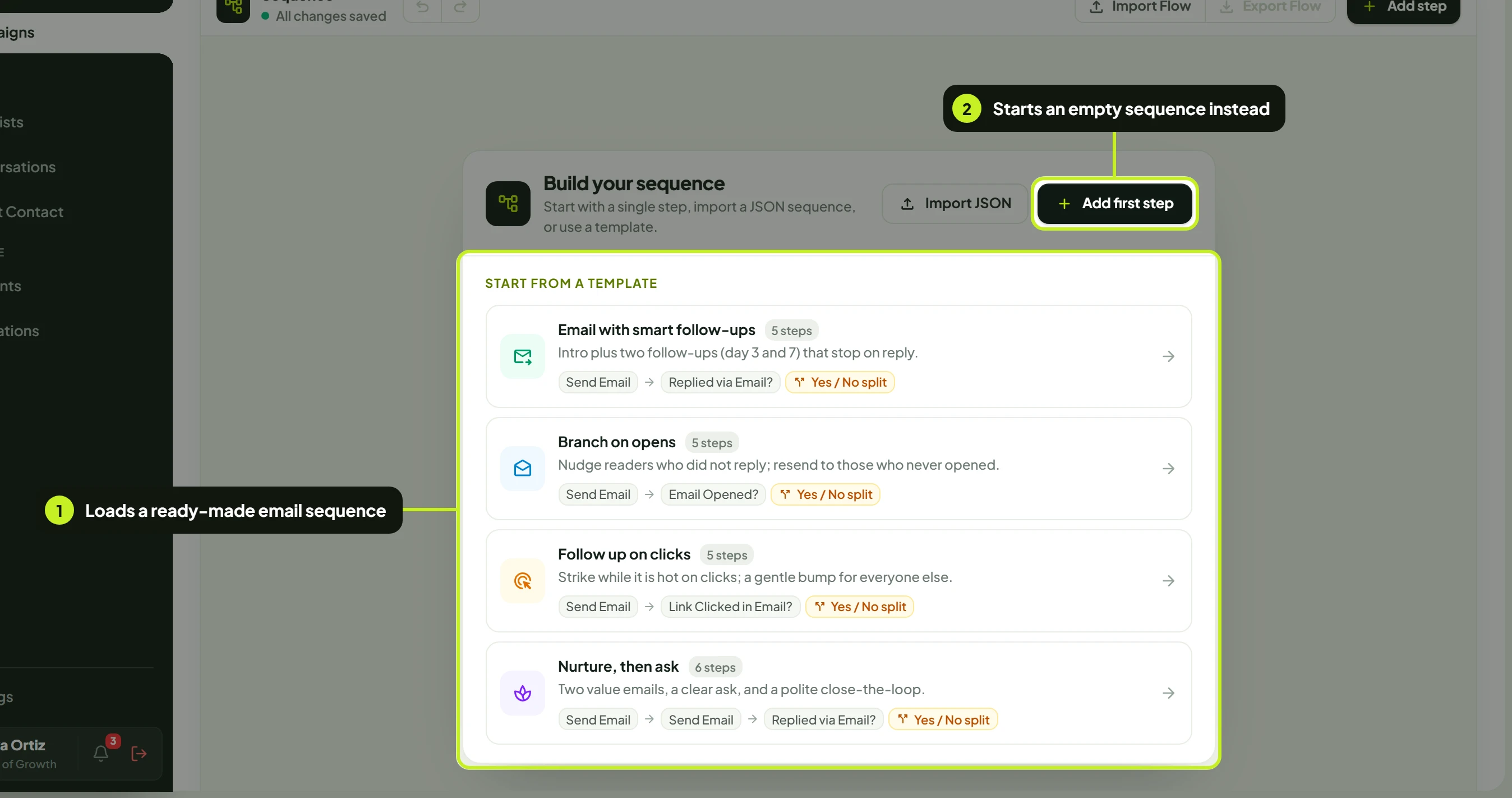
| Template | What it does |
|---|---|
| Email with smart follow-ups | An intro plus two follow-ups (day 3 and 7) that stop on reply. |
| Branch on opens | Nudges readers who didn't reply; resends to those who never opened. |
| Follow up on clicks | Follows up quickly on clicks, with a gentle bump for everyone else. |
| Nurture, then ask | Two value emails, a clear ask, and a polite close-the-loop. |
Read the sequence
- Each Send Email step sends one email; each condition, such as Replied via Email?, splits into a Yes and a No branch.
- Click Save draft (or Save changes on a campaign that has launched). A sequence needs at least two steps.
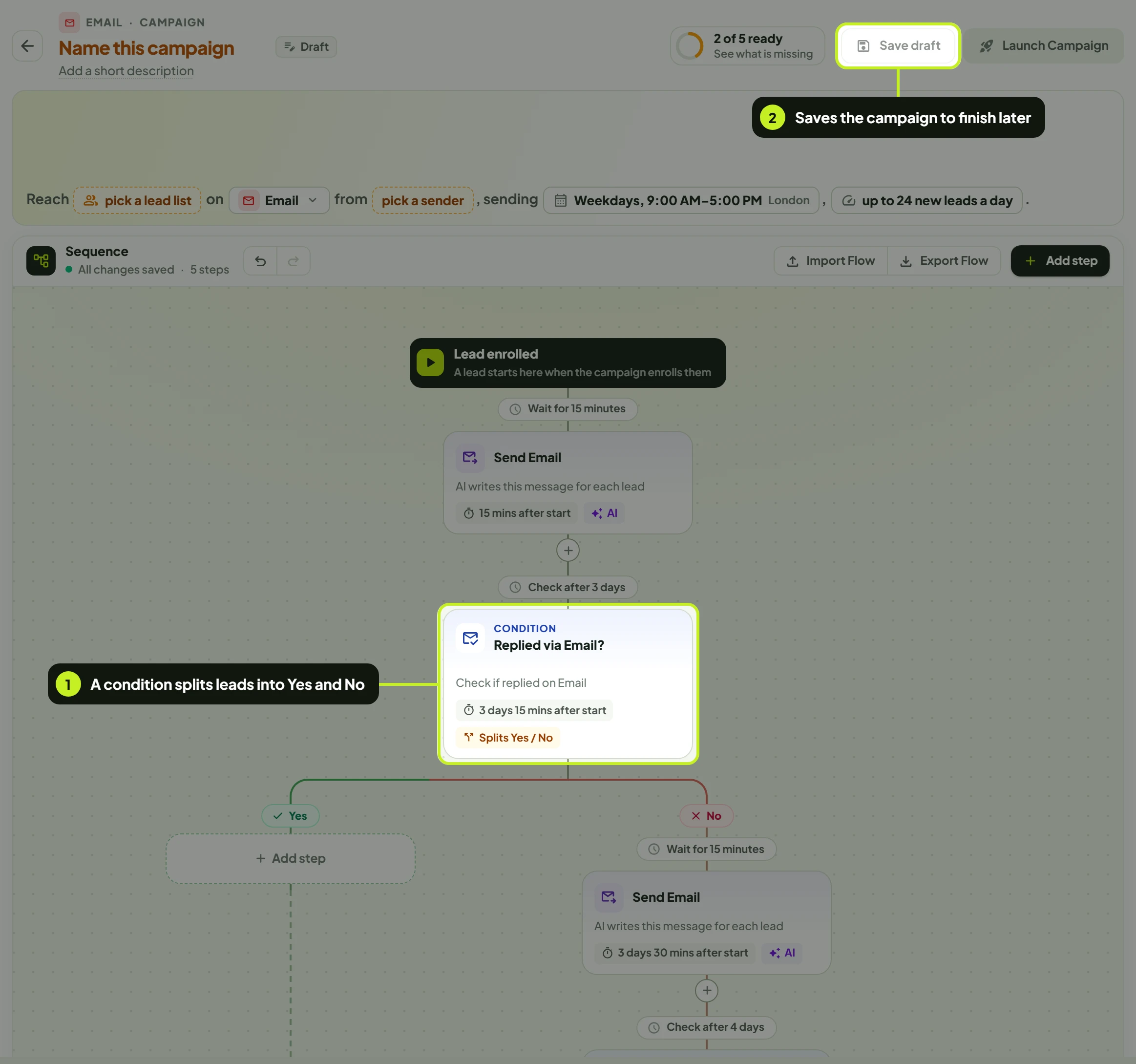
To add a step, click Add step in the toolbar, or a + under any step or branch. In an email campaign, Add a step offers only email-friendly steps:
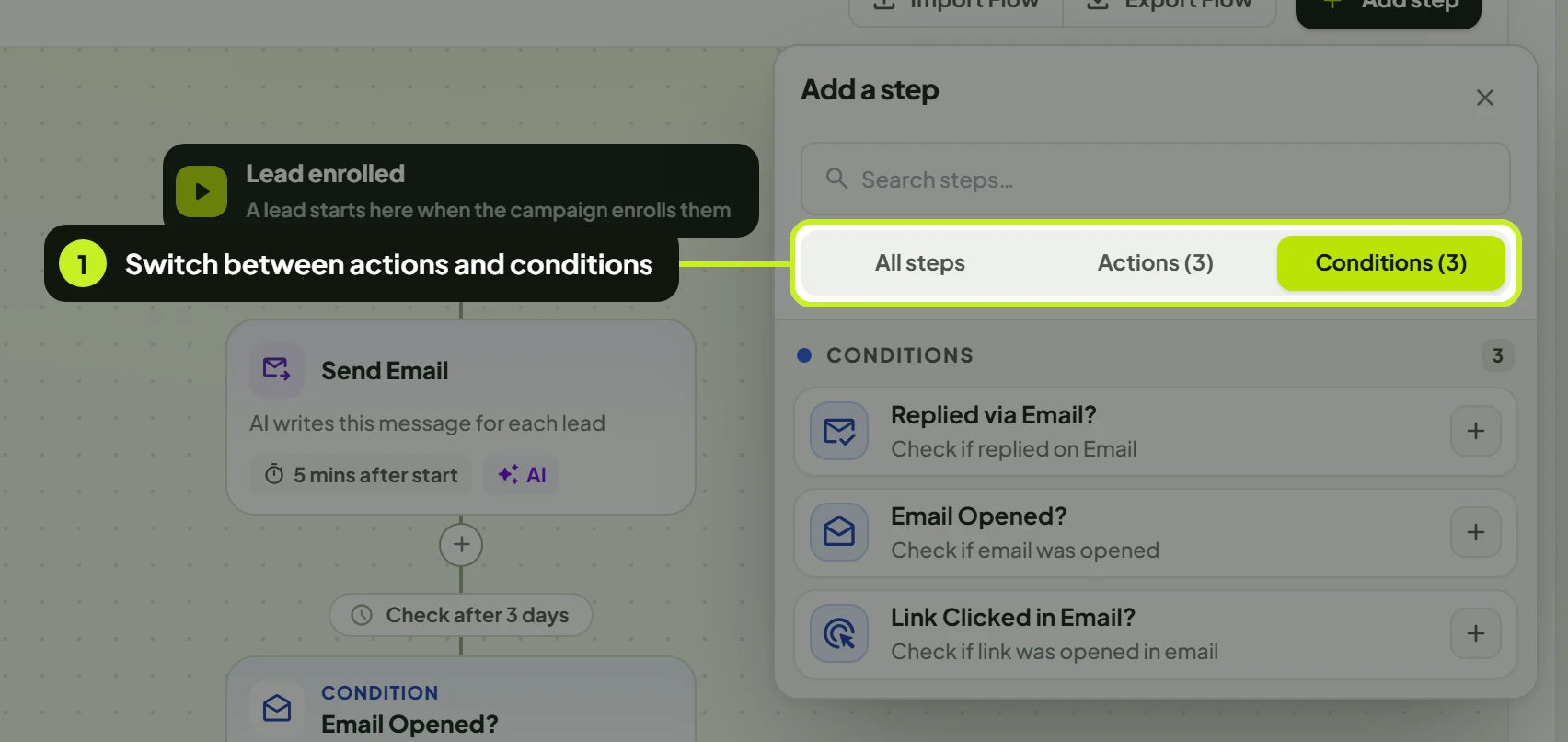
| Step | Type | What it does |
|---|---|---|
| Send Email | Action | Sends one email from the campaign's inbox. |
| Add/Update Tag | Action | Replaces the lead's tag. |
| Notify Webhook | Action | Sends the lead's data to a webhook you set up in Settings. See Webhooks. |
| Replied via Email? | Condition | Branches on whether the lead replied. |
| Email Opened? | Condition | Branches on whether the lead opened the email. |
| Link Clicked in Email? | Condition | Branches on whether the lead clicked a link in the email. |
For each condition, choose under How it runs whether to check once after a delay (Wait a specific amount of time) or hold the lead until it happens (for example Wait until opened). Timing works as in Build and launch a campaign.
Set up a Send Email step
Click a Send Email step to open its settings in the panel on the right. Changes apply as you edit.
- Sending Email Account shows the campaign's inbox. Add Email Account opens Accounts in a new tab.
- Enter a Sender Display Name: the name leads see beside your address.
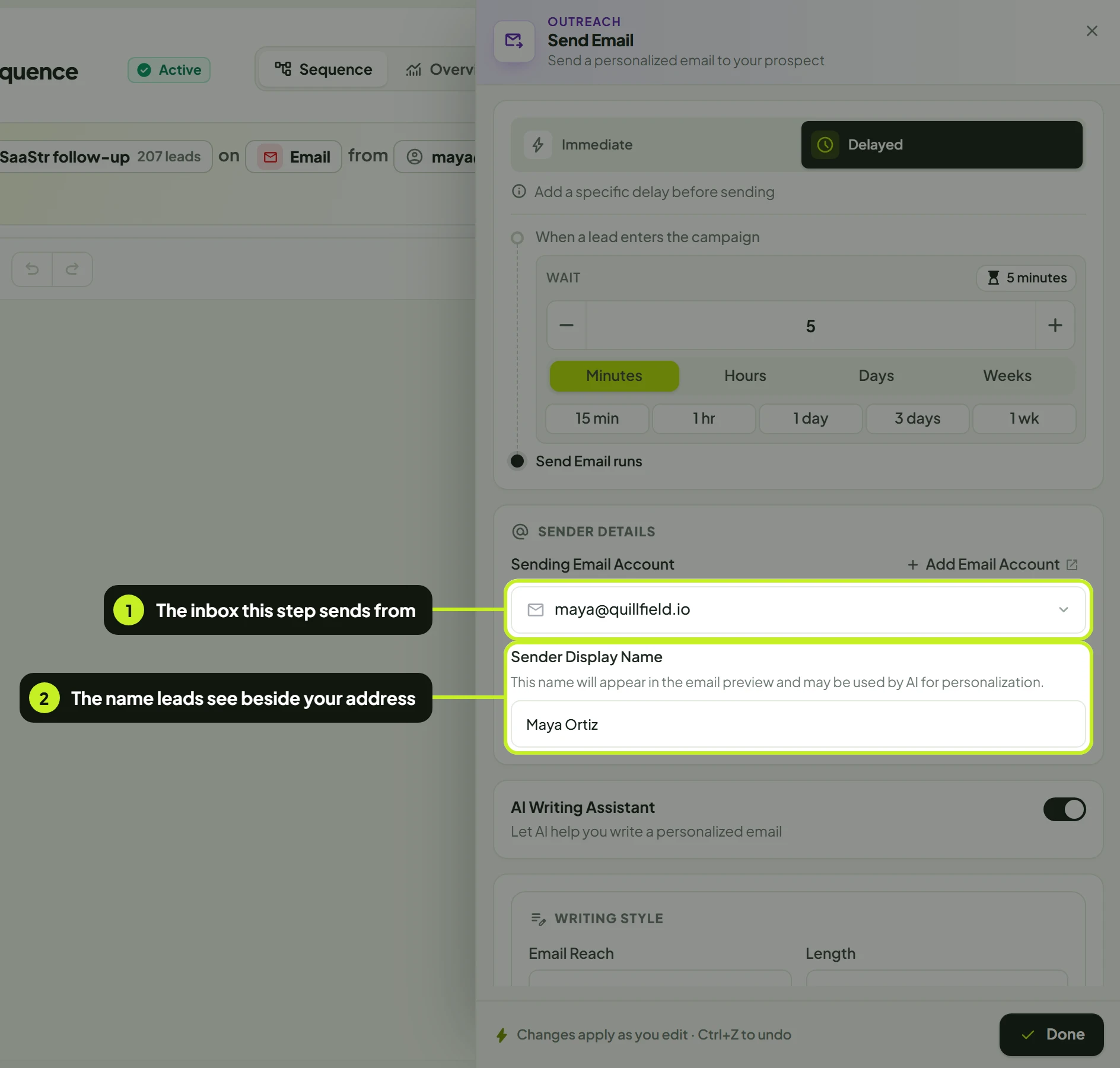
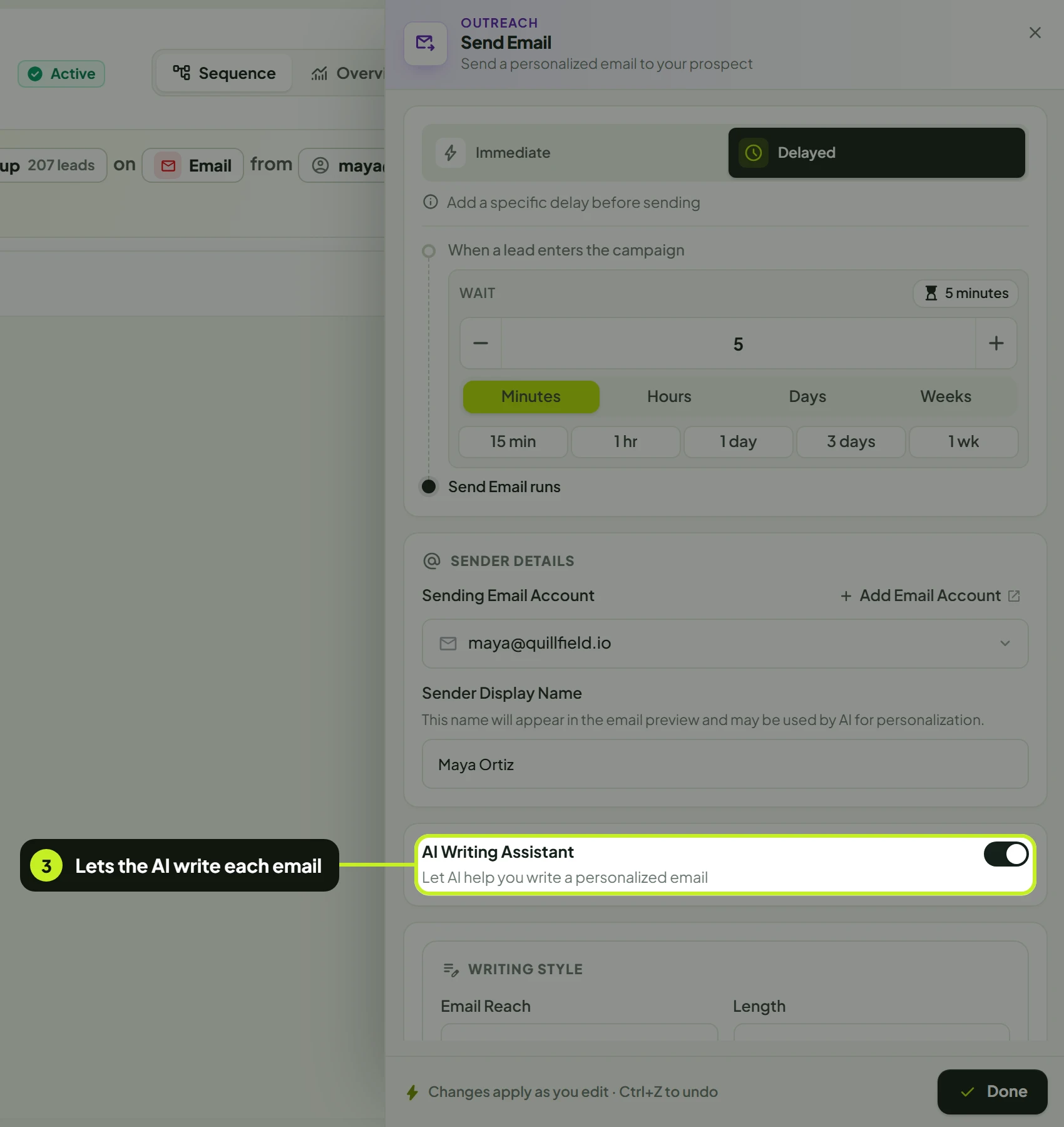
- Choose who writes the email. Turn on AI Writing Assistant to have the AI write each email from the lead's details, or turn it off to write it yourself.
| You choose | What you set |
|---|---|
| AI Writing Assistant on | Email Reach (for example Cold Outreach or Follow-up), Length, Tone and Language; AI Generated Subject (on by default); Personalise with (First Name, Company, Role/Title, Industry); Include Call to Action with a Call to Action Style; Include Email Signature with your Email Signature; and Custom Guidelines. Generate Example Email shows a sample. |
| AI Writing Assistant off | A Subject and the Email Content. Click a Personalization Tags variable ({{first_name}}, {{full_name}}, {{company_name}}, {{role}}, {{industry}}) to insert it. |
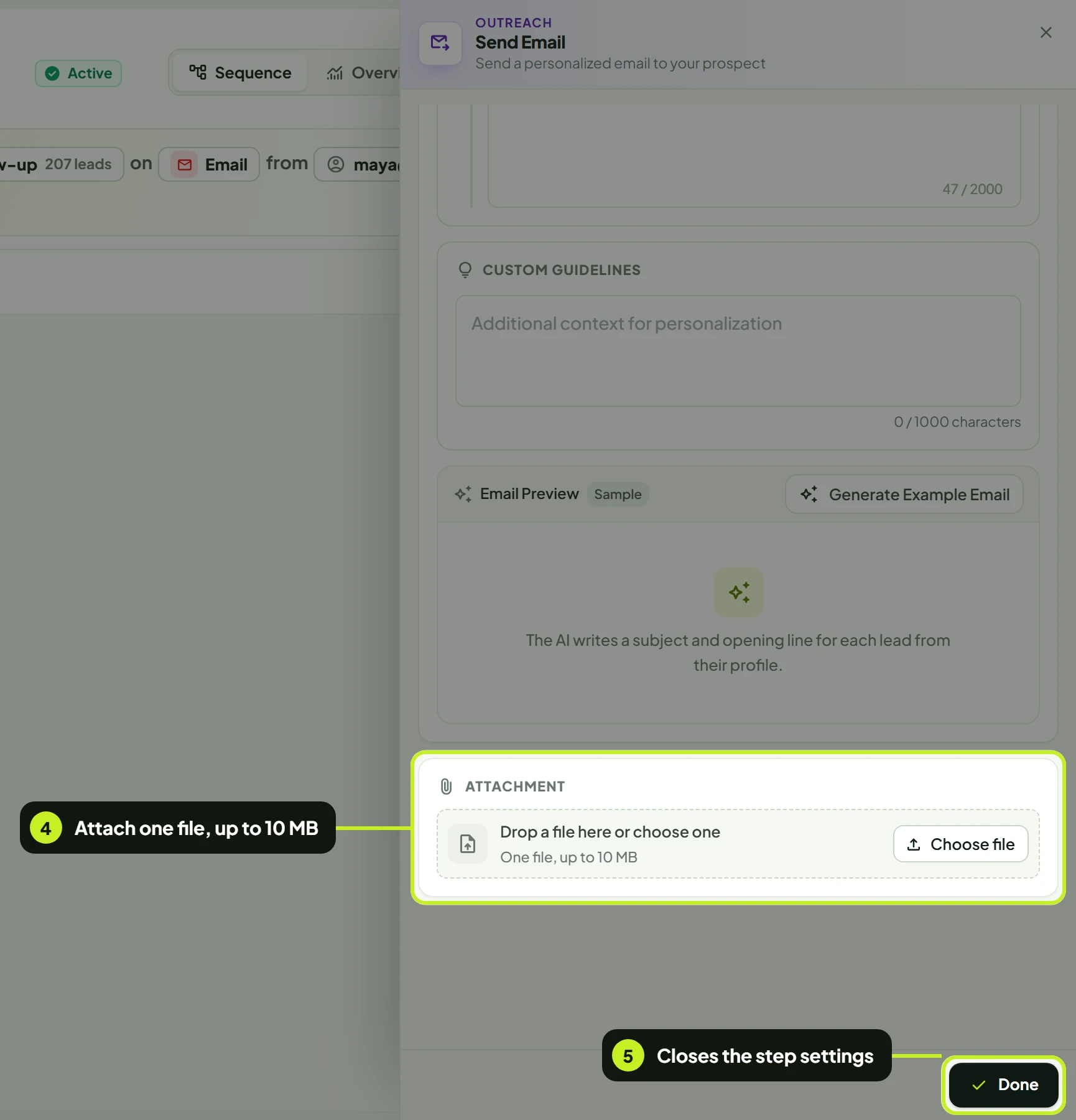
- Optionally add one Attachment (1 file, up to 10 MB) with Choose file, or drop it in.
- Click Done to close the panel.
Each step also has timing at the top: Immediate sends as soon as the step is reached; Delayed waits the time you set first.
Launch
- Click the readiness ring in the header and check Before launch: Campaign name, Sender, Lead list, Sequence has steps and At least one sending day.
- Click Launch Campaign, or Save draft to finish later.
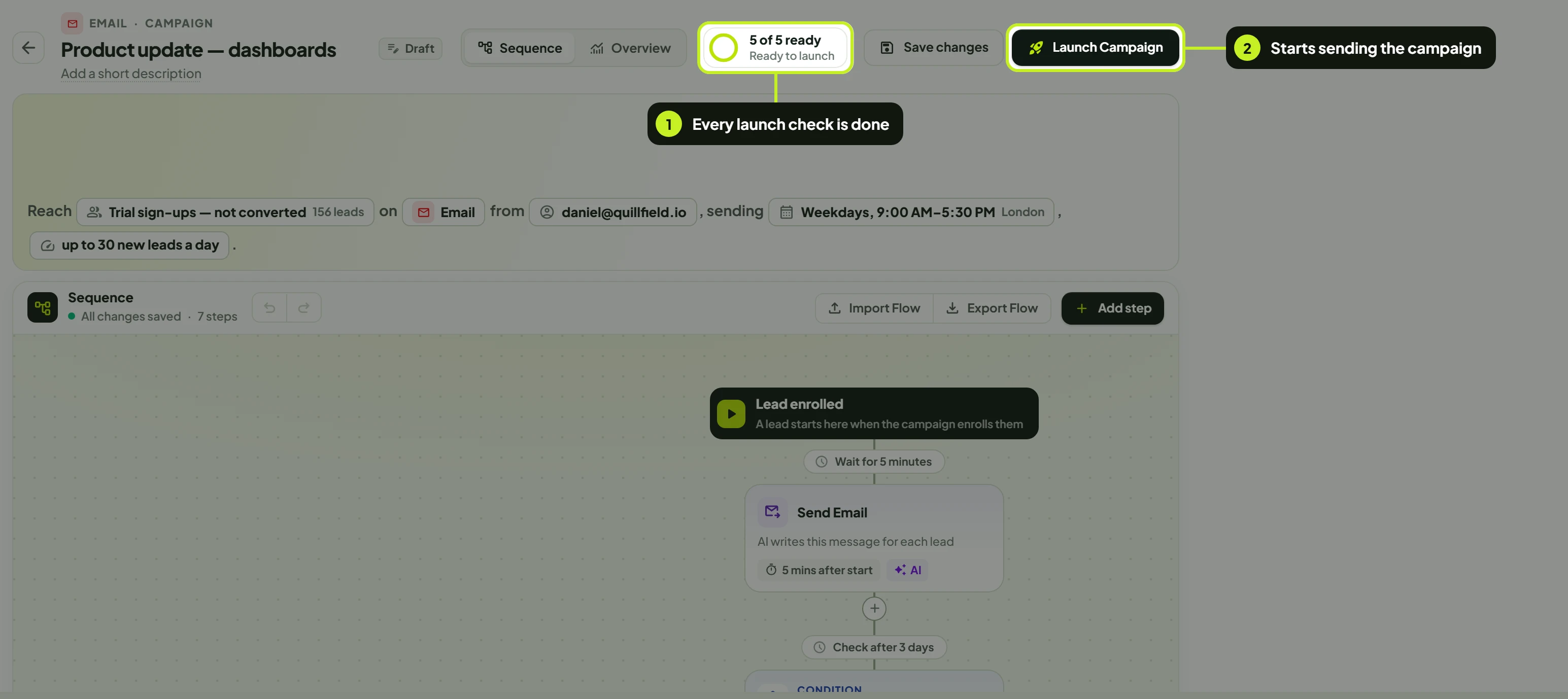
You'll see Campaign launched successfully!, and the campaign shows as Active on the Campaigns page.
After you launch
- Replies arrive in Conversations. An email campaign stops following up with a lead once they reply, and a Replied via Email? condition sends them down its Yes branch.
- Results: hover the campaign's results on the Campaigns page, or open its Overview, for emails sent, opened, clicked and replied, with the open and click rates. See Track a campaign.
- Changes: you can still edit steps, the schedule and the pace. The inbox and the list stay fixed. See Pause, resume and edit.
- Skipped leads: leads already reached elsewhere, or on your blocklist, are skipped and counted as Duplicates or Blacklisted.
Note: A newly connected inbox is warmed up automatically: it starts at 5 emails a day and works up to 50 a day over its first 14 days. That ceiling is per inbox, so two campaigns sharing one inbox share it.
Common problems
| What you see | What it means | What to do |
|---|---|---|
| No connected accounts yet. in the sender picker | There's no inbox to send from. | Click Connect another account, or see Connect an email inbox. |
| Launch Campaign is greyed out | An item under Before launch isn't ticked. | Click the readiness ring and fix the unticked item. |
| Your list isn't in Choose the lead list | Only email lists are shown. | Upload it as Email list (CSV), or click Upload email list. |
| Sequence has steps stays unticked | The sequence has fewer than two linked steps. | Add another step. |
| The file is larger than 10 MB | The attachment is too big. | Attach a smaller file, or share a link in the email instead. |
| Leads show Bounced on the list | Emails to those addresses bounced earlier. | Remove or correct them in your CSV. |
| Many leads show Duplicate | They're already in another campaign. | This prevents double outreach. See Prevent duplicate outreach. |
| A new inbox sends fewer emails than the pace | It's still warming up. | Nothing to fix; it reaches 50 a day after 14 days. |
Next: Send a one-off message with Send an instant email.