
Browse docs
Create a lead list
Import the people a campaign will reach — from a LinkedIn search, a Sales Navigator URL, a LinkedIn CSV or an email list — then preview and publish.
Updated
On this page
A lead list is the group of people a campaign reaches. You build one by importing it from a source, previewing who's in it, and publishing it. Once it's published, you can pick it on a campaign's Audience step.
Every import works the same way, in three stages: Configure, Preview, Publish.
Open the lead list picker
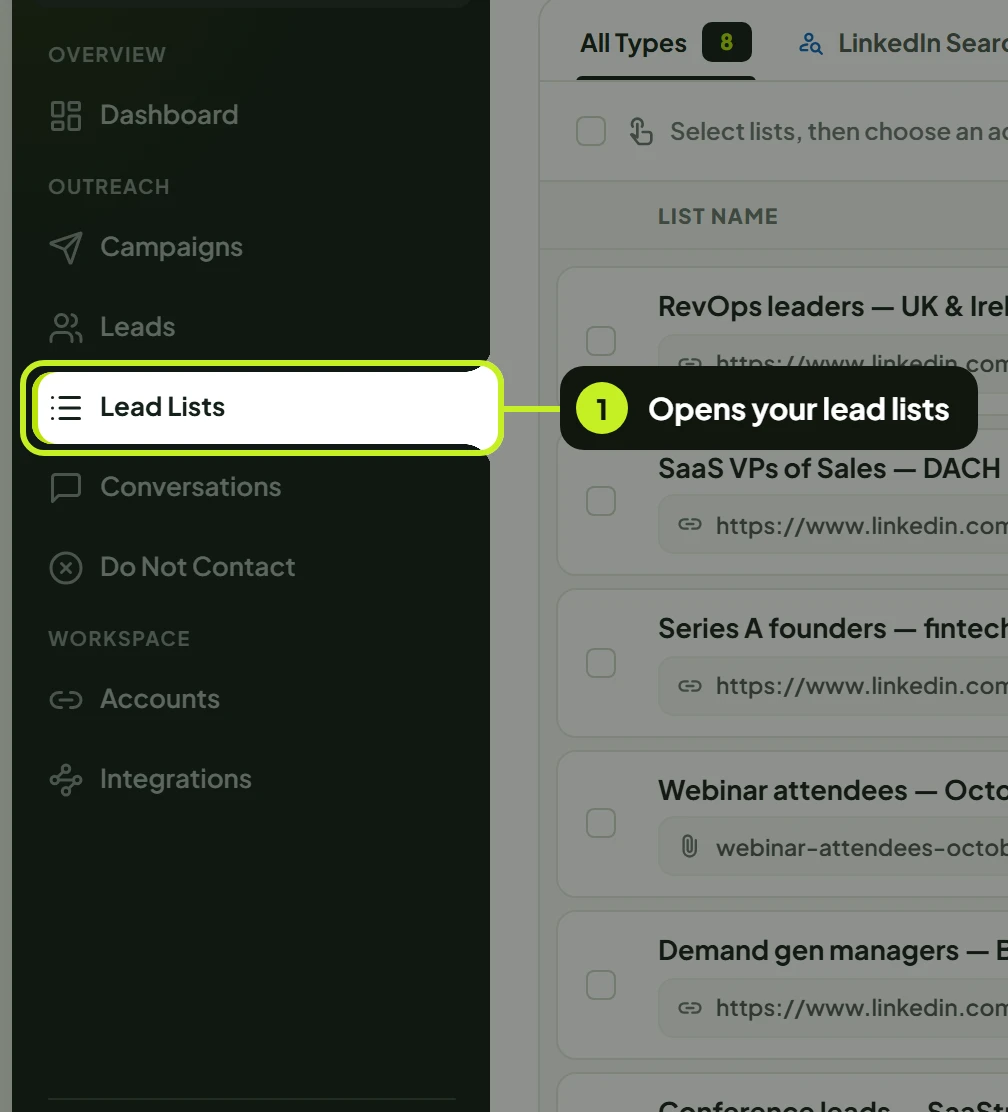
- In the sidebar, under Outreach, click Lead Lists.
- Click Create Lead List in the top right.

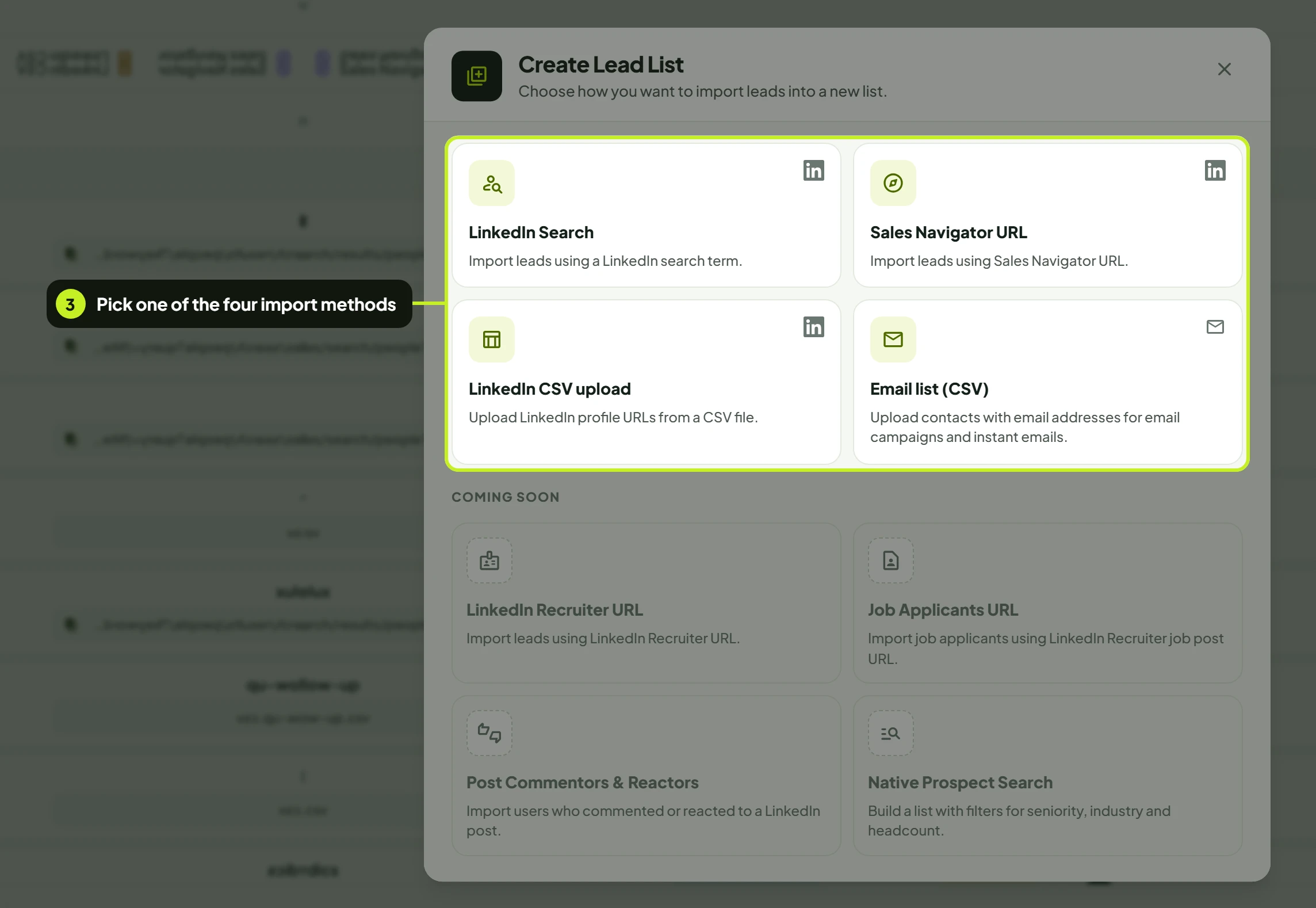
- In the Create Lead List dialog, click the import method you want: LinkedIn Search, Sales Navigator URL, LinkedIn CSV upload or Email list (CSV).
Choose an import method
| Method | What you need | Use it for |
|---|---|---|
| LinkedIn Search | A LinkedIn people search URL and a connected LinkedIn seat | LinkedIn campaigns built from a regular LinkedIn search |
| Sales Navigator URL | A Sales Navigator people search URL and a connected LinkedIn seat | LinkedIn campaigns built from Sales Navigator filters |
| LinkedIn CSV upload | A CSV file with a column of LinkedIn profile URLs, and a connected LinkedIn seat | People you already have in a spreadsheet or CRM export |
| Email list (CSV) | A CSV file with a column of email addresses. No LinkedIn seat needed | Email campaigns and instant emails |
Import from a LinkedIn search
- On LinkedIn, run a People search and apply your filters. Copy the full URL from your browser's address bar.
- In the picker, choose LinkedIn Search.
- Enter a List Name.
- Choose a LinkedIn Account. Only connected seats are listed.
- Paste the URL into Search URL. Click How to get this? next to the field if you need a reminder of where to find it.
- Click Preview leads. The preview shows each lead's Name, Company, Location and a View link to their profile.
- Click Publish.
Tip: Publish only turns on after a preview that finds at least one lead. If you change the name, account or URL after previewing, preview again.
Import from a Sales Navigator URL
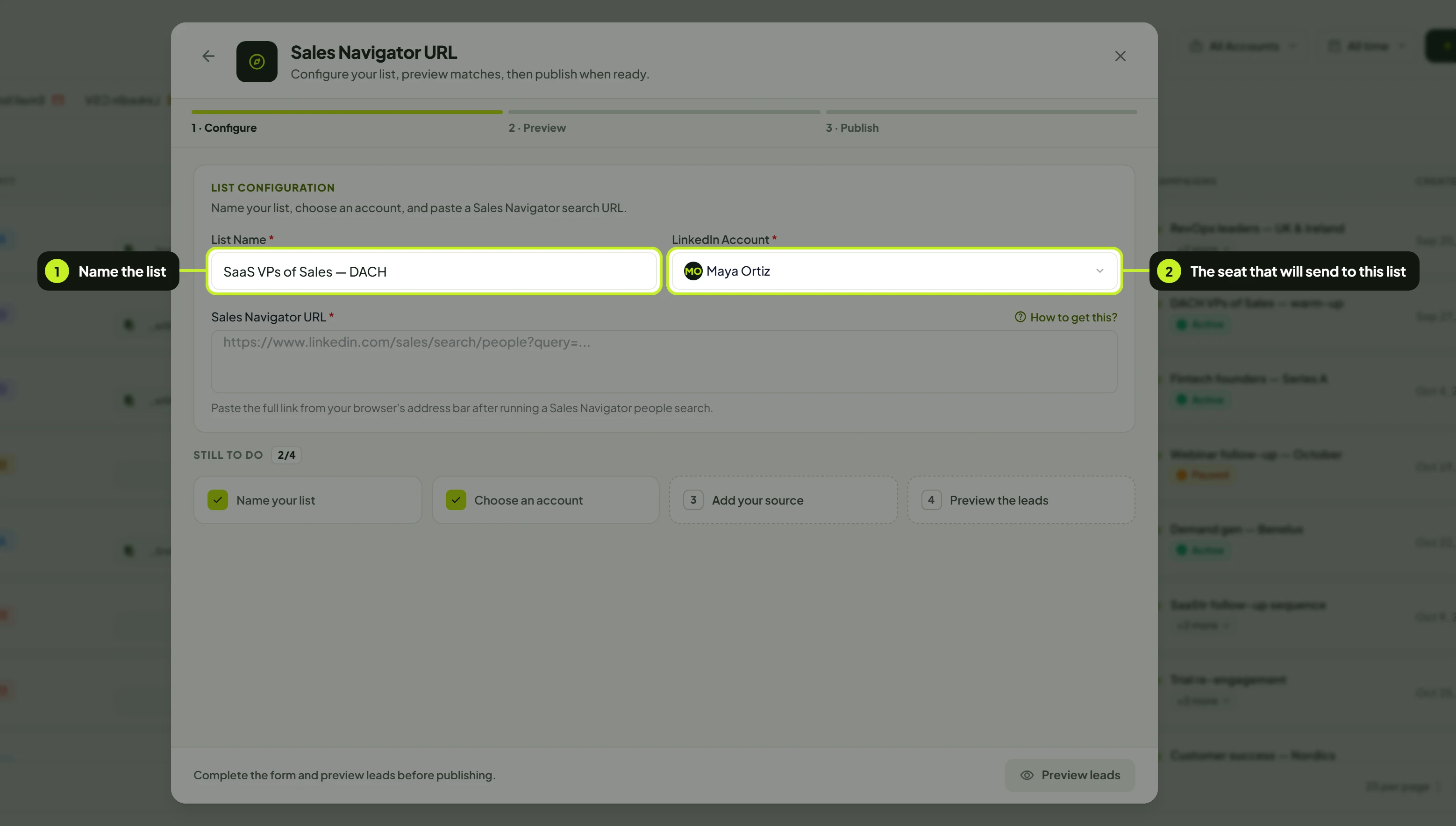
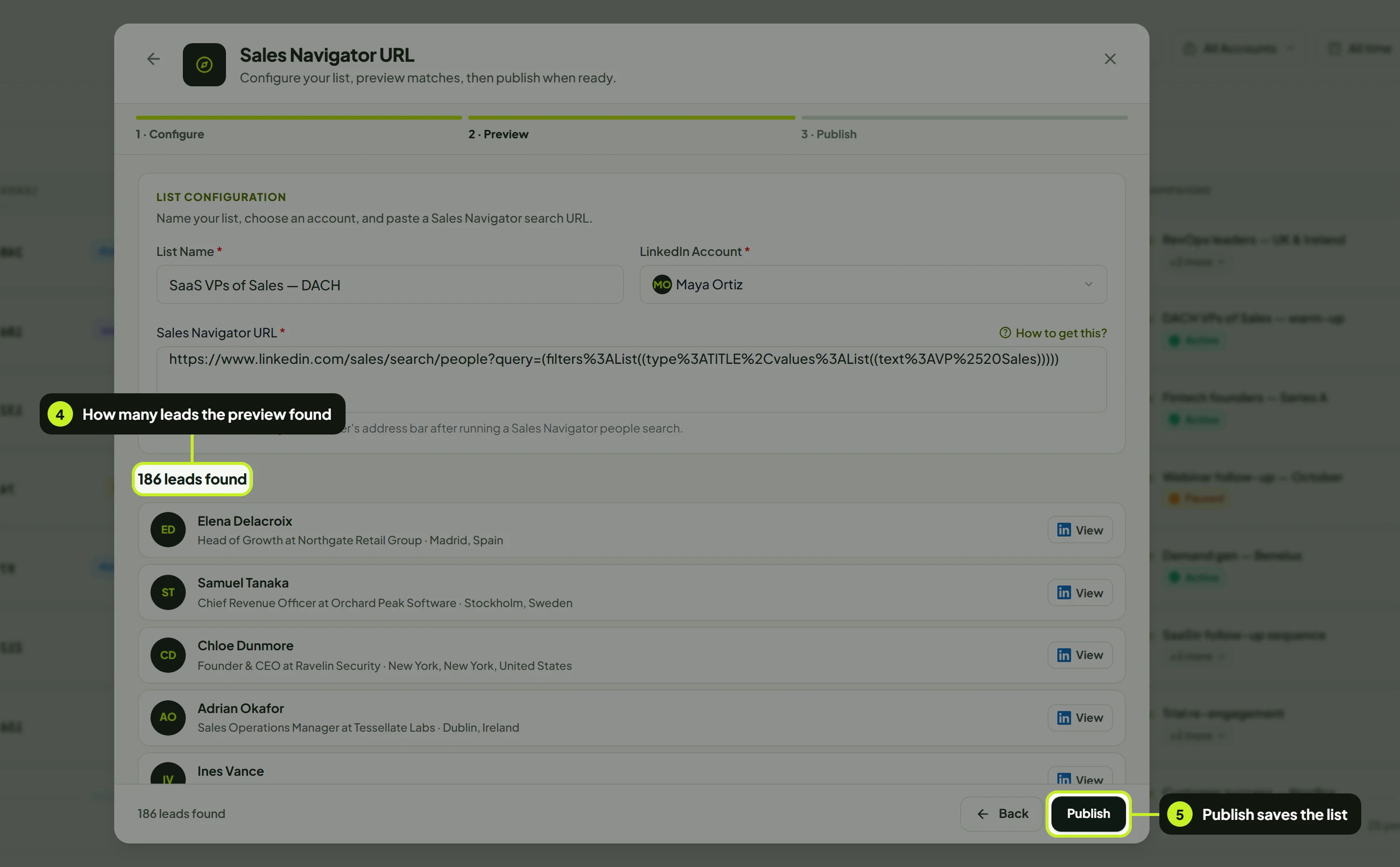
- Enter a List Name.
- Choose the LinkedIn Account that will send to this list.
- Paste a Sales Navigator people search into Sales Navigator URL. It must be a
linkedin.com/sales/search/peopleaddress — click How to get this? for the steps.
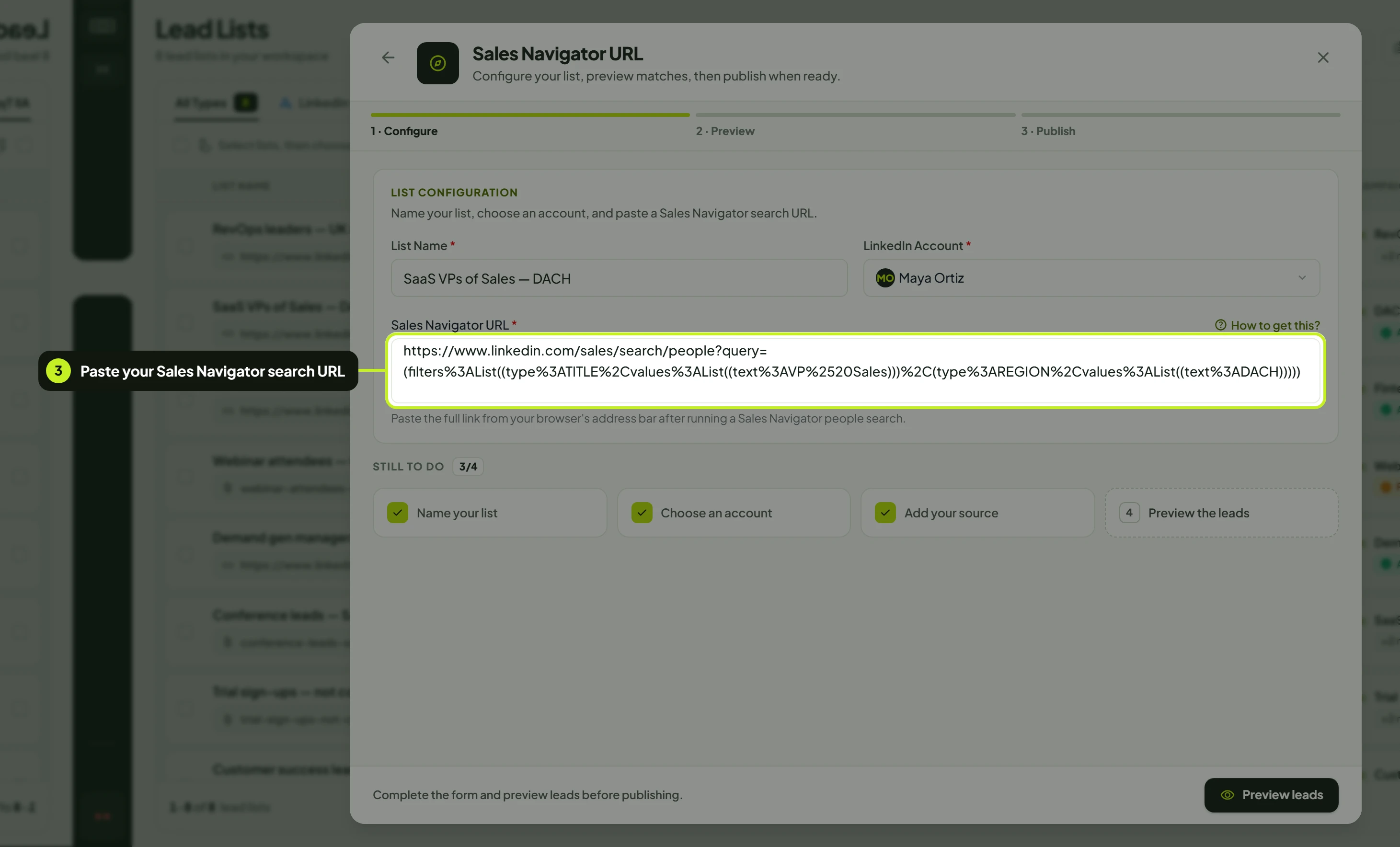
- Click Preview leads and check the people in the preview table.
- Click Publish.
Below the form, Still to do keeps a checklist while you work: Name your list, Choose an account, Add your source and Preview the leads. It reads Ready to publish once all four are done.
Upload a LinkedIn CSV
Use this when you already have LinkedIn profile URLs in a spreadsheet.
- In the picker, choose LinkedIn CSV upload. The wizard is titled CSV File Upload.
- Enter a List Name and choose a LinkedIn Account.
- Under CSV File (max 10MB), click Choose File. Click Download Sample first if you want a file with the right headers.
- In Map your CSV columns, tell ReacherPro which column holds each field: First name, Last name, Job title, Company, LinkedIn URL, Email and Phone. Only LinkedIn URL is required, and columns are matched automatically where the headers are clear.
- Click Preview leads. The preview shows the first 50 leads.
- Click Publish.
Note: Rows whose LinkedIn URL column doesn't hold a linkedin.com profile address are left out of the preview and the list.
Upload an email list
Email lists feed email campaigns and instant emails. They don't need a LinkedIn seat: they send from any connected inbox.
- In the picker, choose Email list (CSV). The wizard is titled Email list upload.
- Enter a List Name.
- Choose your CSV file. Only a column with email addresses is required; first name, last name, company, job title and phone are optional.
- Map your columns. Email is required; LinkedIn URL is optional.
- Click Preview leads. Each address shows Valid, or Bounced with the date it bounced.
- Click Publish.
After you publish
You'll see Lead list created successfully and the list appears on the Lead Lists page. Each row shows the list's List Name, Type, Leads, Status, Sender, Campaigns and Created date. Filter by type with the tabs (All Types, LinkedIn Search, Sales Navigator, LinkedIn CSV, Email list) or by sender with All Accounts.
Click a list to open its details. There you'll see Leads by status, for example how many leads are Enriched and how many were skipped as Duplicate (already being reached elsewhere) or Blacklisted (on your Do Not Contact blocklist). Hover a skipped lead's info icon to see why.
Each row's actions menu has:
- View Details and Edit List. You can rename a list and change its LinkedIn account; the search URL or CSV file can't be changed. Email lists can only be renamed.
- Open in LinkedIn, for search-based lists.
- Send email to list and Start email campaign, for email lists.
- Delete List. A list that a campaign uses can't be deleted.
Common problems
| Problem | Fix |
|---|---|
| Enter a valid LinkedIn search URL | Paste the full address from LinkedIn, starting with https://www.linkedin.com/. |
| Enter a valid Sales Navigator search URL | The URL must be a Sales Navigator people search (/sales/search/people). Lead and account list URLs won't work. |
| Your account isn't in LinkedIn Account | Only connected seats are listed. Reconnect it on the Accounts page. |
| Publish stays disabled | Run Preview leads again. Publish needs a preview with at least one lead, and editing the form clears the preview. |
| No valid LinkedIn profile URLs were found in the selected column | Map LinkedIn URL to the column with profile links like https://www.linkedin.com/in/…. |
| CSV file must be 10MB or smaller | Split the file into smaller lists. |
| Only CSV files are supported | Export your spreadsheet as .csv, not .xlsx. |
| A list can't be deleted | It's used by a campaign, and a campaign's audience can't be changed. Delete that campaign first if you no longer need it. |
| Some leads show Duplicate | They're already being contacted by another campaign or seat. See your Do Not Contact page. |
Next: Put your list to work in Build and launch a campaign.