
Browse docs
Pause, resume and edit
Pause and resume a campaign, change what can still change after launch, reuse a sequence in a new campaign, and delete campaigns safely.
Updated
On this page
You control a campaign after launch from its row on the Campaigns page, or from the campaign workspace itself. This guide covers pausing and resuming, what you can still edit once a campaign has started, how to reuse a sequence, and the rules for deleting.
How it works
- Every campaign row has a quick action in its Status column (Pause, Resume or Start) and a ⋮ menu with the actions that fit its status.
- Pause campaign stops new steps. Resume campaign carries on from where each lead stopped.
- While a campaign is active or paused, you can still change its name, steps, schedule and pace. Its channel, sender and lead list stay fixed.
- A completed campaign is read-only. A running campaign can't be deleted until you pause it.
Before you start
- You need permission to update campaigns. Without it, the actions are greyed out with a tooltip that says why.
- To find a campaign, see Track a campaign.
What each status allows
| Status | Row menu | Can be edited | Can be deleted |
|---|---|---|---|
| Draft | Edit sequence, Start campaign, Campaign settings, View leads, Export flow, Delete campaign | Everything | Yes |
| Active | Edit sequence, Pause campaign, Campaign settings, View leads, Export flow, Delete campaign | Name, description, steps, schedule and pace | No, pause it first |
| Paused | Edit sequence, Resume campaign, Campaign settings, View leads, Export flow, Delete campaign | Name, description, steps, schedule and pace | Yes |
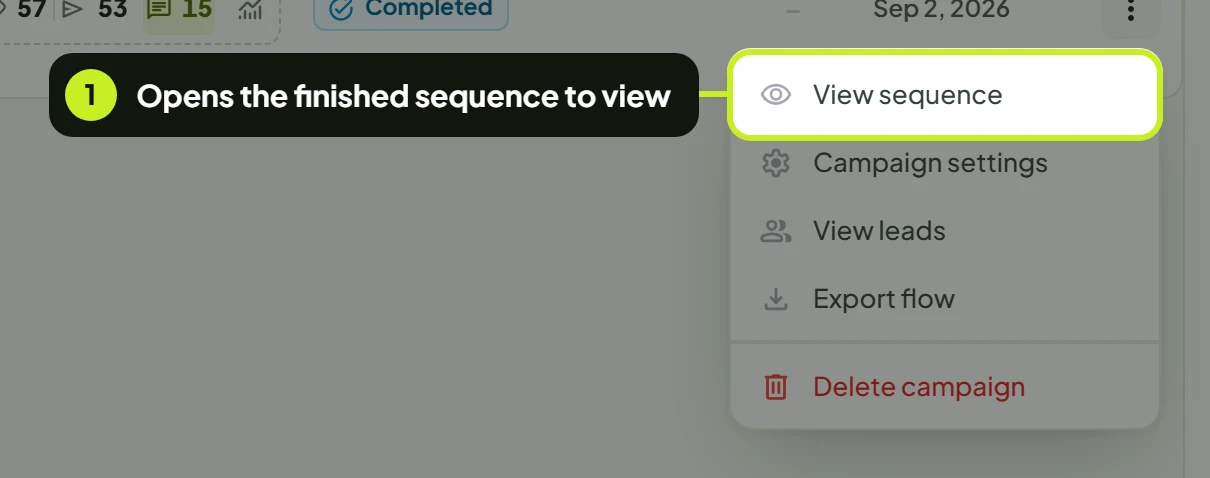
| Completed | View sequence, Campaign settings, View leads, Export flow, Delete campaign | Nothing | Yes |
Pause a campaign
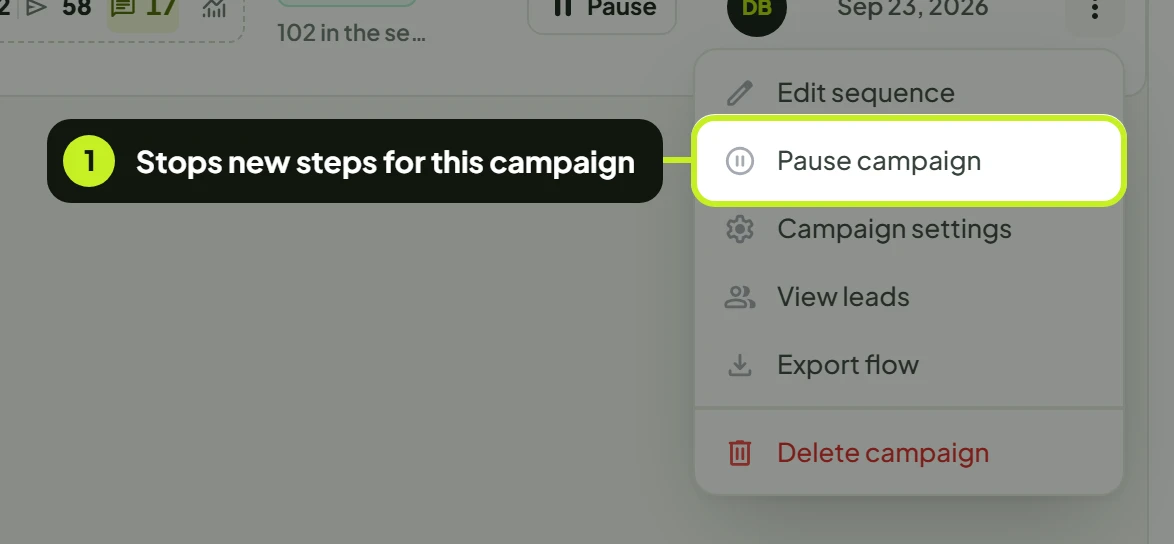
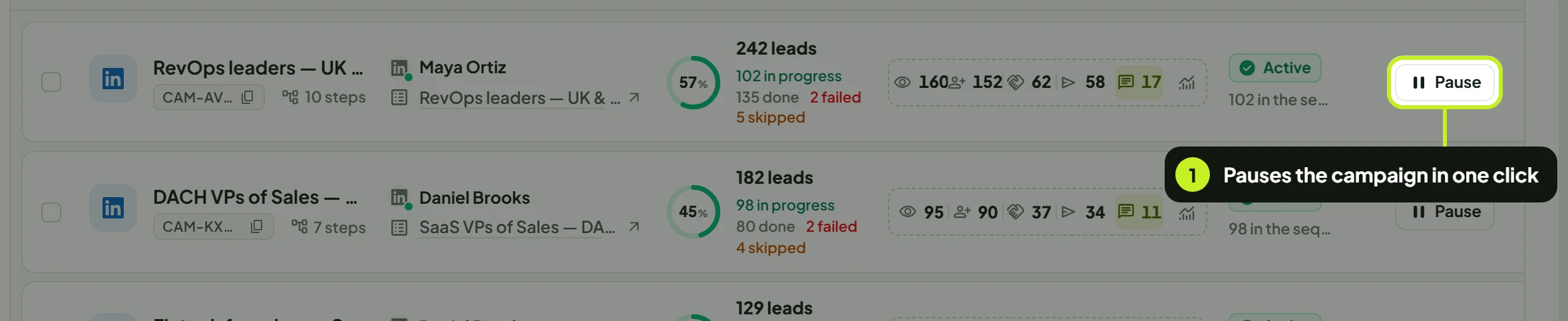
- On the Campaigns page, click Pause in the campaign's Status column, or open its row menu (⋮) and click Pause campaign. Inside the campaign, Pause campaign is at the top right.
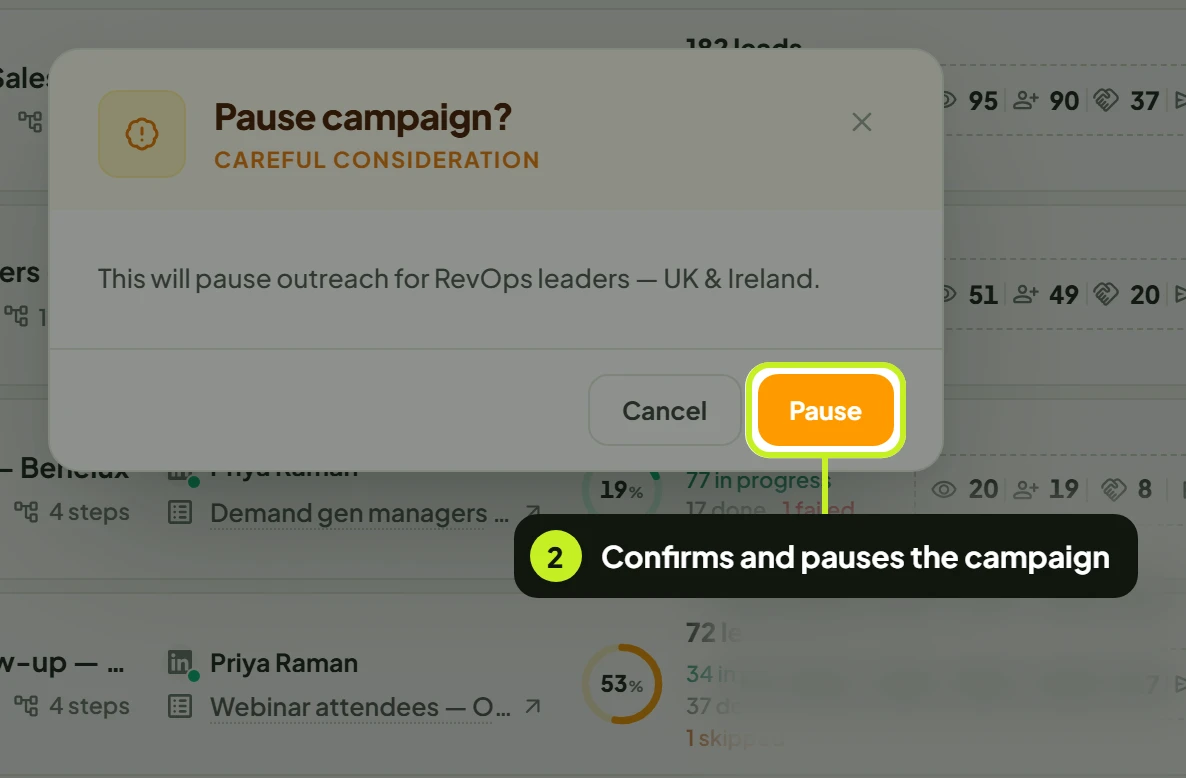
- In Pause campaign?, click Pause. You'll see Campaign paused successfully and the status changes to Paused.
What pausing does
- No new steps run: no invites, messages or emails go out, and no new leads start.
- Leads keep their place. Nobody is removed from the campaign, and nothing already sent is undone.
- Existing conversations carry on. Threads with leads the campaign already reached stay in Conversations, and you can keep messaging them there. The paused campaign starts no new conversations.
- A paused campaign frees its slot on the sender's campaign limit, so another campaign can start on that seat.
Resume a campaign
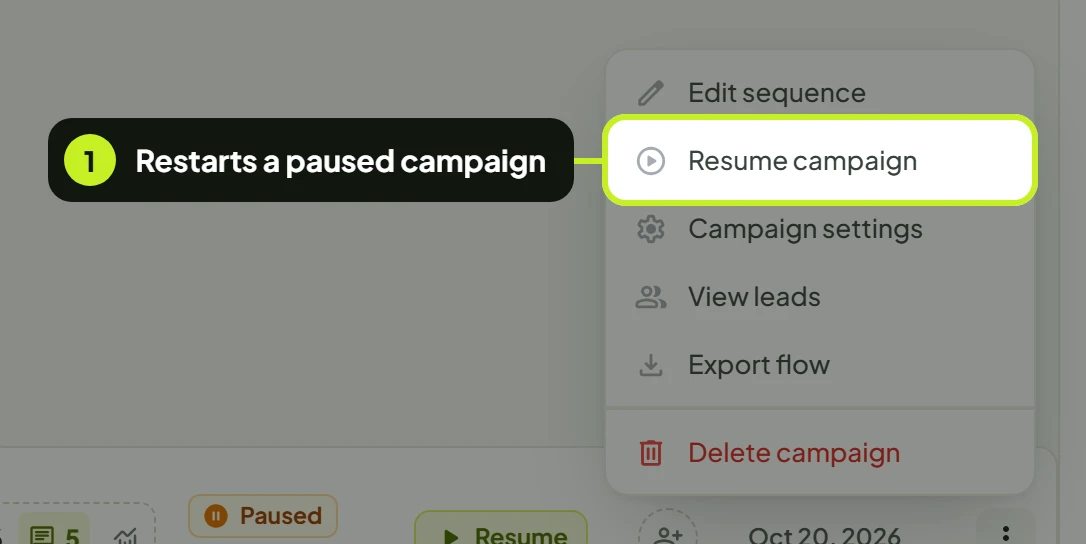
- Click Resume in the paused campaign's Status column, or open its row menu and click Resume campaign.
- In Resume campaign?, click Resume. You'll see Campaign resumed successfully and the status returns to Active. Each lead carries on from the step it had reached, inside the campaign's sending window.
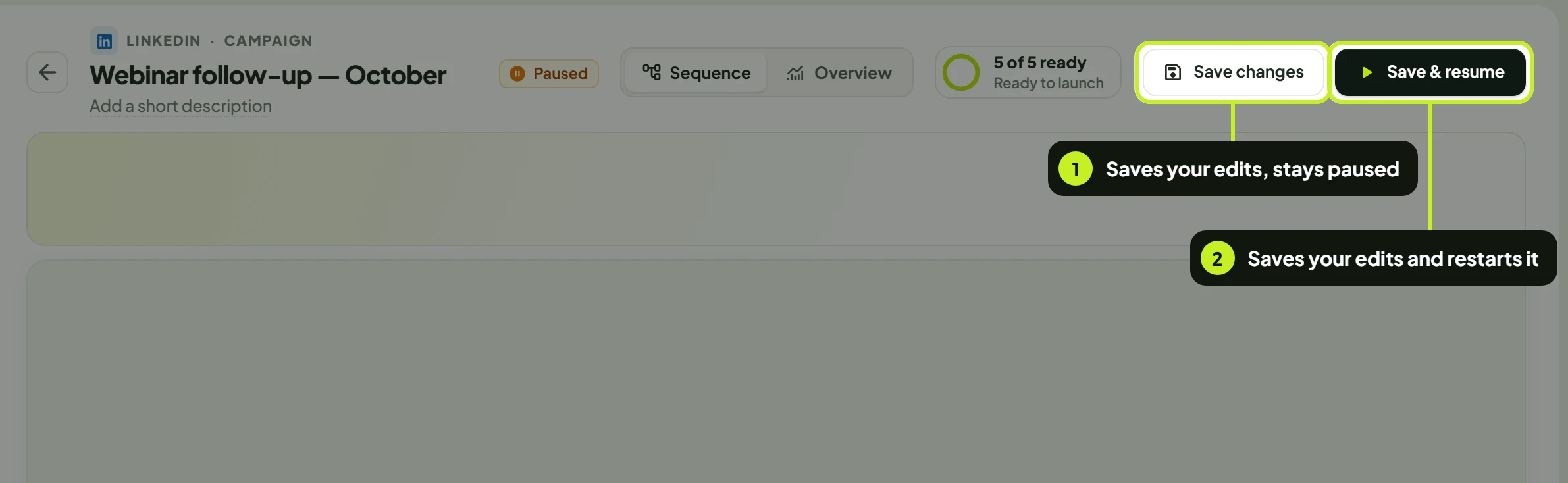
You can also resume from inside the campaign: change the schedule or steps if you need to, then click Save & resume at the top right and confirm with Resume. Save changes next to it saves without resuming.
Note: Resume campaign is greyed out when the sender already runs the most campaigns your plan allows. The tooltip reads This LinkedIn account already runs … campaigns, the most your plan allows per account. Pause one of its campaigns, or choose another account.
Pause or resume several campaigns
- Tick the campaigns on the Campaigns page. The bar above the list shows how many are selected.
- Click Pause (or Resume, or Activate for drafts), then confirm. Click Clear selection to untick them all.
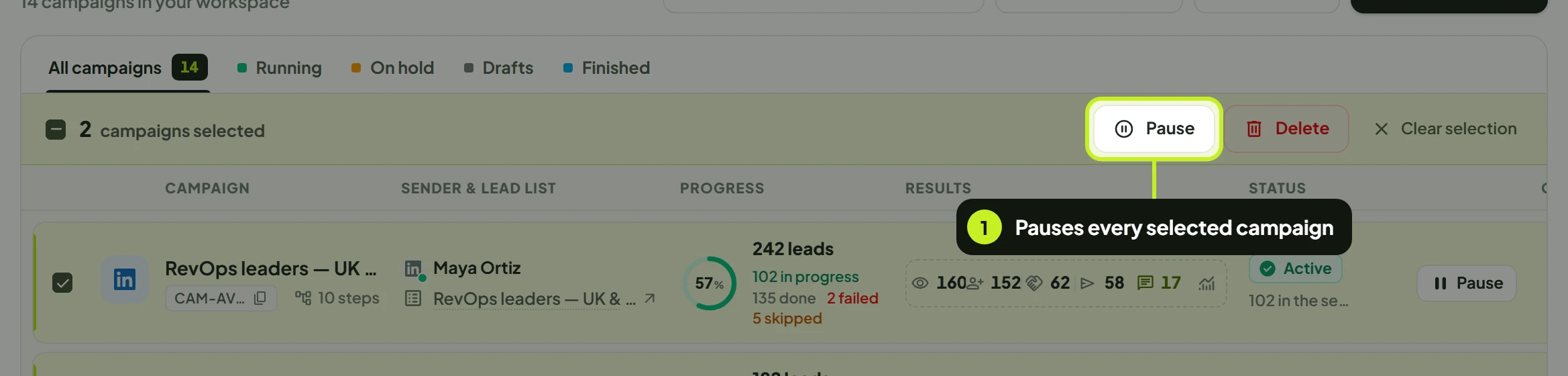
The lifecycle button only works when it fits every selected campaign. Mix active and paused campaigns, or include a completed one, and it stays greyed out.
Edit a running campaign
What you can and can't change
| Part | After launch | Where |
|---|---|---|
| Campaign name and description | Can change | Click the name or the description in the campaign's header |
| Steps, branches, timing and message settings | Can change; saved changes apply to upcoming outreach | The sequence canvas |
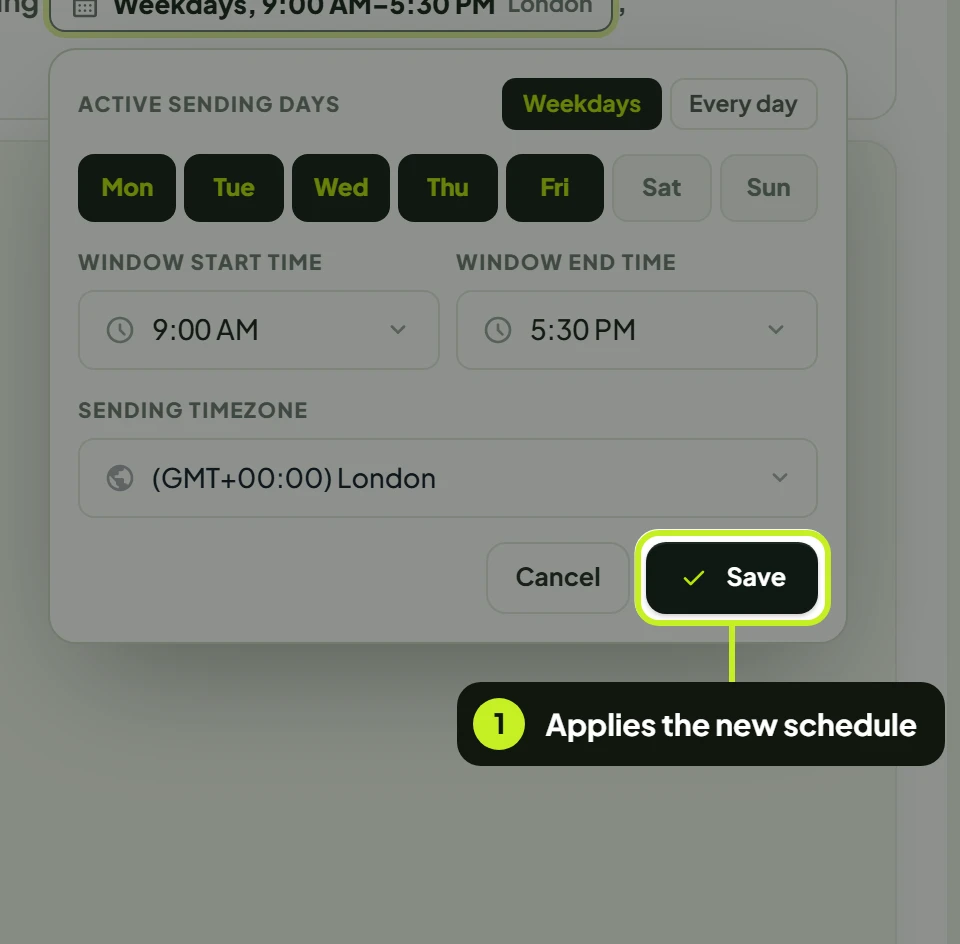
| Timezone, sending days, window and daily pace | Can change | The schedule and pace in the setup sentence |
| Channel | Fixed once the campaign has been created | — |
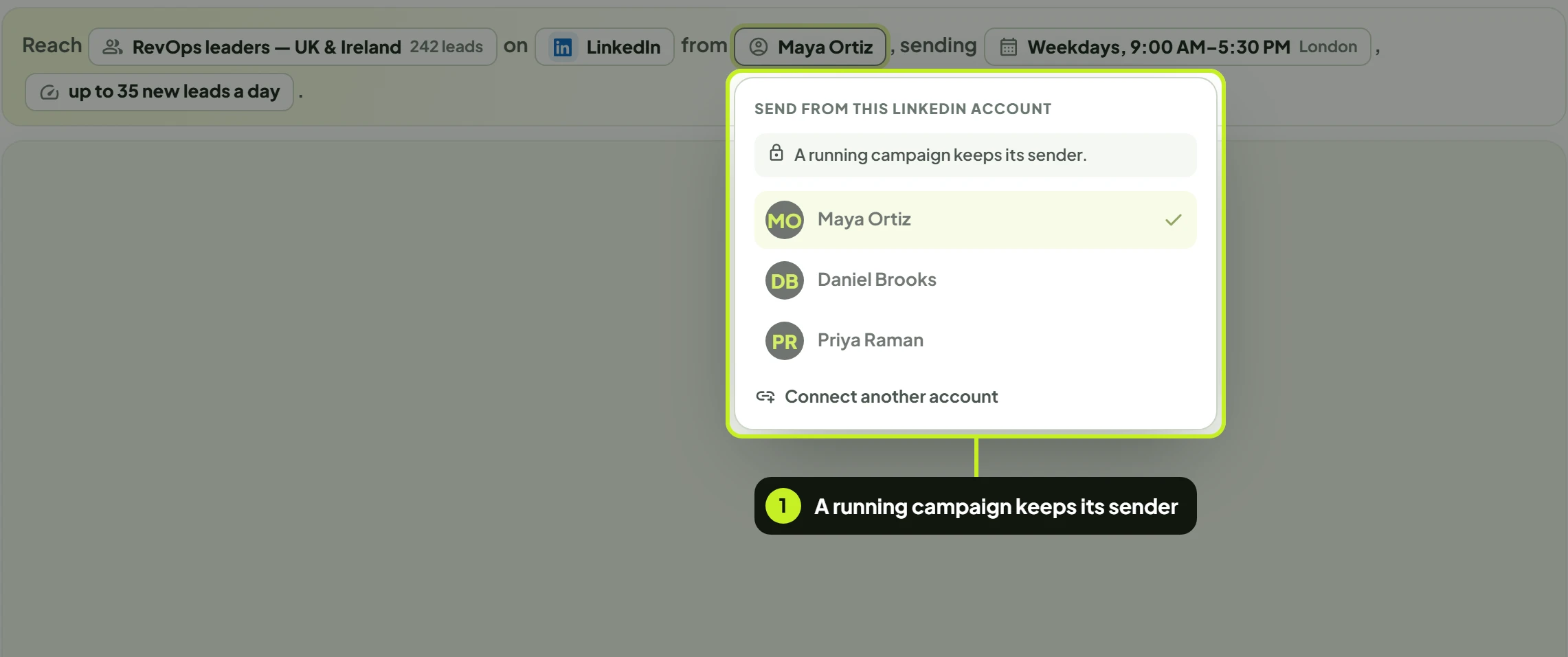
| Sender | Fixed: A running campaign keeps its sender. | — |
| Lead list | Fixed: The audience can't be changed once the campaign has been created. | — |
Change the steps
- Click the campaign's row, or choose Edit sequence from its row menu. The campaign opens on its sequence.
- Add, remove or change steps as you would when building the campaign. The toolbar reads All changes saved until you make a change.
- Click Save changes. You'll see Campaign flow saved successfully.

What saving does: leads who haven't reached a step yet follow the new version. Steps that already ran aren't sent again. A sequence still needs at least two steps.
Tip: Leaving the campaign with unsaved sequence changes asks first: Keep editing, Leave Without Saving or Save & Continue.
Change the schedule or pace
- Open the campaign, or choose Campaign settings from its row menu (it opens on the schedule).
- Click the schedule or the pace in the setup sentence, change the timezone, days, window or daily pace (up to 45), and click Save. The change is kept straight away and applies to upcoming outreach.
Completed campaigns
A completed campaign opens read-only. Its row menu offers View sequence instead of Edit sequence, there's no pause or resume, and the header reads Completed campaigns can't be edited.
Reuse a sequence in a new campaign
There's no one-click copy of a campaign. To run the same sequence again, for example for a new lead list:
- Open the campaign's row menu and click Export flow. A JSON file downloads (Flow exported).
- Start a new campaign with New campaign, and pick its lead list and sender.
- Under Build your sequence, click Import JSON (or Import Flow in the toolbar) and pick the file. Confirm Replace flow if the canvas already has steps.
- Check each step, then click Save draft and launch.
Export flow is greyed out for a campaign with no steps.
Delete a campaign
- Make sure the campaign isn't Active. Pause it first if it is.
- Open the row menu and click Delete campaign.
- In Delete campaign? (This will permanently delete …), click Delete. You'll see Campaign deleted successfully.
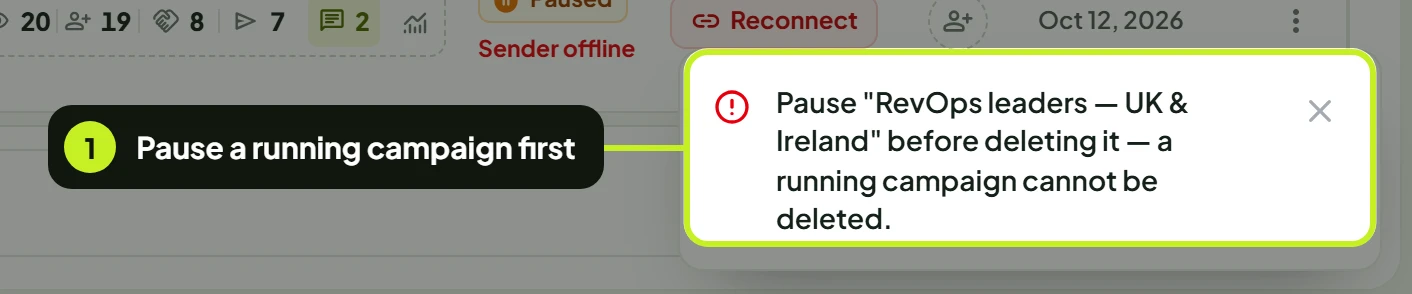
If the campaign is still running, nothing is deleted and you see a message instead:
What deleting does
- It can't be undone. The campaign and its scheduled outreach are gone.
- Nothing already sent is recalled. Conversations with leads stay in Conversations.
- The lead list stays. Once the campaign is gone, the list is free to delete too.
To delete several at once, tick them and click Delete in the selection bar, then confirm Delete selected campaigns?. If any are running you'll see … selected campaigns are running. Pause them before deleting.
Common problems
| What you see | What it means | What to do |
|---|---|---|
| Pause … before deleting it — a running campaign cannot be deleted. | The campaign is Active. | Pause it, then delete it. |
| … selected campaigns are running. Pause them before deleting. | Your selection includes active campaigns. | Pause those first, or untick them. |
| Completed campaigns can't be edited. | The campaign has finished. | Export its flow and start a new campaign. |
| A running campaign keeps its sender. | The sender is fixed after launch. | Create a new campaign on the other seat. |
| The audience can't be changed once the campaign has been created. | The lead list is fixed. | Create a new campaign for the new list (reuse the sequence with Export flow). |
| Resume campaign is greyed out | The sender already runs the most campaigns your plan allows. | Pause another campaign on that seat, or upgrade your plan. |
| The bulk Pause / Resume button is greyed out | The selection mixes statuses. | Select only active campaigns to pause, or only paused ones to resume. |
| Unable to pause this campaign right now. Please try again. | The request didn't go through. | Try again in a moment. |
Next: See how your changes play out in Track a campaign.