
Browse docs
Reply from Conversations
Answer LinkedIn messages and email replies in one inbox: filter the list, format your reply, add links, emoji and files, react, quote, edit and delete.
Updated
On this page
Conversations is one inbox for every LinkedIn message and email reply your campaigns start. You read a thread, check which seat will answer, and reply in place — without opening LinkedIn or your mail app.
How it works
- A lead answers a campaign message on LinkedIn, or replies to one of your emails.
- The thread moves to the top of Conversations with an unread count, under the seat that sent the campaign.
- You open it. Opening a thread marks it read, here and on LinkedIn.
- You type a reply and click Send. It goes out from the same seat — the LinkedIn account or inbox shown under Sending from.
The list refreshes by itself every few seconds, so new replies appear while the page is open.
Find your way around
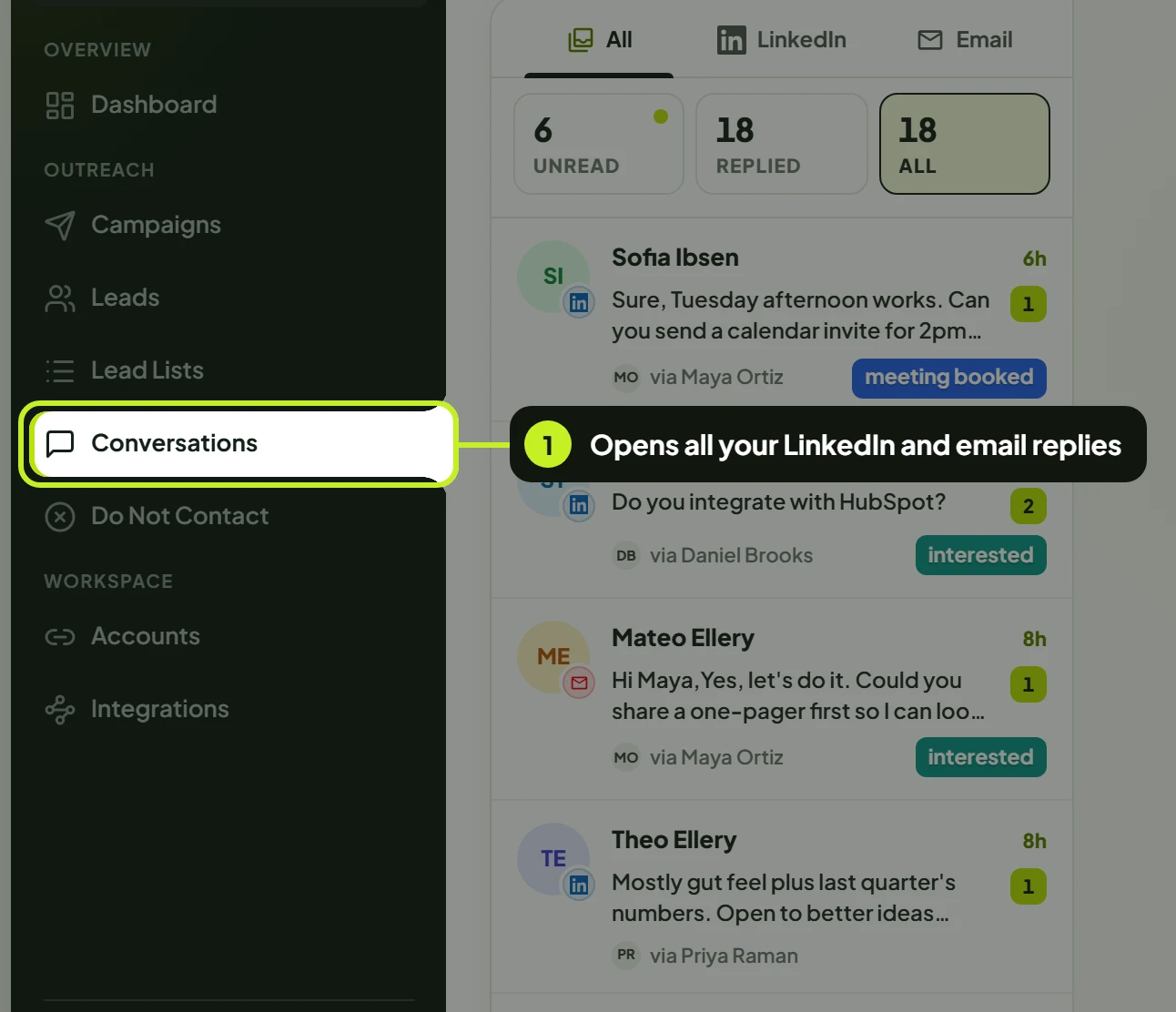
| Area | What it's for |
|---|---|
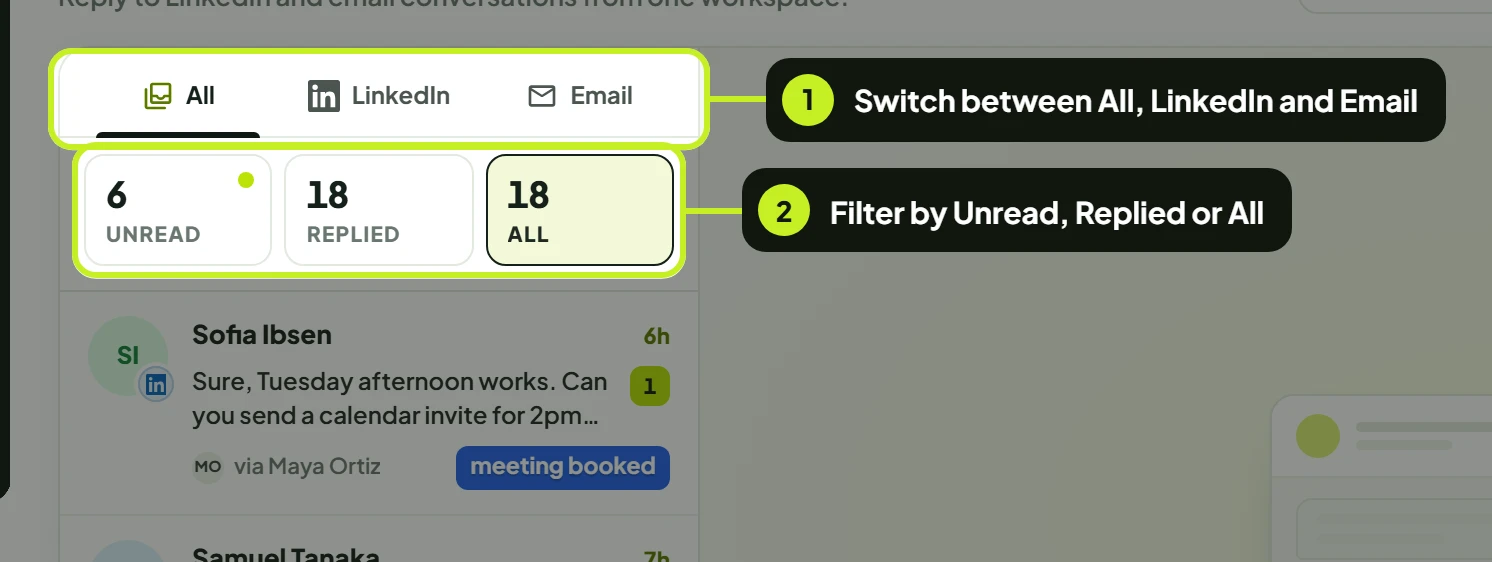
| Channel switch | All channels, LinkedIn or Email. Shows only threads from that channel. |
| Status tabs | All, Unread and Replied, each with its count. |
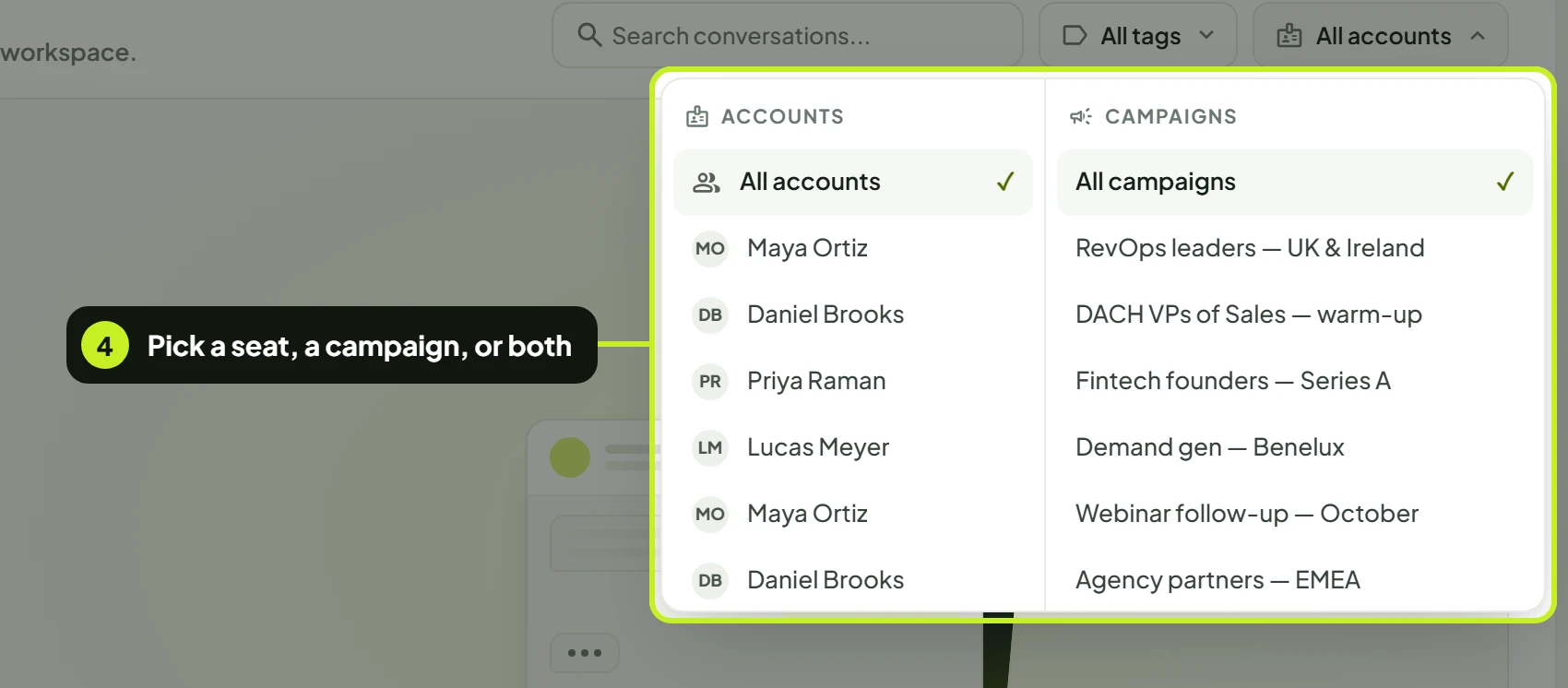
| Search and filters | Search conversations..., the tag filter (All tags) and the account and campaign filter (All accounts). |
| Conversation list | One row per thread: the lead (with a small LinkedIn or email mark on their photo), the last message, how long ago, the seat (via Maya Ortiz), tags and an unread badge. |
| Thread | The messages, newest at the bottom, with dates between days. |
| Sending from | The seat that sends your reply, and whether it's Connected. |
| Composer | Where you write: formatting, emoji, files, and Send. |
| Lead details | The lead's profile, contact details, company, campaign and tags. See Tags, unread and lead details. |
Filter the list
- Pick a channel: All channels, LinkedIn or Email.
- Pick a status tab:
- All — every thread for that channel.
- Unread — threads with messages you haven't opened, or that you marked as unread.
- Replied — threads where the lead has written back.
- Type in Search conversations... to find a lead by name or by words in their messages.
- Click All accounts to show only one seat's threads, or one campaign's.

The All accounts menu has two lists side by side: Accounts (your LinkedIn seats and inboxes) and Campaigns. Pick one of each to see only that seat's threads from that campaign. If a seat has no campaigns, you'll see No campaigns for this account. Choose All accounts and All campaigns to clear it.
Tip: Search looks through the conversations already loaded and keeps loading more until it has checked them all. While it does, you'll see Searching conversations….
Open a conversation
- Click a row in the list.
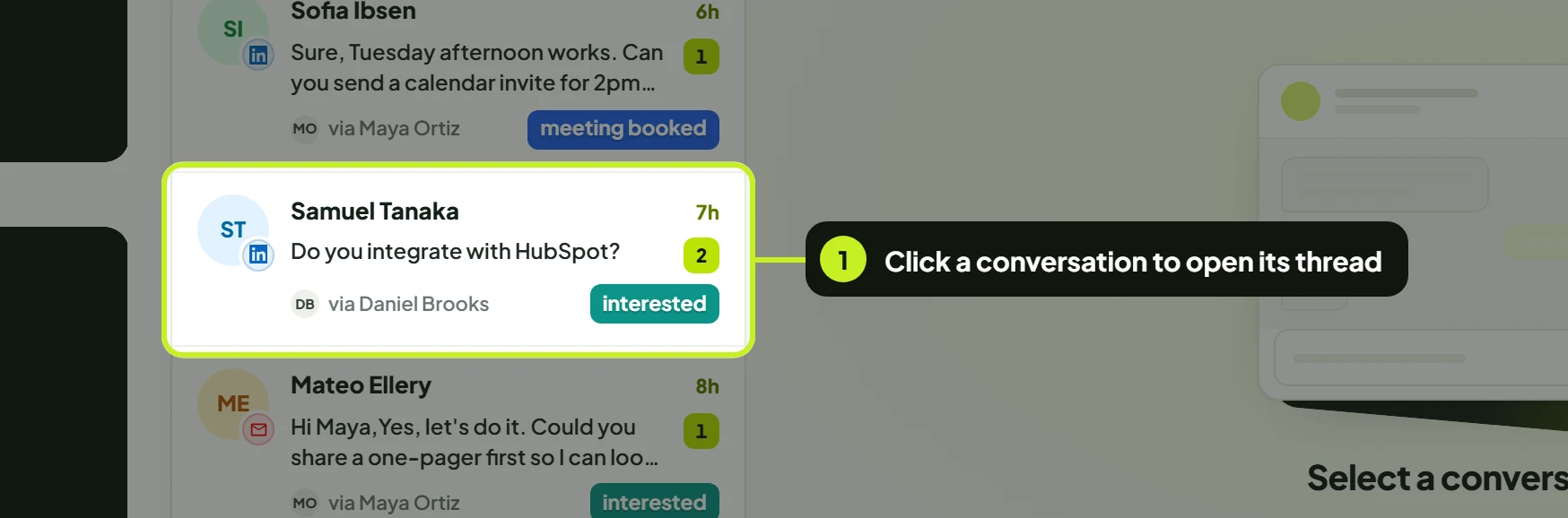
Each row shows:
- The channel — a small LinkedIn or email mark on the avatar.
- The last message — starting with You: if you sent it.
- The seat — via and the seat's name. The same lead can appear once per seat that contacted them.
- Tags — the first tag, with +1, +2 and so on for the rest. Hover the number to see them all.
- Unread badge — the number of new messages. A dot instead of a number means you marked the thread as unread yourself.
- In the thread header, check Sending from. That's the seat your reply goes out from, and its status — Connected or Disconnected.
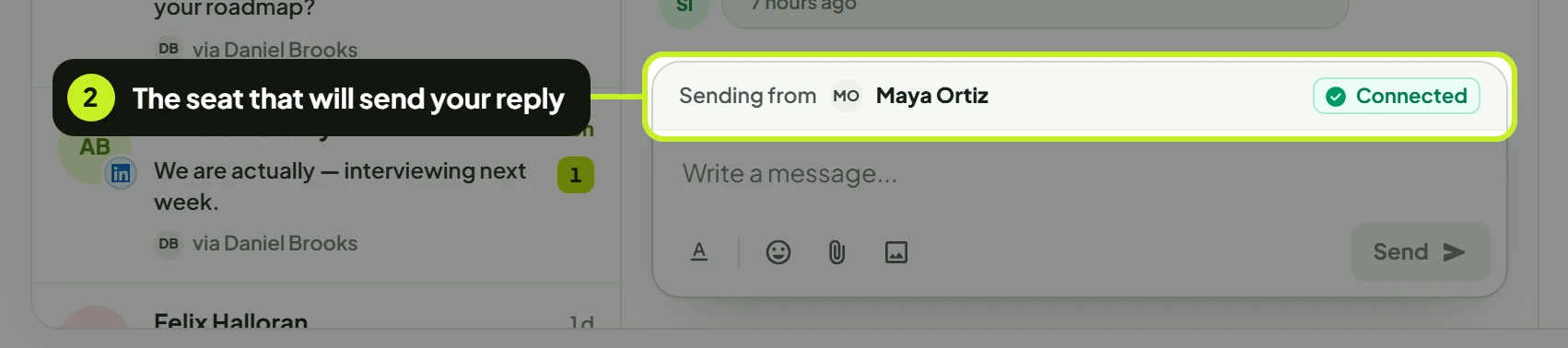
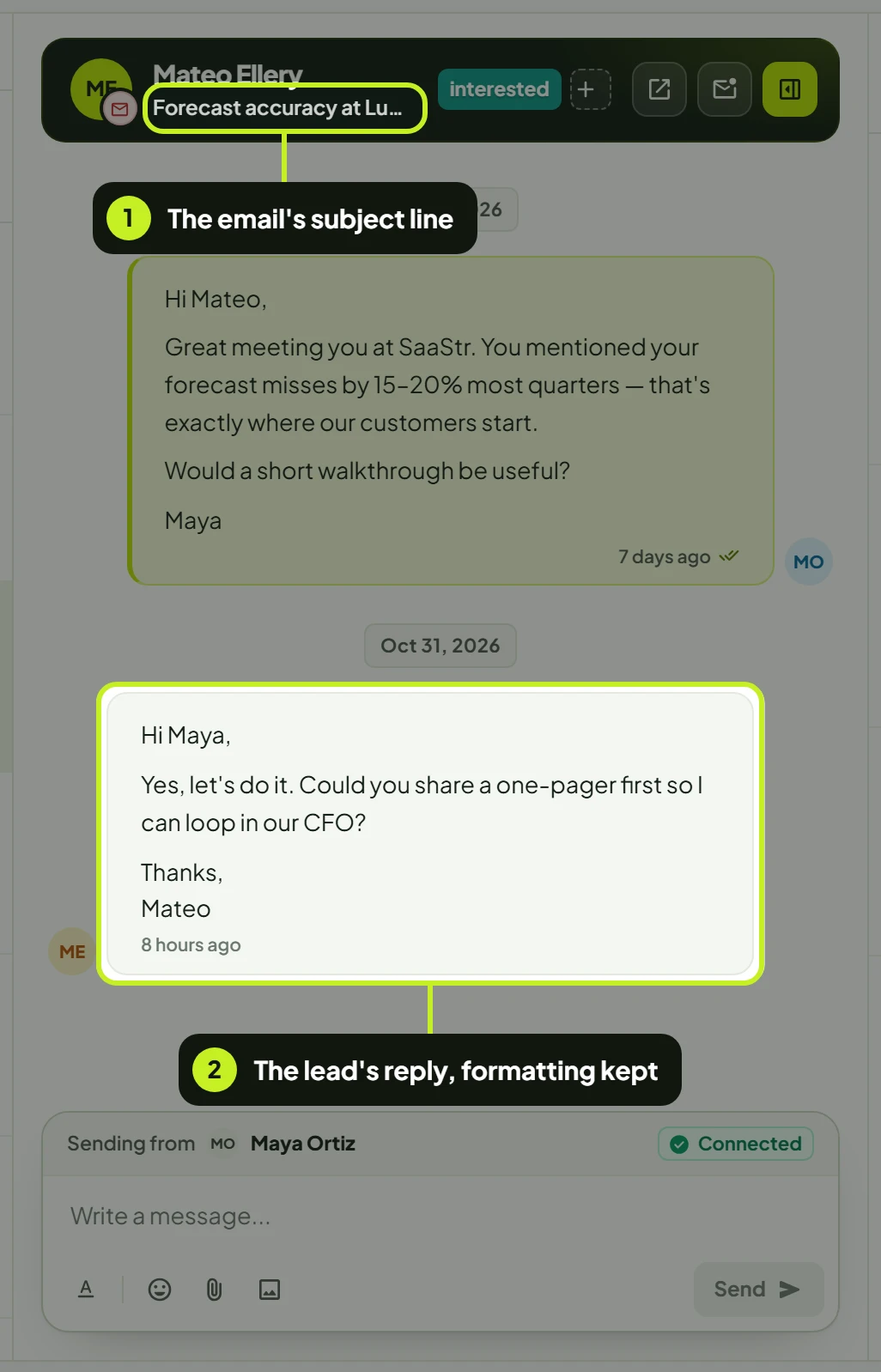
Next to the lead's name you'll see the thread's channel, LinkedIn or Email. For LinkedIn threads the line under it shows the lead's role and company. For email threads it shows the email subject.
Important: If Sending from says Disconnected, or the row shows a broken-link icon next to the seat, replies from that seat won't send. Reconnect the seat on the Accounts page first.
Read messages and attachments
- Your messages are on the right in dark bubbles. The lead's are on the left.
- Ticks under your message show how far it got: one tick is Sent, two ticks is Delivered, coloured ticks is Read.
- (Edited) means the message was changed after it was sent. This message was deleted. marks a removed message.
- Quoted messages appear at the top of a bubble, with the author's name.
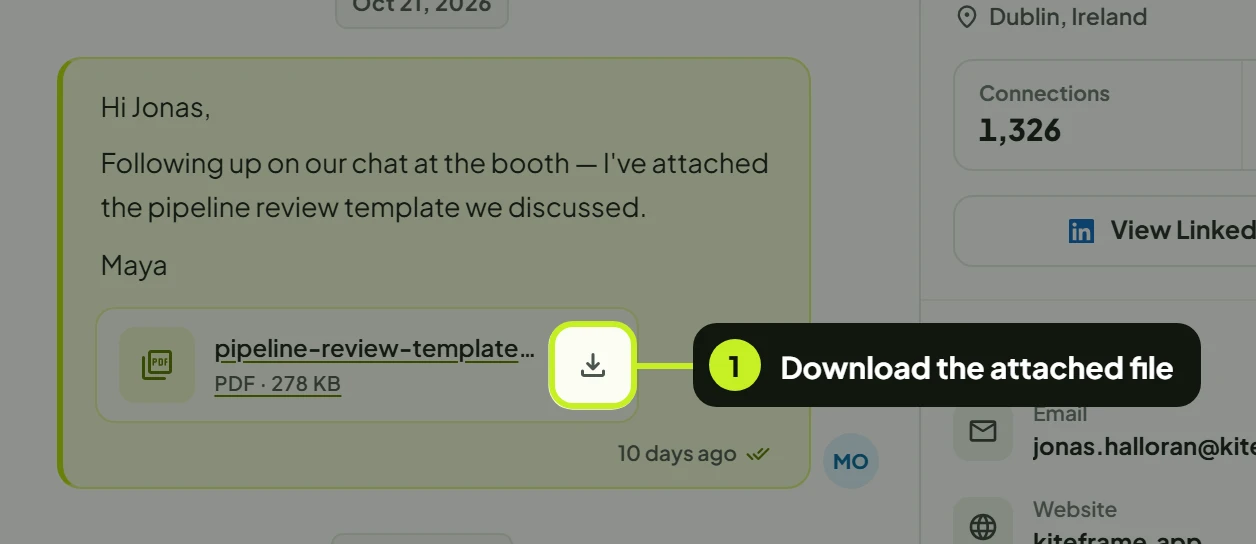
- Files show as cards with the file name, type and size. Click the download icon to save one.
Write a reply
- Click in Write a message... at the bottom of the thread and type.
- Press Enter or click Send. Press Shift + Enter for a new line.
A message needs some text, even when you attach files.
Format your message
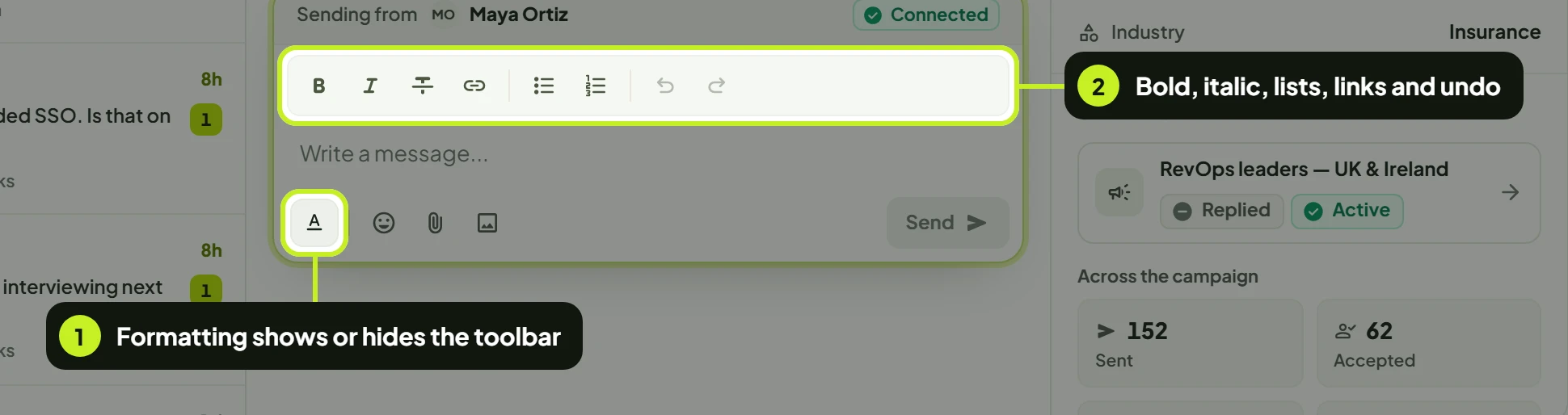
- Click Formatting (the A button) to show the toolbar.
- Select text, then use Bold, Italic, Strikethrough or Link, or start a Bullet list or Numbered list. Undo and Redo are at the end.
How formatting arrives depends on the channel:
| Channel | What the lead sees |
|---|---|
| Your formatting as you wrote it: bold, italic, strikethrough, lists and clickable links. | |
| LinkedIn messages are plain text, so bold, italic and strikethrough are sent as styled characters, bullet lists as • lines and numbered lists as 1., 2. and so on. A link is sent as its text with the web address on the next line. |
Add a link
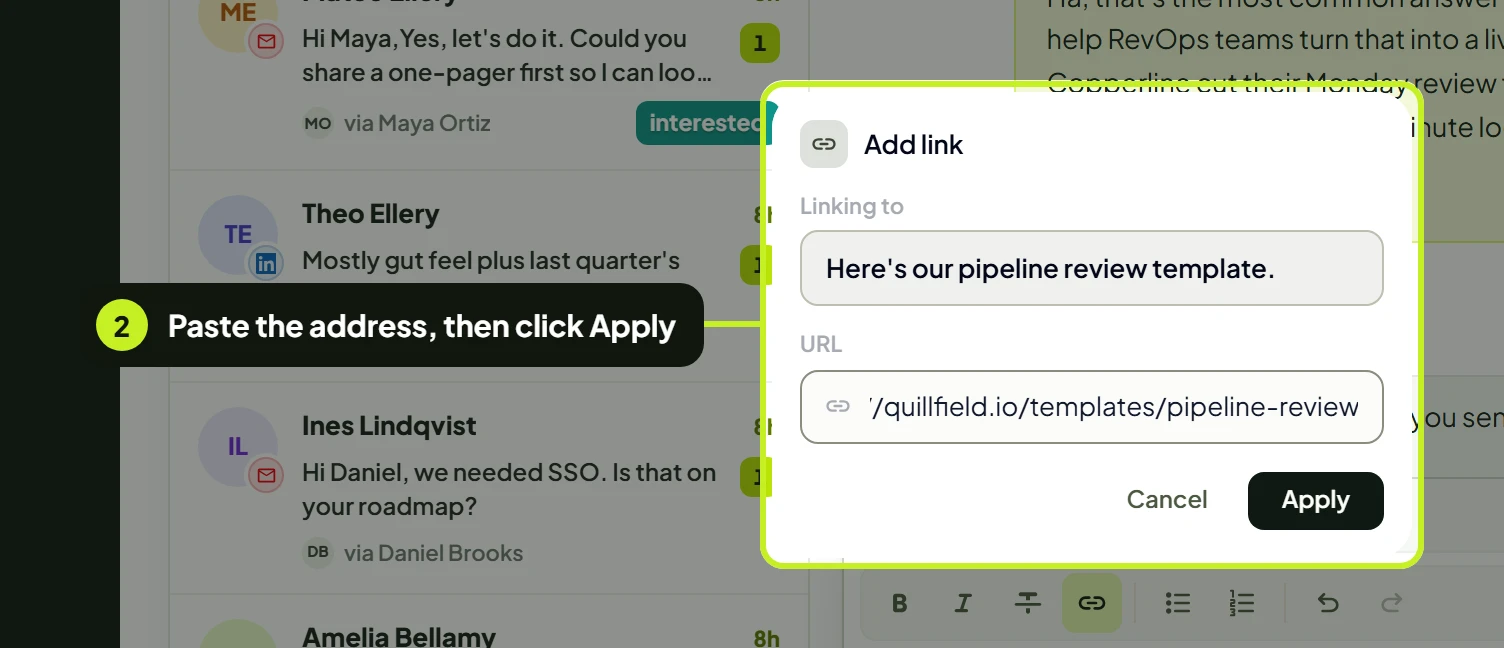
- Select the words you want to link and click Link in the toolbar.
- In Add link, check Linking to, type or paste the address in URL, and click Apply.
You can also paste a web address straight into the message — it becomes a link by itself. To change or remove a link, put the cursor in it and click Link again: the panel opens as Edit link, with Remove link.
Add emoji
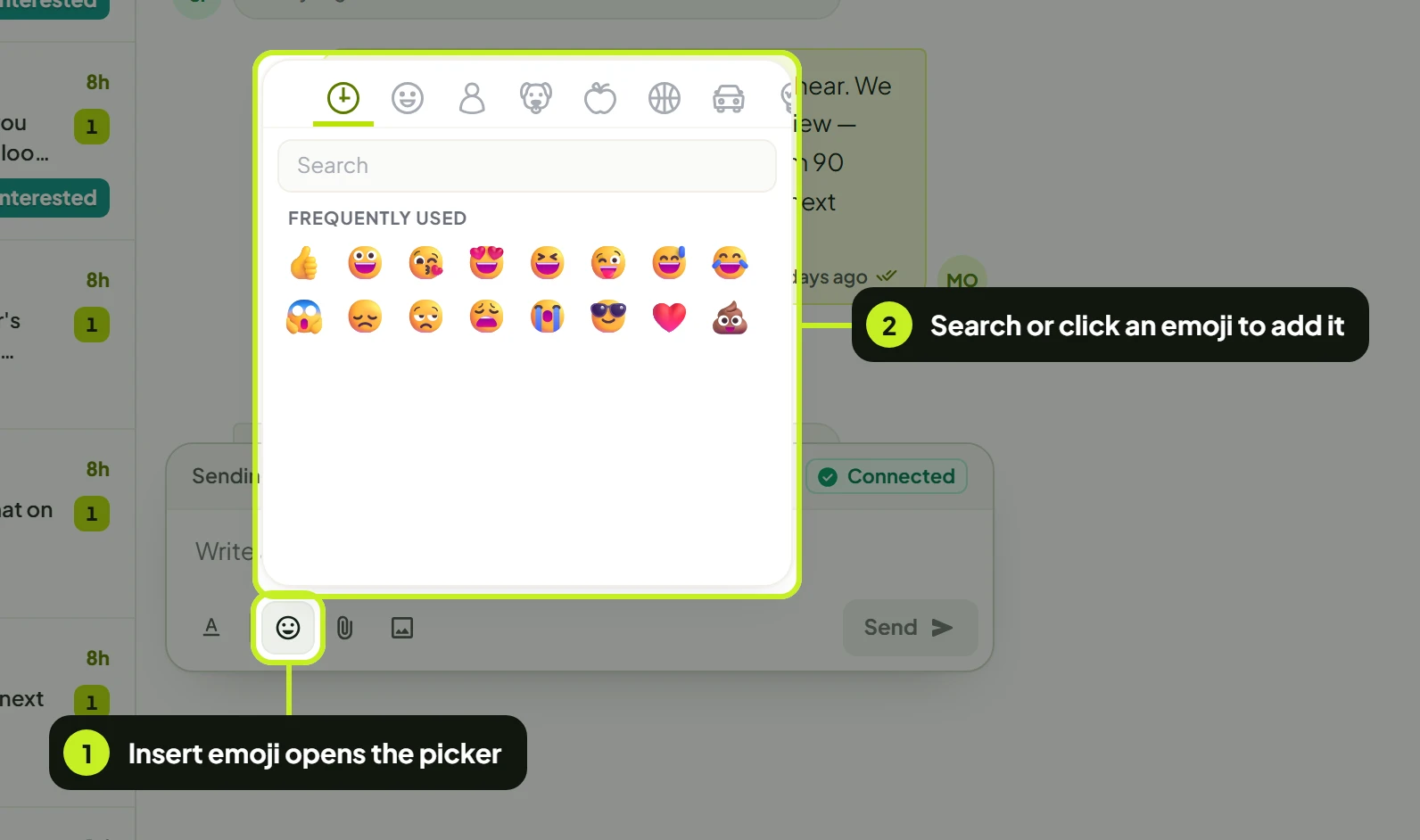
- Click Insert emoji (the smiley).
- Search, or browse the categories — Frequently used, Smileys, People, Nature and more — and click an emoji to add it where your cursor is.
Attach files
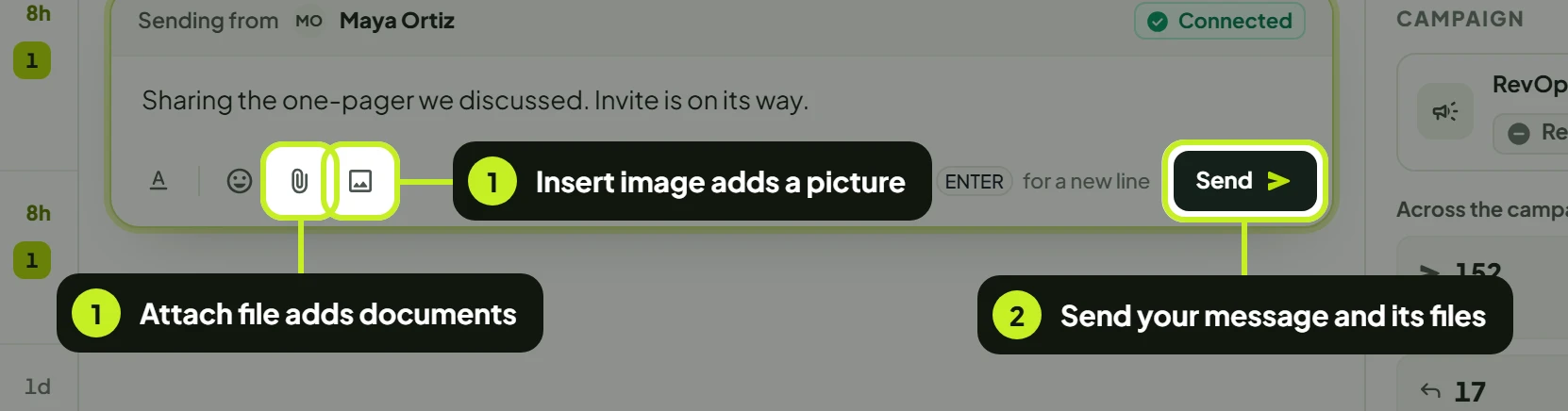
- Click Attach file (the paper clip) for documents, or Insert image for a picture. Each file shows above the message as Ready to send; click Remove attachment to take one off.
- Write your message and click Send.
| Limit | Value |
|---|---|
| Files per message | Up to 10 |
| Size per file | Up to 20MB |
| Documents | PDF, DOC, DOCX, TXT, RTF, CSV, XLS, XLSX, PPT, PPTX |
| Images | JPG, JPEG, PNG, GIF |
React, quote and reply
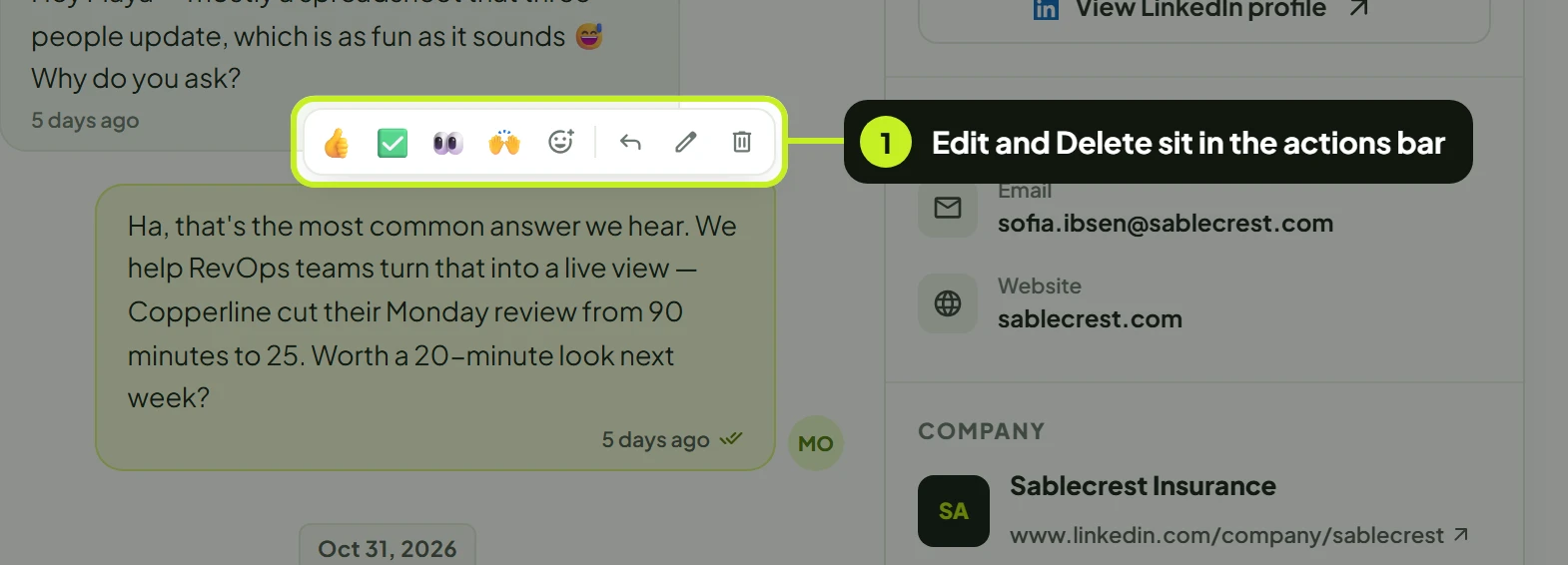
Hover a message to see its actions.
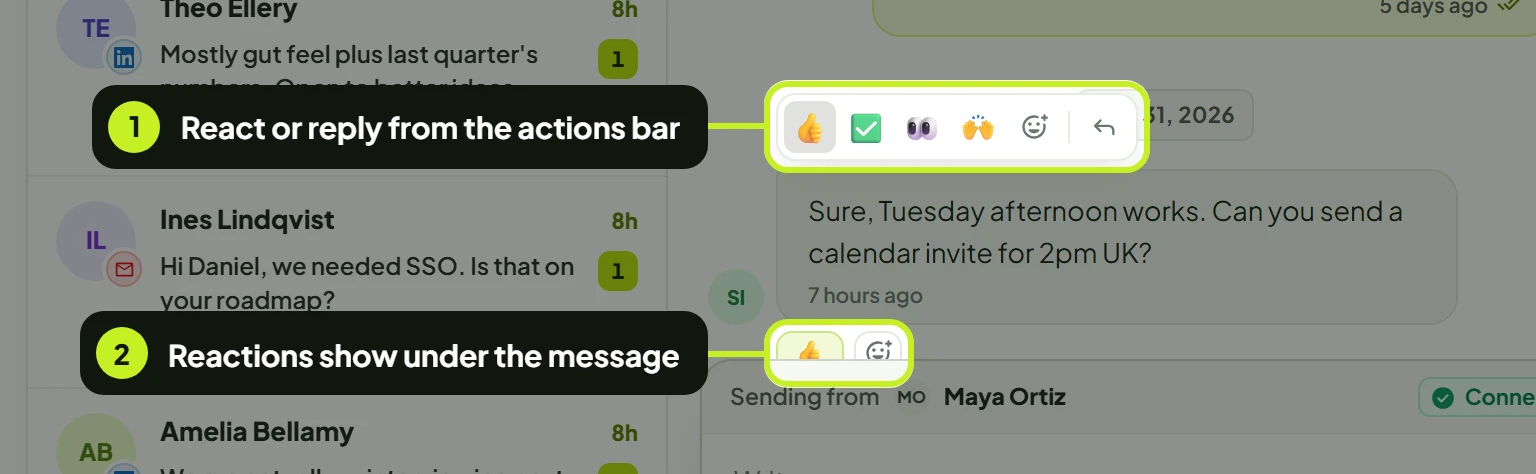
- Click 👍, ✅, 👀 or 🙌 to react, or More reactions for the full emoji picker. Click Reply (the arrow) to quote the message in your answer.
- Reactions show under the message. Hover one to see who reacted. Click your own reaction again to remove it.
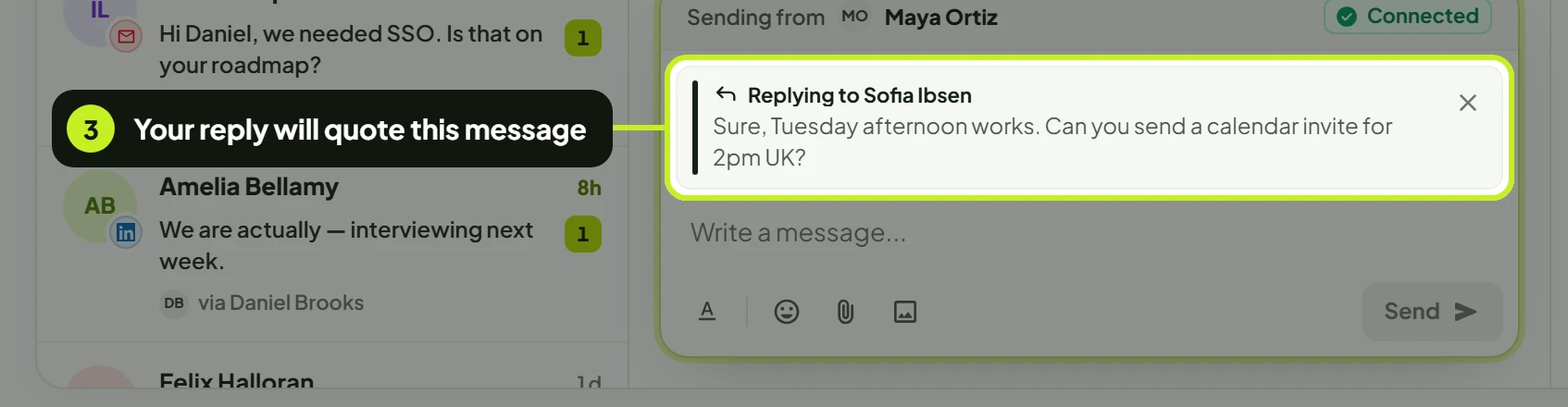
- After you click Reply, the composer shows Replying to and the person's name, with the quoted text. Write your answer and send it — the quote travels with your message. Click Cancel reply (the ×) to drop it.
LinkedIn and email differ here
| Action | ||
|---|---|---|
| React to the lead's message | Yes | Yes |
| React to your own message | Yes | No |
| Reply with a quote | Yes | No — an email reply already answers the whole thread |
Edit or delete a LinkedIn message you sent
- In a LinkedIn thread, hover one of your messages and click Edit message (the pencil) or Delete message (the bin).
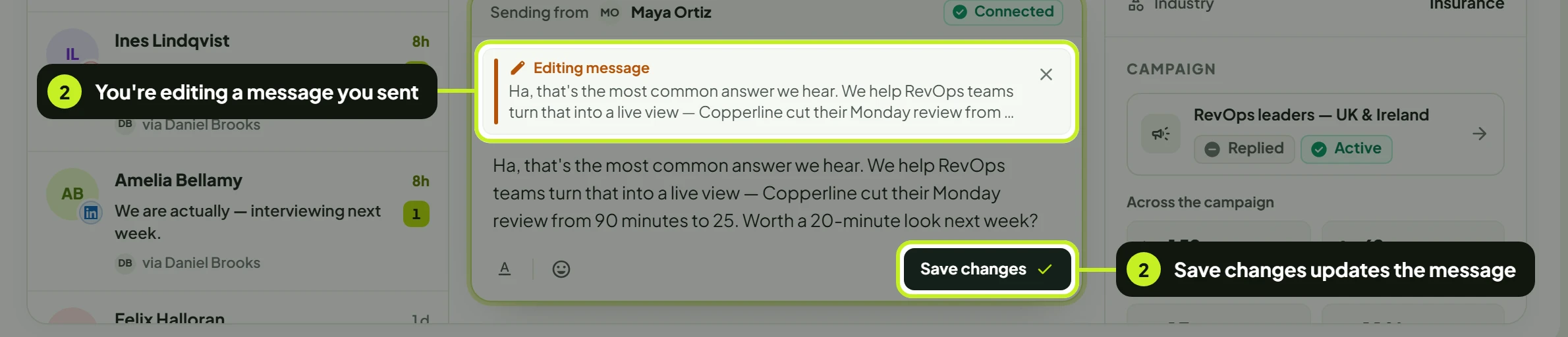
- To edit: the composer shows Editing message with your text loaded. Change it and click Save changes, or click Cancel edit (the ×). The message then shows (Edited).
- To delete: confirm Delete message? by clicking Delete. On LinkedIn the message is deleted on LinkedIn first, then here.
Warning: Deleting can't be undone. The thread keeps a placeholder: This message was deleted.
Note: An email can't be changed once it has been sent — it is already in the lead's inbox. To correct one, send a short follow-up reply.
Reply to an email
Email threads work like LinkedIn threads, with a few differences:
- The header shows the email subject instead of the lead's role.
- Sending from shows the inbox, for example [email protected].
- Replies keep their formatting — bold text, lists and links from the lead's email display as they wrote them.
Common problems
| What you see | What it means | What to do |
|---|---|---|
| Unable to send this message right now. Please try again. | The message didn't go out. Your draft stays in the composer. | Check Sending from says Connected, then click Send again. |
| Disconnected under Sending from, or a broken-link icon next to the seat | The seat lost its connection. | Reconnect it on the Accounts page, then reply. |
| File is too large. Max size is 20MB. | The file is over the limit. | Compress or split the file. |
| Unsupported file format. Use a LinkedIn-supported document or image format. | The file type isn't on the list above. | Save it as PDF, an Office format or an image. |
| You can attach up to 10 files per message | You've reached the file limit. | Send the rest in a second message. |
| Send stays greyed out | The message is empty. | Type some text — files alone can't be sent. |
| No conversations match your search. | Nothing loaded matches the search. | Check the spelling, or switch back to All channels and All. |
| No LinkedIn conversations / No email conversations | That channel has no threads yet. | Replies to your campaigns appear here once leads answer. |
| Couldn't load results. in the thread | The messages didn't load. | Click Try again. |
Next: Sort replies with tags and read the lead's profile in Tags, unread and lead details.