
Browse docs
Needs you now and activity
Use the Dashboard's right-hand column to fix what blocks outreach, see where enrolled leads stand, answer the latest replies and follow live activity.
Updated
On this page
The right-hand column of the Dashboard is where you act. Needs you now lists what is blocking outreach, Leads in sequence shows where your enrolled leads stand, Latest replies puts the newest answers in front of you and Live activity shows what just happened. Every row opens the page where you deal with it.
How it works
- ReacherPro keeps checking your workspace for problems that stop sending: a disconnected seat, replies nobody has answered, leads whose sequence failed, a paused campaign. Each one becomes a row in Needs you now, worst first.
- When a lead writes back on LinkedIn or by email, the reply appears at the top of Latest replies, labelled by the lead's tags.
- Every send that goes through, and every response from a lead (an accept, an open, a reply), is added to Live activity.
- Leads in sequence counts the leads enrolled in the reporting period and shows where each of them is now.
- You click a row, fix the problem or answer the lead on the page that opens, and the row drops off once it's resolved.
Before you start:
- Know the rest of the page first: Read your dashboard explains the reporting period, which these cards follow too.
- The links in these cards only work for pages your role can open (for example Leads or Conversations). See Roles and permissions.
On a wide screen this column sits on the right. On a phone or narrow window it moves to the top of the page, so Needs you now is the first thing you see.
Needs you now
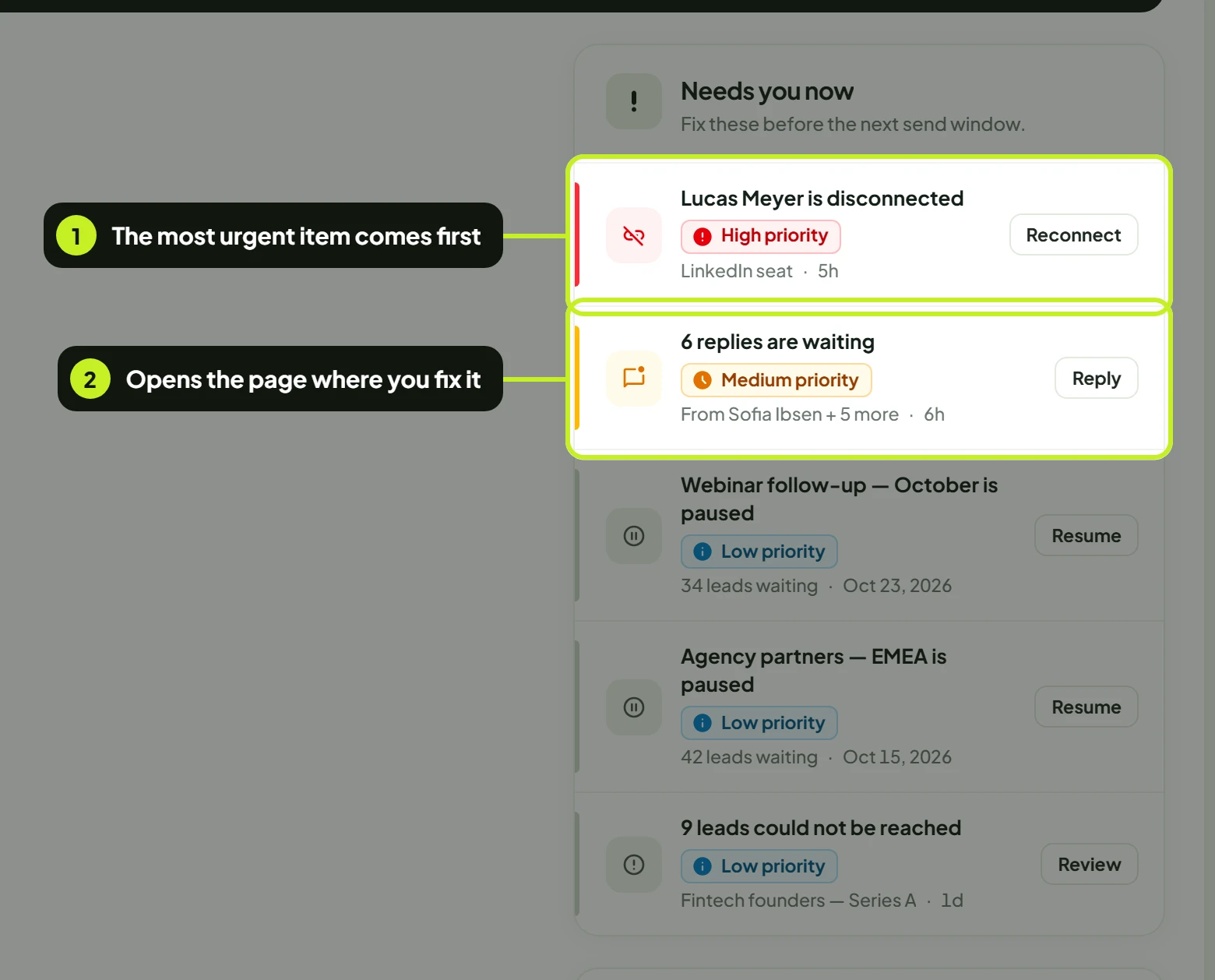
Fix these before the next send window. Each row is one thing you can act on.
- Read the row. The coloured edge and the chip show how pressing it is, the title says what's wrong, and the grey line names what it's about and how long it has been waiting.
- Click the button on the right of the row (or anywhere on the row) to open the page where you fix it.
| Chip | Colour | What it means |
|---|---|---|
| High priority | Red | Outreach is blocked now. Fix it before the next send window. |
| Medium priority | Amber | Needs you today, before it costs you leads or warm replies. |
| Low priority | Grey | Worth knowing; nothing breaks if it waits. |
What each row means and what its button does
| Row (example title) | What it means | Button | Where it takes you |
|---|---|---|---|
| A seat is disconnected (the grey line names the seat) | A LinkedIn account has stopped sending. Its campaigns send nothing from it until it's reconnected. | Reconnect | The LinkedIn tab of Accounts, where you reconnect the seat |
| 6 replies are waiting | Leads have replied and nobody has answered yet. The grey line says who: From Daniel Brooks + 5 more. | Reply | The newest waiting conversation in Conversations |
| 7 leads failed mid-sequence | A step failed for these leads, so their sequence didn't finish. The grey line says how many campaigns are affected. | Review | Leads, filtered to leads with the status Failed |
| Campaign is paused | A campaign is paused and isn't sending. The grey line names the campaign. | Resume | That campaign, opened on its schedule, where you click Save & resume |
A row type ReacherPro adds later shows an Open button. Hover the time on a row (for example 2h) to see the exact date and time it started. When a row has no name to show, the time reads as how long it has been waiting, for example Waiting for 3h.
When there are more than five items, use the arrows in the card's top right to page through them. When nothing is waiting, the card says Nothing is blocked: Every seat is connected and no reply is waiting.
Tip: Work from the top down. Rows are already in order of how much they're holding back, so a disconnected seat always comes before a paused campaign.
Leads in sequence
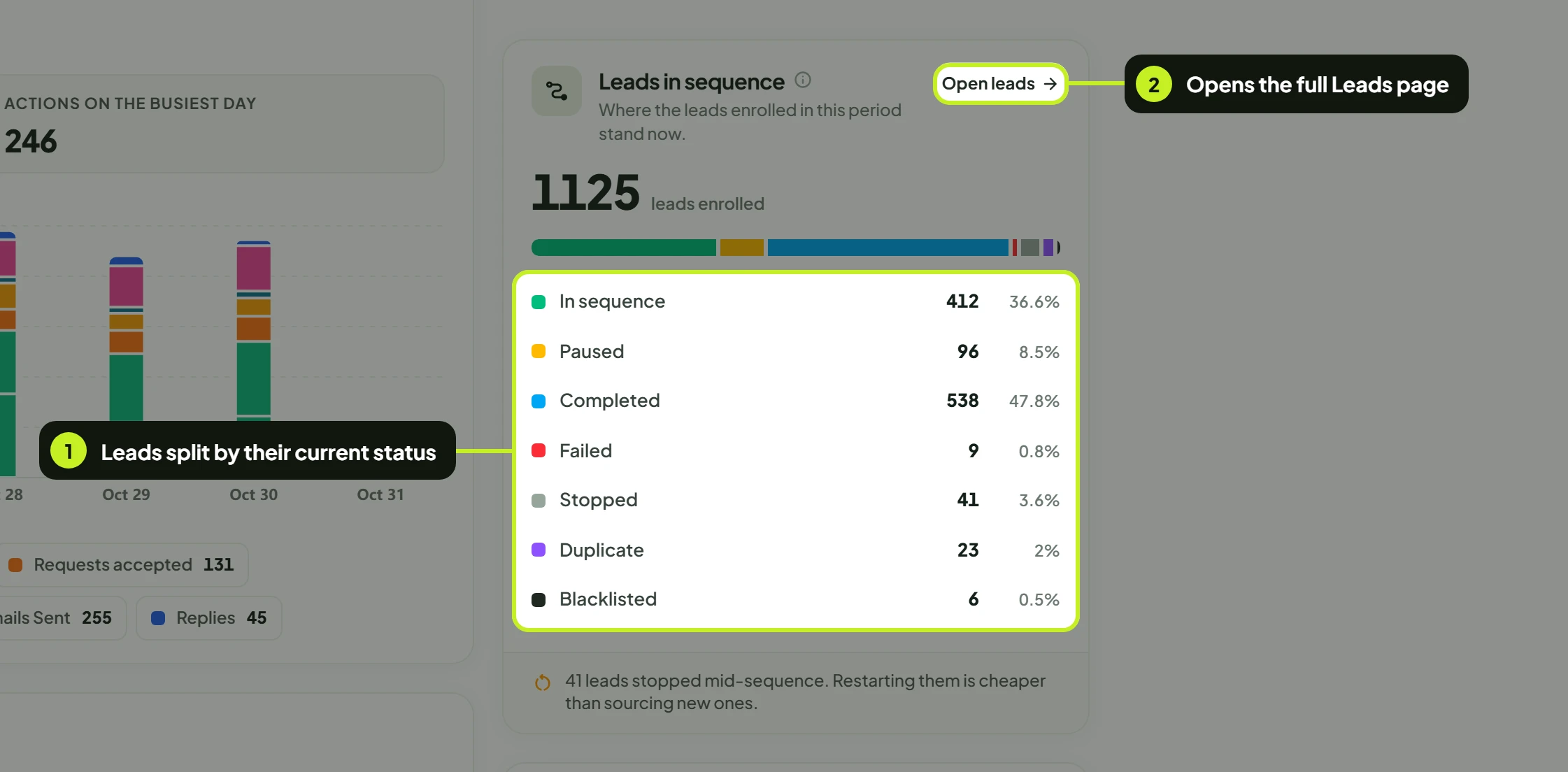
Where the leads enrolled in the reporting period stand now.
- Read the total (leads enrolled) and the coloured bar, which splits it by status.
- Click a status to open Leads filtered to that status and the same dates, so the list there matches the number you clicked. Click Open leads to open the full Leads page.
| Status | What it means | Click opens |
|---|---|---|
| In sequence | Still moving through the campaign's steps. | Leads that are in sequence |
| Paused | Their sequence is on hold. | Not a link |
| Completed | Went through every step of the sequence. | Leads that completed |
| Failed | A step failed for them, so the sequence didn't finish. | Leads that failed |
| Stopped | Taken out of the sequence before the end. | Leads that were stopped |
| duplicate | Skipped because another campaign or seat is already contacting them (see Prevent duplicate outreach). | Not a link |
| blacklisted | Skipped because they're on your Do Not Contact blocklist (see Use the blocklist). | Not a link |
Each row shows the count and its share of the total. When leads stopped partway through, a note under the card says so, for example: 12 leads stopped mid-sequence. Restarting them is cheaper than sourcing new ones.
The period sets when a lead was enrolled, not when it last moved. A lead enrolled last month who completed yesterday is counted under 30 days, not under Today.
Latest replies
The newest replies first, so you can answer while the thread is warm.
- Click a reply to open its thread in Conversations, ready for you to answer.
- Use the arrows in the card's top right to see older replies, five at a time.
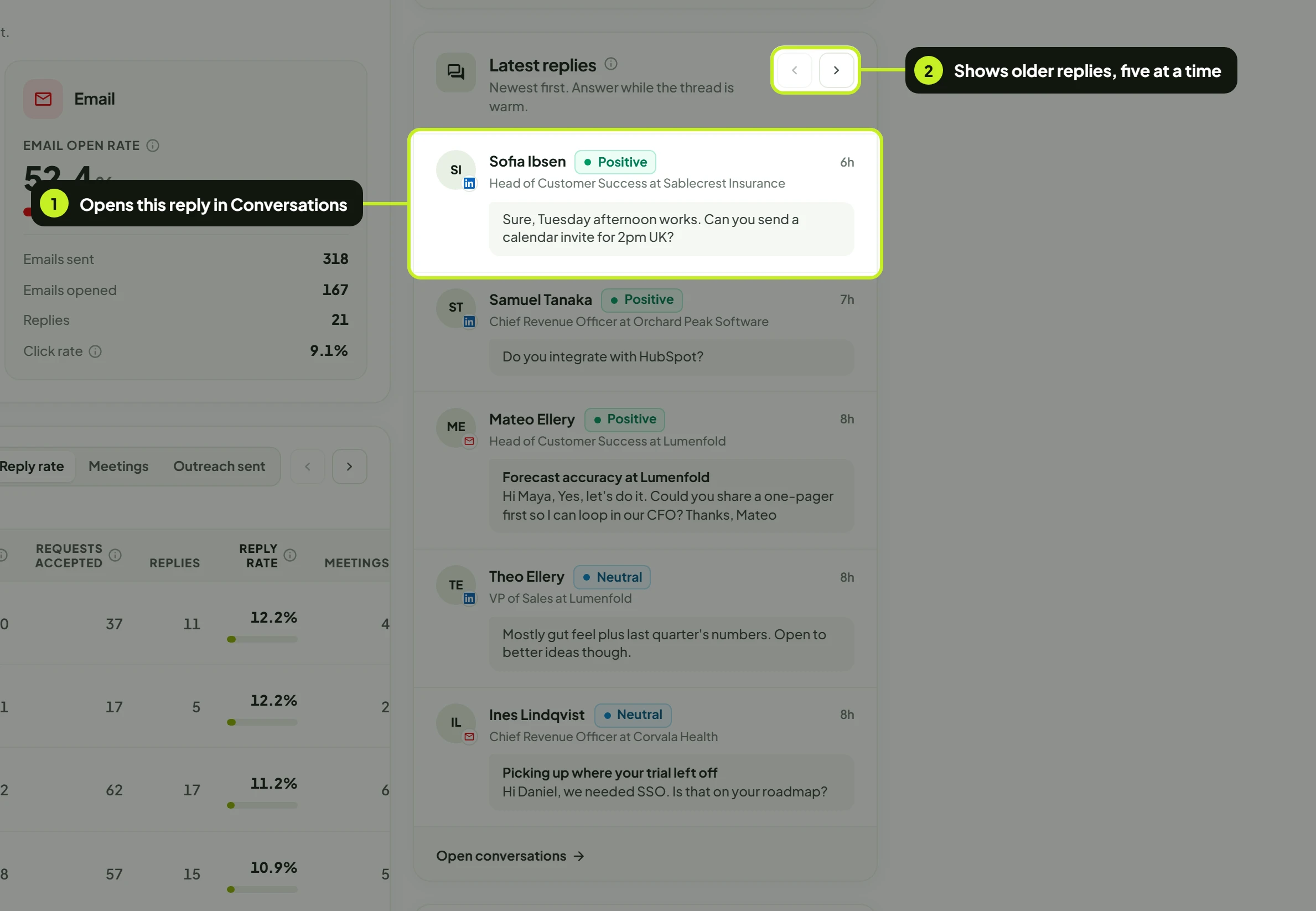
Each reply shows the lead's initials with a small LinkedIn or email mark for the channel it came on, their name (or email address if there's no name), their headline or company, how long ago it arrived (hover for the exact time) and the start of the message. An email reply also shows its subject in bold.
The label next to the name comes from the lead's current tags, whether a campaign or a person added them:
| Label | Means the lead is tagged |
|---|---|
| Positive | Positive replied, interested or meeting booked |
| Not now | Not interested, negative replied or do not contact |
| Later | Any other tag, for example a follow-up tag |
| Reply | Not tagged yet |
Click Open conversations at the bottom of the card to open the whole inbox. See Reply from Conversations and Tags, unread and lead details.
Note: Tagging a lead in Conversations changes its label here too. Only tags your campaigns add count towards Positive replies and Meetings booked in the Outreach journey.
Live activity
What went out and what leads did back, newest first, as plain sentences.
- Click a lead's name to open Leads, filtered to that lead in that campaign.
- Click All leads at the bottom of the card to open the full Leads page. Use the arrows in the top right to page back through older activity.
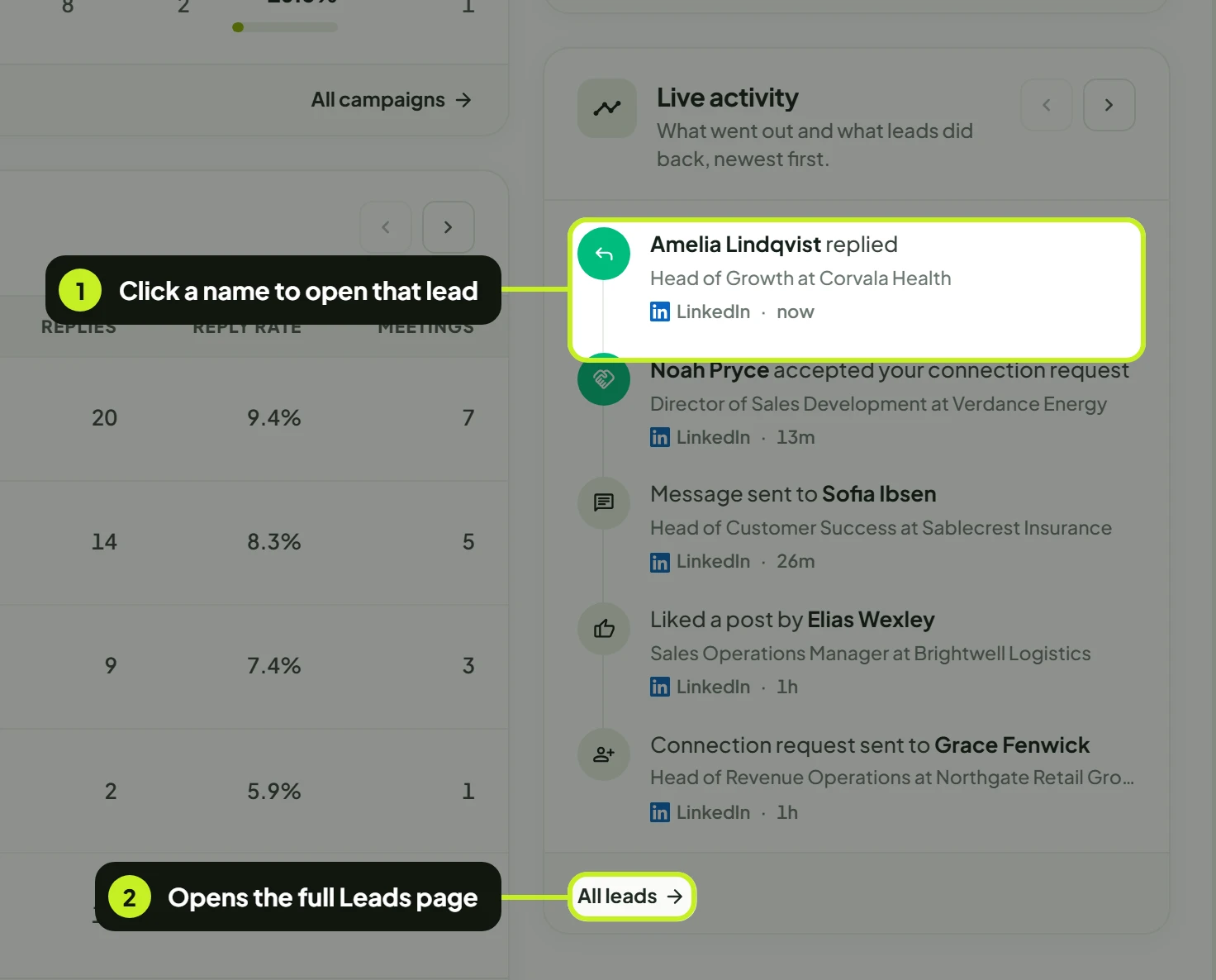
Under each sentence you see the lead's headline, the channel (LinkedIn or Email) and how long ago it happened (hover for the exact time). Things leads did are shown in colour so they stand out from what you sent.
| Entry | What happened |
|---|---|
| Daniel Brooks replied | The lead wrote back. Open the thread from Latest replies or Conversations. |
| … accepted your connection request | The lead accepted. Steps that wait for an accepted request carry on. |
| … opened your email | The lead opened an email from your campaign. |
| Meeting booked with … | The lead was tagged meeting booked. |
| Connection request sent to … | Your seat sent a connection request. |
| Message sent to … / Follow-up sent to … | Your seat sent a LinkedIn message or follow-up. |
| Email sent to … | Your inbox sent a campaign email. |
| Visited …'s profile | Your seat visited the lead's LinkedIn profile. |
| Liked a post by … | Your seat liked one of the lead's posts. |
| Connection request to … withdrawn | A pending request was withdrawn by a campaign step. |
Only real outcomes appear here: a send that went through, or a check that came back yes. A step that's waiting or that failed doesn't show; failed leads appear in Needs you now instead.
Common problems
| What you see | What it means | What to do |
|---|---|---|
| Nothing is blocked | No seat is disconnected and no reply is waiting. | Nothing to do. Check back after the next send window. |
| No leads are enrolled in a sequence yet. | No leads were enrolled in the reporting period. | Pick a longer period, or launch a campaign with a lead list. |
| No replies have come in yet. | No lead has replied in the reporting period. | Pick a longer period. Replies also arrive in Conversations. |
| Nothing has happened yet. | Nothing was sent or received in the reporting period. | Check your campaigns are Active and your seats are connected. |
| A row in Needs you now won't go away | The problem behind it isn't fixed yet. | Open the row and finish the fix, for example reconnect the seat or answer every waiting reply. |
| Clicking a status in Leads in sequence does nothing | Paused, duplicate and blacklisted aren't links. | Open Leads and filter it yourself. |
| A reply or name isn't clickable | Your role can't open Conversations or Leads. | Ask your workspace admin. |
| A reply shows an email address instead of a name | The lead has no name on record, only an email. | Nothing is wrong; the reply opens the same way. |
Next: Answer the replies waiting for you in Reply from Conversations.