
Browse docs
CRM integrations
What the Integrations page connects today, where each one is set up, and how to get replies and leads into your CRM with webhooks and the API.
Updated
On this page
The Integrations page lists what ReacherPro connects to and takes you to the screen where each one is set up. Today you connect LinkedIn seats and Email inboxes, and you connect your CRM or any other tool through Webhooks and API keys.
How it works
- ReacherPro runs your outreach and records what happens — replies, accepted invites, finished campaigns.
- A webhook sends each of those events to an address you choose, the moment it happens.
- Your CRM, or an automation tool in between, receives the event and creates or updates the contact, deal or task.
- For anything else — reading leads, campaigns or results on your own schedule — your tools call the ReacherPro API with an API key.
Open the Integrations page
- In the sidebar, under Workspace, click Integrations.
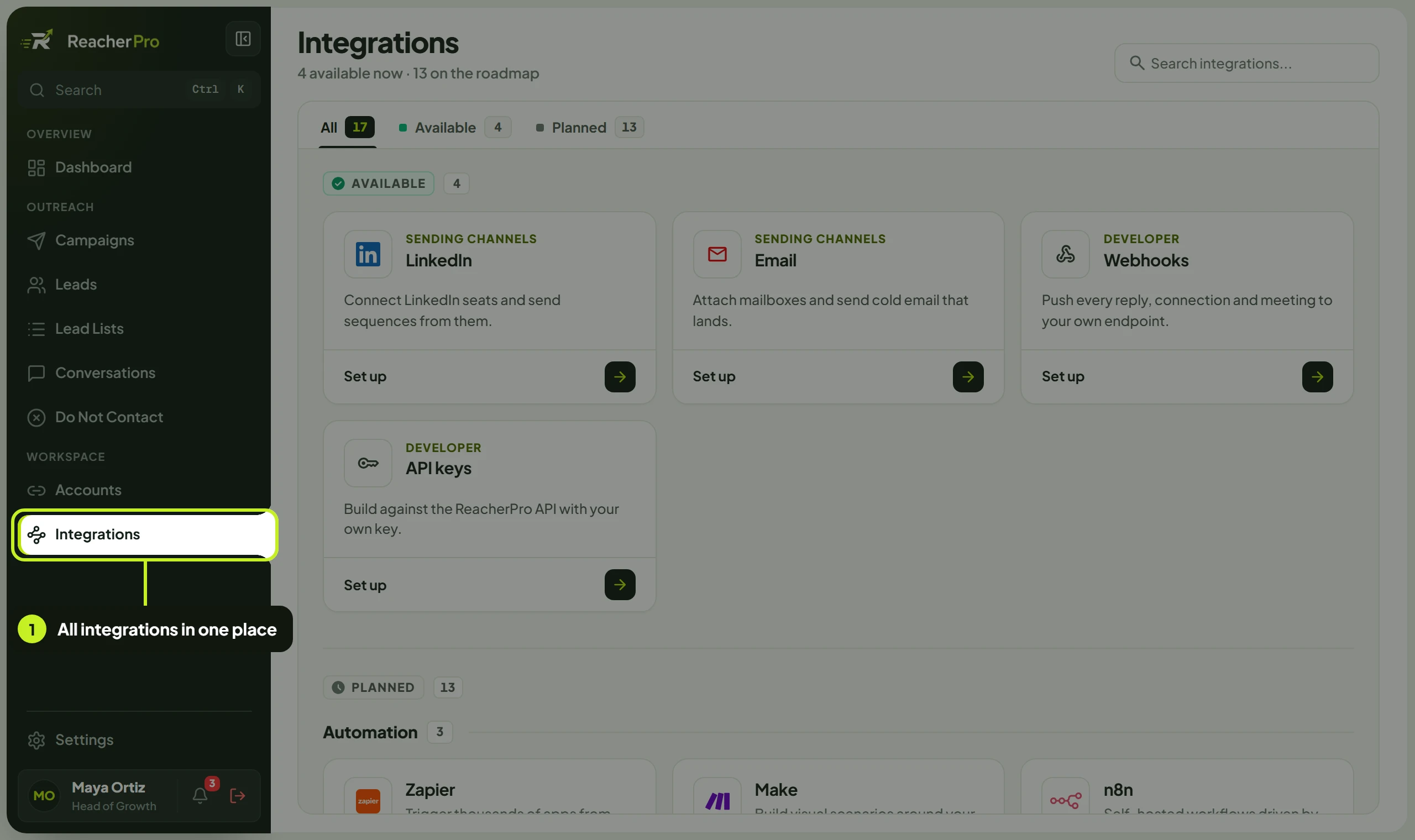
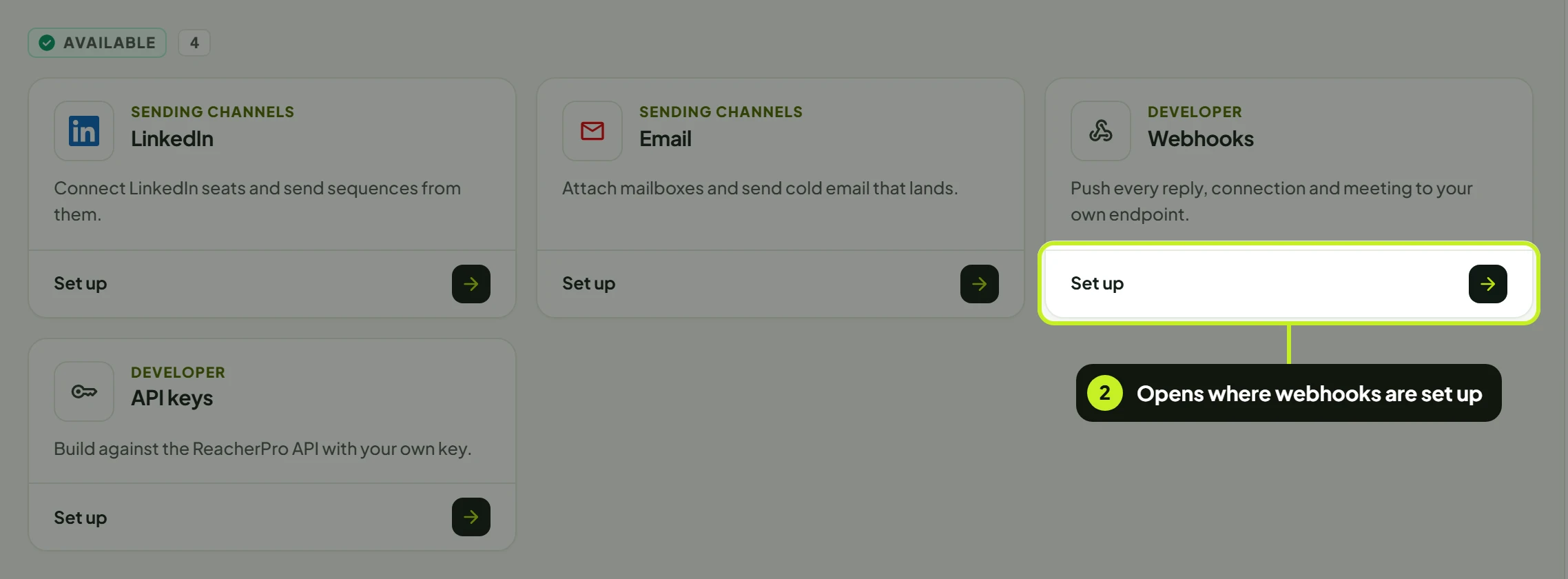
- Click Available at the top to see what you can set up now. Each card has a Set up link that opens the screen where it's configured.
Use Search integrations... to find one by name.
The Planned tab lists the connectors on the roadmap, such as HubSpot, Pipedrive, Salesforce, Zoho CRM, Zapier and n8n. They show as Planned and can't be set up yet. Until they arrive, connect your CRM through webhooks and the API, as below.
What you can connect today
| Integration | Group | What it does | Set up opens |
|---|---|---|---|
| Sending channels | Connect LinkedIn seats and send sequences from them. | Accounts | |
| Sending channels | Attach mailboxes and send email campaigns and instant emails from them. | Manage your email seats | |
| Webhooks | Developer | Send replies, accepted invites and campaign events to your own endpoint as they happen. | Settings > API & Webhooks |
| API keys | Developer | Let your own tools call the ReacherPro API. | Settings > API & Webhooks |
Note: Email inboxes are connected as seats, from the Accounts page. See Connect an email inbox.
Send replies and leads to your CRM
Your CRM connects through a webhook, usually with an automation tool or a small script in between that turns ReacherPro's events into CRM records.
- Set up an endpoint that can receive a JSON
POST— in your automation tool, your CRM's own inbound webhook feature, or your own server. It must be a publichttps://address. - In ReacherPro, go to Settings > API & Webhooks and click Add webhook. Paste the address into Endpoint URL.
- Choose the Events your CRM needs. For most CRMs that's Lead replied and Invite accepted.
- Map the fields in your tool — for example, create a contact from the lead and log the reply as an activity.
- Keep the Signing secret handy so your endpoint can check that each request really came from ReacherPro.
The full steps are in Webhooks.
Pick the right event for each CRM action
| You want your CRM to… | Subscribe to |
|---|---|
| Create a contact or deal when someone answers | Lead replied |
| Mark a contact as connected on LinkedIn | Invite accepted |
| Close a task when a lead finishes the sequence | Enrollment completed |
| Flag leads that need a manual look | Enrollment failed |
| Report on a campaign once it's done | Campaign completed |
| Alert the team when a seat needs attention | Account disconnected |
Read data from ReacherPro
To pull leads, campaigns or results into your CRM on a schedule, create an API key and follow the API reference. See API keys.
Common problems
| What you see | What it means | What to do |
|---|---|---|
| No integration matches that | Your search didn't match any card. | Try another word, or click Clear filters. |
| Your CRM isn't receiving anything | The webhook is paused, or doesn't include that event. | In API & Webhooks, check the webhook's Status is Active and its Events include what you need. |
| Last delivery says Never triggered | None of the selected events has happened since you added it. | Wait for the next reply or accepted invite, or add more events. |
| You can't open API & Webhooks | Your role doesn't include developer access. | Ask a workspace admin to update your role. |
Next: Set up your first endpoint in Webhooks.