
Browse docs
Manage, edit and delete lists
Find a lead list, read its statuses and skipped leads, rename it or change its seat, start an email from it, and delete lists you no longer use.
Updated
On this page
The Lead Lists page holds every list you've imported. From here you can check what's in a list, see which campaigns use it, rename it or move it to another seat, send email to it, and delete it.
How it works
- You import a list. It appears at the top of the table with its type, sender and number of leads. See Create a lead list.
- ReacherPro fetches each lead's details. Leads already being reached, or on your Do Not Contact list, are marked as skipped.
- You pick the list on a campaign's Audience step. From then on the list shows that campaign in its Campaigns column.
- A list that a campaign uses can't be deleted, because a campaign's audience can't be changed once it's created.
Before you start
- To edit lists your role needs permission to update lead lists, and to delete them, permission to delete lead lists. Send email to list and Start email campaign also need permission to create campaigns. Actions you can't use are greyed out, and hovering one names the missing permission.
Find a list
- Click a type tab to show only that kind of list: All Types, LinkedIn Search, Sales Navigator, LinkedIn CSV or Email list.
- Click All Accounts to show only the lists that send from one LinkedIn seat.
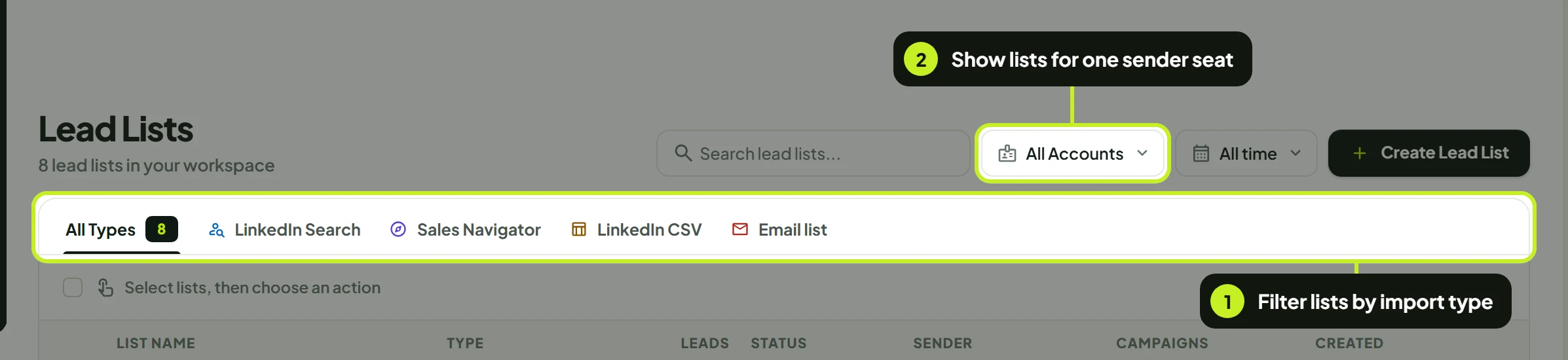
Type in Search lead lists... to find a list by name. The date filter (All time) shows lists created Today, in the Last 7 days, Last 30 days, Last 90 days or a Custom range. Filters work together.
What each column shows
| Column | What it shows | Notes |
|---|---|---|
| List Name | The list's name. Underneath: the search URL it was built from, or the CSV file name. | The copy button next to the URL ticks and reads Copied when you click it. A CSV list has Download CSV to get the original file back. Lists made by an instant email carry an Instant email label. |
| Type | LinkedIn Search, Sales Navigator, LinkedIn CSV or Email list | Set when the list is imported. It can't be changed. |
| Sender | The LinkedIn seat that sends to the list, and whether it's Connected or Disconnected | Email lists show Any inbox · No LinkedIn seat needed, because the sending inbox is chosen on each campaign or email. |
| Status | Where the import stands | Enriched means the leads are in and their details have been fetched. |
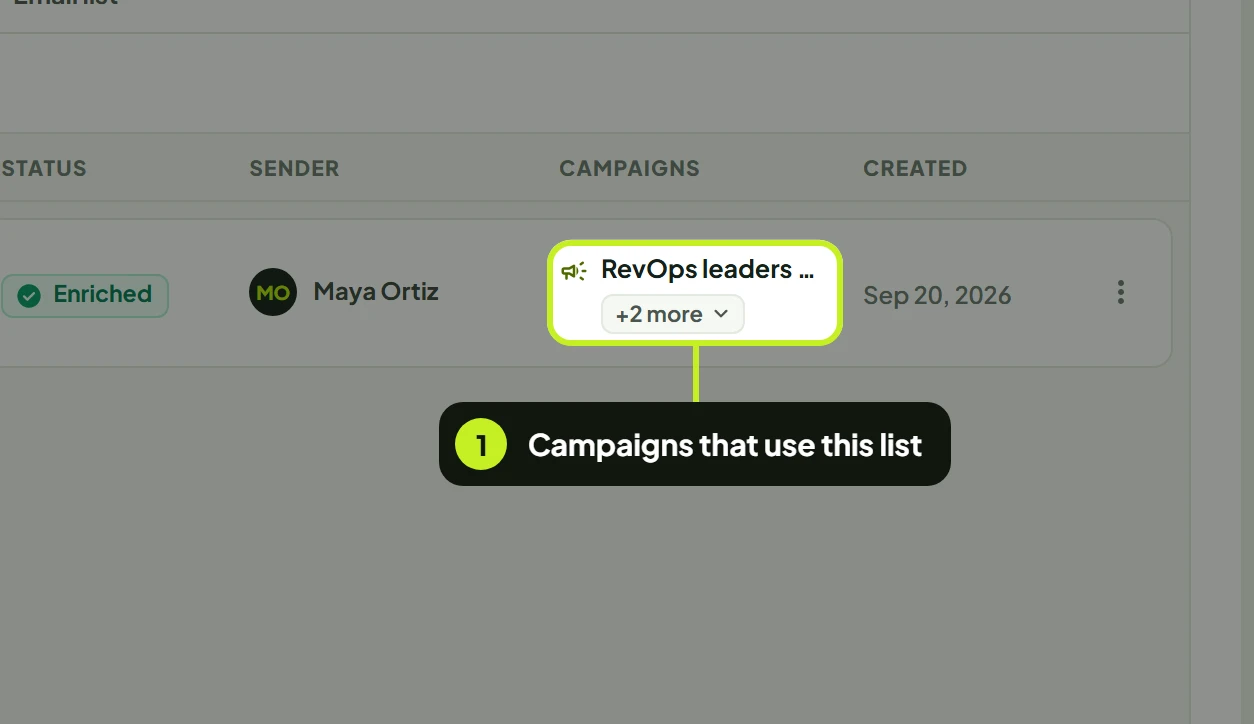
| Campaigns | The campaign using the list | Click it to open the campaign. Hover to see every campaign that uses the list. — means none does yet. |
| Leads | How many leads the list holds | |
| Created | When the list was imported, for example 4 days ago | |
| ⋮ | The row's actions menu | See Row actions. |
See who's in a list
- Click a list's row, or choose View Details from its actions menu. The list opens in its own window, with People, Details and Campaigns tabs.
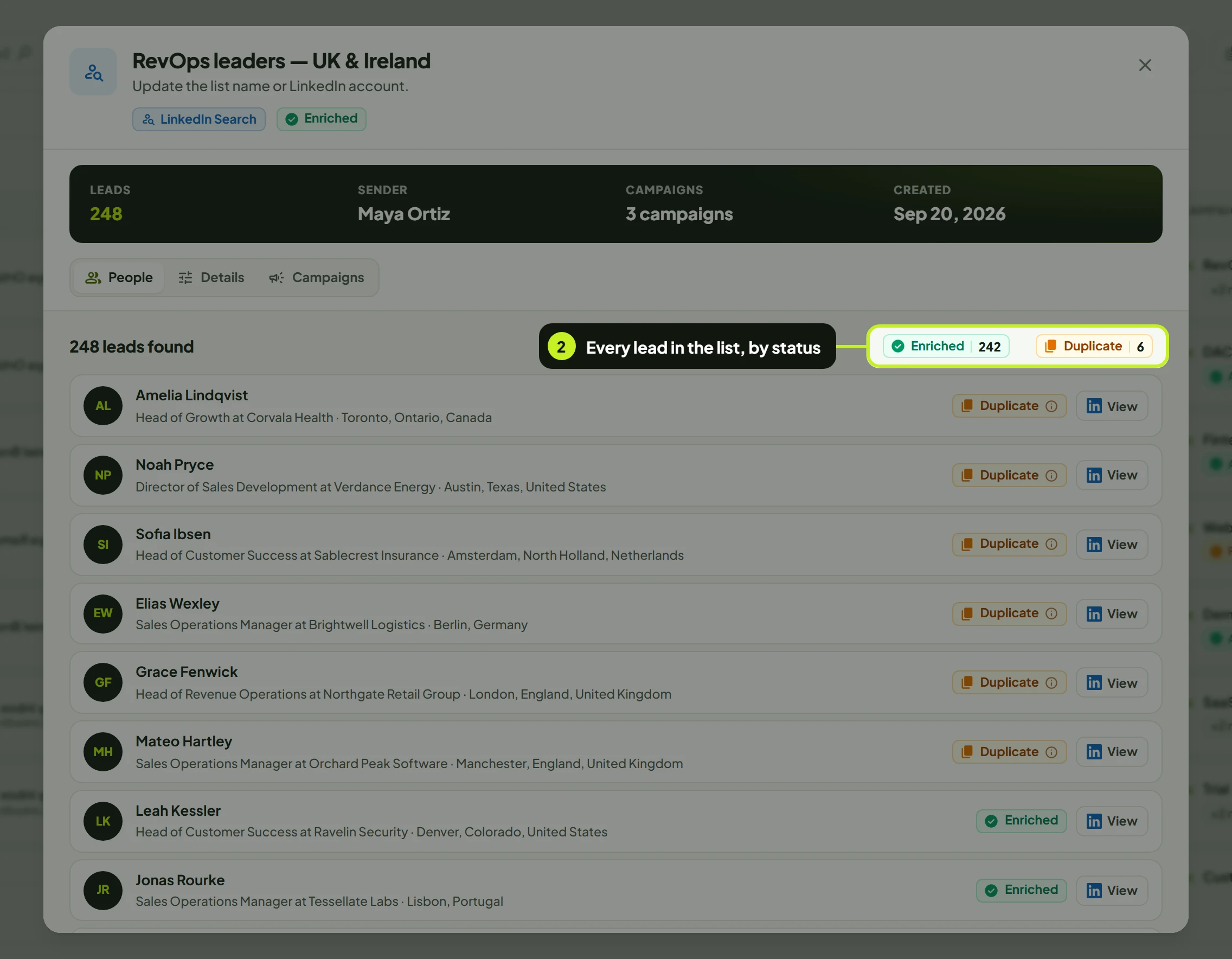
People lists the leads in the list, with Name, Company, Location, Status and View (opens their LinkedIn profile). Email lists show Contact, Company, Job title, Phone and Status instead.
- Next to the number of leads found, Leads by status counts every lead in the list by status.
| Lead status | What it means |
|---|---|
| Enriched | The lead's details were fetched and they're ready for a campaign. |
| Pending | ReacherPro is still fetching this lead's details. |
| Failed | The lead's details couldn't be fetched. |
| Duplicate | Skipped: the lead is already being reached by another campaign or seat. |
| Blacklisted | Skipped: the lead matches your Do Not Contact list. |
Hover the info icon next to a Duplicate or Blacklisted lead to see why it was skipped, for example Already being reached from this account. or On this organization's blacklist. See Prevent duplicate outreach and Use the blocklist.
Edit a list
What you can change depends on the list type:
| List type | What you can change | What stays fixed |
|---|---|---|
| LinkedIn Search and Sales Navigator | List Name and LinkedIn Account | The search URL. It's shown read-only. |
| LinkedIn CSV | List Name and LinkedIn Account | The CSV file. Click Download CSV to get it back. |
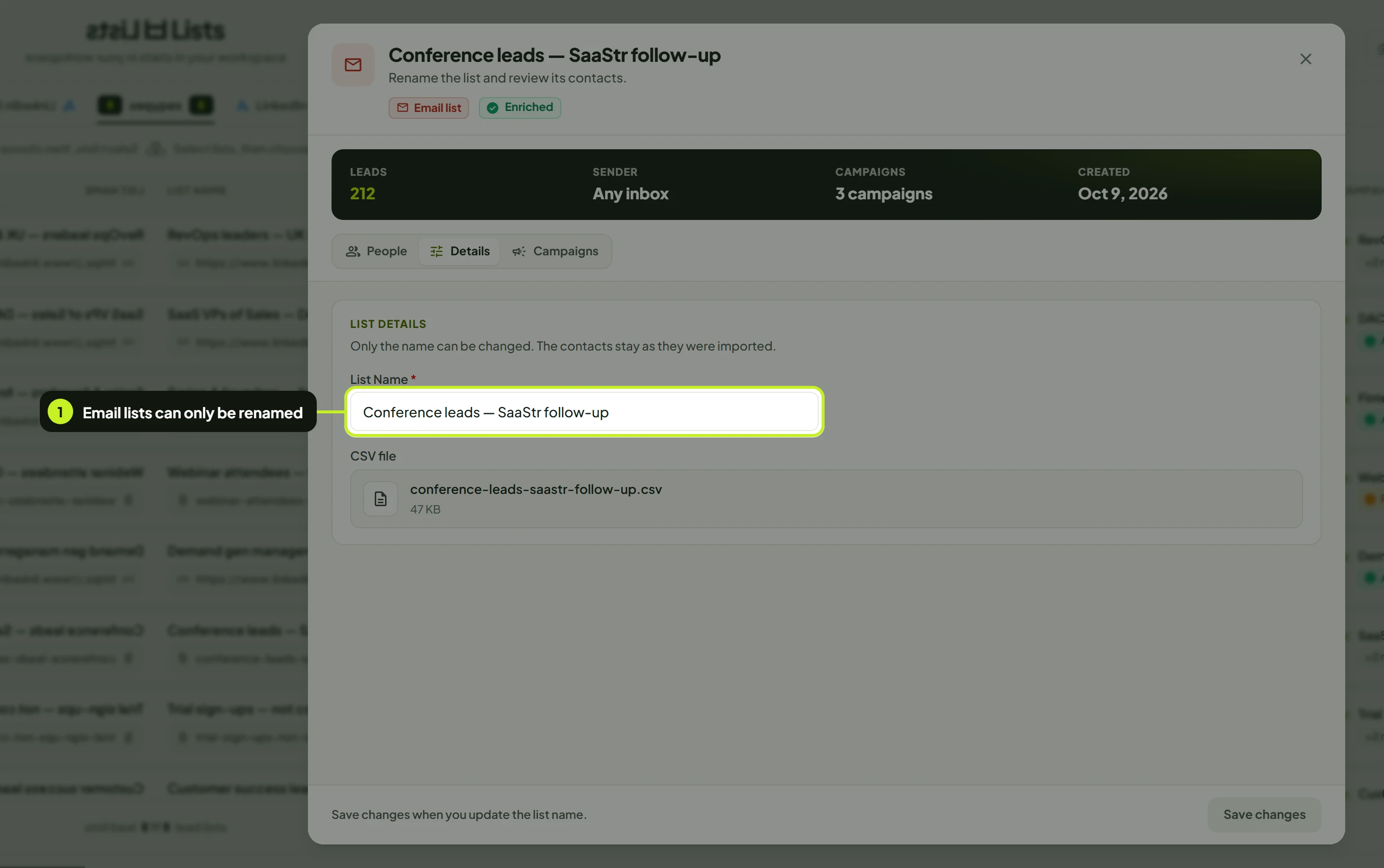
| Email list | List Name | The contacts stay exactly as they were imported. |
- Open the list (click its row, or choose Edit List) and click Details.
- Change the List Name, the LinkedIn Account, or both.
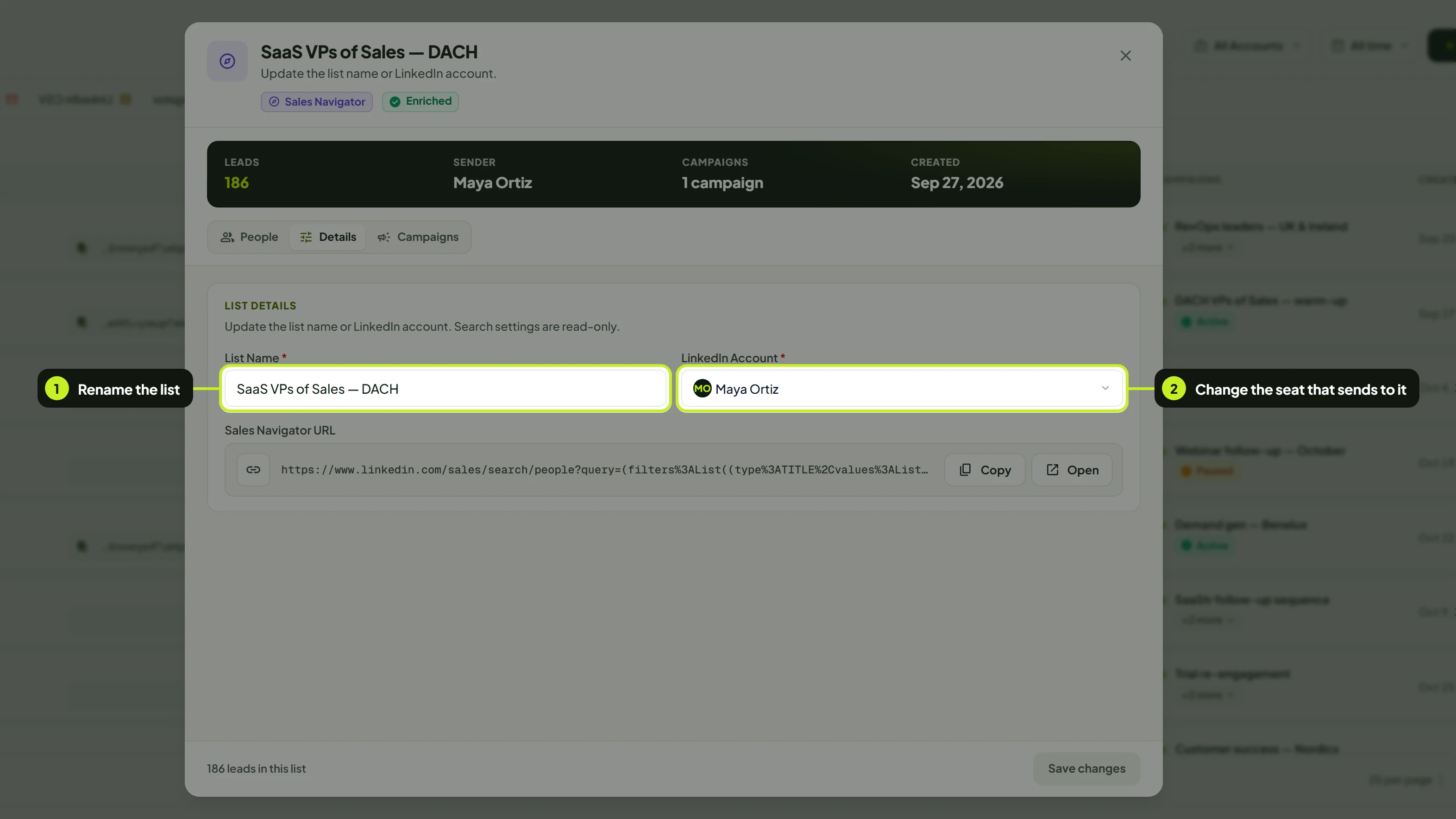
- Click Save changes. It turns on once something has changed, and the footer reads You have unsaved changes. Save when ready.
For an email list, only the name can be changed:
Need different people? You can't add leads to a list or change its search or file. Import a new list with the right search or file instead.
Row actions
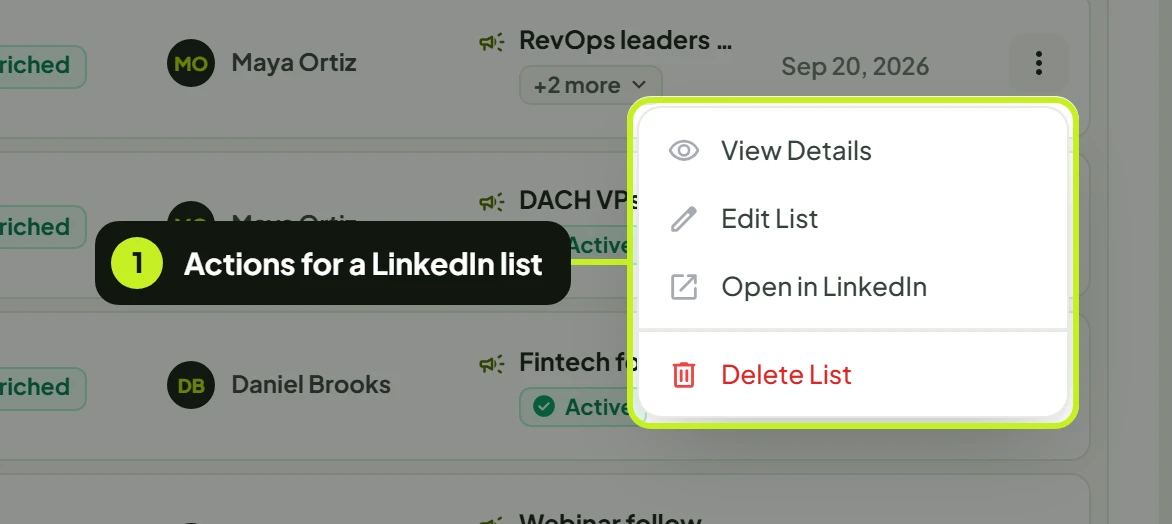
- Click ⋮ at the end of a row.
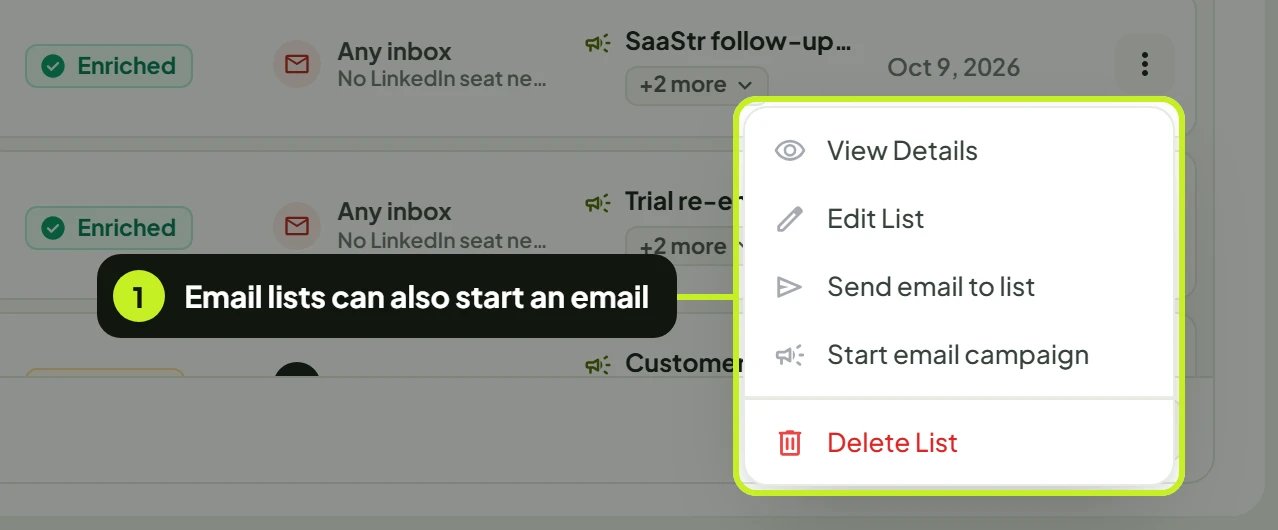
Email lists have two more actions, for sending to the list:
| Action | What it does | Available for |
|---|---|---|
| View Details | Opens the list and its leads. | All lists |
| Edit List | Opens the same window, to rename the list or change its seat. | All lists |
| Open in LinkedIn | Opens the search the list was built from, in a new tab. Greyed out when there's no search URL. | LinkedIn lists |
| Send email to list | Opens an instant email addressed to everyone in the list. See Send an instant email. | Email lists |
| Start email campaign | Starts a new email campaign with this list already chosen as its audience. See Run an email campaign. | Email lists |
| Delete List | Deletes the list after you confirm. | Lists no campaign uses |
Delete lists
Delete one list
- Open the list's actions menu and click Delete List.
- In Delete lead list? (This will permanently delete {name}.), click Delete.
Deleting can't be undone. The list and its leads are removed from your workspace.
Delete several lists
- Tick the lists. The bar above the list shows how many are selected.
- Click Delete in the bar, then confirm in Delete selected lead lists?
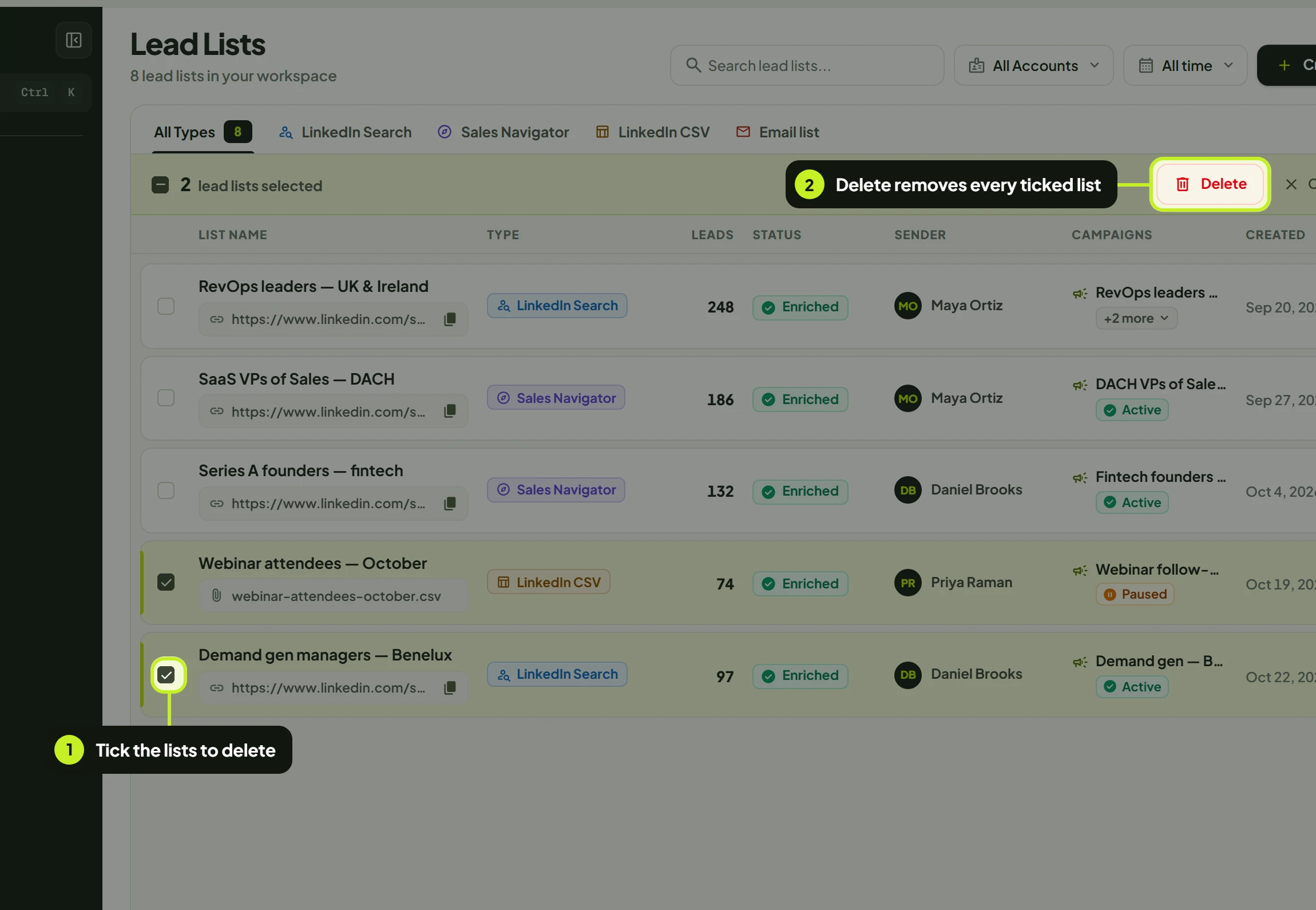
Click Clear selection in the bar to untick them all.
A list used by a campaign can't be deleted
If a campaign uses the list, nothing is deleted. Instead you'll see:
- '{list}' is used by the campaign '{campaign}' and cannot be deleted. for one list.
- {count} selected lead lists are used by campaigns and cannot be deleted. when your selection includes lists in use. None of the selected lists are deleted, so untick those lists and try again.
A campaign's lead list can't be changed after the campaign is created. To free the list, delete the campaign that uses it, if you no longer need it. The Campaigns column shows which campaign that is.
Common problems
| What you see | What it means | What to do |
|---|---|---|
| '{list}' is used by the campaign '{campaign}' and cannot be deleted. | A campaign uses the list. | Leave it, or delete that campaign first if you no longer need it. |
| {count} selected lead lists are used by campaigns and cannot be deleted. | At least one selected list is in use. | Untick the lists with a campaign in the Campaigns column. |
| No lead lists found · No lead lists match your current filters. | The type tab, seat, date or search hides every list. | Switch to All Types, All Accounts and All time, and clear the search. |
| Lead lists could not be loaded | The page didn't load. | Click Try again. |
| Save changes stays disabled | Nothing has changed yet. | Change the name or seat first. |
| The search URL or CSV file can't be edited | Those are fixed once a list is published. | Import a new list instead. |
| The Sender shows Disconnected | That LinkedIn seat needs signing in again. | Reconnect it on Accounts, or move the list to another seat with Edit List. |
| Many leads show Duplicate | They're already being reached by another campaign or seat. | Expected. See Prevent duplicate outreach. |
| An action is greyed out | Your role doesn't allow it, or (for Open in LinkedIn) the list has no search URL. | Hover it to see why. Ask a workspace admin to update your role if needed. |
Next: Follow every lead's progress in Work with leads.