
Browse docs
Choose a campaign type
LinkedIn campaign, Email campaign or Instant email — what each one sends, who it sends from, how fast it goes out, and when to pick it.
Updated
On this page
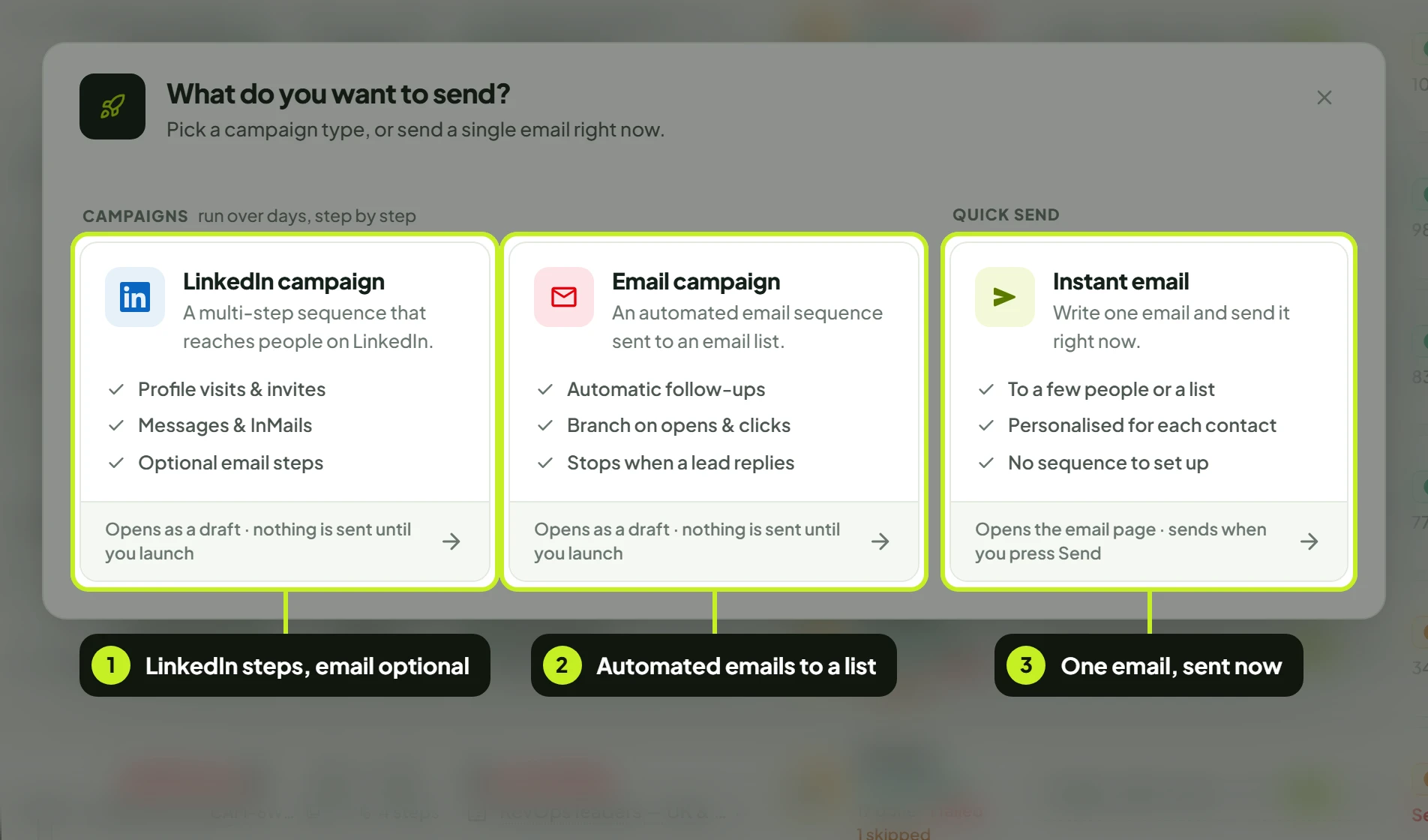
Every campaign starts in the same place: New campaign on the Campaigns page opens a chooser called What do you want to send?. It offers three ways to reach people. This guide explains what each one does and how to pick the right one.
How it works
- You click New campaign and pick a type.
- LinkedIn campaign and Email campaign both open a draft in the campaign workspace, with the channel already set. You then pick a lead list, a sender, a schedule and a sequence, and launch. See Build and launch a campaign.
- Instant email skips all that. It opens the New instant email page, and the email goes out as soon as you send it.
The type decides the channel, and the channel can't change later. While a campaign is a draft you can still switch it; once it has been created, The channel is fixed once the campaign has been created.
Before you start
- For a LinkedIn campaign: a connected LinkedIn seat. See Connect a LinkedIn account.
- For an email campaign or an instant email: a connected inbox. See Connect an email inbox.
- A published lead list. LinkedIn campaigns use LinkedIn lists. Email campaigns use an Email list (CSV). See Create a lead list.
Compare the three types
| LinkedIn campaign | Email campaign | Instant email | |
|---|---|---|---|
| What it is | A multi-step sequence that reaches people on LinkedIn | An automated email sequence sent to an email list | One email, sent right now |
| Sends from | One LinkedIn seat | One connected inbox | One connected inbox (From) |
| Sends to | A LinkedIn lead list | An email list | People you type in (up to 500), existing leads, or an email list |
| Steps you can use | Every step: profile visits, likes, comments, follows, invites, messages, InMails, emails, tags, webhooks and all six conditions | Send Email, Add/Update Tag, Notify Webhook and the email conditions: Replied via Email?, Email Opened?, Link Clicked in Email? | None to set up. It's a single email |
| Follow-ups | Yes, with branches | Yes, with branches on opens and clicks | No |
| Schedule and daily pace | Yes | Yes | No. It starts right away and sends up to 45 emails a day, so long lists go out over a few days |
| Best for | Prospecting on LinkedIn, with email as an optional extra step | Cold or warm email outreach with automatic follow-ups | An announcement, an invite or a one-off follow-up |
Open the chooser
- In the sidebar, under Outreach, click Campaigns.
- Click New campaign at the top right. What do you want to send? opens.
- Click the card for the type you want. The LinkedIn card is on the left; Email campaign and Instant email are next to it.
LinkedIn campaign
The card reads A multi-step sequence that reaches people on LinkedIn, with Profile visits & invites, Messages & InMails and Optional email steps.
Pick it when the people you want to reach are on LinkedIn and you want a sequence that adapts: visit a profile, invite, then follow up only if the invite is accepted. You can add Send Email steps too, for example to email people who never accept your invite.
What happens next: a draft opens in the campaign workspace, reading Reach pick a lead list on LinkedIn from pick a sender. Click each underlined part to choose it. The full walkthrough is in Build and launch a campaign.
Email campaign
The card reads An automated email sequence sent to an email list, with Automatic follow-ups, Branch on opens & clicks and Stops when a lead replies.
Pick it when you have email addresses rather than LinkedIn profiles, or you want an email-only sequence with follow-ups.
What happens next: a draft opens in the campaign workspace, reading Reach pick a lead list on Email from pick a sender.
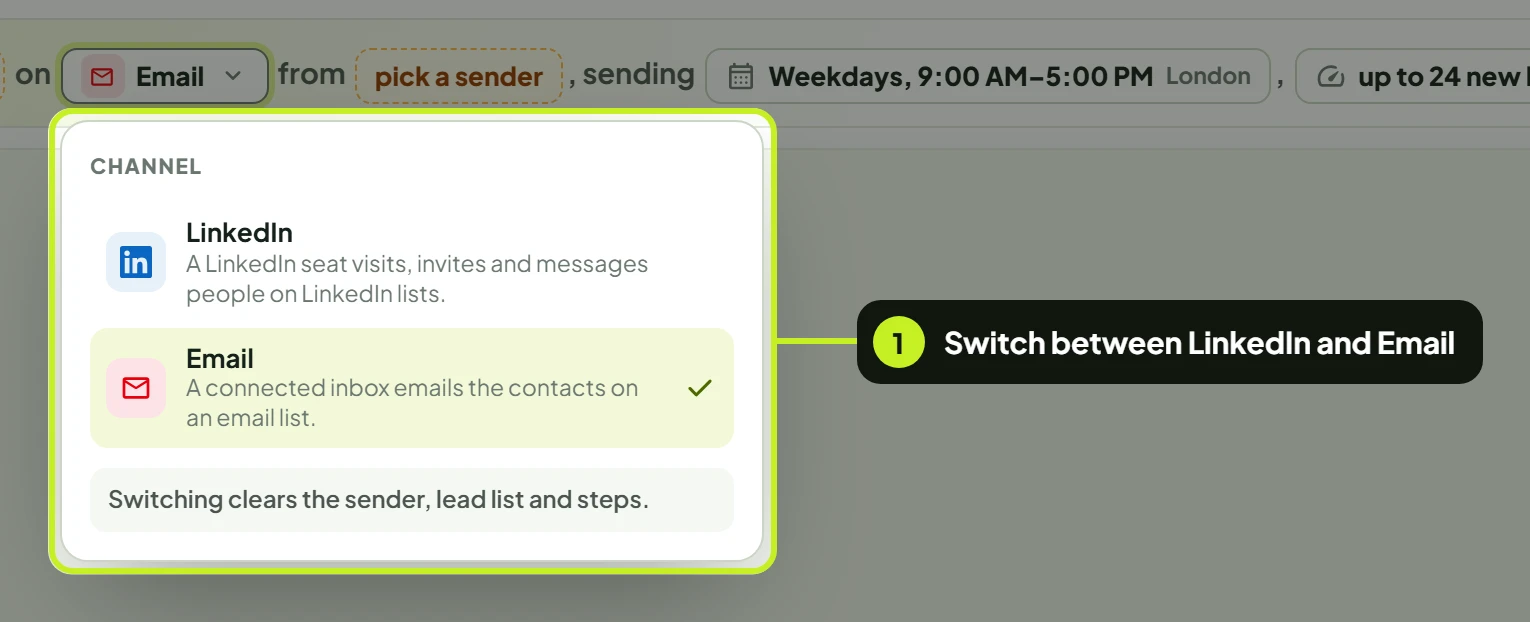
- Check the channel. While the campaign is a draft, click Email in the setup sentence to open Channel and switch between LinkedIn and Email. Switching clears the sender, lead list and steps.
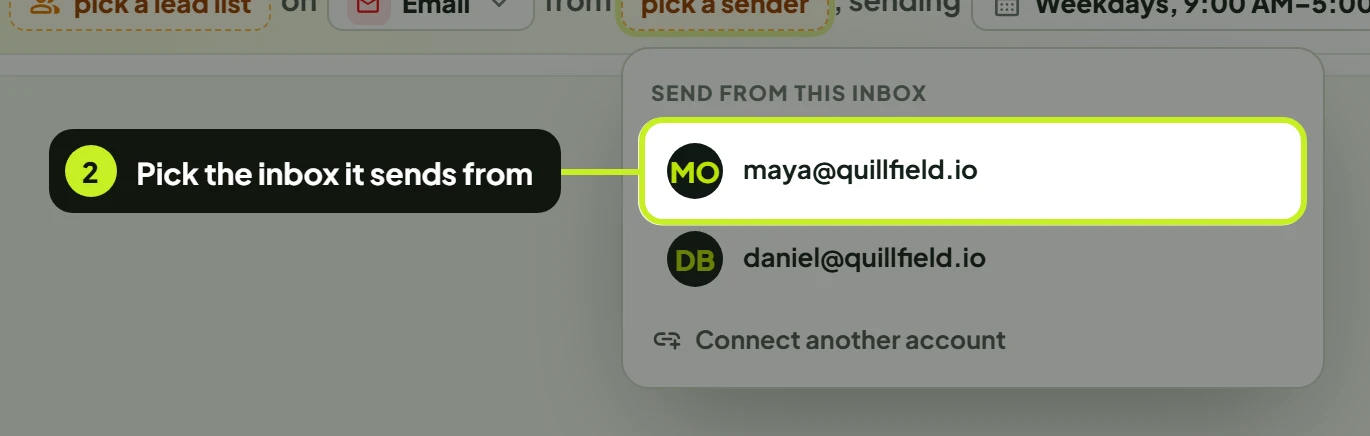
- Click pick a sender and choose the inbox under Send from this inbox. Every email in this campaign is sent from it. No inbox yet? Click Connect another account.
- Click pick a lead list and choose an email list. An email campaign only offers email lists.
Email campaigns have their own templates under Start from a template: Email with smart follow-ups, Branch on opens, Follow up on clicks and Nurture, then ask. For the full email walkthrough, see Run an email campaign.
Instant email
The card reads Write one email and send it right now, with To a few people or a list, Personalised for each contact and No sequence to set up.
Pick it when you need one email to go out now and don't need follow-ups.
What happens next: the New instant email page opens.
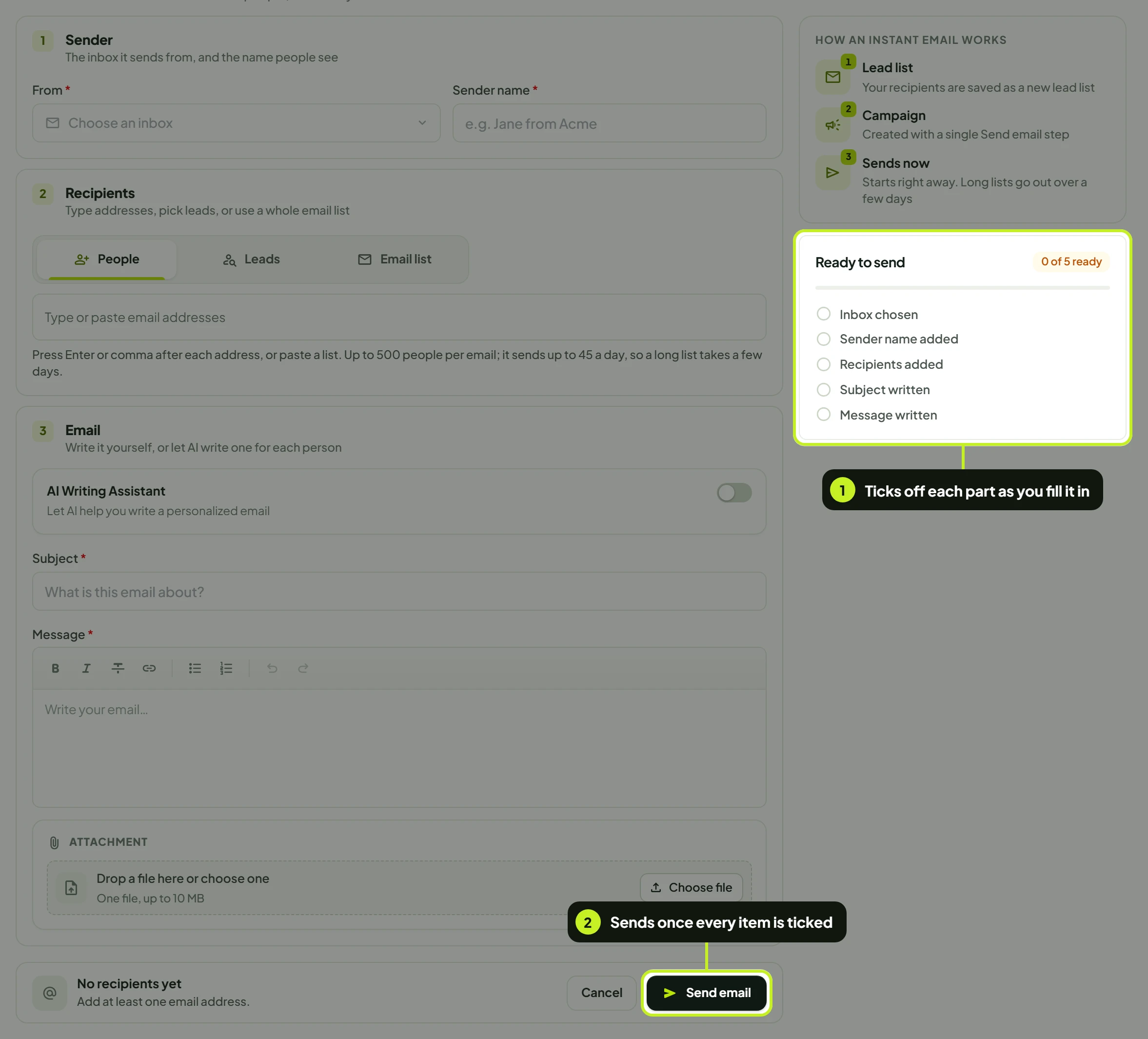
- How an instant email works shows what sending does: your recipients are saved as a new lead list (or your email list is the audience), a campaign is created with a single Send email step, and it starts right away.
- Under Recipients, choose People (type or paste addresses, up to 500), Leads or Email list.
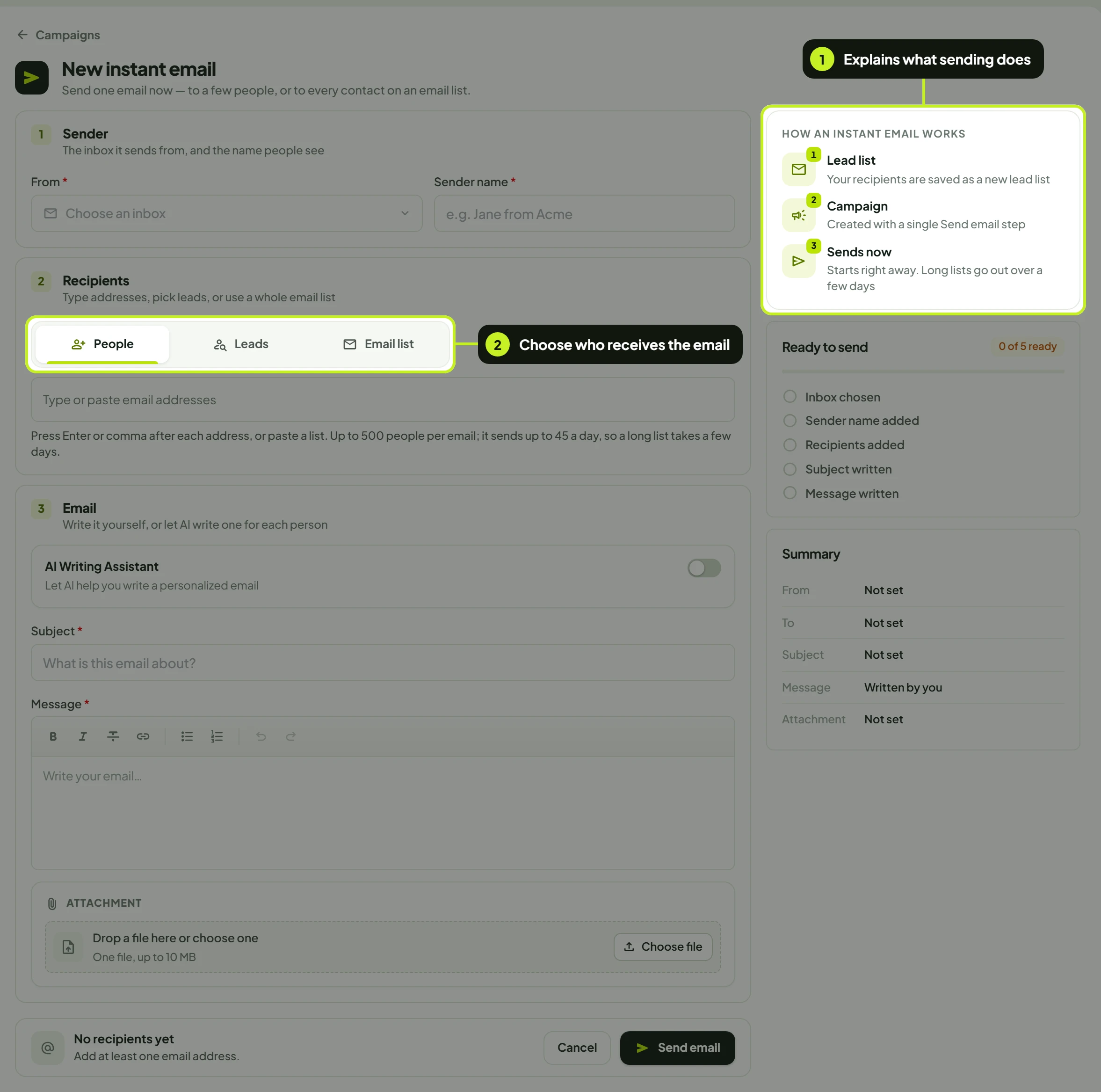
- Fill in From, Sender name, Subject and Message, or turn on AI Writing Assistant to have each copy written for you.
- When Ready to send shows every item ticked, click Send email and confirm with Send now. An email can't be unsent.
The instant email appears on the Campaigns page with an Instant email mark, and replies land in Conversations. Every field is covered in Send an instant email.
Which one should I pick?
| You want to… | Pick |
|---|---|
| Invite people on LinkedIn and follow up after they accept | LinkedIn campaign |
| Reach people on LinkedIn, and email the ones who don't accept | LinkedIn campaign with a Send Email step on the No branch |
| Send a cold email sequence that stops when someone replies | Email campaign |
| Send different follow-ups to people who opened or clicked | Email campaign with Email Opened? or Link Clicked in Email? |
| Tell a list about a webinar today | Instant email |
Common problems
| What you see | What it means | What to do |
|---|---|---|
| No connected accounts yet. in the sender picker | The campaign needs a seat or inbox to send from | Click Connect another account, or connect one on the Accounts page |
| Connect an inbox to send email on the instant email page | Instant emails send from a connected inbox | Click Connect email account |
| The channel can't be switched | The campaign has already been created | Start a new campaign on the other channel |
| Your list isn't offered in Choose the lead list | Each channel only lists its own lead lists | Use an email list for an email campaign, and a LinkedIn list for a LinkedIn campaign |
| New campaign is greyed out | Your role doesn't allow creating campaigns | Ask a workspace admin. See Roles and permissions |
Next: Build your sequence with Steps and conditions.