
Browse docs
Track a campaign
Read the Campaigns list, the stats card on each row, a campaign's Overview, the leads inside it, their sequence progress and each lead's own timeline.
Updated
On this page
Once a campaign is running, three places tell you how it's doing: the Campaigns list (one row per campaign, with its progress and results), the campaign's Overview (every figure in full), and the Leads page filtered to that campaign, where every lead shows its progress, status and full timeline.
How it works
- The Campaigns list shows every campaign with its sender, lead list, progress, results and status.
- Hover a row's results (tap them on a phone) for a stats card: where leads are, all activity and the rates.
- Open a campaign and switch to Overview to see every counter and rate in full.
- Choose View leads to open the Leads page filtered to the campaign. Click a lead to see its engagement, enrolment, every step that ran and the messages it was sent.
Before you start
- You need a campaign that has been launched. See Build and launch a campaign, or Run an email campaign for email.
- Numbers update as the campaign works. A campaign that was just launched reads Starts after launch or shows zeros until its first steps run inside the sending window.
Find a campaign
- In the sidebar, under Outreach, click Campaigns.
- Use the tabs to show All campaigns, or only Running, On hold, Drafts or Finished ones. A tab shows its count once you've opened it.
- To narrow the list further, type in Search campaigns by name..., pick one sender in All Accounts, or choose a date range in All time (Today, Last 7 days, Last 30 days, Last 90 days or Custom range). A filter in use shows its value; click its × to clear it.
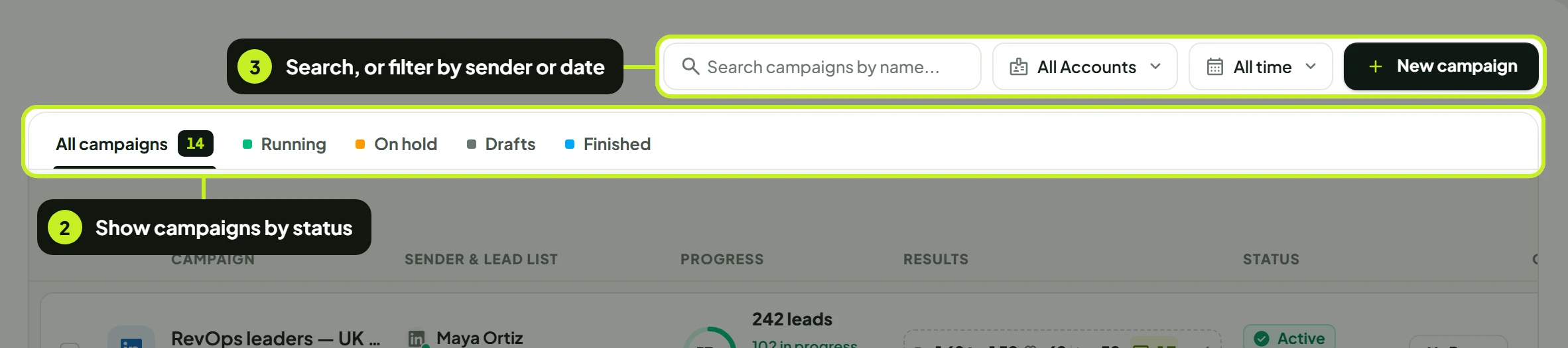
Your tab, filters and page are kept in the address, so going back from a campaign returns you to the list exactly as you left it.
Read the Campaigns list
Each row is one campaign. Click anywhere on a row to open the campaign.
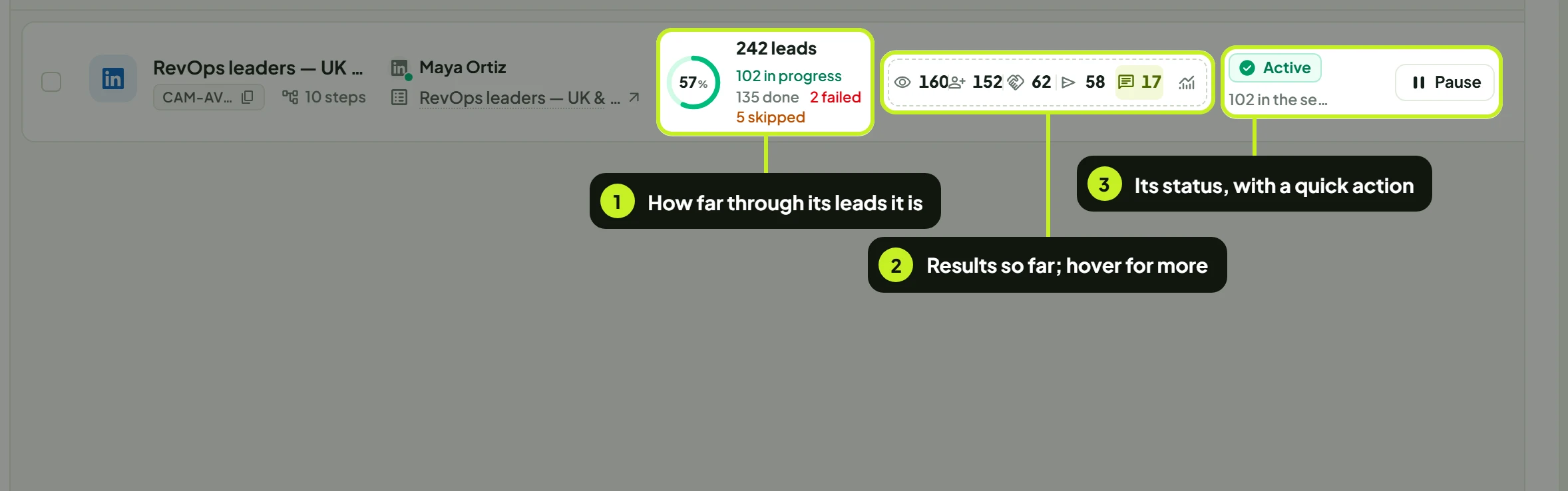
| Column | What it shows | Notes |
|---|---|---|
| Campaign | The channel mark, the name, the number of steps and the campaign ID (for example CAM-HSUKF24Q7M). |
Click the ID to copy it; its tooltip reads Campaign ID copied. Quote it when you contact support. An instant email carries a bolt on its channel mark. |
| Sender & lead list | The seat or inbox that sends (with a dot showing whether it's connected) and the lead list it reaches. | Click the lead list to open it on Lead Lists. |
| Progress | A ring with the percent complete, the number of leads, and how many are in progress, done, failed or skipped. A draft shows Setup 2 of 3 and what it still needs. | |
| Results | The headline counts: Visited, Invited, Accepted, Messaged and Replied for a LinkedIn campaign; Sent, Opened, Clicked and Replied for an email campaign. | Hover for the stats card. |
| Status | The status, with what's happening now (for example 12 in the sequence) and a quick Pause, Resume or Start button. | A disconnected sender shows Sender offline with Reconnect. |
| Owner | The team member responsible. Click to change it. | |
| Created | How long ago the campaign was created. |
Campaign statuses
| Status | What it means | What you can do |
|---|---|---|
| Draft | Created but never launched. Nothing is sent. | Finish the setup and click Launch Campaign inside the campaign. |
| Active | Running. Steps go out on the campaign's schedule. | Pause it, or change its steps, schedule and pace. |
| Paused | Stopped by you. No new steps run until you resume it. | Resume it. Change its steps and schedule first if you like. |
| Completed | Every lead has finished the sequence. | Read-only: Completed campaigns can't be edited. |
| Failed | The launch didn't go through. | Open the campaign, fix the setup and click Relaunch campaign. |
| Pending | Waiting to start. | The row menu offers Start campaign. |
See the stats on a row
- Hover the Results on a campaign's row. On a phone, tap them.
- A card opens with the campaign's name, its leads and percent complete.
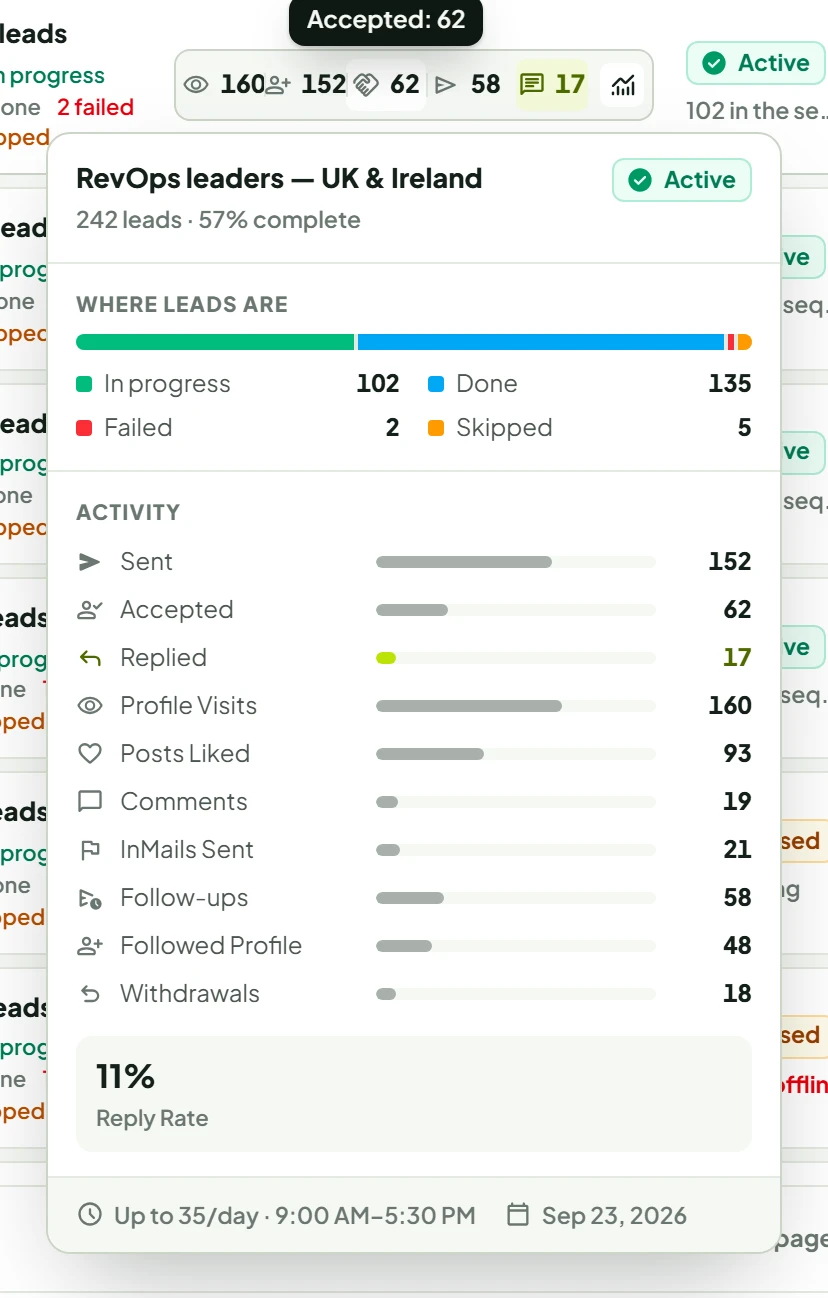
| Part | What it shows |
|---|---|
| Where leads are | A bar split into In progress, Done, Failed, Stopped and Skipped, with each count. |
| Activity | A bar for every action the campaign has taken, for example profile visits, invites, acceptances and replies. Reads Nothing sent yet before the first step runs. |
| Rates | The reply, open and click rates. |
| Footer | The schedule (for example Up to 24/day · 9:00 AM–5:00 PM) and when the campaign was created. |
See every figure: Overview
Open a campaign and click Overview next to Sequence in its header. Overview appears once the campaign has run; until then the campaign shows only its sequence.
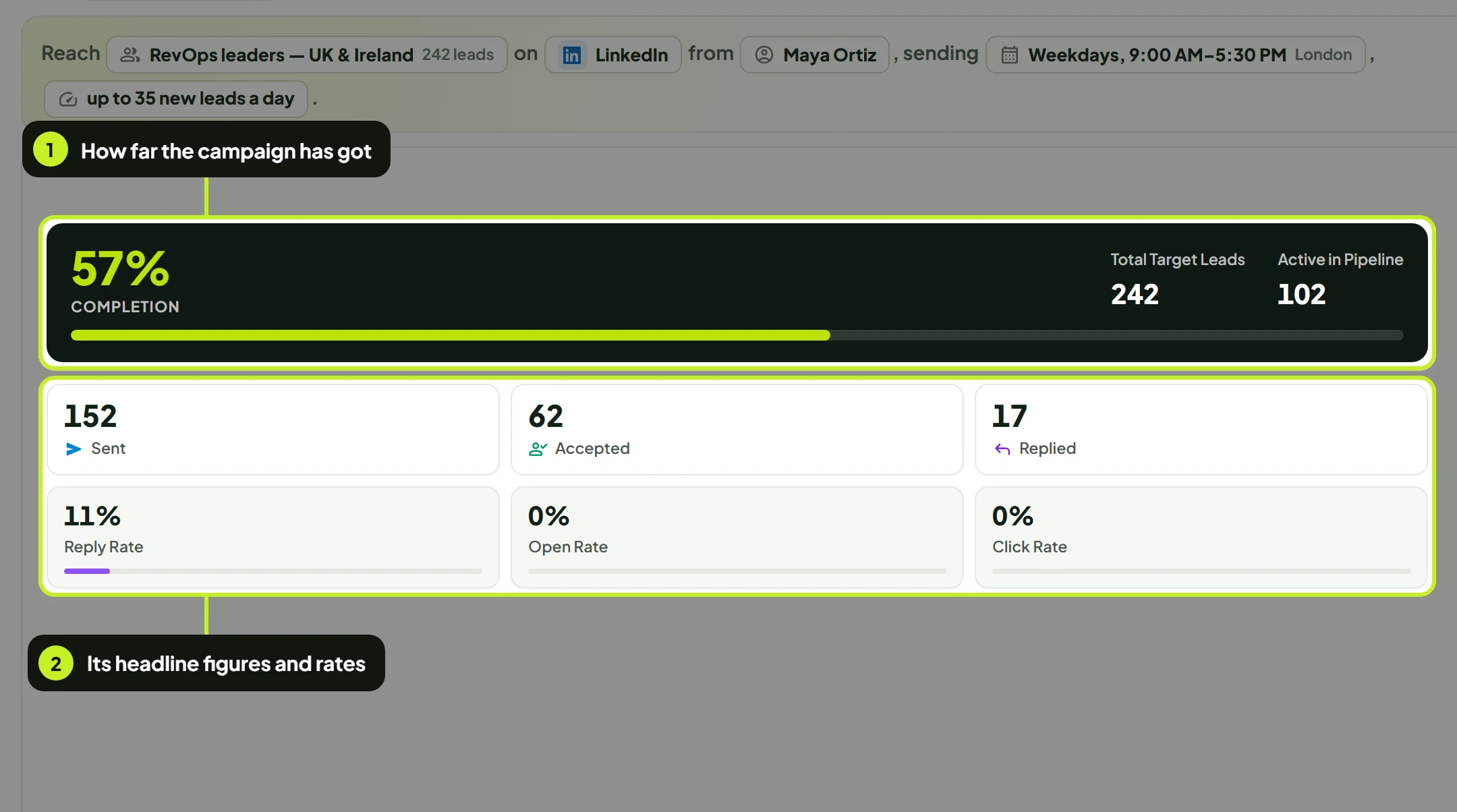
| Figure | What it means |
|---|---|
| Completion | How far the campaign is through its leads, as a percent. |
| Total Target Leads | Everyone enrolled from the lead list. |
| Active in Pipeline | Leads that are still somewhere in the sequence. |
| Reply Rate | Replies as a share of leads reached. It's named after the campaign's success measure; a campaign without one reads Success Rate. |
| Open Rate | Share of sent emails that were opened. 0% on a campaign with no email steps. |
| Click Rate | Share of sent emails with a link clicked. |
| Sent | Connection requests sent. |
| Accepted | Connection requests accepted. |
| Replied | Leads who replied, on any channel. |
| Profile Visits | Profiles the sender viewed. |
| Posts Liked | Posts liked by Like Recent Post steps. |
| Comments | Comments left by Comment on Post steps. |
Under All activity, every other counter is listed:
| Counter | What it counts |
|---|---|
| InMails Sent | InMails sent by Send Inmail steps. |
| Emails Sent | Emails sent by Send Email steps. |
| Opened | Emails opened. |
| Clicked | Emails with a link clicked. |
| LinkedIn Replies | Replies that came in on LinkedIn. |
| Email Replies | Replies that came in by email. |
| Follow-ups | LinkedIn messages sent by Send Message steps. |
| Followed Profile | Leads followed by Follow Profile steps. |
| Followed Company | Company pages followed by Follow Company steps. |
| Withdrawals | Pending connection requests withdrawn. |
| Triggered Leads | Leads that have entered the sequence. |
Where leads ended up, and who was skipped
- Under Lead outcomes, Completed, Failed and Stopped count how enrolled leads finished.
- Duplicates and Blacklisted count leads that were skipped before any outreach.
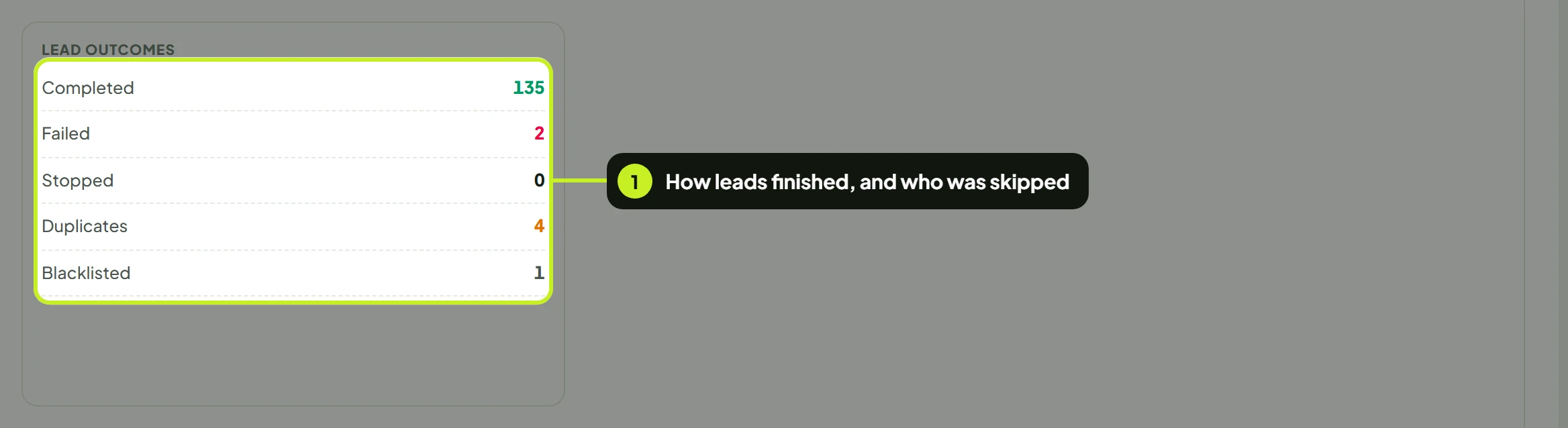
| Figure | What it means |
|---|---|
| Completed | The lead reached the end of the sequence. |
| Failed | A step couldn't run for the lead, even after retries (for example, the profile can't be accessed). |
| Stopped | Someone stopped the sequence for this lead. |
| Duplicates | The lead was already being contacted by another campaign or seat, so this campaign skipped them. See Prevent duplicate outreach. |
| Blacklisted | The lead, their company, email or domain is on your Do Not Contact blocklist. See Use the blocklist. |
Tip: A campaign with leads but nothing sent? Check Duplicates and Blacklisted first. Skipped leads never get a first step.
Email campaigns
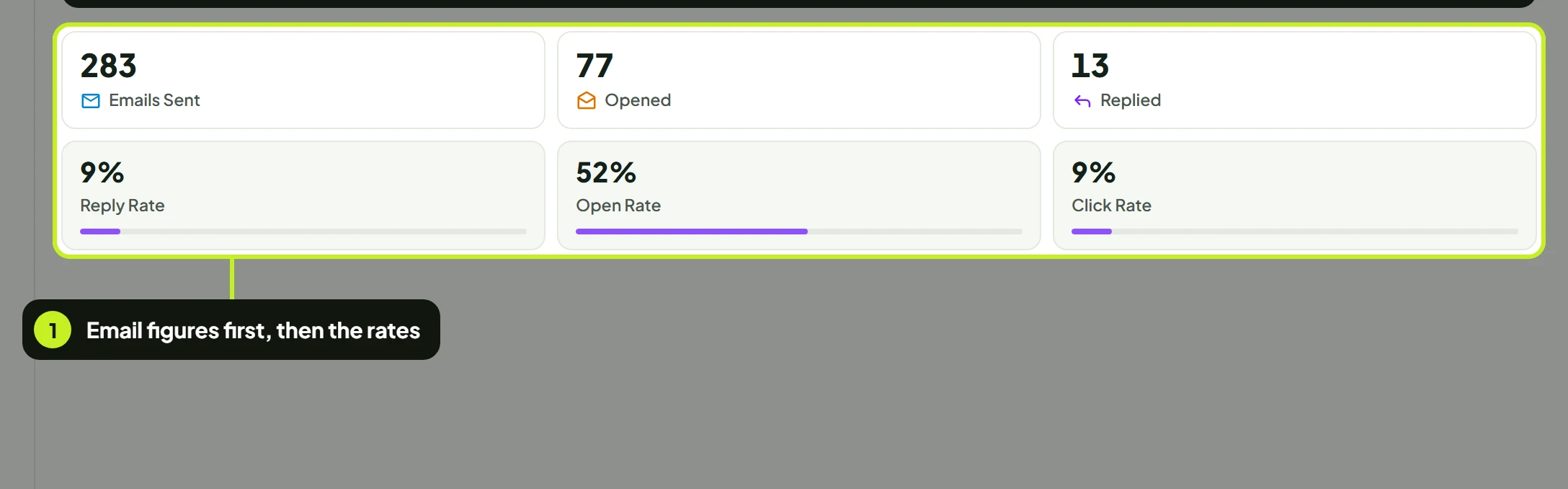
The Overview is the same for an email campaign, but the email figures lead.
- Reply Rate, Open Rate and Click Rate carry real values.
- Emails Sent, Opened, Replied and Clicked come first among the headline figures. LinkedIn Replies and Email Replies aren't shown, since every reply is an email.
Open a campaign
Click a campaign's row. It opens on the campaign's sequence.
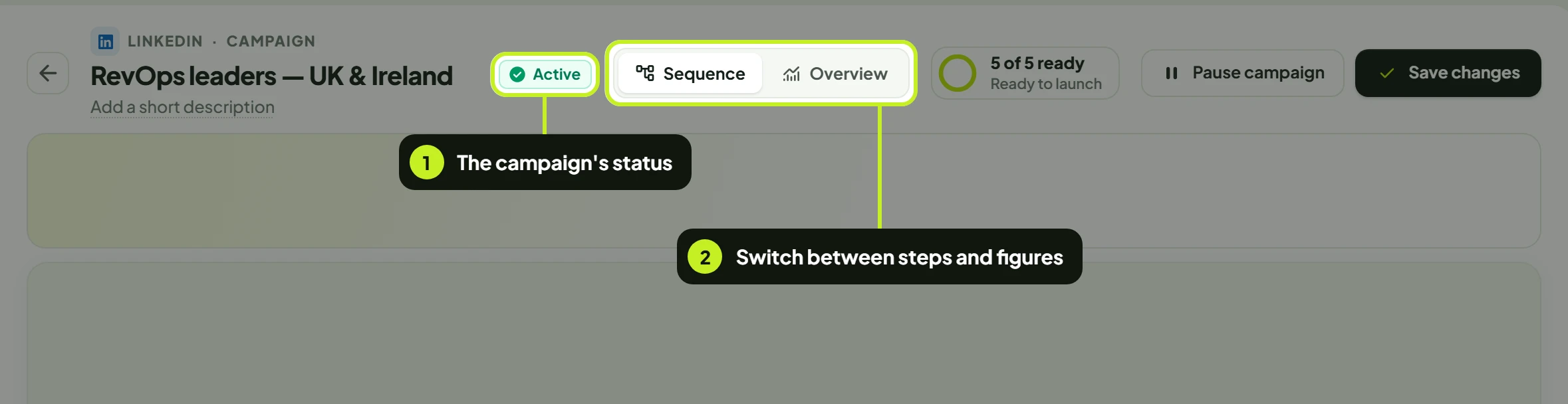
- The status chip next to the name shows the campaign's status.
- Sequence and Overview switch between the canvas and the figures. The readiness ring and the actions sit at the top right.
To change a running campaign, see Pause, resume and edit.
See the leads in a campaign
- Open the campaign's row menu (⋮) and click View leads.
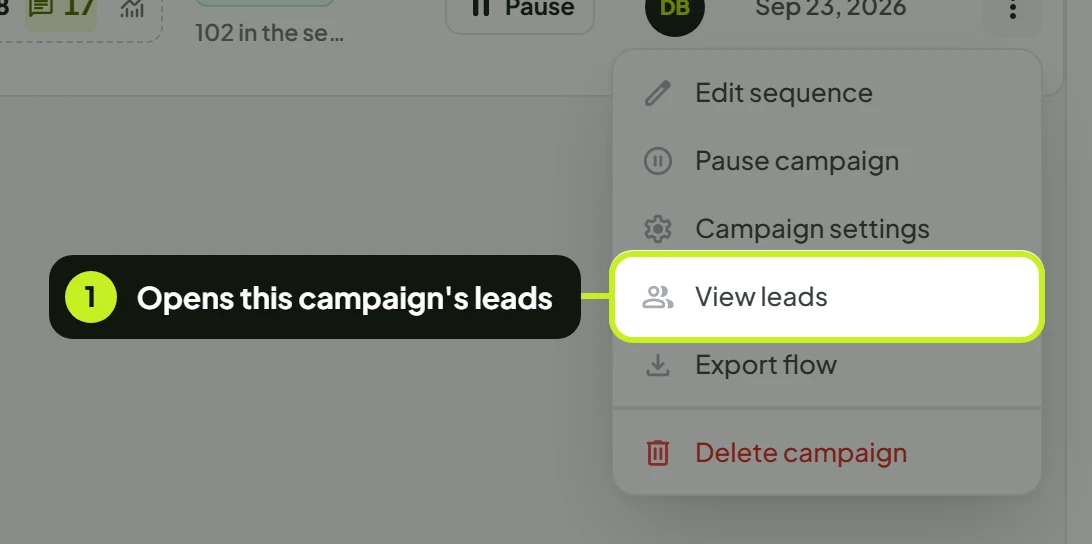
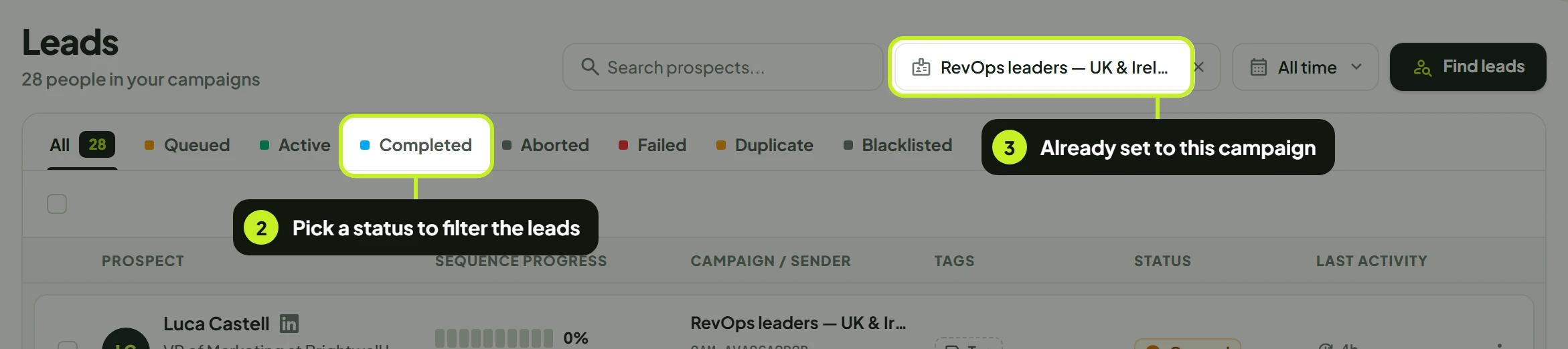
- The Leads page opens. Use the tabs to show All leads, or only Queued, Active, Completed, Aborted, Failed, Duplicate or Blacklisted ones.
- The scope filter next to the search box shows the campaign you came from. Open it to switch account or campaign. Search prospects... finds a lead by name, and All time narrows by date.
What each column shows
| Column | What it shows | Notes |
|---|---|---|
| Prospect | The lead's name and headline. | |
| Campaign / sender | The campaign, and the seat contacting this lead with a dot showing whether it's connected. | |
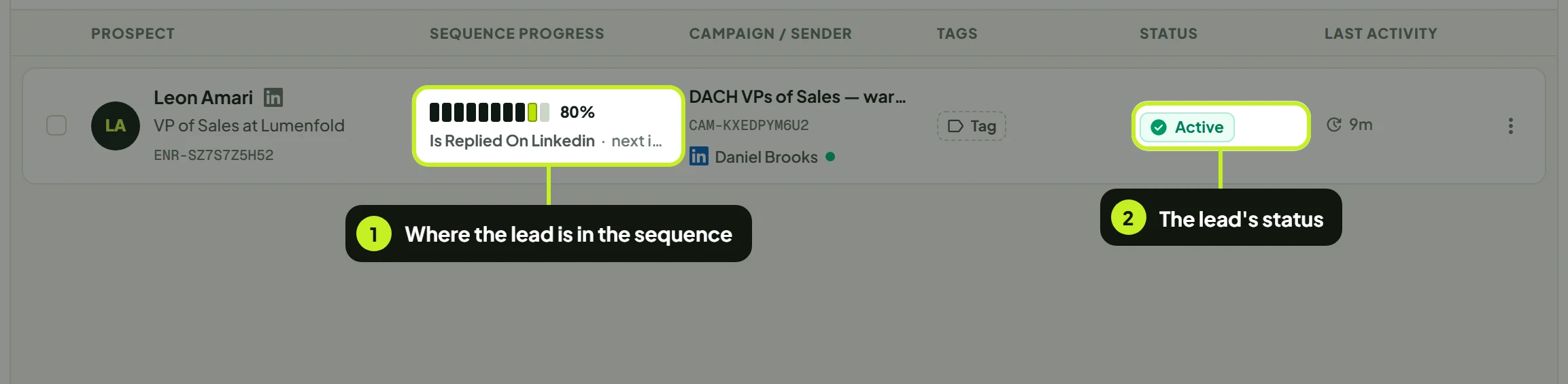
| Sequence progress | Where the lead is in the sequence (see below). | Click it to open the lead's Sequence tab directly. |
| Status | The lead's status in this campaign (see below). | |
| Tags | The lead's tags. Click Tag to add one. | |
| Last activity | When something last happened for this lead. |
Sequence progress
| What you see | What it means |
|---|---|
| A step name with a progress bar and next in 4h | The step the lead is on, how much of the sequence is done, and when the next check or action runs. |
| Awaiting first touch with next in 1d | The lead is queued; the first step runs at that time. |
| Sequence complete | The lead finished every step on its path. |
| A red step name with 1 failed and failed after 3 attempts | That step couldn't run. ReacherPro retried before giving up. |
| Not started | No step is scheduled for the lead, for example after it was stopped. |
| Skipped with a reason | The lead was skipped before outreach, as a duplicate or because it's on your blocklist. |
Lead statuses
| Status | What it means |
|---|---|
| Queued | Enrolled, waiting for its first step. Leads start at the campaign's daily pace. |
| Active | Somewhere in the sequence, between steps or waiting on a condition. |
| Completed | Reached the end of the sequence. |
| Aborted | Someone stopped the sequence for this lead. Nothing more is sent to them by this campaign. |
| Failed | A step couldn't run after retries. The progress column shows which one. |
| Duplicate | Skipped: already being contacted by another campaign or seat. |
| Blacklisted | Skipped: on your Do Not Contact blocklist. |
Open a lead
- Click a lead's row. Its details open over the list, with the lead's status and a LinkedIn button (or Copy email for an email lead) at the top, and Do not contact and Stop execution at the bottom. Click Do not contact to add the lead to your blocklist, for example when they ask not to be contacted again.
- Switch between Overview, Sequence and Profile.
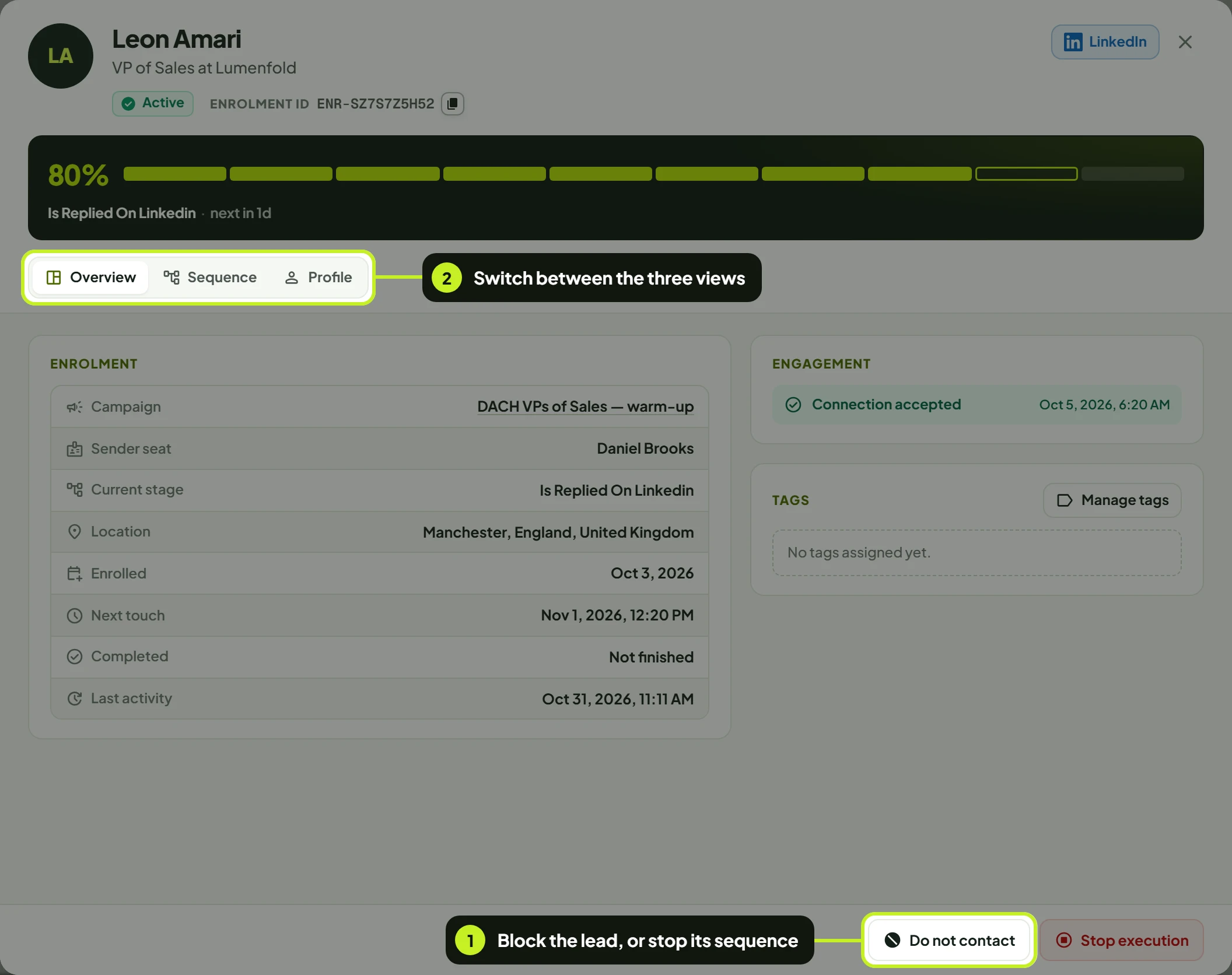
The Enrolment ID has a copy button; it ticks and reads Copied.
Overview
| Section | What it shows |
|---|---|
| Engagement | What the lead has done, with the time: for example a connection accepted, a reply, an email opened or a link clicked. Only what happened is listed. |
| Enrolment | Campaign, Sender seat (or Sender inbox), Current stage, Location, Enrolled, Next touch, Completed and Last activity. A dash means it doesn't apply yet. |
| Tags | The lead's tags. Click Manage tags to change them. |
Sequence
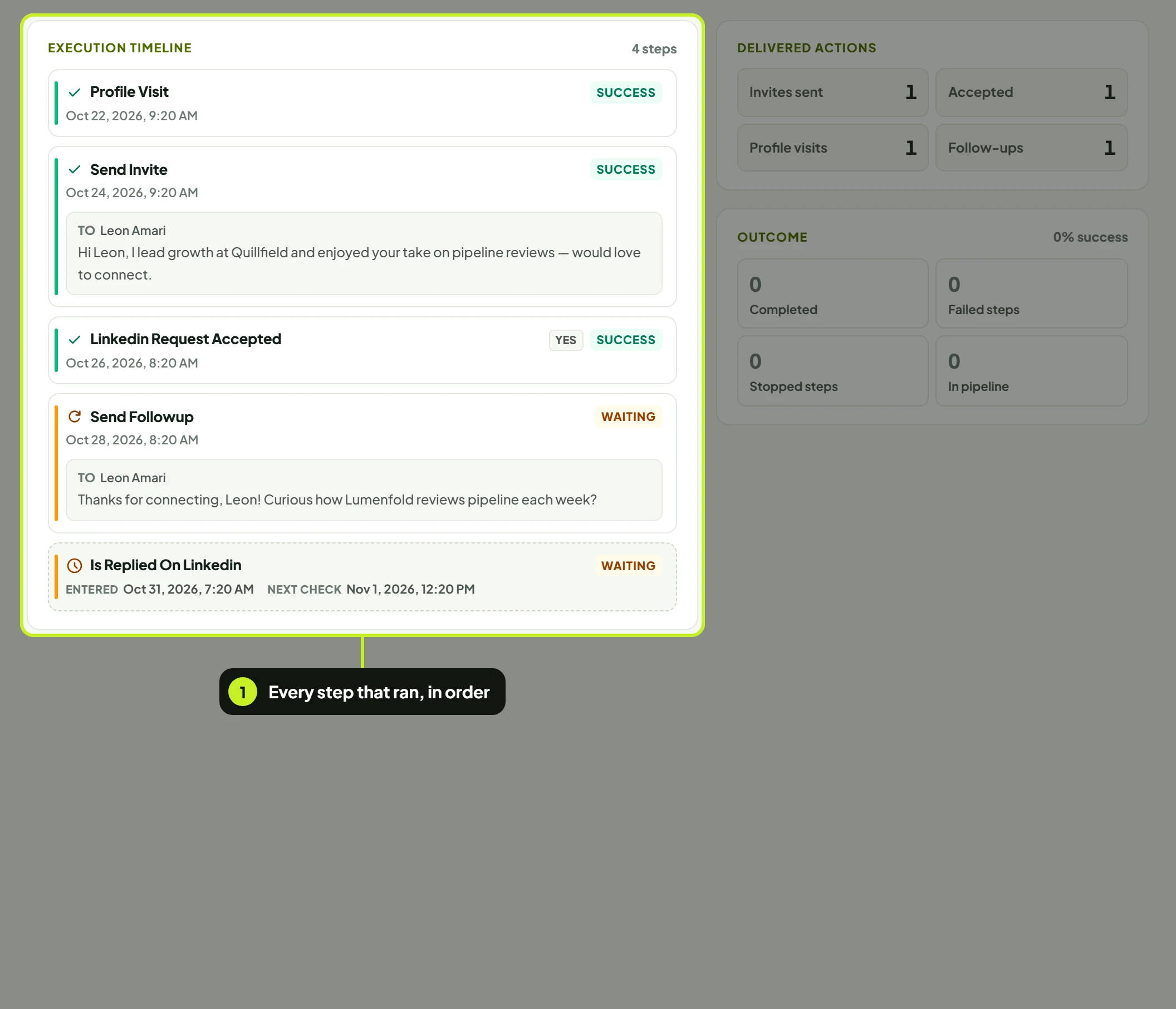
Click Sequence to see everything the campaign did for this lead.
| Section | What it shows |
|---|---|
| Execution timeline | Every step that ran, in order, with its time and result. Conditions show the branch taken (Yes or No). Messages and emails show the text that was sent, and emails show who they went To. A step that needed retries shows the number of attempts. |
| Delivered actions | Totals for this lead, for example invites sent, acceptances, replies and profile visits. |
| Outcome | How the lead's steps ended: completed, failed, stopped or still in the pipeline. |
A skipped lead shows the skip reason and date here instead of a timeline.
Profile
Profile shows the lead's LinkedIn profile as it was imported: headline, About, Work Experience, Education, Skills and contact details.
Row actions
Each lead's row menu (⋮) has Open overview, Sequence breakdown, Copy email, Open LinkedIn profile, Copy enrolment ID and, for a lead still in the sequence, Stop execution. Stopping asks you to confirm and turns the lead's status to Aborted.
Common problems
| What you see | What it means | What to do |
|---|---|---|
| The campaign has leads but nothing sent | Leads haven't reached a sending window yet, or were skipped. | Check the schedule in the campaign's setup sentence, and the Duplicates and Blacklisted counts. |
| Many leads show Duplicate | They're already in another campaign or reached by another seat. | This is on purpose, so nobody is contacted twice. See Prevent duplicate outreach. |
| A lead shows failed after 3 attempts | LinkedIn or the inbox refused that step for this lead, for example This profile can't be accessed. | Open the lead's Sequence tab to read the reason. Other leads carry on. |
| View leads shows nobody | The campaign hasn't enrolled anyone yet. | Wait for the first sending window after launch. |
| The row reads Sender offline | The seat or inbox lost its connection, so the campaign can't send. | Click Reconnect. See Manage seats and reconnect. |
| Overview is greyed out | The campaign hasn't run yet. | It fills in once the first steps have run. |
| Completed campaigns can't be edited. | The campaign has finished. | Read its results here. To run it again, start a new campaign. |
Next: Pause, change or delete a campaign in Pause, resume and edit. Answer replies in Reply from Conversations.