
Browse docs
Send an instant email
Write one email and send it now — to people you type in, to leads already in ReacherPro, or to everyone on an email list — written by you or by the AI.
Updated
On this page
An instant email is one email, sent right away, with no sequence or schedule to set up. Each recipient gets their own copy. Use it for a quick announcement, an event invite or a one-off follow-up.
How it works
- Your recipients become a lead list. People you type in, or leads you pick, are saved as a new lead list. If you send to an email list, that list is used as it is.
- A campaign is created for you with a single Send email step, and appears on the Campaigns page with a bolt on its channel mark.
- It sends now. Sending starts right away, at up to 45 emails a day, so a long list goes out over a few days.
- Replies land in Conversations, like any other email reply.
The page shows the same three stages on the right, under How an instant email works.
Before you start
- A connected inbox to send from. See Connect an email inbox. Without one, the page shows Connect an inbox to send email and a Connect email account button.
- To send to many people, an email list. See Upload an email list.
Open the instant email page
- On the Campaigns page, click New campaign.
- In What do you want to send?, click Instant email. The New instant email page opens. Choose another type at its top left returns you to the three choices.
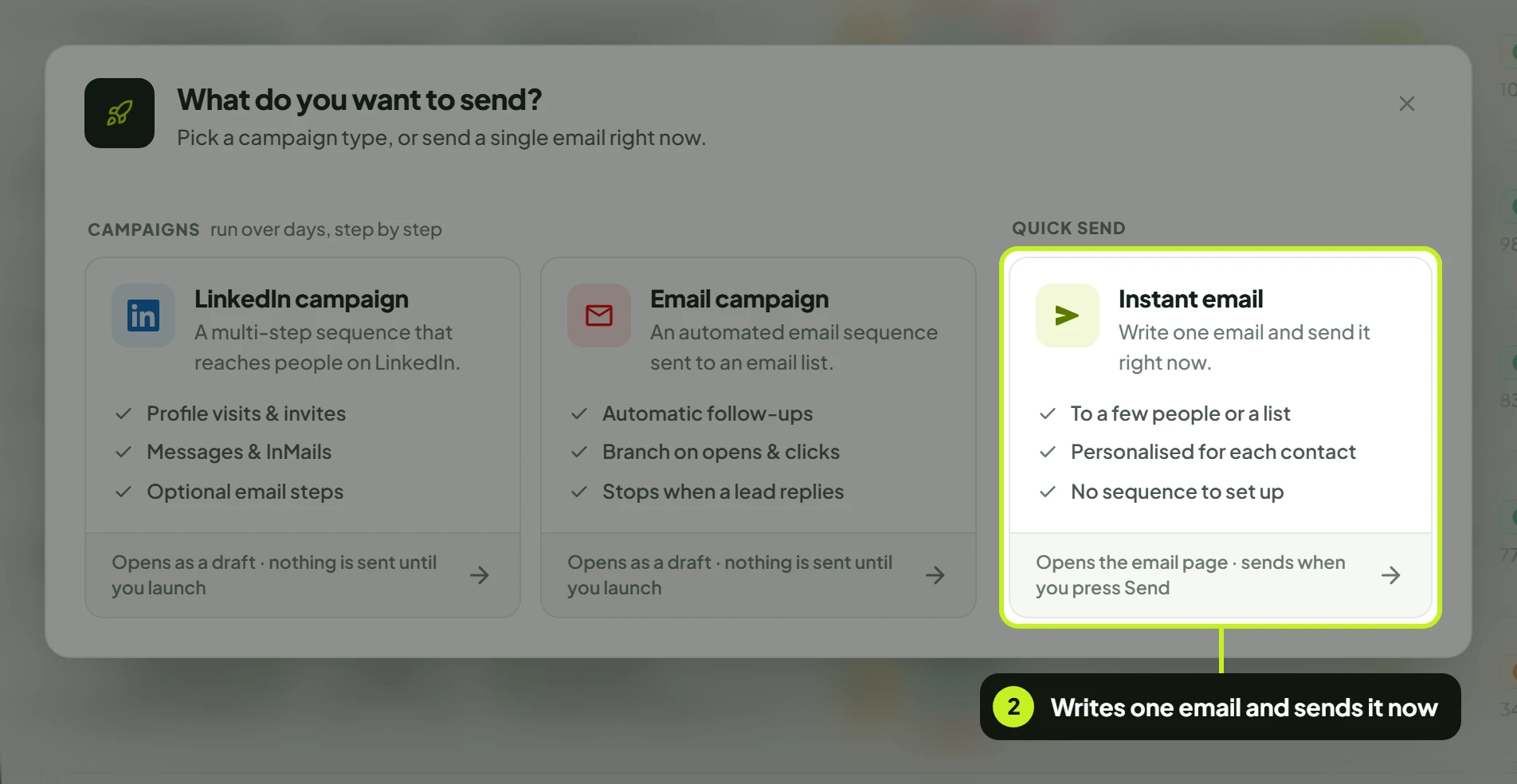
You can also open it from an email list's row menu on Lead Lists (Send email to list, already addressed to that list), or from the search bar (Ctrl K) with Send an email. From there, the link at the top left reads Campaigns and takes you back to the Campaigns page.
Choose who it's from
The page has three sections: Sender, Recipients and Email.
- How an instant email works on the right shows what sending will create.
- Under Sender, choose the inbox in From.
- Enter a Sender name — the name recipients see, for example Jane from Acme. It's required.
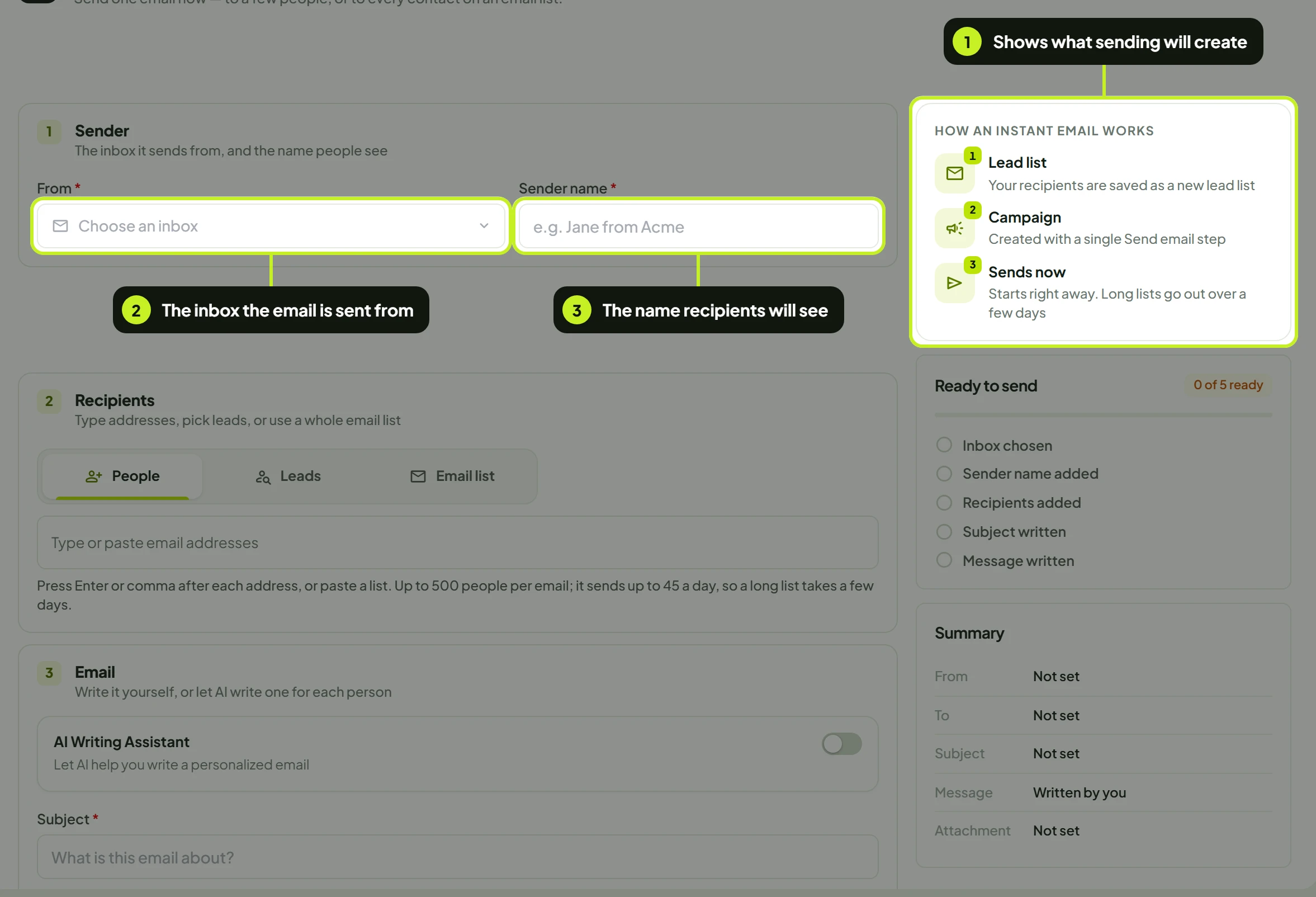
Choose who it goes to
Under Recipients, next to To, pick one of three ways to address the email:
| Mode | Who gets it | Limit | Notes |
|---|---|---|---|
| People | Addresses you type or paste | Up to 500 | Fastest for a handful of people. Saved as a new lead list when you send. |
| Leads | Leads already in ReacherPro, picked by name | Up to 500 | Only leads with an email address are listed. |
| Email list | Every contact on an email list | The whole list | The only mode where the personalisation variables are offered. |
People
- Click People.
- Type an address and press Enter or a comma, or paste a whole list. Each address becomes a chip. Click × on a chip to remove it.
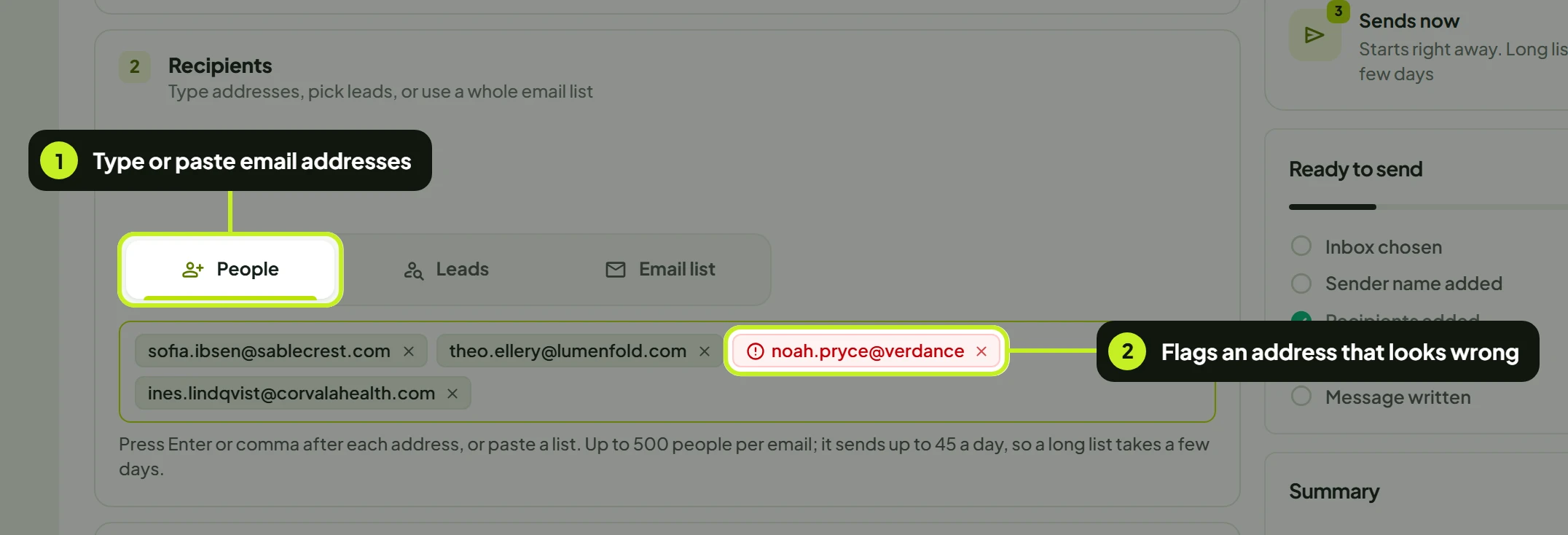
An address that doesn't look valid turns red (This does not look like a valid email address). Fix or remove it before sending. Repeated addresses are dropped automatically.
Leads
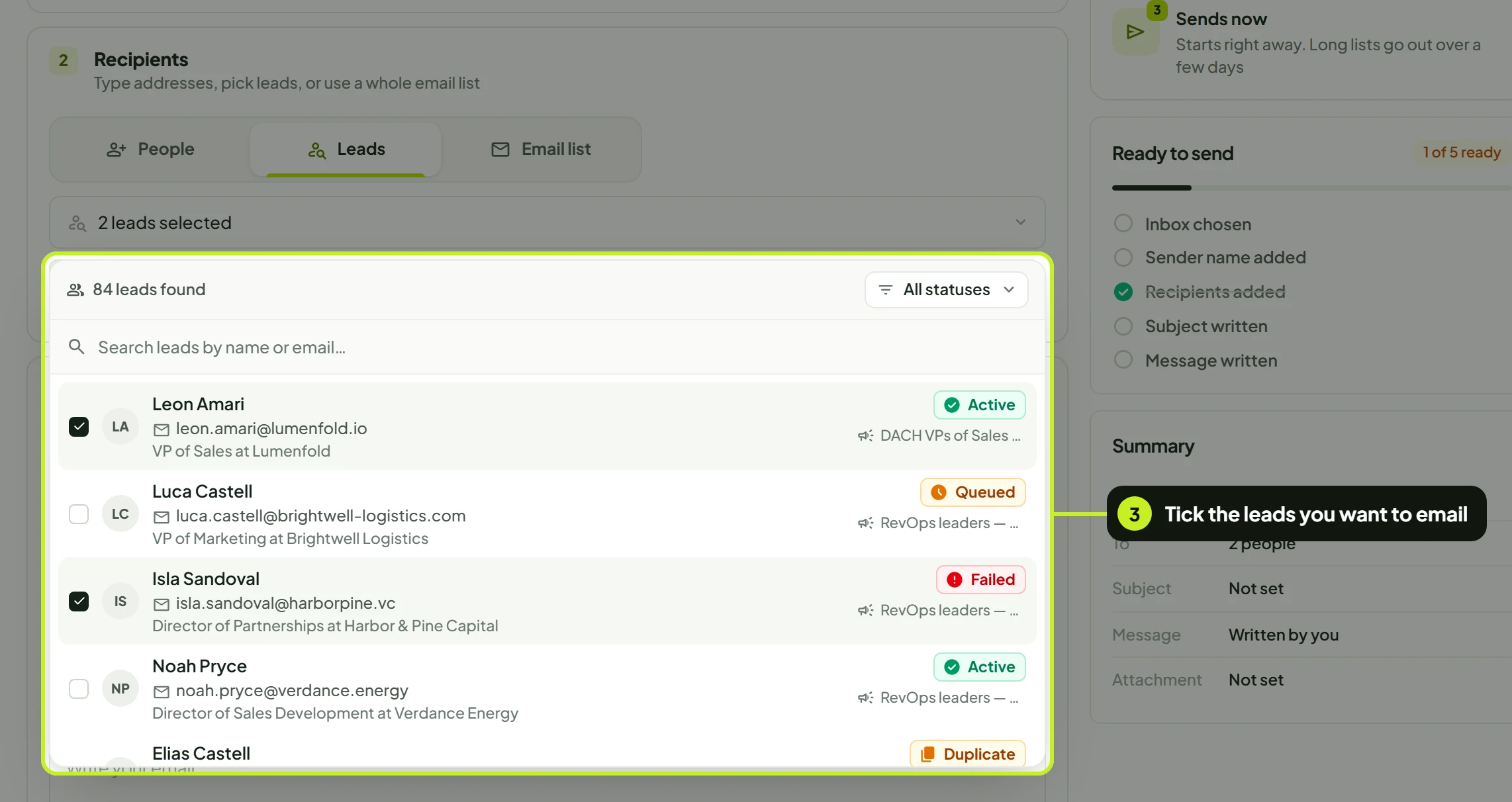
- Click Leads, then open Choose leads.
- Search by name or email with Search leads by name or email…, or narrow the list with All statuses. Each lead shows their email, headline, status and campaign.
- Click leads to tick them. They appear as chips under the field. Once you've picked three or more, Clear all removes them in one go.
Email list
- Click Email list, then choose the list. Each list shows its number of contacts.
- Under Personalise each copy, click a variable to insert it into your message: First name, Last name, Full name, Company or Job title. Each contact's copy is filled with their own details.
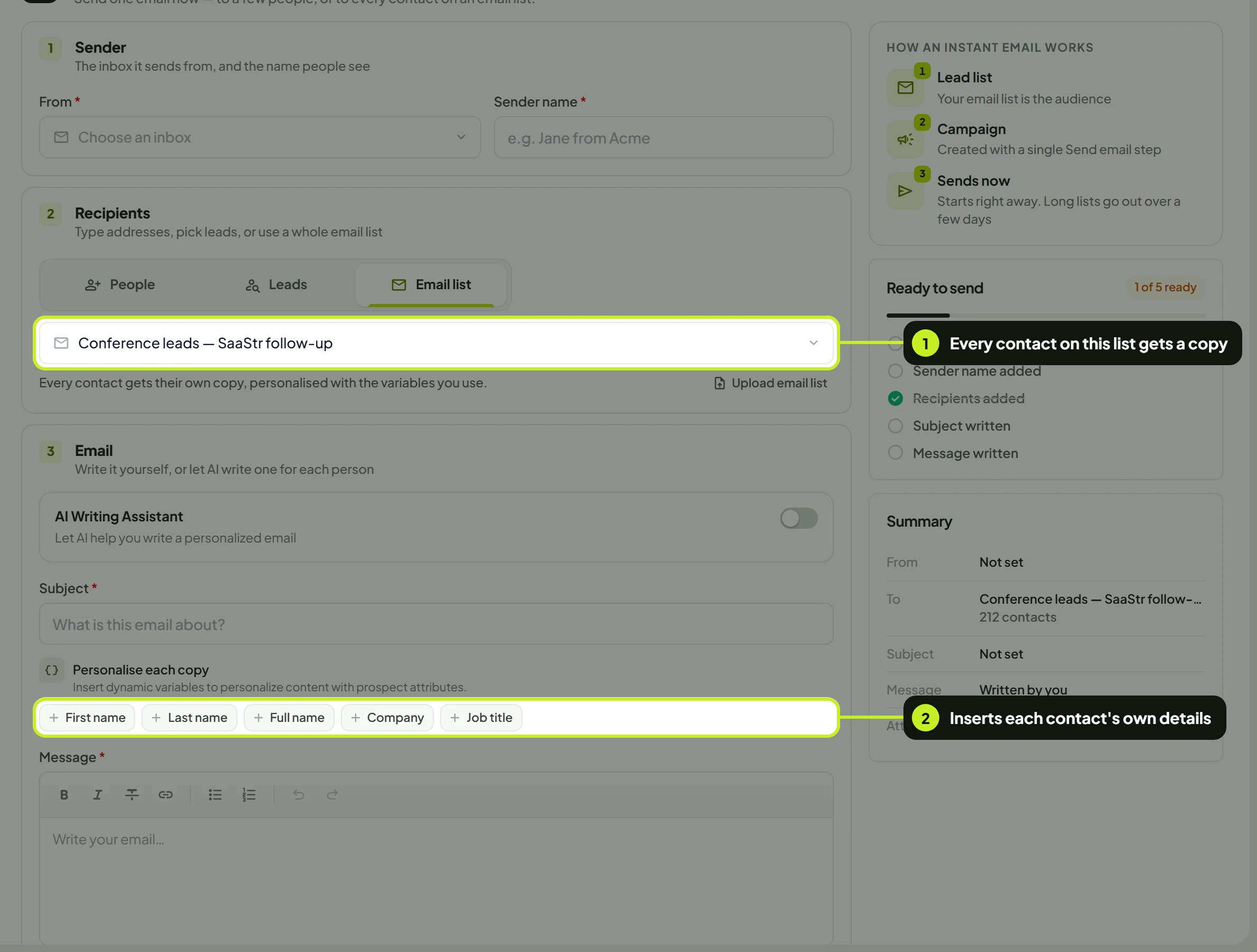
No list yet? Click Upload email list. The page steps aside while you upload, then comes back with the new list selected.
| Variable | Inserts | Example |
|---|---|---|
| First name | {{first_name}} |
Daniel |
| Last name | {{last_name}} |
Brooks |
| Full name | {{full_name}} |
Daniel Brooks |
| Company | {{company_name}} |
Ledgerly |
| Job title | {{role}} |
VP Sales |
Write the email
Write it yourself
Under Email:
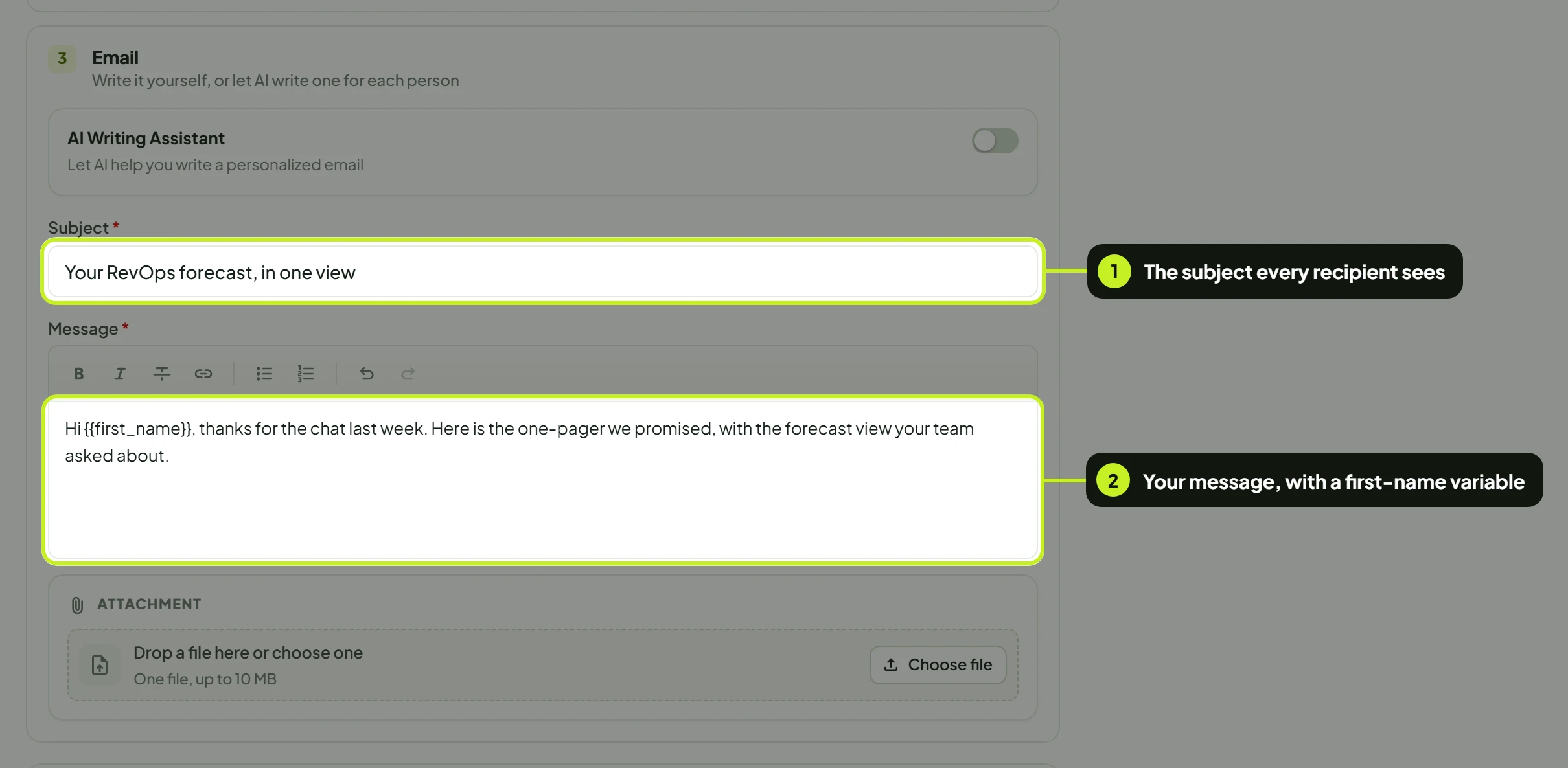
- Enter a Subject (up to 200 characters).
- Write the Message. Use the toolbar for bold, italic, strikethrough, links and lists. In Email list mode, add variables from Personalise each copy.
Or let the AI write it
- Turn on AI Writing Assistant. The Subject and Message fields are replaced by the AI's settings, and the checklist reads AI will write each email.
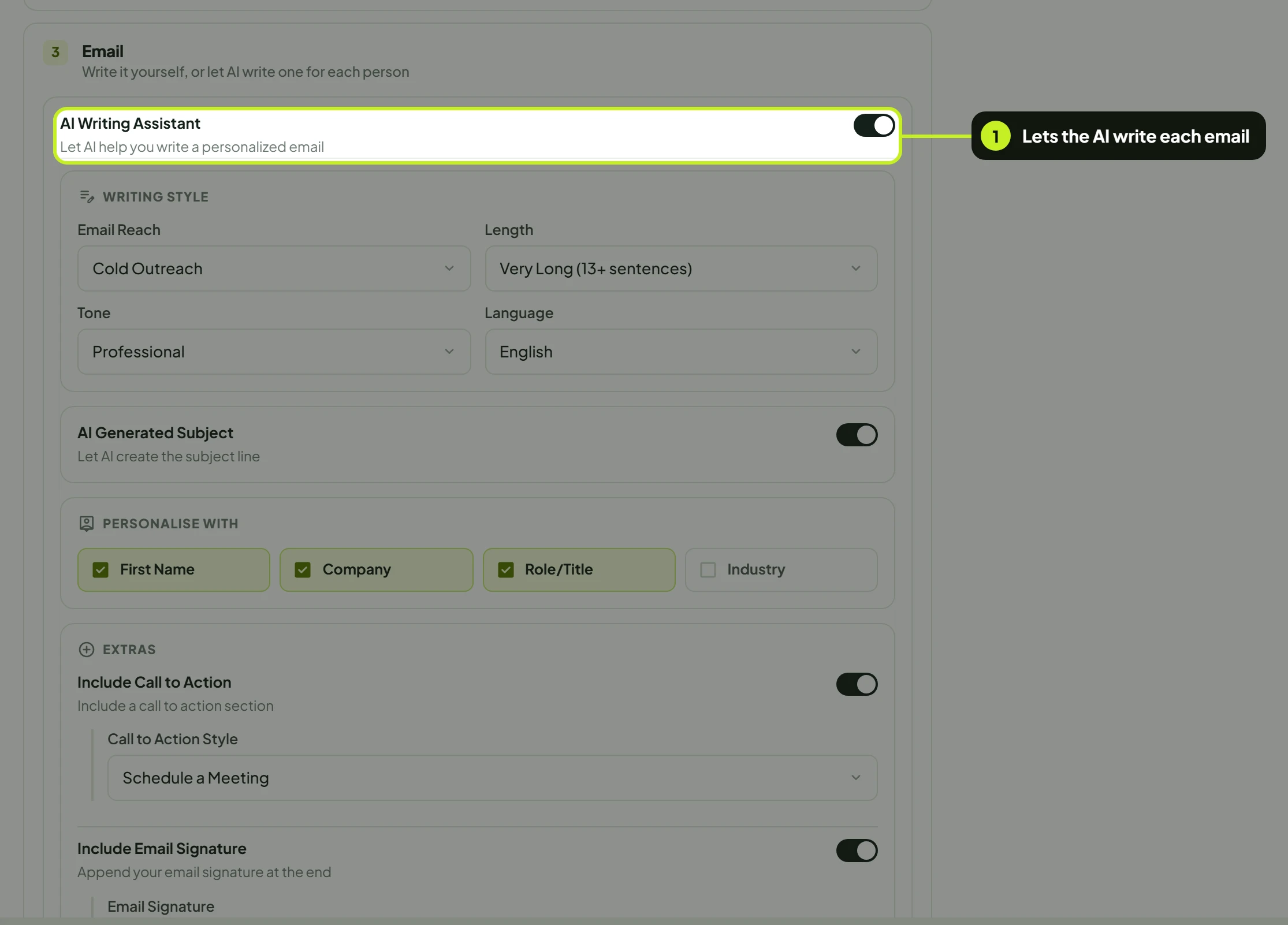
- Set Email Reach (Cold Outreach, Follow-up, Meeting Request, Value Proposition, Case Study or Custom), Length, Tone and Language.
- Leave AI Generated Subject on to let the AI write the subject, or turn it off and type one.
- Choose what to personalise under Personalise with (First Name, Company, Role/Title, Industry), and whether to Include Call to Action (with a Call to Action Style) and Include Email Signature.
- Add anything the AI should know in Custom Guidelines, then click Generate Example Email to see a sample.
These are the same settings as an email step in a campaign — see Run an email campaign.
Attach a file and review
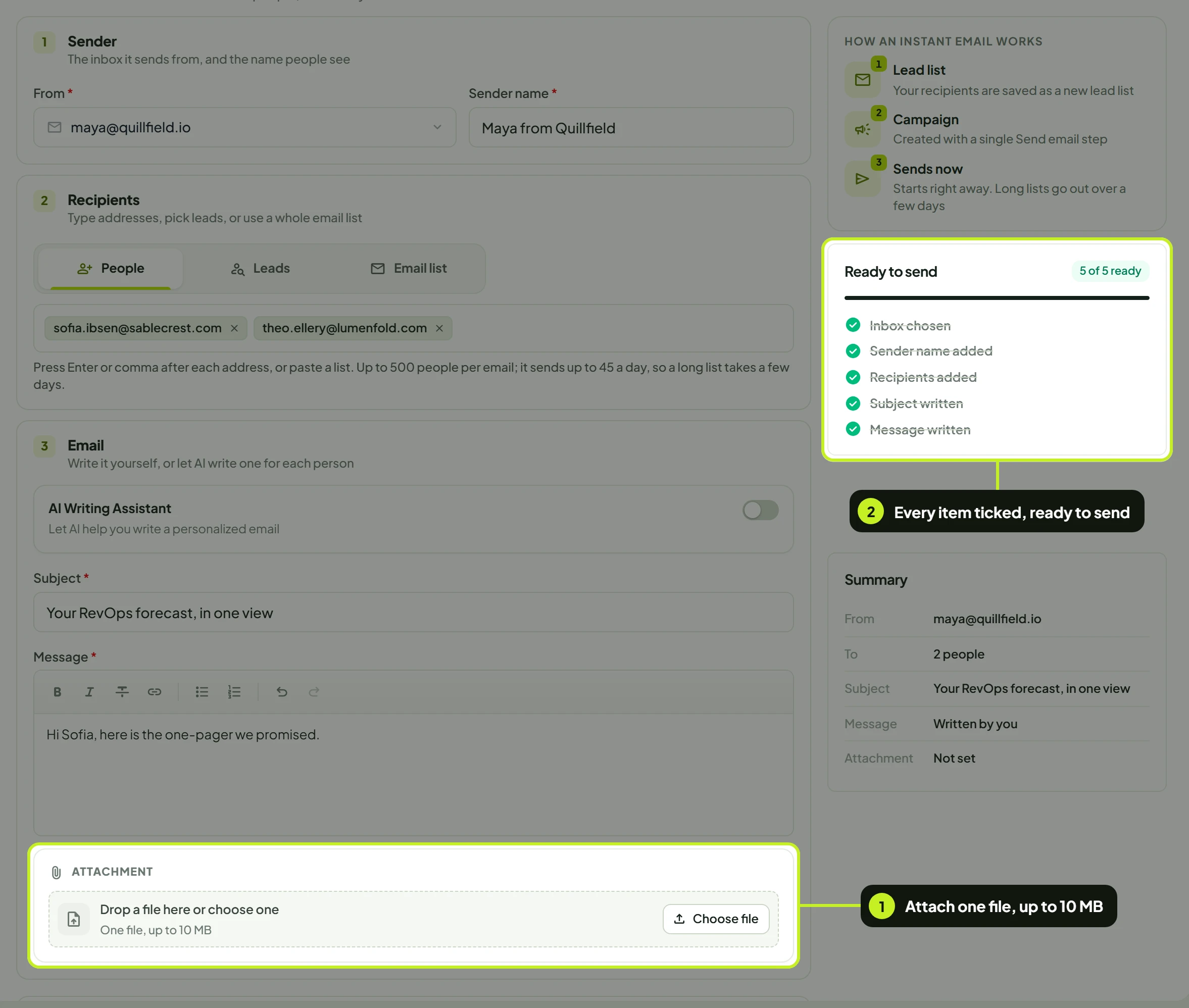
- Optionally attach one file under Attachment (one file, up to 10 MB): click Choose file or drop it in.
- Check Ready to send on the right, under How an instant email works. It ticks off Inbox chosen, Sender name added, Recipients added, Subject written and Message written (or AI will write each email), and reads 5 of 5 ready when you're set. Summary repeats the sender, the recipients, the subject, the message (Written by you or Written by AI) and the attachment.
The card under the form says who it reaches, for example Sending to 3 people or 640 contacts will each get a copy, next to Cancel and Send email.
Send it
- Click Send email.
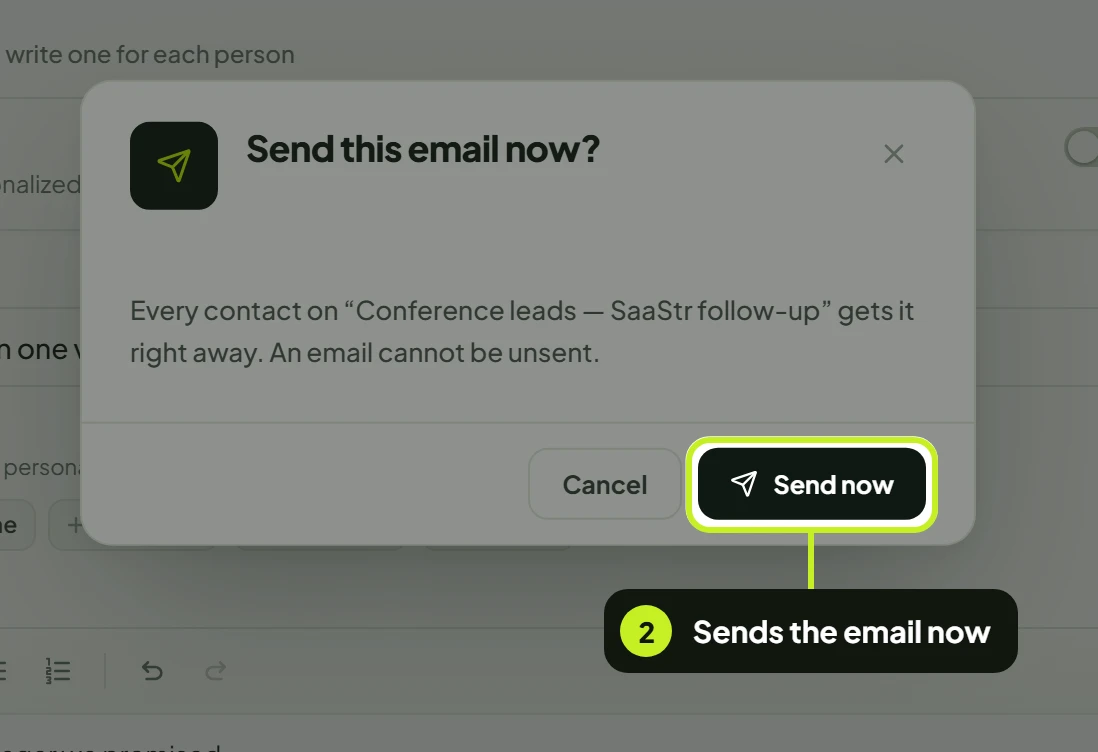
- If you're sending to an email list, or to more than five people, Send this email now? asks you to confirm. Click Send now.
You'll see Email sent to 3 people, or Email is on its way to {list}. Replies will appear in Conversations. for a list.
What sending does
- It can't be unsent. Sending starts the moment you confirm.
- It creates a lead list and a campaign. The campaign is named Instant email · with the date and time, carries a bolt on its channel mark, and shows its progress like any campaign. See Track a campaign.
- Long lists take time. An instant email sends up to 45 a day, so a list of 400 takes about nine days rather than going out all at once.
- Your Do Not Contact list still applies. Blocked addresses and leads already being contacted elsewhere are skipped. See Use the blocklist.
- Replies arrive in Conversations.
Common problems
| What you see | What it means | What to do |
|---|---|---|
| Connect an inbox to send email | There's no connected inbox. | Click Connect email account. |
| Choose the inbox to send from | From is empty. | Choose an inbox. |
| Add the name your email is sent from | Sender name is empty. | Enter a sender name. |
| Fix or remove 1 invalid address | A red chip isn't a valid address. | Correct it or click ×. |
| Up to 500 addresses per email — use an email list to reach more | Too many people or leads. | Upload them as an email list and use Email list. |
| Choose an email list / Choose at least one lead | No recipients in that mode. | Pick a list, or tick at least one lead. |
| Add a subject / Write a message | The subject or message is empty. | Fill them in, or turn on AI Writing Assistant. |
| Keep the subject under 200 characters | The subject is too long. | Shorten it. |
| No leads with an email address found | None of your leads has an email address. | Use People or Email list instead. |
| The variables don't show | You're in People or Leads mode. | Variables are offered only in Email list mode. |
| Unable to send this email right now. Please try again. | The send didn't go through. Nothing was sent. | Try again. Your draft is kept. |
Next: Need follow-ups that stop on reply? Build an email campaign.