
Browse docs
Prevent duplicate outreach
Turn on one setting so a lead already contacted by one campaign or seat is skipped by every other, and see where Duplicate and Blacklisted leads show.
Updated
On this page
The same person often turns up in more than one lead list. A Head of Sales can match your UK fintech search and your Payments leaders CSV. Prevent duplicate outreach makes sure they only hear from one campaign at a time.
Why it matters
- No double messages. A prospect who gets the same pitch from two of your seats in one week is far less likely to reply, and more likely to report you.
- Your team looks coordinated. Two SDRs never work the same lead at once.
- Your seats stay healthy. Fewer wasted invites and messages means more of each seat's daily pace goes to new people.
How it works
- You turn on Prevent duplicate outreach on the Do Not Contact page.
- When a campaign is about to start a lead, it checks whether another campaign or seat in your workspace is already contacting them.
- If one is, this campaign skips the lead before any step runs, even if both campaigns use the same lead list. The lead shows as Duplicate, with the reason.
- The lead is skipped, not deleted. They stay in the other campaign, and in your lead lists.
Before you start
- To change the setting, your role needs permission to update the workspace. Without it, the switch shows its current state but is locked, and hovering it names the missing permission.
Turn it on
- In the sidebar, under Outreach, click Do Not Contact.
- On the Prevent duplicate outreach card, turn on the switch.

The change saves as soon as you flip the switch, and you'll see Exclusions saved. There's no separate save button. The label under the card changes from Not enforced to Enforced.
It applies to every campaign and seat in this workspace. Leads that any campaign starts from then on are checked, including leads in campaigns that were already running. It's one setting for the whole workspace, shared by your whole team. Agencies set it separately for each client account.
To turn it off, flip the switch back. Campaigns can then contact a lead who is already in another campaign.
The setting at a glance
| What you see | What it means |
|---|---|
| Prevent duplicate outreach | The setting's name, on the Do Not Contact page |
| When a lead is already being contacted by one campaign or seat, every other campaign skips them, even if they share a lead list. | What it does |
| Applies to every campaign and seat in this workspace | Its reach: the whole workspace, not one campaign |
| Enforced / Not enforced | Whether it's on right now |
Where skipped leads show up
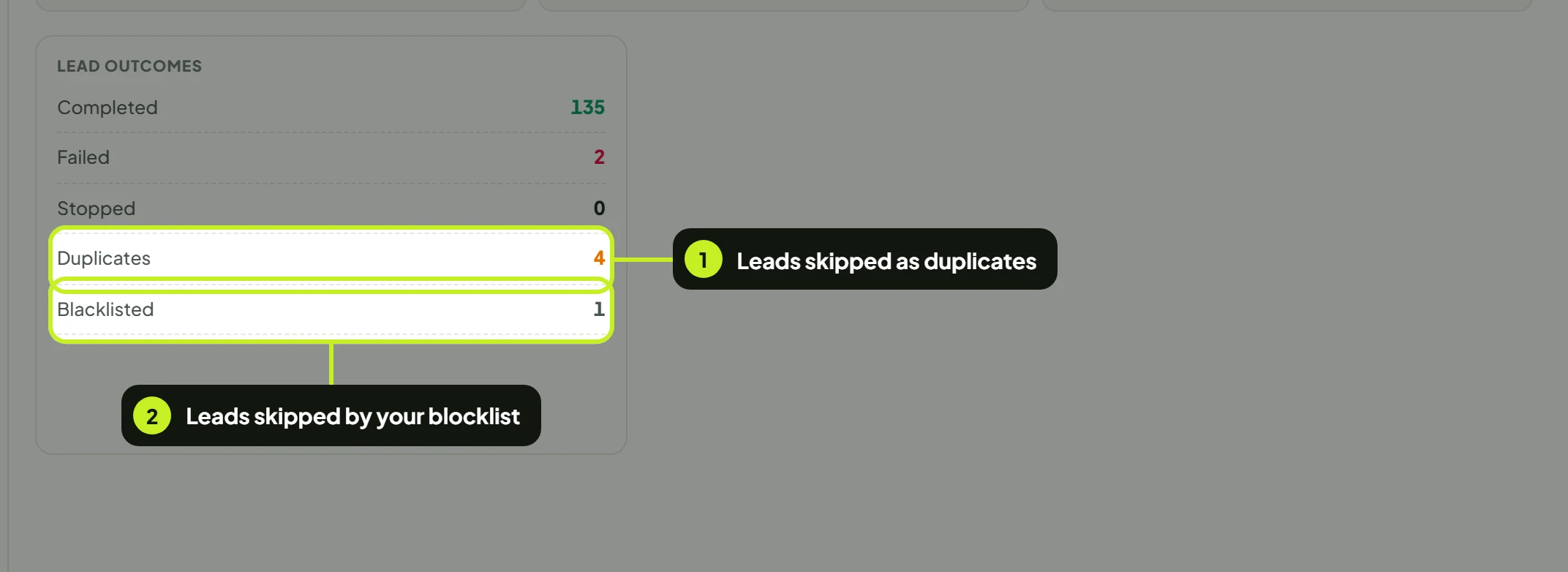
Skipped leads are counted in three places. Each one shows Duplicate (skipped by this setting) next to Blacklisted (skipped by your blocklist).
On a campaign
- On Campaigns, open the campaign and click Overview. (For a quick look, hover the row's results: the stats card counts them as skipped.)
- Duplicates and Blacklisted count the leads this campaign skipped before outreach.
On the Leads page
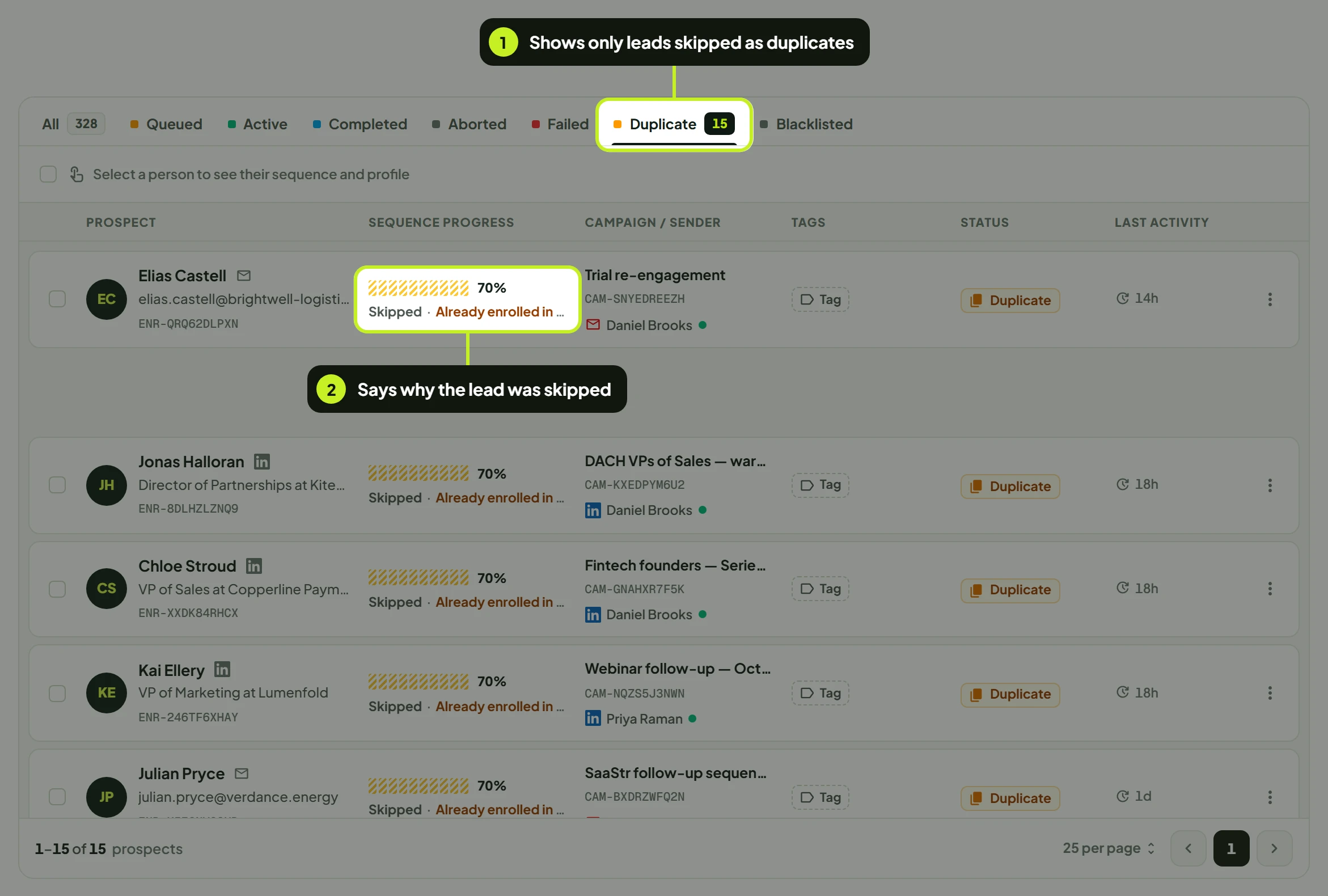
- On Leads, click the Duplicate tab.
- Each skipped lead shows Skipped under Sequence progress, with the reason it was skipped.
In a lead list
Open a list from Lead Lists. Leads by status at the top shows how many of its leads are Duplicate and Blacklisted. Hover a skipped lead's info icon to see why. See Manage, edit and delete lists.
Good to know
- A skipped lead stays skipped in that campaign. They keep the Duplicate status there, and there's no sequence to stop or restart. To reach them later, add them to a new campaign.
- You may see Duplicate leads with the setting off. The reason under the lead says why it was skipped, for example Already being reached from this account.
- It's not the same as the blocklist. This setting only stops overlap between your campaigns. To make sure someone is never contacted at all, add them to the blocklist.
Common problems
| What you see | What it means | What to do |
|---|---|---|
| Couldn't save exclusions | The change didn't save, and the switch flipped back. | Try again. If it keeps happening, check your role can update the workspace. |
| The switch is locked and the tooltip names a permission | Your role can't change workspace settings. | Ask a workspace admin to turn it on, or to update your role. |
| A campaign has fewer leads in progress than its list holds | Some leads were skipped as Duplicate or Blacklisted. | Open the campaign's Overview to see the counts. |
| A lead you expected to be contacted shows Duplicate | Another campaign or seat is already reaching them. | Find them on Leads (search their name, All tab) to see which campaign has them. |
| The same lead is in two campaigns at once | The setting was off when the second campaign started them. | Turn it on. Stop one of the two with Stop execution on Leads if you need to. |
Next: See every lead and their status in Work with leads.