
Browse docs
Billing and credits
How ReacherPro plans, seats and AI credits fit together, what the Billing tab shows, how to check your seat usage and how to choose and request your plan.
Updated
On this page
ReacherPro is priced per seat. This guide explains what a seat is, how your plan follows your seat count, what AI credits are, and where to check and change what you have.
Note: You choose your seats in ReacherPro, and our team sets the plan up and sends the invoice. Nothing is charged inside the app.
How it works
- A seat is one sender. Each connected LinkedIn account or email inbox uses one seat. People on your team don't use seats.
- Your plan sets your seat limit. The Accounts page shows how many seats you're using out of that limit.
- The plan follows the seats. Choose a team size and the plan comes with it: Team for 3 to 9 seats, Agency for 10 to 20.
- Every seat brings AI credits each month. The AI features draw on them. Nothing else does.
Before you start: Only the Owner and workspace admins can open the Billing tab, whatever their role. See Roles and permissions.
Open Billing
- Go to Settings and click the Billing tab. If you don't see it, you're not a workspace admin.
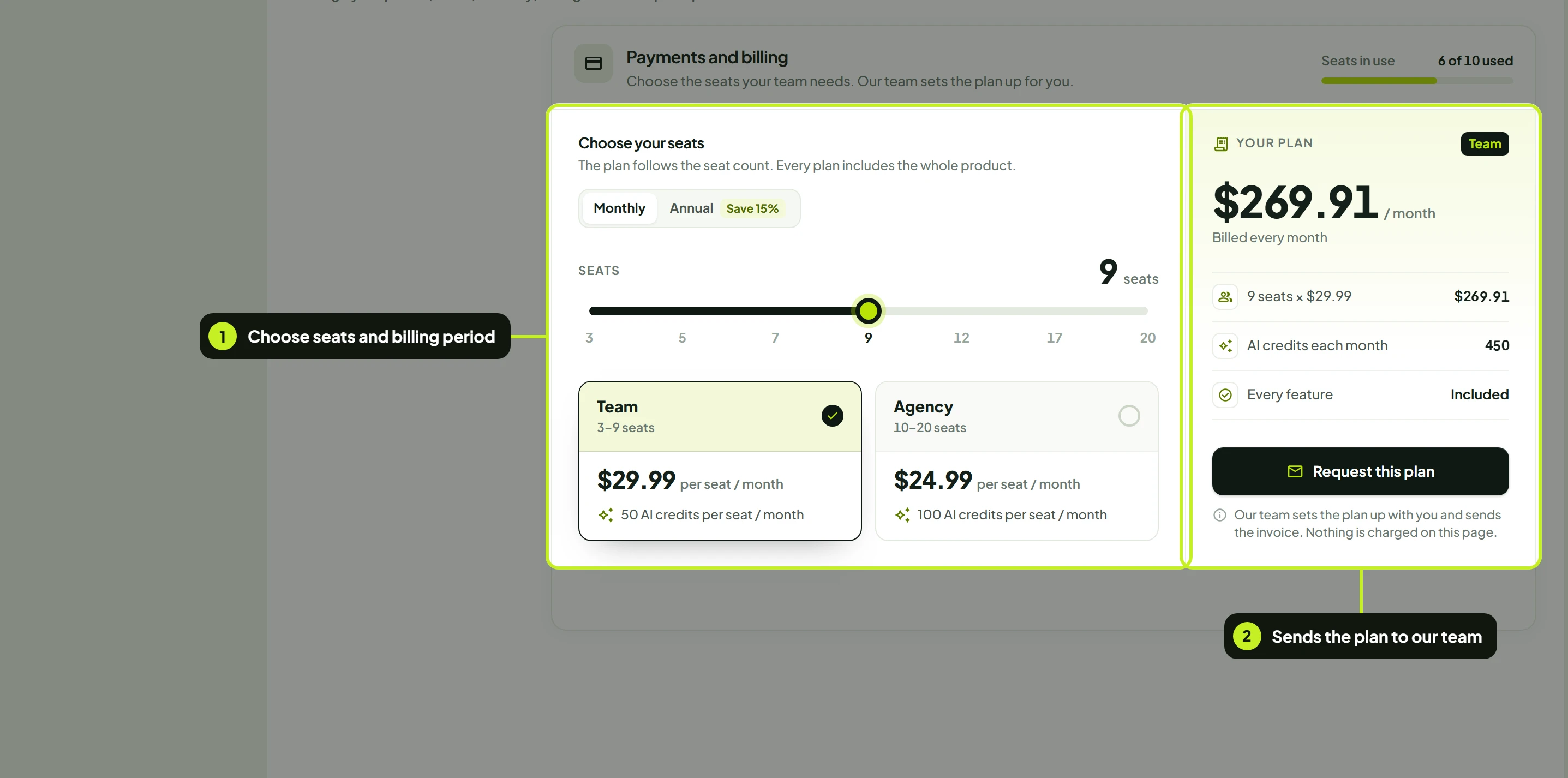
The tab shows three things:
- Seats in use, at the top right: how many are in use out of your limit, for example 6 of 10 used.
- Choose your seats: a Monthly or Annual switch, the seat count and a slider to set it (or click a number under the slider), and the Team and Agency plans with their price per seat and AI credits. The plan your seat count lands on is marked.
- Your plan: the monthly total, the breakdown (seats × price per seat, AI credits each month) and Request this plan. If you choose fewer seats than you already use, a note says so and Request this plan stays unavailable until you choose at least that many.
Plans
Every plan includes the whole product. The only differences are the price per seat and how many AI credits each seat brings.
| Plan | Seats | Monthly billing | Annual billing | AI credits |
|---|---|---|---|---|
| Team | 3 to 9 | $29.99 per seat per month | $25.49 per seat per month | 50 per seat, every month |
| Agency | 10 to 20 | $24.99 per seat per month | $21.24 per seat per month | 100 per seat, every month |
- You choose the seat count. Tell our team how many seats you need, and your plan follows it.
- Annual billing takes 15% off either plan.
- More than 20 seats? Our sales team sets those up. See Pricing for the full details.
For example, a team of 5 on Team, billed monthly, pays 5 × $29.99 = $149.95 a month and gets 250 AI credits a month (5 × 50).
Check how many seats you're using
- In the sidebar, under Workspace, click Accounts. At the top right, Seats shows how many are in use out of your limit, for example 3 of 10 used, and how many are still available.
- Need more? Click Contact us next to Need more seats? to email the ReacherPro team.
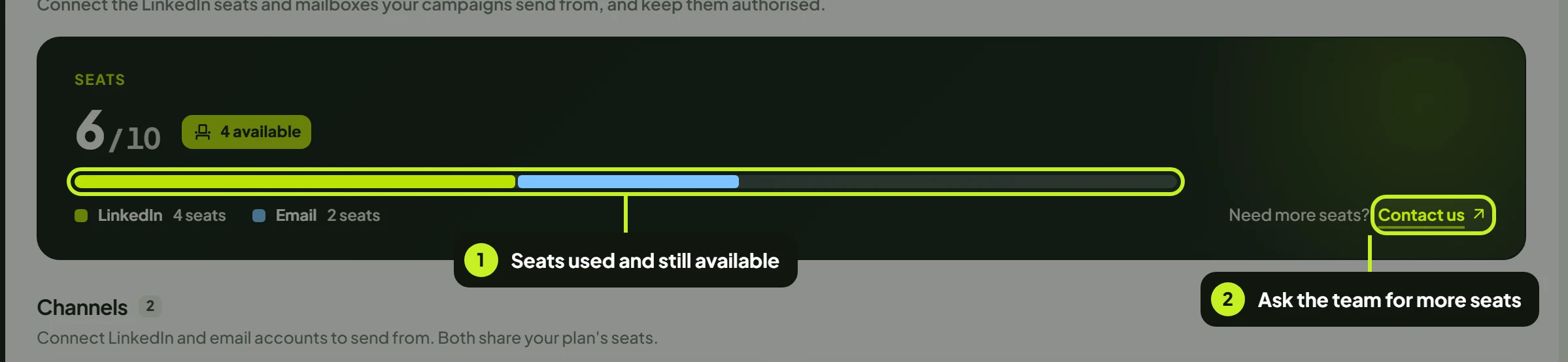
Both channels share one pool. LinkedIn accounts and email inboxes come out of the same seats. When every seat is in use, you can't connect another account until you free one up or add seats. See Manage seats and reconnect.
Seats aren't people. Adding a teammate on the Team tab doesn't use a seat. See Invite your team.
AI credits
Each seat adds a monthly allowance of AI credits to your workspace: 50 per seat on Team, 100 per seat on Agency. Credits pay for AI writing, and renew every month. Campaigns, conditions, lead imports, the Conversations inbox and the Dashboard never use them.
Add seats or change your plan
- Go to Settings > Billing.
- Under Choose your seats, pick Monthly or Annual. Annual saves 15%.
- Set your team size: drag the slider, click a number under it, use − and +, or click a plan to jump to it.
- Check Your plan: the plan, the monthly total, the price per seat and the AI credits.
- Click Request this plan. Your mail app opens an email to our team with the plan, seats and billing period filled in. Send it.
- Our team sets the plan up and sends the invoice. The new seat limit shows on the Accounts page and the Billing tab as soon as it's done.
More than 20 seats, or a custom arrangement? Click Talk to us next to More than 20 seats?, or email [email protected].
Going from 9 seats to 10 moves you from Team to Agency, because the plan follows the seat count.
Troubleshooting
| What you see | What it means | What to do |
|---|---|---|
| No Billing tab in Settings | Billing is only for the Owner and workspace admins | Ask your Owner or an admin |
| Seats shows every seat used, for example 10 of 10 used | Every seat in your plan has a LinkedIn account or inbox connected | Disconnect a seat you no longer use, or click Contact us for more |
| You can't connect another LinkedIn account or inbox | You've reached your seat limit | Same as above |
| You added a teammate but the seat count didn't change | That's expected. Team members aren't seats | Nothing to do |
Next: Choose how ReacherPro tells you about replies and alerts in Preferences and notifications.