Browse docs
Preferences and notifications
Set your theme and language, turn on push notifications, pick which alerts your workspace gets in the app, by email or webhook, and use the notifications menu.
Updated
On this page
ReacherPro can tell you about new replies, campaign milestones and account problems in four ways: in the notifications menu, as browser push notifications, by email, and by webhook. You choose these on the Preferences tab in Settings, along with your theme and language.
How it works
| Setting | Applies to | Who can change it | Saved |
|---|---|---|---|
| Theme and Language | You, in this browser | Anyone | Straight away |
| Push on this device | You, in this browser | Anyone | Once your browser allows it |
| Delivery preferences (in-app, email, webhook) | The whole workspace | People with Organization: Update | When you click Save preferences |
Before you start: To change Delivery preferences you need the Organization: Update permission. The Owner and workspace admins have it. Without it you can still see the switches, but they're locked. See Roles and permissions.
Change your theme and language
- Go to Settings and open the Preferences tab.
- Under Appearance & language, choose a Theme: Light, Dark or System (System follows your device's setting). Then pick a Language for menus, buttons and messages.
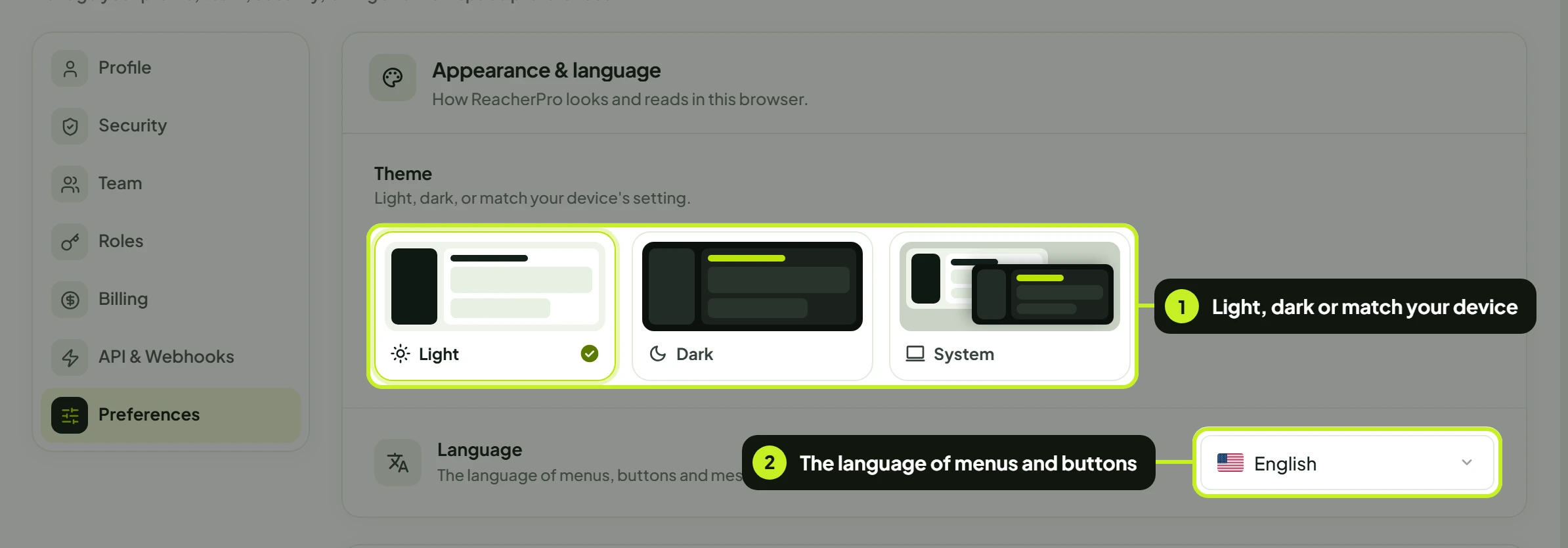
Both apply straight away, with no save button. They're stored in this browser only, so set them again on another computer, and your teammates keep their own.
Get push notifications on this device
Push notifications appear on your computer even when the ReacherPro tab is closed.
- On the Push on this device card, click Enable push.
- When your browser asks, click Allow. You'll see Push enabled, and the status changes from Off to On.

- To check it works, click Send test push. You should get Push is working within a few seconds.
ReacherPro may also show a bar at the top of the app: Get browser alerts for new replies, campaign updates, and more. Its Enable notifications button does the same as Enable push. The × (Not now) hides it.
Push is per browser. Turn it on in every browser and on every computer where you want alerts.
If the status reads Blocked, your browser is refusing notifications from ReacherPro. Allow them in your browser's site settings, then reload the page.
Choose what the workspace receives
Delivery preferences decide which channels ReacherPro uses for the whole workspace. They're on by default.
| Switch | When it's on |
|---|---|
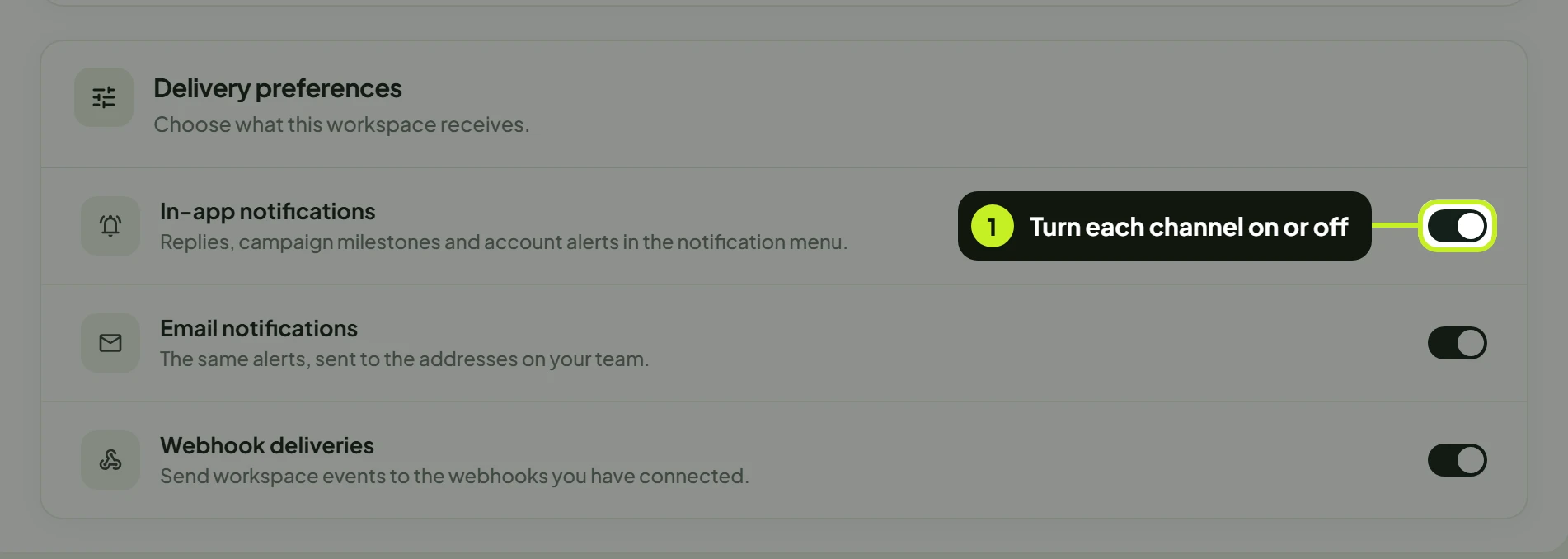
| In-app notifications | Replies, campaign milestones and account alerts appear in the notifications menu |
| Email notifications | The same alerts are emailed to the people on your team |
| Webhook deliveries | Workspace events are sent to the webhook endpoints you've registered on API & Webhooks |
- Turn each switch on or off.
- Click Save preferences. The bar with You have unsaved changes. appears as soon as you flip a switch. Discard puts the switches back. You'll see Preferences saved.
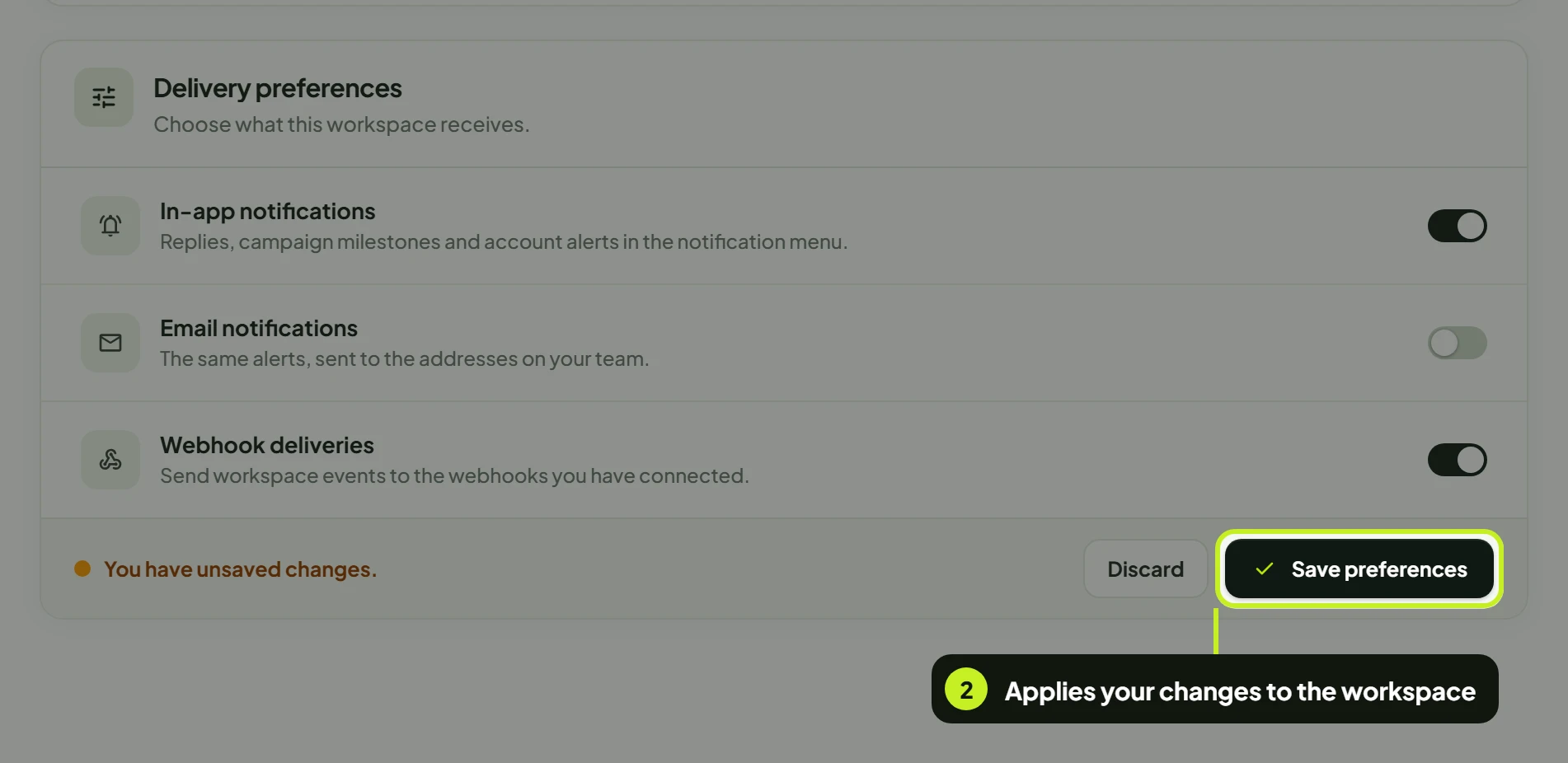
This changes it for everyone. Turning off Email notifications, for example, stops alert emails for the whole team, not just for you.
Turning off webhooks pauses every endpoint. Your webhooks stay registered, but nothing is sent until you turn Webhook deliveries back on. See Webhooks.
Read your notifications
- Click the bell next to your name at the bottom of the sidebar. The Notifications menu opens.
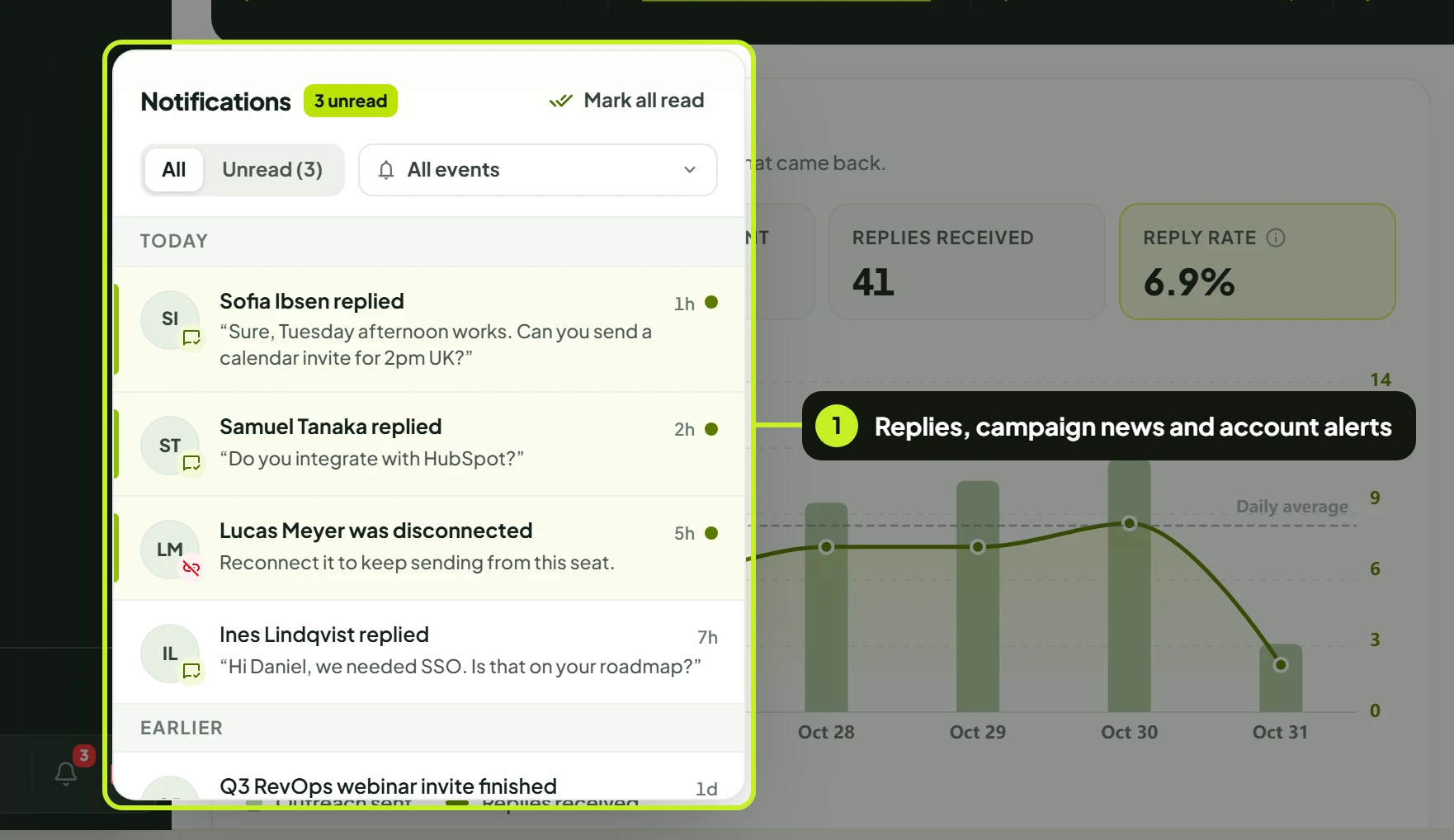
In the menu:
- Switch between All and Unread.
- Filter by Event type: All events, New message or Account disconnected.
- Notifications are grouped under Today and Earlier.
- Click Mark all read to clear the unread count.
- When there's nothing new you'll see You're all caught up.
A New message notification takes you to the conversation. An Account disconnected notification means a LinkedIn account or inbox needs signing in again. See Manage seats and reconnect.
Looking for outreach settings?
Prevent duplicate outreach isn't on the Preferences tab. It's on the Do Not Contact page, with the blocklist, because both decide who your campaigns skip. See Prevent duplicate outreach.
Troubleshooting
| What you see | What it means | What to do |
|---|---|---|
| Push status Blocked, with This browser is blocking notifications. | Your browser has denied notifications for ReacherPro | Allow notifications in your browser's site settings, then reload |
| Push not enabled | You didn't allow the browser prompt, or the device couldn't be registered | Click Enable push again and choose Allow |
| Test push not delivered | No device accepted the notification | Enable push on this device first, then try again |
| The delivery switches are greyed out | Your role doesn't include Organization: Update | Ask the Owner or a workspace admin |
| Could not save your preferences. Please try again. | The save didn't go through | Check your connection and click Save preferences again |
| No alerts in the notifications menu | In-app notifications is off for the workspace | Turn it on and save |
Next: Go back to Account and security to protect your sign-in with 2FA.